

Run a bulk ship session
Pick, pack and label a group of identical orders in one guided session, from Create Pick List to Complete Bulk Ship.
Bulk Ship is the fast path when many orders are identical: pick the shared items once, decide one packing plan for every order, then buy every label in one run. This guide walks one batch from the Batches tab to Complete Bulk Ship. The Packing manual describes every column, banner and message on these screens.
Before you start
Bulk Ship is warehouse work — a client account is turned away. Pin the topbar to a specific warehouse: a batch is always picked from a single building, and the same composition in two warehouses is two separate batches.
Start a batch
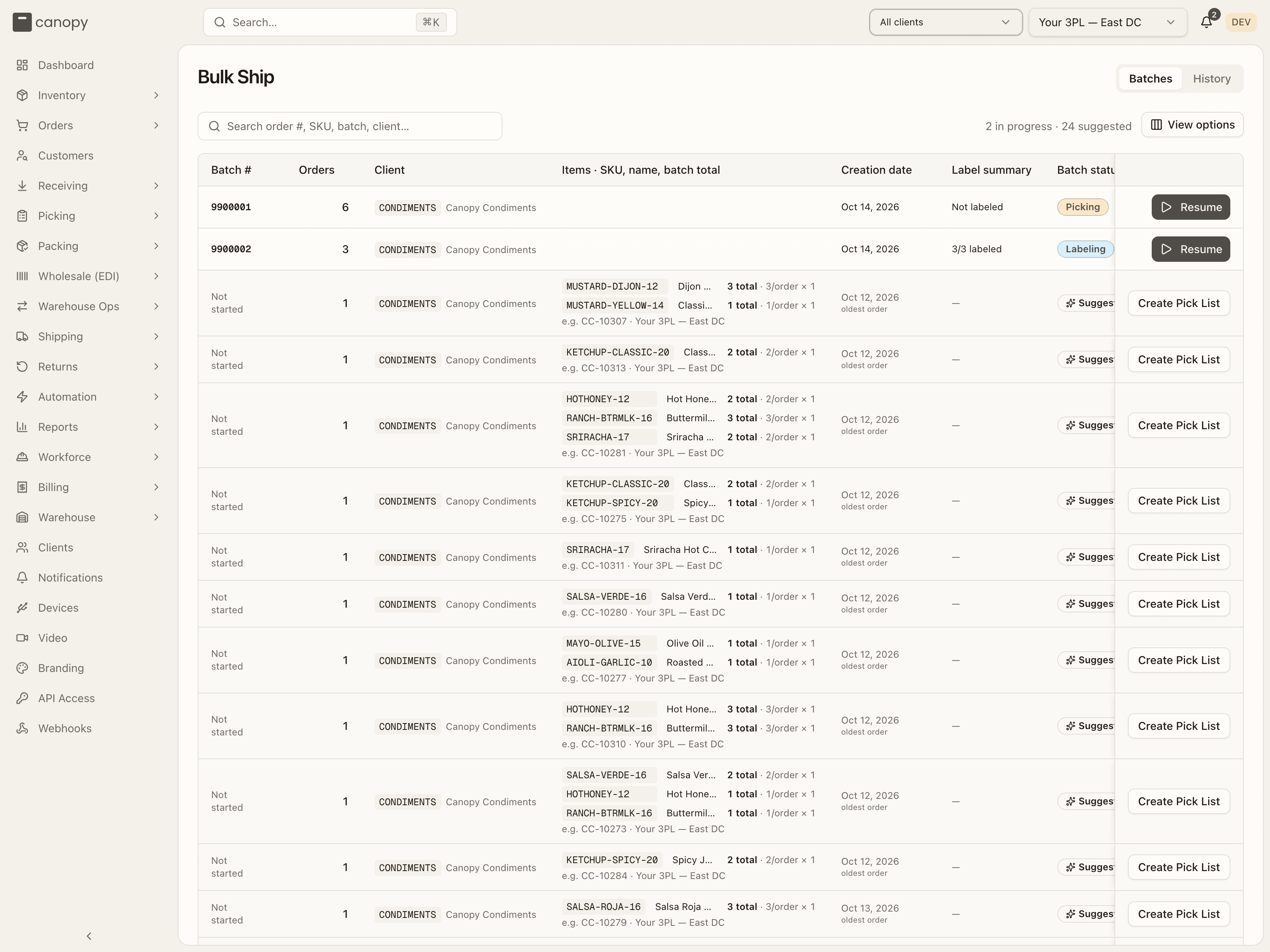
Open Packing → Bulk Ship. The Batches tab lists batches already under way first, then Suggested groups — every set of allocated (or Replenish) orders that share an exact SKU composition in one warehouse. An order that is already in a live batch is never suggested again.
Find the group
Search by order number, SKU, batch number, warehouse or client, or sort by Orders or Creation date. Coming from an order's Replenish banner via Open Bulk Ship, the search box arrives already holding that order number, so its group is the only row. Read the badges: N Replenish means those orders will draw on sellable overstock, and N Partial means backordered orders admitted as partial shipments ship this composition now while the rest stays backordered, and N Reship means those orders ship a reship's re-send. Create Pick List and Resume sit in a column pinned to the table's right edge, so the action stays on screen on a narrow window instead of sitting behind the table's sideways scroll.
Press Create Pick List
Create Pick List ("Creating..." while it runs) opens the batch's session and pins the topbar to the batch's warehouse and client. The batch is picked on its own page unless you send it to the floor (below). If the group cannot be covered from loose (each) stock in sellable bins — pickable or overstock — it fails with "Not enough loose stock to cover this group", and the detail line names the SKU and how many units are short. When the missing units sit in a bin a picker has reported short — an unresolved picking discrepancy — the detail names that bin instead: "N loose unit(s) sit in A001-BB-L001 but are held back by an unresolved picking discrepancy — a picker reported the bin short. Cycle count the bin, or resolve the discrepancy, to release them.", adding "— that still leaves N unit(s) short. If the rest is held in sealed packs, break packs first, then retry." when even those units would not cover it. Break sealed packs, replenish, resolve the discrepancy, or split the work and try again. A batch someone already started shows Resume instead — a link, so it opens in a new tab with a modifier click, and the session's address survives a refresh.
Run the session
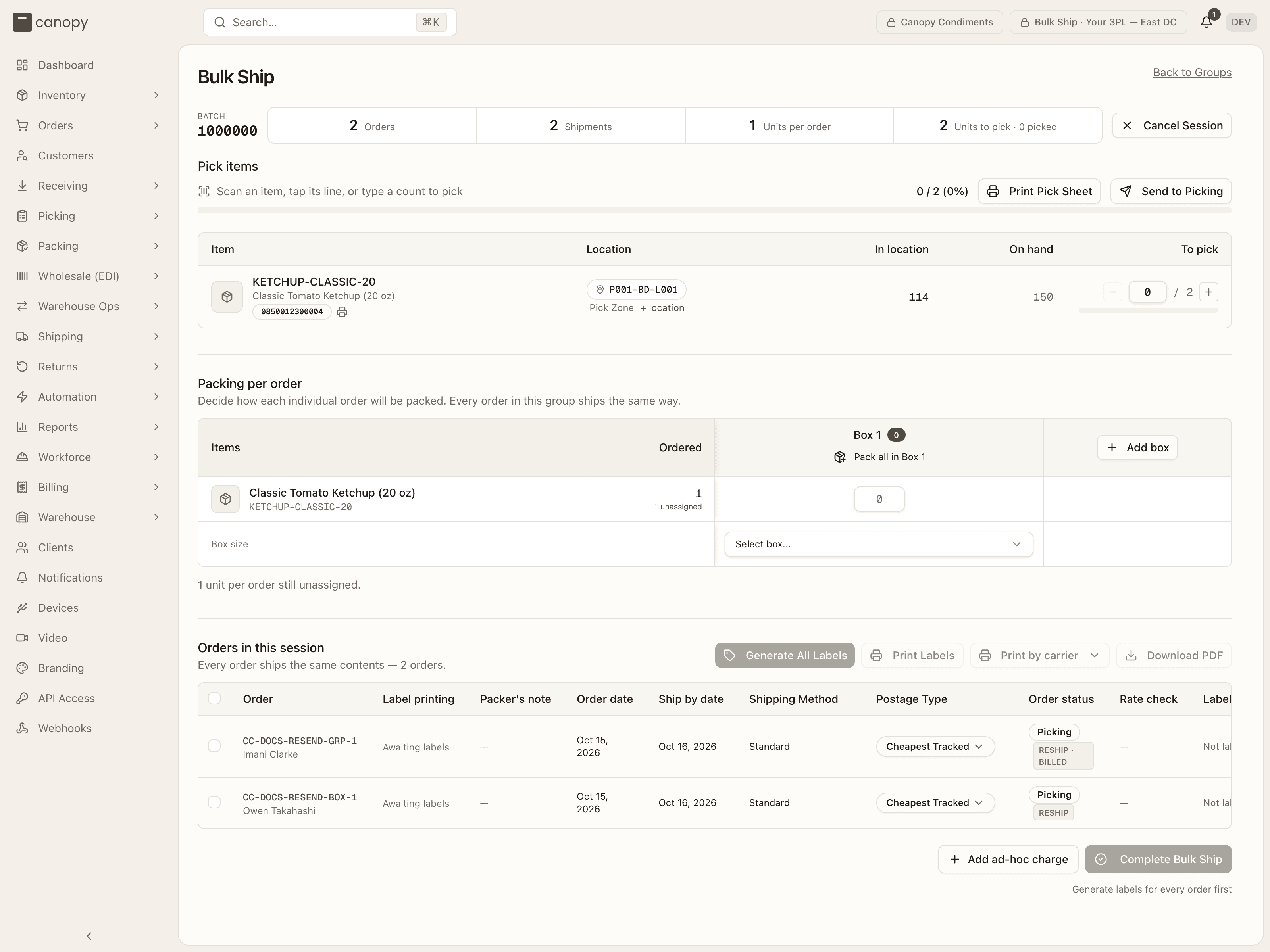
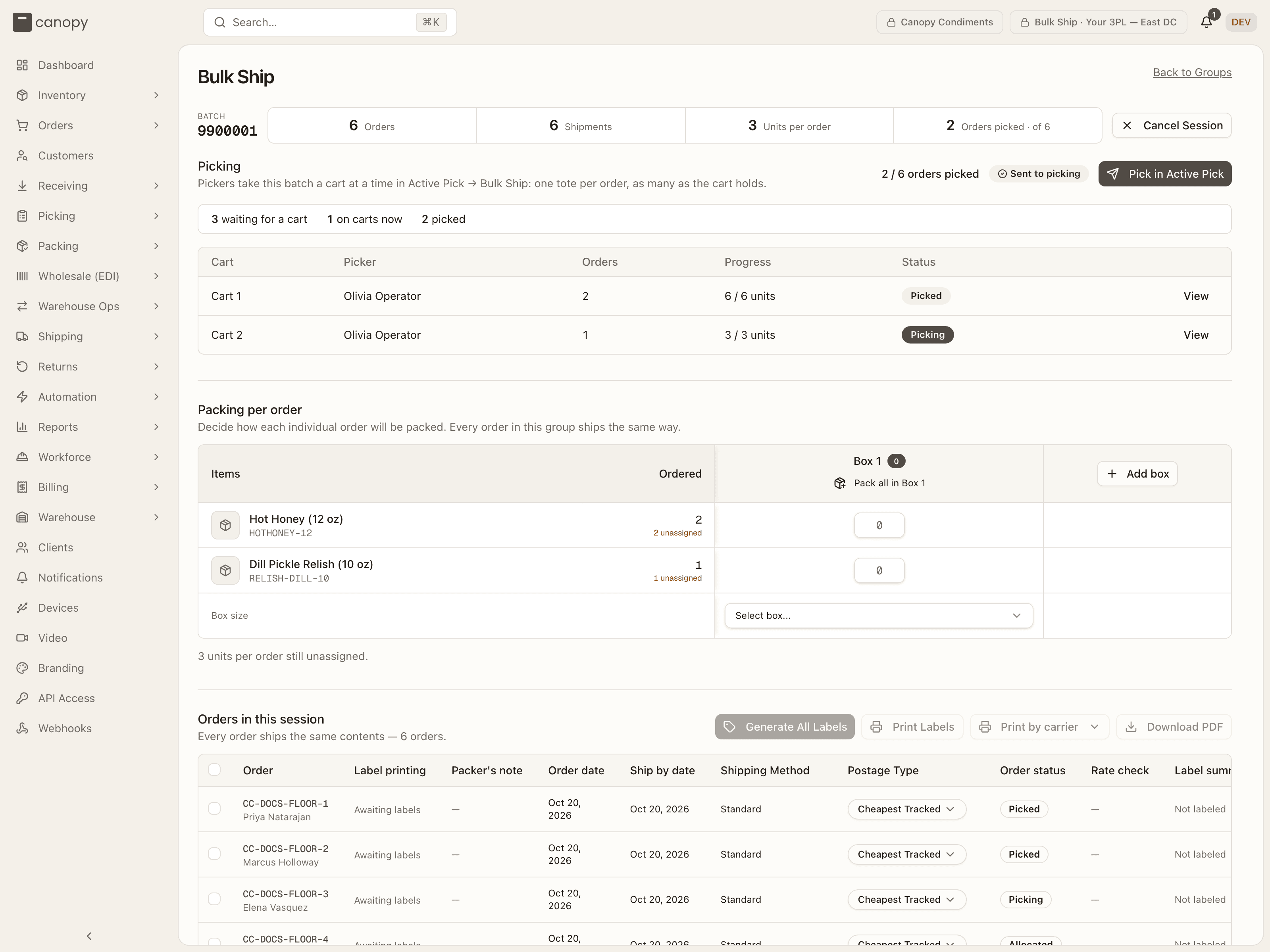
The session is one page with three sections that stay visible and lock as the batch moves past them. The header counts Orders, Shipments, Units per order and Units to pick (Orders picked once the batch has been sent to the floor), and Cancel Session is always available.
An order whose sales channel changed since it was picked carries the pack station's own warning here, one strip per open change, with Open order beside each. A change that is only a note lets you ship as-is: "the channel is only told about items that actually ship. If unsure, remove the order from the batch and check with a lead." A change that holds the order reads instead: "This change holds the order: its label waits until someone decides. Remove the order from the batch, or resolve it on the order." Where the merchant asked to wait, the strip says that instead: "The merchant asked to wait: this order's fulfillment is on hold in the sales channel." Resolve the change on the order and its strip clears when you close the order's sheet; the batch re-reads at that point rather than waiting for the next label run. Orders admitted as partial shipments wear the PARTIAL badge in the session's order table, as they do on the orders list. The full rule is in the Packing manual.
Pick the items
Scan a SKU, tap its row, or type a count into the To pick cell. Each row names the bin and zone to pull from; tap the bin pill to Change picking location, or + location to split the remainder across a second bin. Print Pick Sheet gives the floor a paper list. A scan that is not on the list says "Not on this pick list"; a scan past the expected count says "Already fully picked". The heading reads "Picking complete" when every line is done.
Or send it to the floor
Before anything is scanned, you can press Send to Picking beside Print Pick Sheet instead. The batch's orders go back to Allocated under the batch (the toast reads "Sent to picking — Pickers can now choose this batch in Active Pick."), and pickers take it a cart at a time from Active Pick → Bulk Ship, one tote per order, as many as a cart holds; each cart ends on "Take this cart to the Bulk Ship bench". The pick table gives way to a Picking section counting orders "waiting for a cart", "on carts now" and "picked", with one row per cart and a Pick in Active Pick button. The batch moves on to packing by itself when its last order is picked. The button is disabled once a unit has been scanned here, and a batch with an order on hold is refused ("Order … is on hold — release the hold, or remove it from the batch, before sending to picking"). The Packing manual has every message; the picker's steps are in Pick an order.
Decide how each order is packed
Every order in the group ships the same way, so one plan covers all of them. The plan starts as one empty box: press Pack all in Box 1 for a one-box order, or type how many of each SKU go in Box 1, Box 2, … (Add box for a multi-parcel order), pick a Box size or Custom dimensions, and check the prefilled Weight (lb). The plan autosaves; the line under the table reads "Packing plan complete — each order ships as N boxes." when nothing is left unassigned. Counts stay adjustable until labels exist.
Generate the labels
In Orders in this session, fix anything that will fail first: tick rows and use Get rates to surface bad addresses without buying (an order whose saved postage choice names a carrier account is quoted on that account alone, and a service that account no longer offers fails its row there, not mid-run), or Override postage type to change the service for the selection. Its list is grouped by carrier account, and a pick is the service and the account together; two orders on the same service but different accounts read as Mixed postage types. On a batch sent to the floor, Generate All Labels waits until every order is on a picked cart (hover for "N of M orders still to pick — labels generate once every order is on a picked cart"), and an order that came back to the pool later must be picked on a cart or removed first ("CC-… isn't picked yet — pick it on a cart (Active Pick → Bulk Ship), or remove it from the batch"). Then Generate All Labels buys every order's postage on the carrier account saved beside its choice, or on the client's default account when it names none (already-labeled orders are never re-bought): a one-box plan is one label per order; a multi-box plan is one label per box — or a single multi-package label covering every box, when that carrier account supports it. An account that can no longer buy fails its own order, not the batch. Only PDF labels go into the label document you print or download. A label the carrier returns in another format (a webhook carrier's ZPL) still counts as labeled, and the server returns it as the carrier sent it, on a retry too, but this screen does not print it. A large batch keeps going after "Still generating labels"; the run ends on "Label run finished — N of M orders labeled". If some failed, the "N labels failed" banner lists why and offers Retry failed — a merged master held by a change to an order merged into it is counted separately in the title, wears LABEL ON HOLD with an Open order button, and won't be re-bought until the change is acknowledged on the order. A label the carrier hands over before its document is rendered counts as labeled and wears PDF rendering. An order put on hold while the run is buying labels is skipped, not labeled: its row in "N labels failed" reads "Order is on hold (…) — resolve the hold before buying its label". If the hold lands while that order's label is being bought, the new label is voided straight away. Once the hold is released, press Retry failed. A label bought by mistake can be voided with Void labels (N) — refused while an order is waiting on its own box, naming Boxes to Pull as the way to clear it first: "CC-… waits on its box — answer at Boxes to pull: scanned there, the label is voided and the order leaves the batch; marked gone, it ships with it."
Print and complete
Click Print by carrier beside Print Labels to open the carrier options, which are hidden by default. Print one carrier's labels first, then the next. Each carrier shows "N of M labels printed" and has its own Print <carrier> button. Every print ends on the question Did the labels print successfully?; after checking the paper, choose Confirm printed. Choose Not printed if you cancelled the print dialog or the printer failed, then print again. The confirmation is saved with the batch and survives a reload or a change of workstation.
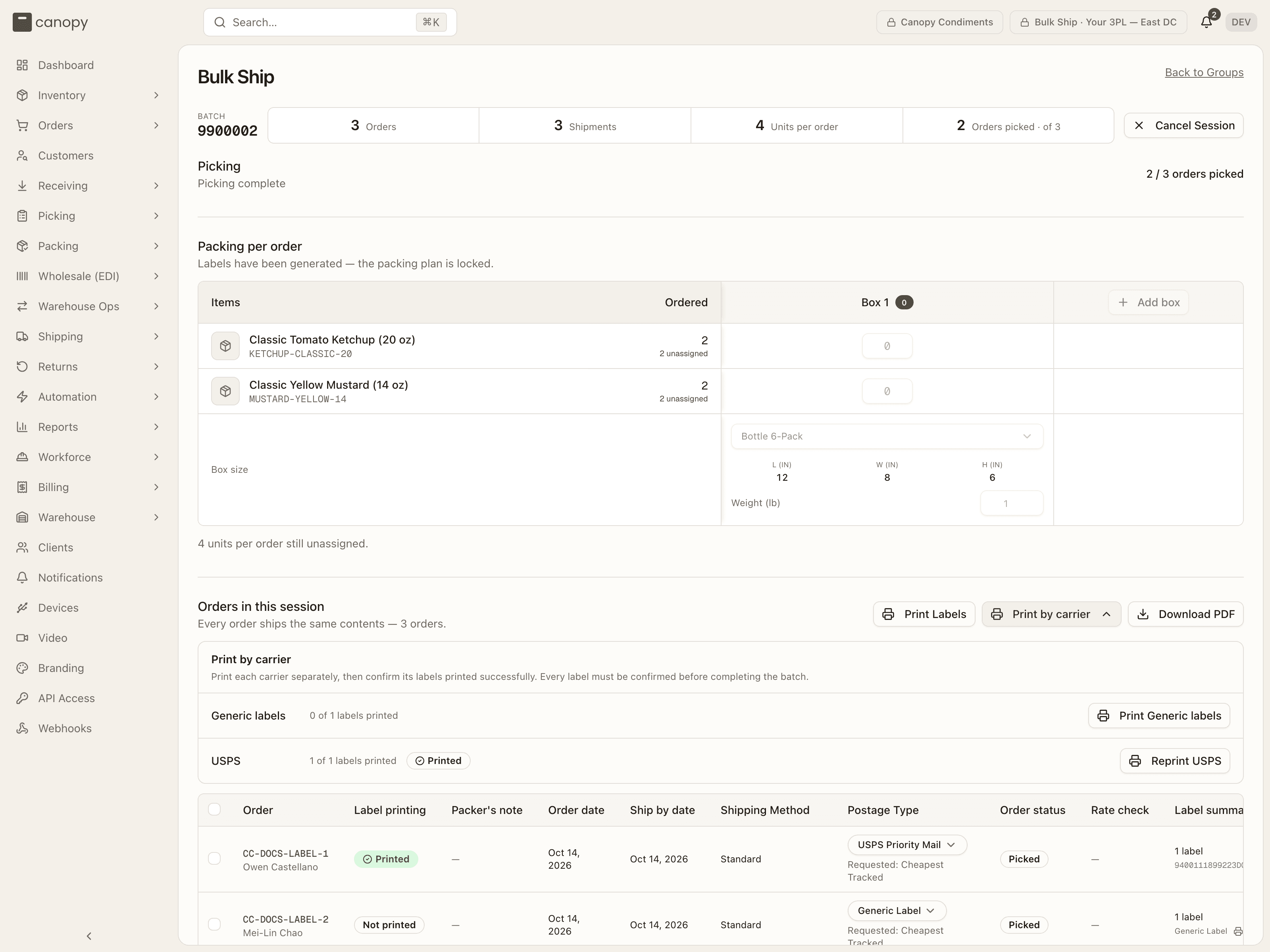
Print Labels sends the whole run as one print job — the batch's picking list first, then each box's cover slip and label, ending on that same list as the END OF BATCH sheet. With several boxes the button is a dropdown so you can re-run a single box position; Print becomes Reprint once those labels are confirmed printed. Download PDF saves that same single document; a PDF rendering label's button reads Fetch and print … and fetches the document on the way.
A print job never drops a label in silence. Any it had to leave out because the carrier is still rendering the PDF are counted and named: "N labels left out — their PDFs are still rendering" when the rest printed, "Nothing to print yet — N labels are still rendering" when none could, each listing the orders (and the box label, on a multi-box shipment) and what to do — print them from their rows, or print again in a minute. The batch's cover sheet counts them apart too, "Not in this stack (PDF rendering): N", so a stack that is missing labels never reads as complete. An order on hold, cancelled, or fulfilled outside Canopy is left out the same way: its label never prints while it is, the job names it ("N orders left out — on hold or not shipping"), and the cover sheet counts it as "Orders left out (on hold or not shipping): N". Release the hold to print it; void a cancelled order's label instead. Complete Bulk Ship unlocks once every order carries a label and every box's label, across all carriers, is confirmed printed; until then the reason sits under it ("Print and confirm every carrier's labels before completing the batch"). Downloading a PDF does not count as printing. A replacement label needs a new confirmation. An order on hold is never shipped around: Complete refuses with "Can't complete this batch — CC-… is on hold (…), and a held order doesn't ship. Remove it from the batch, then complete.", so tick it and Remove from batch (void its label first if the box is still here; release the hold instead if it already left). A live member whose own change — a cancel, a line edit, or an address change — landed after its label is refused the same way: "Can't complete this batch — CC-… changed after its label was bought. Answer at Boxes to pull: a box scanned there is put back and its order leaves the batch; one marked gone ships with it. Then complete."
A hold placed in the moment after you press Complete Bulk Ship is caught too: the toast "Couldn't complete the session" reads "Order is on hold (…) — resolve the hold before shipping it", and nothing in the batch is completed. On a batch sent to the floor, an order never carted is refused the same way, with Remove as the exit. The Packing manual lists every refusal. Completion ends on "Bulk Ship Complete — N orders have been packed and labeled." — unless a merged order's label is on hold, in which case nothing in the batch is packed out and the banner "Batch not completed — a merged order's label is on hold" sends you to the order to acknowledge the change, then complete again.
Cancelling a session undoes real work
Cancel Session returns picked units to their bins, sends the orders back to Allocated or Replenish based on picking stock, puts the group back in the list, and abandons any labels already bought. It asks once before doing so. On a batch sent to the floor it asks differently ("Orders nobody has carted go back to the suggestions. Orders already on a cart or picked keep their pick list and continue to the pack station on their own. Any labels already generated are abandoned."): the carts are not undone. A cancel is refused while an order on hold carries a batch label, since that label is never voided for you ("Can't cancel this batch — … is on hold (…) with its label already bought …"): void it first if the box is still here. To drop just one order, tick it and use Remove from batch instead — after voiding any live label it carries.
The finished batch moves to the History tab, where View opens its record: counts, times, who ran it, the box, and a Picked from table of the bins each line came from. Labels print again from there — Print all labels, or one parcel's print icon — for as long as the batch wasn't cancelled. History marks a still-rendering label PDF rendering beside its tracking, exactly as the live session does, and its print job leaves those out with the same warning rather than in silence.