

Orders
Every order across all your clients — read status, drive it through fulfillment, and manage the sales channels feeding it.
Orders is where every order flowing through the warehouse lives, from the moment it lands off a sales channel to the moment it's delivered. As an operator you see orders across all your clients at once, and you have the actions to move an order through fulfillment. Open it from Orders → Manage Orders.
Operator vs. client view
A brand on a client account sees only their own orders and mostly reads them. You see every client's orders (with a Client column and the "All clients" switcher up top), plus the Tote column and the action buttons below that actually drive an order. Anything marked operator-only on this page is refused by the API for a client user, not just hidden.
Manage Orders
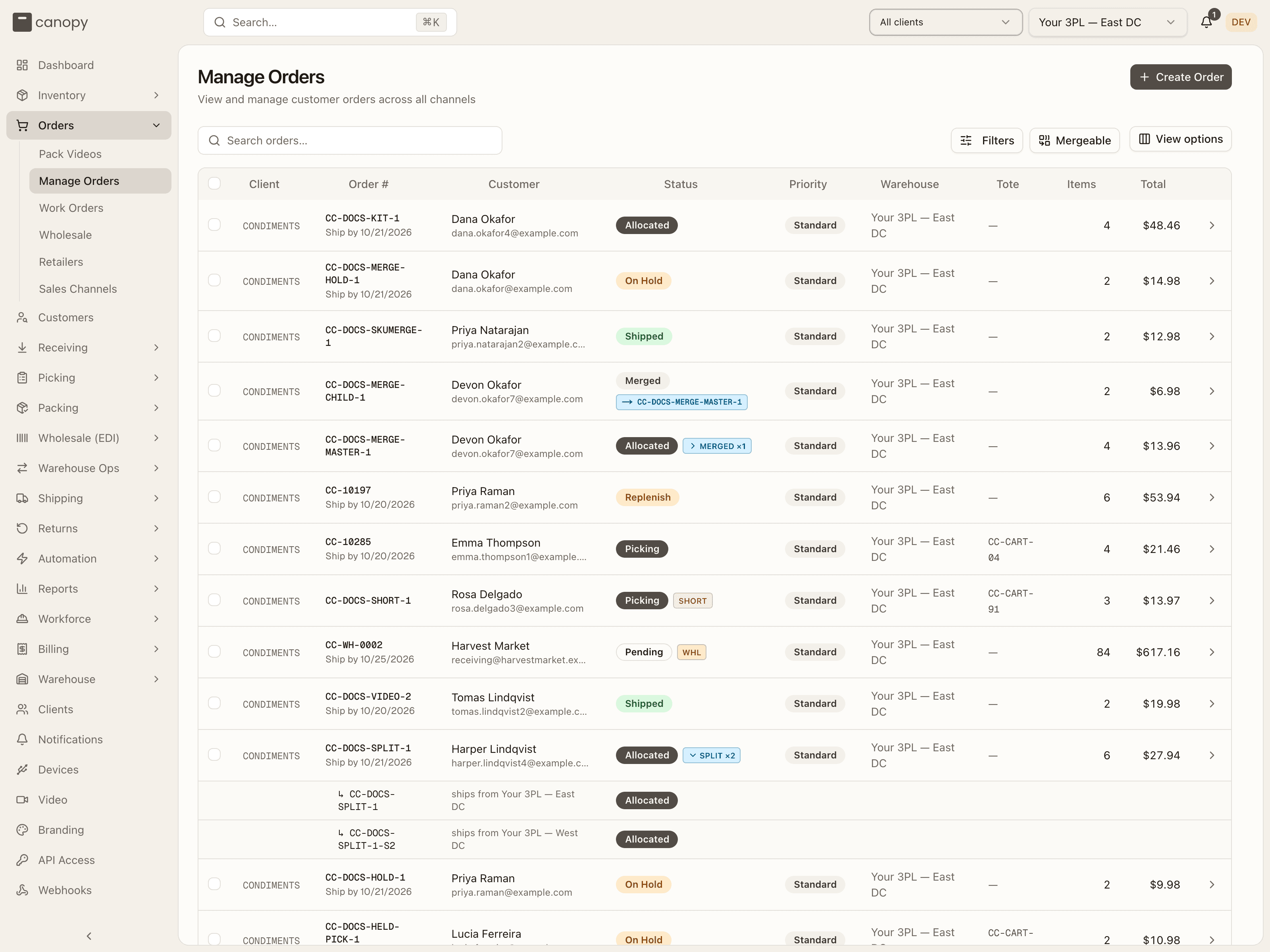
Each row is one order. Operators get two columns that client accounts don't — Client and Tote:
| Column | What you're looking at |
|---|---|
| Client | The brand's client code (operator-only). |
| Order # | The order number, with a "Ship by" date underneath when one is set. |
| Customer | Name and email. |
| Status | Where the order is in fulfillment, plus the chips below. |
| Priority | Standard, Expedited, or Rush. |
| Warehouse | The warehouse the order ships from. Shown once you run two or more active warehouses. |
| Tote | The tote the order is picked into, linking to that tote's page; — until picking starts (operator-only). |
| Items / Total | Unit count and order value. |
Every column header sorts, and sorting is done server-side over the whole filtered set — page 1 really is the top of it. View options (top right) lets you hide columns you don't use, with a Show all columns reset. The list pages at 25 orders by default; the page-size control at the bottom offers 25, 50, 100, or 250.
Statuses
| Badge | Meaning |
|---|---|
| Pending | Received, not yet allocated to stock. |
| Allocated | Stock reserved — ready to pick. |
| Replenish | Stock is reserved, but not in a pickable bin — the units are sitting in overstock. Replenish the pick faces to send it into normal picking, or ship it from overstock through Bulk Ship. Hover the badge for the same line. |
| Picking → Picked → Packing | Moving through the floor. |
| Fulfilled | Packed and labeled. |
| Partially Shipped | Some units left in a parcel; the rest are still owed. A resting state between cycles — see split orders. |
| Shipped → Delivered | In the carrier network, then delivered. |
| On Hold | Paused (e.g. payment or address check). |
| Backordered | Waiting on stock. |
| Cancelled | No longer fulfilling. |
| Unfulfillable | Can't be fulfilled as-is. |
| Merged | Parked inside another order: its lines are picked, packed and shipped in that order's box, and it closes as Shipped when that order ships. See Merging orders. |
| Ext. Fulfilled | Fulfilled outside this warehouse. |
Status chips
Small chips sit beside the status badge — nine kinds, though an order rarely wears more than two:
- WHL — a wholesale order, fulfilled through the carton flow rather than the retail pick pipeline.
- PARTIAL — the order is in a split: some units have gone, the rest are still owed. Hover it for the owed lines — see split orders. Once the last part has gone the chip stays, in grey, so an order that shipped in parts is still recognisable as one: "Shipped in more than one shipment. Nothing outstanding."
- PARTIAL HELD — a short order that may split but is waiting for the brand's minimum or wait — see when a short order waits instead.
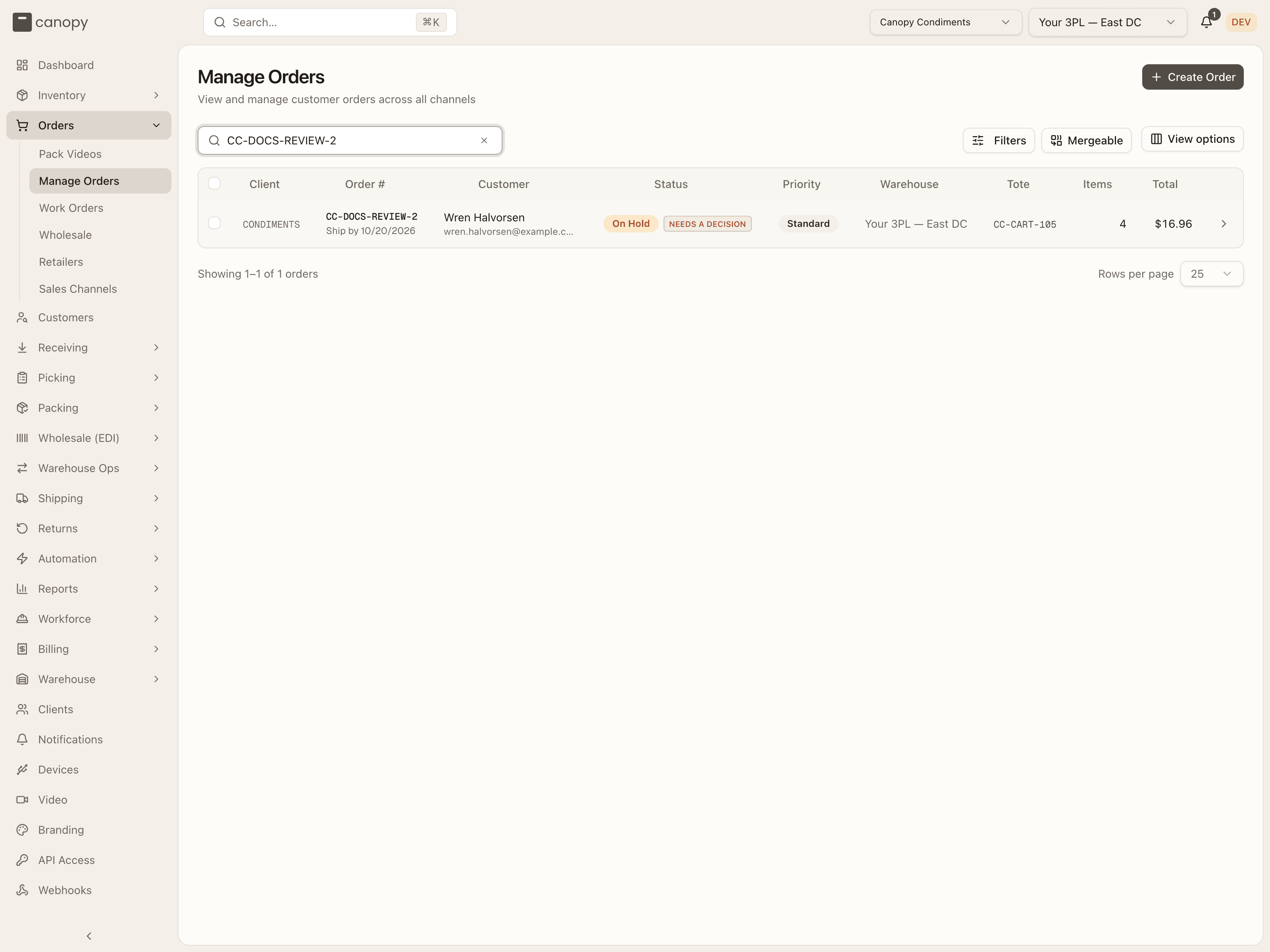
- Needs a decision: the sales channel changed the order, Canopy could not apply the change by itself, and the order is held until someone decides. The chip is red. When the order carries only notes to read, the chip is amber and names the newest note instead, such as Manual postage moved, Routing move refused or Refund received. See the review chip below.
- SHORT — held in picking by one or more unresolved short picks. The order won't advance to packing until each short is resolved in Short Picks.
A shipping address changed behind a live label
When the shipping address changes — from the channel, a brand, or your own edit — after a label has already been bought, the address isn't written: the label still carries the old one. The order holds instead with a BOX_MAY_HAVE_LEFT row (cell 39) naming the new address, and a message telling you to check at Boxes to pull whether the box is still here. This now also covers a live Bulk Ship member behind its own label — not just a retail order — so its Boxes to pull row tells you to scan its label there too, which puts its units back and takes it out of its batch; a wholesale order's cartons are never held this way, since they're answered by their own scan.
Scan the box there: still here, it's relabelled in place to the new address and the hold clears; gone, the order gets an after-ship note that the box shipped with the old address, for the brand to correct with the carrier. A relabel bought through Reship replaces the label itself and is never held this way.
- PARTLY ELSEWHERE — the sales channel assigned some of the order's units to a location Canopy doesn't run, so they are not Canopy's to ship ("Some units are assigned to another location on the channel — not Canopy's to ship"). See units at another location.
- MERGED ×N — this order is the master of a merge: N other orders ship in its box. The chip is a button — see below.
- → CC-… — this order was merged into the named one and ships with it; the chip opens the master ("Ships with CC-… — open it", or "Shipped with…" once it has gone).
- CC-… with a split icon — this order is one warehouse's part of a customer order that was split across warehouses. The chip names the customer's order ("Part of CC-…, split across warehouses — open it") and opens it.
Needs a decision
This chip shows on an order with a change from its sales channel still open. It reads Needs a decision, in red, when at least one of those changes holds the order. When every one is only a note, the chip is amber and reads the newest note's kind. Hover it to see the kind of each change on the order, each kind named once: "Changed on the sales channel — held until someone decides on the order: …", or "Changed on the sales channel — a note to read on the order: …". Open the order to read each change and settle it on its review card. A merged order's changes are the exception: they show in their own banner on the order they ship in.
Merged orders in the list
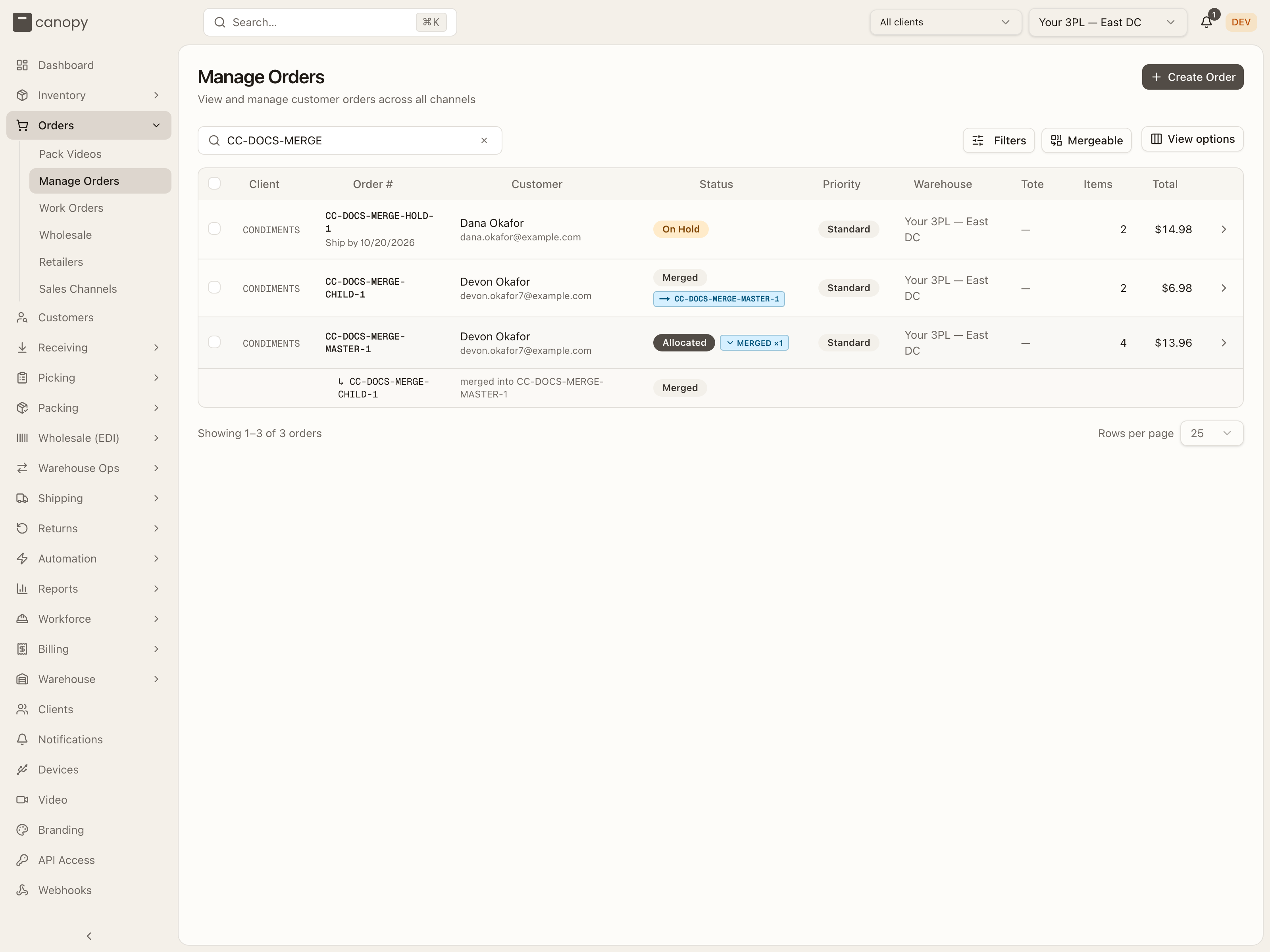
Press a master's MERGED ×N chip and the orders merged into it unfold under the row — ↳ CC-… · merged into CC-…, each with its own status badge — so you can see what one box is carrying without opening the sheet. The chip's tooltip names them too ("CC-…, CC-… ship in this order").
Search and filters
Search (by order number, customer, or email) stays inline. Everything else lives in the Filters popover; the button carries a badge counting the filters currently narrowing the list, and Clear all resets them.
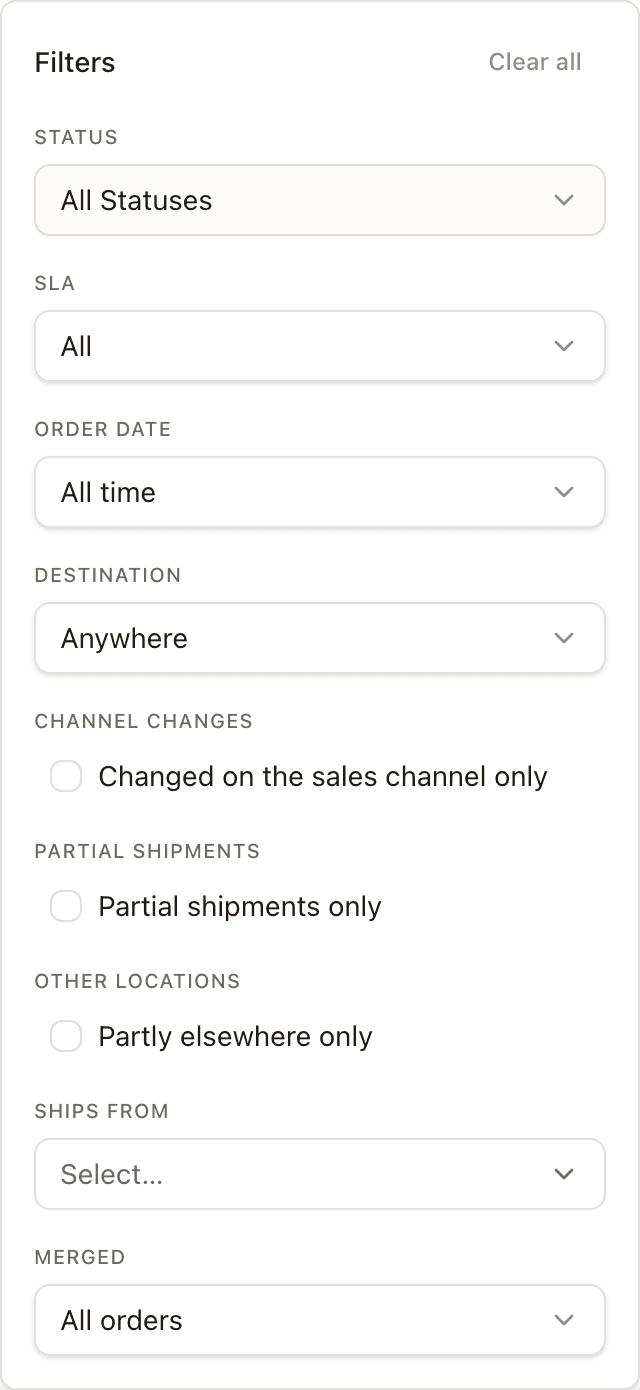
| Filter | Options |
|---|---|
| Status | Pick one or more statuses. |
| SLA | All, Due to ship today, Past SLA, Due after today, No ship date, Due today or overdue, On schedule (not overdue). These are the same bands as the dashboard's pace bar, so every segment there lands on a filtered list here. |
| Order date | All time, Today, Yesterday, Month to date, Last 30 days, or Custom range…, which reveals From / To date pickers. |
| Destination | Anywhere, Domestic, International, or Countries…, which reveals a country multi-select. Domestic and International are relative to the country the order ships from. |
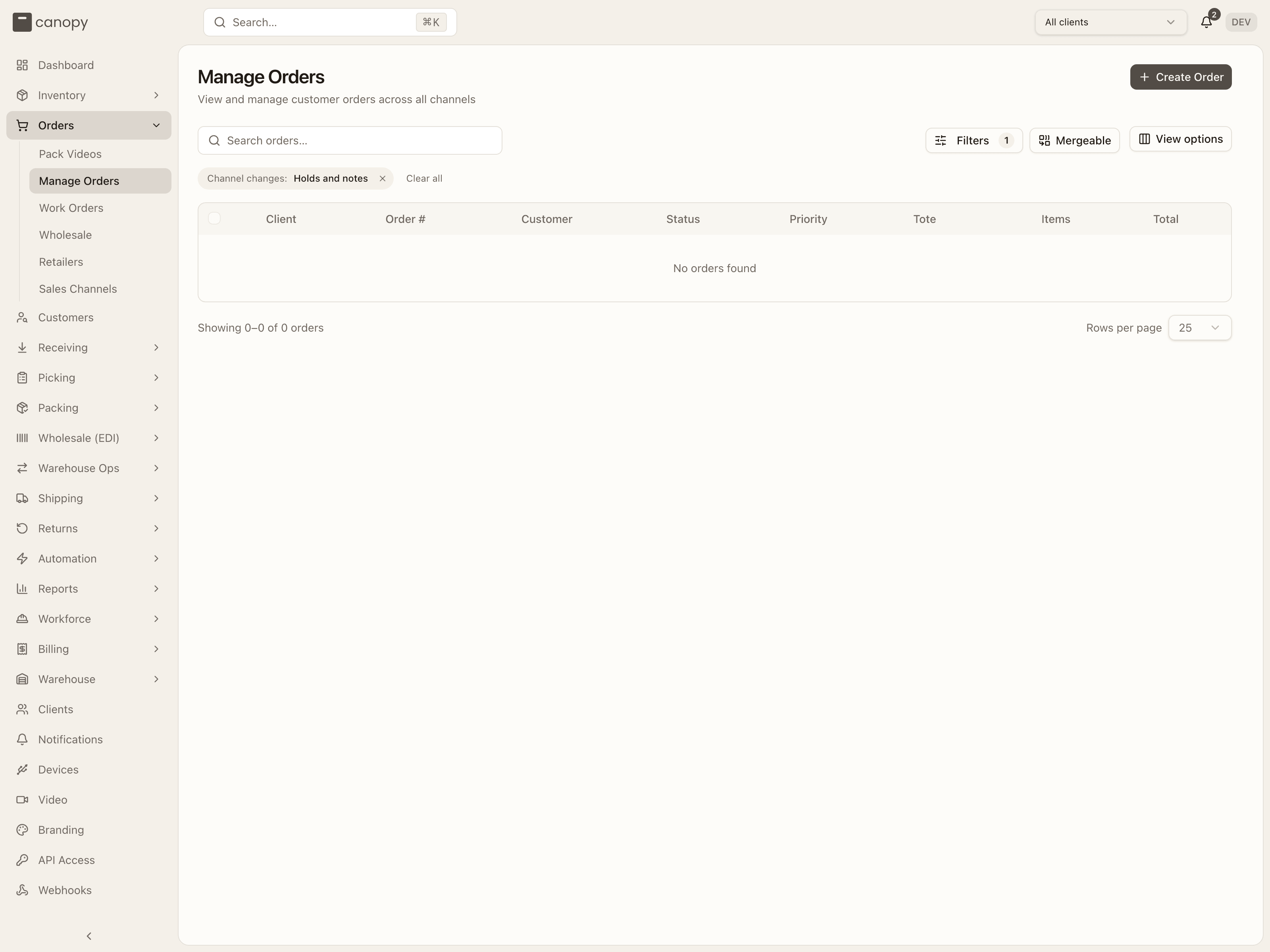
| Channel changes | Changed on the sales channel only: orders with a change from the sales channel still open. That is the ones wearing Needs a decision, and the ones whose chip names a note to read. |
| Partial shipments | Partial shipments only — orders in a split, the ones wearing PARTIAL. |
| Other locations | Partly elsewhere only — orders with units assigned to a location Canopy doesn't run, the ones wearing PARTLY ELSEWHERE. Offered when a channel on the client reports units by location. |
| Ships from | Pick one or more warehouses. While set, it replaces the warehouse the top bar is on for this list. Offered once you run two or more active warehouses. |
| Merged | All orders, Orders others were merged into, Orders merged into another, or Either. Offered while order merging is switched on. |
Each active filter also shows as a removable chip above the table — Status, SLA, Ordered, Ships to, Channel changes: Holds and notes, Partial: Partial shipments, Partly elsewhere: Units at another location, Ships from: … (one per warehouse), Merged: … — so a filter set inside the closed popover is never invisible. A dashboard link can add one more, Completed: Today, for orders fulfilled today. Changing any filter resets you to page 1.
Holds and notes
Once the filter is on, its chip reads Holds and notes — a channel change can hold the order for you to act on, or just leave a note to read. The filter chip doesn't say which; each row's review chip does.
Selecting orders and bulk actions
Tick the checkbox on any row (there's no status gate on the checkbox itself), or the header checkbox for the whole page, and a toolbar appears:
- N orders selected — with (M on other pages) when your selection spans pages. Selection survives paging and sorting, and clears when you change the client or a filter.
- Select all N matching orders — extends the selection to every order the current filters match, across every page.
- Pick Selected (operator-only) — see below.
- Hold Selected — with the count of orders the hold can take. Holdable means Pending, Allocated, Replenish, Picking, Picked, Packing, Fulfilled, Backordered, Unfulfillable, or Partially Shipped. The dialog asks for a reason and a duration (24 hours, 48 hours, a custom date, or Indefinite).
- Merge Selected (operator-only) — merge the selected orders into one shipment. Disabled with the reason in its tooltip until at least two orders are selected (at most 50) and the server's preview says they can merge — see Merging orders.
-
More actions — a menu of id-list actions, each showing how many of the selected orders it can act on and disabled at zero:
Action Eligible orders Who Reprocess rules Pending, On Hold, Allocated, Replenish, Backordered, Partially Shipped. Confirms first — rules re-run from scratch (warehouse routing rules too, so orders can move warehouse), and a ship-date rule recomputes from now. An order the rules chose a warehouse for but could not move (pick work has started, a live merge, its store refused) still counts as done. A second toast, "Routing left N order(s) where they are", names each one with the reason. An order already where its rule puts it is not listed. Operator | Release hold | On Hold. A plain count would overstate it, so the summary names the orders that came off this hold onto another — "N now waiting for payment (channel)", "N still held by their sales channel". | Everyone | | Allocate | Pending or Backordered, non-wholesale. The result reads "N in full, N partial, N backordered". | Operator | | Mark as wholesale | Pending, On Hold, Allocated, Replenish, Backordered, not already wholesale, not leading a live merge — and only while nothing on the order is picked or shipped and no reship is open; the summary toast names each order it skipped for one of those ("Wholesale can only be changed before picking — N unit(s) of this order are already picked. Unpick them first."). Confirms first — the orders leave the retail pick pipeline and give up reserved stock. | Operator | | Unpick | Picked, non-wholesale. Opens the Unpick dialog. | Operator |
-
Clear drops the selection.
Any action that would reach orders not on the visible page confirms first, even one that needs no confirmation for on-screen rows: "Applies to X of the Y selected orders. N of them are not on this page." Large selections are sent in batches of 100 ("Processing X of Y orders…"), and the result is always a summary toast — "Held 12 orders", "Reprocessed 10 orders, skipped 2" with the first few reasons — because a mixed-status selection partially fails as a matter of course.
Pick Selected
Pick Selected turns the current selection into a single pick list and drops you into Active Pick on it. The button counts the orders it can actually take, and only counts them when the selection resolves to one list — because a pick list is one thing, and the four rules that define it can't be bent:
| Rule | If the selection breaks it |
|---|---|
| Only Allocated — or Backordered and admitted for partial shipping — non-wholesale orders that have a warehouse | Others are ignored; if none are left, "Only allocated retail orders in a warehouse can be picked." — or, when the selection holds a Replenish order, "Replenish picking locations first, or fulfill eligible Replenish orders through Bulk Ship." |
| One brand | "A pick list covers one brand — the selection spans N." |
| One warehouse | "A pick list covers one warehouse — the selection spans N." |
| At most 50 orders | "A pick list holds at most 50 orders — N are selected." |
The button stays clickable for a selection that breaks a rule — clicking it is how you find out which one, so disabling it would just leave you guessing. It refuses rather than quietly splitting the selection or picking whichever subset would fit.
One order can be sent the same way from its detail panel's Pick Order; both build the identical request. If planning drops an order that stopped being allocated while the request was in flight, you're told — "Picking 2 of the 3 selected orders", with "The rest are no longer ready for normal picking. Replenish orders need stock moved to picking locations or fulfillment through Bulk Ship." underneath — and land on the shorter list rather than on an unexplained one.
Unpick
Unpick reverses a completed pick: the order goes back to Allocated and re-enters the pick queue, and the units in its tote are returned to stock. It's offered on a Picked, non-wholesale order — from the detail panel for one order, or from More actions for a selection — and is warehouse-staff only, since it moves physical stock. Only what's in the tote comes back; anything already shipped stays shipped. Unpick is also refused on a member of a Bulk Ship batch that has moved on to packing ("This order is in Bulk Ship batch N, which is past picking — remove it from the batch first").
The dialog asks one question: are the items already back in their bins?
- Ticked — the put-back is completed on the spot and the tote is released.
- Left off (the default) — the tote is flagged and the units queue as put-back tasks. The order can be re-picked right away; until those tasks are done the staged units are off the shelf, so a re-pick draws on other stock.
An optional reason is recorded with it. Afterwards you're told which happened — "N unit(s) returned to their bins" or "N unit(s) staged for put-back" — and, if the order held recalled stock, that those units must go to quarantine.
Merging orders
Two open orders going to the same person at the same address can ship as one parcel. The merge picks a master — the order that ships — and parks the others inside it as Merged: their lines are copied onto the master, picked, packed and labelled there, and each merged order's sales channel hears about the shipment when the master ships. Merging is switched on per tenant — and switching it back off stops new merges only: taking orders out of the merges already live stays open to any operator, so a tenant is never left holding a merge it cannot undo. The brand's rules on the client detail panel — whether merges are offered at all, the window in days, what else must match, what to leave out, the most orders in one merge, and whether a merged order's channel change holds the label — decide what the server will accept.
Mergeable (beside Filters, with a count when there is anything to show) swaps the table for a view of the candidates: one group per recipient — name, client, address, "N orders" and "N with differences" — with a Ship as CC-… radio for the master, an Include CC-… checkbox per order, a warning triangle on a method or priority that differs, and Merge group. When nothing qualifies it says so and counts the near-misses: "N orders share a recipient and address with another open order but can't be merged yet — on hold, backordered, allowed to ship partially, already being picked, flagged for review, or held back by the client's merge rules." — and, since a merged order never splits, adds the way in for the partial ones: "An order allowed to ship partially merges once it ships complete: set Partial shipments to "Ship complete" on the order — an allocated order first goes on hold, then is released."
Either route opens the Merge N orders into one shipment dialog. Under Orders — pick the one that ships each order has its Ship as radio (the oldest is suggested), any Can't be merged: … reason, and warnings that never block — a differing shipping method, postage type, signature or insurance (the master's wins), the same postage type saved on different carrier accounts (postage carrier account differs — the master's wins; the label is bought on the master's account), priority (the highest wins), required ship date (the earliest wins — compared as the day it falls on in the warehouse's business clock, so two orders a ship-by rule stamped seconds apart don't differ), a different sales channel, notes (appended to the master's) or gift note (concatenated with its source). CC-… will carry previews the header the master ends up with, and Items (N) lists every line by source order. If any order changed between the preview and Merge N orders, nothing is merged — "Not merged — these orders changed since the preview" names them and Refresh rebuilds the preview. On success the selection clears, the master's sheet opens, and the toast reads "Merged N orders into CC-…" — "Stock is being reserved for the lines it took on."
An order can't be merged while it is anything but Pending, Allocated, Replenish or Backordered, is wholesale, is a ShipHero order, allows partial shipment (the reason says how to clear it — set Partial shipments to "Ship complete" on the order, or, on an Allocated order, which can't change the field, hold the order, set Partial shipments to "Ship complete", then release it), is older than the window, has units picked, packed or shipped, is on a pick list or in a tote, has a short pick or a review open (a change from the sales channel, whether it holds the order or is only a note; either reads channel edit awaiting review; settle it on its review card first), is on hold, has a reship open or is still re-sending units for a reship (it can merge once the re-send is packed out), carries a tag the rules leave out, is backordered where the rules leave those out, has nothing physical to ship, or is already the master of a live merge. The group as a whole must share a client, a warehouse, a currency, and the recipient and shipping address. Two more orders never merge: one that is part of a customer order split across warehouses (part of a split order: it ships from more than one warehouse, since a merge promises one box), and a member of a live Bulk Ship batch (in Bulk Ship batch #N — remove it from the batch first), which the Mergeable view leaves out altogether.
A merged master never splits: the merge pins its partial-shipments policy to ship complete for the life of the merge, and an unmerge restores what it had. While it leads the merge the Details tab's Partial shipments select is off, with "This order leads a merge — a merged order never ships in parts. Unmerge it to change this." beneath it, and the Edit dialog leaves the field out. Its Items, Details and Shipments tabs gain the merge sections described under Order detail.
Create Order
Create Order (top right) enters an order by hand — a phone order, a B2B order, or a wholesale order that didn't come through a channel. Client users can use it too, for their own brand.
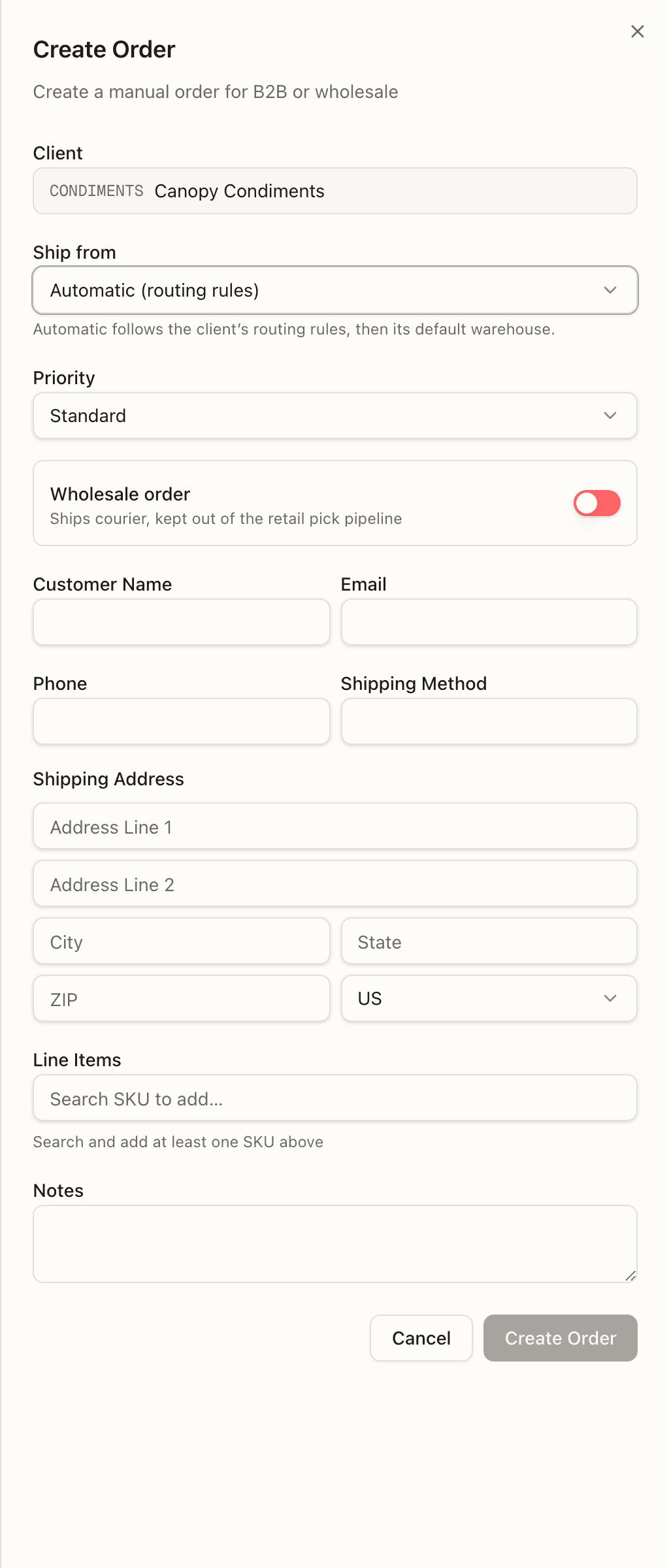
Pick the Client (locked to the pinned client when the top bar is pinned), the Priority, then the customer's name, email, and phone, a free-text Shipping Method, the Shipping Address (country is a dropdown), and Notes. Under Line Items, search the client's catalogue and add each SKU with a quantity and optional unit price. Create Order stays disabled until at least one line is added.
With two or more active warehouses, a Ship from select sits between the client and the priority (operators only). It starts at Automatic (routing rules) — "Automatic follows the client's routing rules, then its default warehouse." — and choosing a warehouse sends the order there instead. The warehouse the top bar is on is never used: see which warehouse a new order ships from.
Flip the Wholesale order switch to keep the order out of the retail pick pipeline. The block expands to a Retailer picker (choosing one adopts the retailer's saved ship mode and packing instructions), a Shipping method of Courier or Freight, a required Ship by date, and Retailer instructions that print on the packing slip. The plain Shipping Method field disappears — a wholesale order's carrier is resolved at label time.
Which warehouse a new order ships from
Every new order — typed in, imported from a sales channel, or sent through the API — is placed in one warehouse as it is created. The first of these that names an active warehouse decides:
- Ship from on the Create Order form, or a
warehouseIdsent with an API order by your own tenant-wide credential (a brand's client-pinned credential is refused the field — the warehouse is yours to choose). - The client's warehouse routing rules — below.
- The warehouse the order's store location is mapped to on the channel's Inventory tab, while Route orders by their fulfillment location is on — or, for a ShipHero order, the warehouse its ShipHero warehouse is mapped to under Warehouse Mapping in the channel's settings.
- The channel's own default warehouse, if it has one.
- The client's Default warehouse, on the client detail panel.
- Your only active warehouse, while you run just one.
When none does, the order is refused — "Cannot create order: no warehouse could be resolved. Set the client's default warehouse (Clients → client settings), or include warehouseId on the order." — so once you run a second warehouse, give every client a default. The order's Details tab names its warehouse and what chose it.
A Shopify order on a channel with locations mapped on its Inventory tab takes steps 4 and 5 before step 3. When no routing rule decides, it goes to the channel's own default warehouse, else the client's Default warehouse, wherever the store put it. Canopy first moves the order's fulfillment orders in Shopify to that warehouse's primary location, as it does for a rule's choice (below). A default warehouse with no primary location on the channel is passed over. With neither default usable, step 3 decides, and for an order Shopify split across your warehouses, the warehouse where Shopify put most of it. Every other order (typed in, sent through the API, or imported from any other sales channel) takes the steps in the order above. On the Automation page this is the Default rule, the last row under Warehouse Routing.
Warehouse routing rules are built on the Automation page, under their own Warehouse Routing trigger. Like other automation rules they run top to bottom, and here the first whose conditions match decides (one whose warehouses are all inactive is passed over) — conditions on the Order Created fields, minus the order's own warehouse, plus the order's Sales Channel; a rule with no conditions matches every order. Each rule lists candidate warehouses in order and says how to choose among them: Fixed (the first candidate, whatever its stock), Follow channel (the warehouse the order's store location is mapped to, any active one mapped on the channel; the rule's own warehouse is used only when that location maps to none), First that can fill (the first with free stock for every unit the order needs), or Most units (the one that can fill the most of it — the earlier on a tie, and never one that can fill none). Free stock is what a warehouse's sellable bins hold less what other orders have reserved there, judged on the order as it will be written: kits expanded, its Order Created rules applied — including any tag the rules add or remove — and units the channel assigned to another location left out.
When the rule chooses no warehouse, it either places the order at one of its candidates anyway — Backorder at, the first unless the rule names another — to allocate what it can there, or holds it for review: the order lands at the first candidate On Hold (System) with "No warehouse can fill this order — rule "…"" and reserves nothing until someone releases it, Reprocess Rules moves it, or routing runs again on its own — stock arriving, or an edit — and releases or moves it. The Timeline records the choice — Routed to warehouse by rule "…", ending none of the rule's warehouses can fill it — held here for review (or — it waits here) when it chose none; a Follow channel rule gives the channel's location maps to no Canopy warehouse as the reason instead, and its hold reason adds the same in brackets.
On a Shopify channel with mapped locations, a rule can only choose a warehouse that has a primary location (starred) on that channel — the one the inventory push writes to (a warehouse's only mapped location counts as primary); a rule left with none gives way to the next. A Follow channel rule is the exception: it ships from where Shopify already has the work, so its choice needs no primary location. When a rule places a Shopify order in another warehouse than the one whose location Shopify has its fulfillment orders at, Canopy moves them in Shopify to the chosen warehouse's primary location first, before the order is written. Work at a location none of your warehouses is mapped to is never moved, and a hold for review moves nothing. If Shopify refuses to move them, the order is placed at the warehouse where Shopify has them instead — or at the rule's, when Shopify has them at no single other warehouse of yours — and gets a Not placed where routing chose note (a review card; its chip reads Routing move refused), and the channel's History gets a row saying why. When Shopify instead gives no answer at all — down, timed out, or throttled — and the rule that routed the order chooses by First that can fill or Most units with Re-route backorders on, nothing is noted: the backorder sweep's own stock-pass retry asks again on its own, so a note that would only tell it to stop isn't written. Under any other rule, a no-answer placement still gets that note, since nothing else retries it automatically.
An order whose work Shopify split across two of your warehouses at checkout is never skipped. What happens to it depends on what decides its warehouse:
- A Follow channel rule keeps the split as Shopify made it. The order
imports as one order per warehouse: the customer's order at the warehouse
holding most of its units, and one more order for each other warehouse,
each shipping its own part and each placed by the rule. From then on they
are a split order. This needs
SPLIT_ORDERS_ENABLEDand the channel's Only import items assigned to our locations setting; without either, the order is brought together as below. - Anything else brings the order together in one warehouse: another rule's choice, or with no rule the channel's or the client's default warehouse, as above. Canopy moves every part there in Shopify first.
If Shopify refuses a move the decision needs, or the warehouse the work goes to has no primary location mapped on the channel, the order still imports. It lands On Hold (System) for a person to clear, with a reason that starts "Shopify split this order between warehouses": move the fulfillment orders in Shopify, or map a primary location, then release the hold. A kit whose units sit at two of the kept warehouses is pulled to the one holding most of it first, since a kit ships from one warehouse. If Shopify refuses that, the order is held the same way.
A hold the store already has when the order imports follows the split. A hold on the whole order (awaiting payment, a fraud risk, a wrong address) holds every warehouse's order. A hold on one fulfillment order holds only the order at that location's warehouse, as a Channel hold row in its hold list. A hold the store places later holds them all.
Reprocess Rules on an order held only by this hold tries the placement again. It reads Shopify afresh, then keeps the split or brings the work together, the same way the import does. When that lands, the result lists Shopify's split kept as Shopify split it: … or Shopify's split brought together at …, and the hold comes off every order of it; a hold the store, a payment check or a person placed stays. When it doesn't land, the result reads the placement was tried again and didn't land: …, and the hold's reason says so: "Shopify split this order between warehouses; Re-apply rules tried the placement again, but it didn't land (…) — bring its fulfillment orders together in Shopify, then release the hold".
A parcel can still ship from a warehouse whose Shopify locations don't hold its fulfillment orders — a move Shopify refused, or the merchant moving them after Canopy placed the order. When Canopy confirms that parcel to Shopify, it first moves just the units the parcel needs from a location mapped to another of your warehouses: never from the merchant's own location or another 3PL's, and never work that's on hold or scheduled. What's already at this warehouse's location is confirmed either way. If Shopify refuses the move, the units it couldn't move stay owed: the sync retries while the move might still go through, and otherwise fails with "Shopify won't move them here (…). Move them to this warehouse's location in Shopify, then retry this sync".
Order detail
Click a row to open the detail panel. The header shows the order number, its status and priority badges, and the client and channel it came from. A WHOLESALE chip adds an Open in Wholesale link to the carton-flow page, and a RESHIP chip marks an order that has been reshipped (see the Details tab's reship history). A PARTIAL HELD chip marks a short order waiting for its minimum or wait, and the client • channel line adds "N of M units are ours" when the sales channel assigned some of the order's units to a location Canopy doesn't run — hover it for where the rest are. A Follow button in the header tells you about everything that happens to this order from then on; see Notifications.
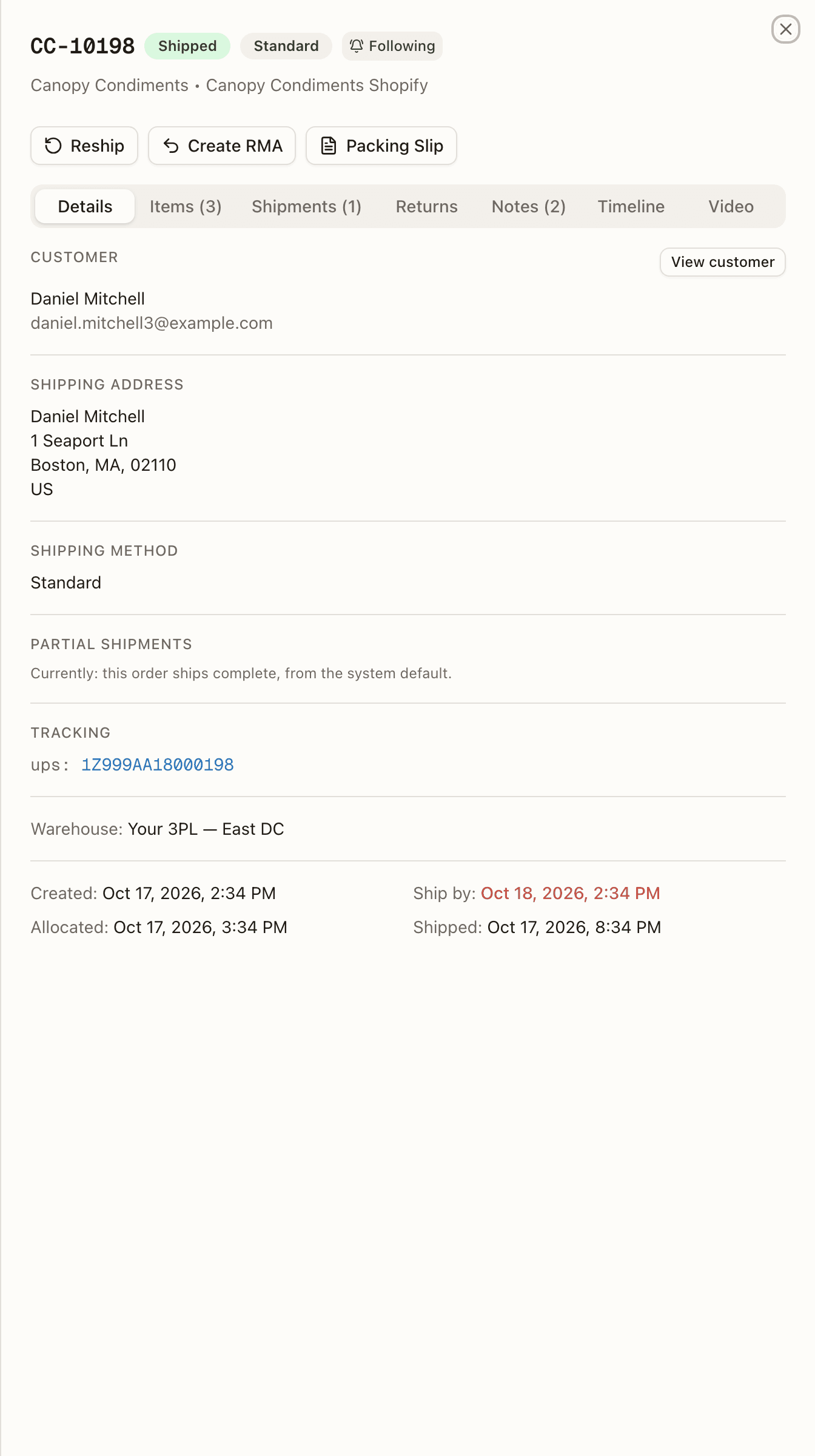
The seven tabs are Details, Items, Shipments, Returns, Notes, Timeline and Video, the same ones a client sees. The tab labels carry a count where there is something to count. The top of the panel carries the operator action bar.
Video holds the video of each pack of the order, one row per pack under the parcel it went into, with Play, Download and the admin's Hold and Delete. The rows, the statuses and the player are explained on Pack video.
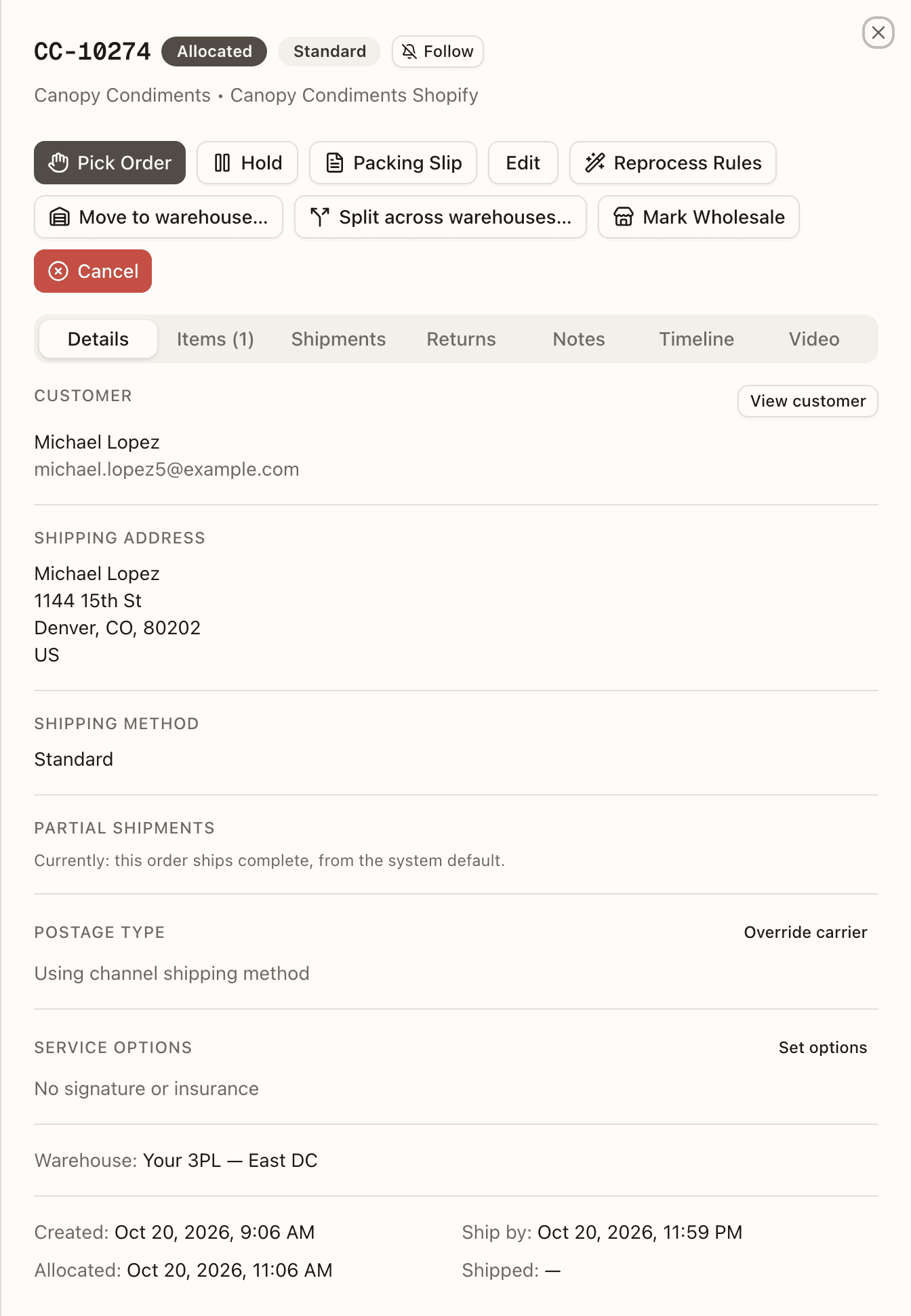
Action bar
Which buttons show depends on the order's status, and some are warehouse-staff only:
| Action | Shows on | What it does |
|---|---|---|
| Re-queue Order | Unfulfillable | Sends the order back to Pending for a fresh allocation attempt. |
| Allocate | Pending, Backordered, Partially Shipped | Reserve stock now. On a resting split, it re-enters the remainder into the allocation loop. |
| Prioritize (operator-only) | Same as Allocate | Take reserved stock from other orders to cover this one — see Prioritize. |
| Pick Order (operator-only) | Allocated — or Backordered and admitted for partial shipping — non-wholesale, in a warehouse; not offered on Replenish | Creates a single-order pick list and sends it into picking. |
| Pack Order (operator-only) | Picked | Jumps straight to the pack station for this order's tote. The packing tree is staff-only, so a client user who presses it lands on "Picking and packing are available to warehouse staff only." |
| Unpick (operator-only) | Picked, non-wholesale | Returns the picked units to stock and the order to Allocated. See Unpick. |
| Hold | Anything except Cancelled, Delivered, On Hold, Shipped, Merged | Pause the order — see the Hold dialog. A merged order can't be held: take it out of the merge first. On a split order, Hold and Release reach every warehouse part at once — see Hold, release and cancel act on the whole family. |
| Release | On Hold | Lift the holds people and Canopy placed: every Warehouse, Client and System hold on the order at once. A sales channel's or payment hold beside them stays open and keeps the order On Hold; with only those left, Release lifts them. To lift one hold at a time, use the hold list. Refused while the shipping address has a country no carrier serves — fix the address first. The order goes back to the status the hold found it in — or straight to Allocated when it was Pending or Backordered and everything it still owes is reserved by now (a line another location shipped, or a channel edit dropped, while it was held). Lifting one hold can leave the order on another that was waiting behind it, and the toast says which rather than a plain Hold released: "Hold released — the order is now waiting for payment (channel)", "… its sales channel still holds the order", or "… the order is on another hold". A hold placed mid-pick survives its pick list being cancelled, or a Bulk Ship batch letting the order go: the order stays On Hold and the release restores the status from before picking, as the Timeline's Hold placed row says ("Pick list cancelled — the order stays on its hold, which now releases to ALLOCATED"). On a split order, this lifts the whole family's shared hold at once. |
| Reship (operator-only) | Fulfilled or Shipped; also Delivered or Ext. Fulfilled once a line has shipped units, and while a repick is open (to add units to it). Never on an order that shipped inside another order's box. | Fix a label, recover a returned parcel, replace lost goods, or re-send at the client's request — see Reship. A wholesale order gets a repick only: its label is changed on the shipment, so the wizard leaves the Label problem card out ("Wholesale label changes are handled on the shipment. Use this action to pick and send replacement goods") — see Wholesale. |
| Move to warehouse… (operator-only) | Pending, Allocated, Backordered, Replenish, On Hold, Partially Shipped, with two or more active warehouses | Move the whole order to another warehouse, under the same rules as a Reprocess Rules move. |
| Split across warehouses… (operator-only) | Pending, Allocated, Backordered, Replenish, on a sales-channel order, with two or more active warehouses | Send some of the order's units to another warehouse, which ships them on an order of its own (tooltip: Send some of this order's units to another warehouse) — see Splitting an order across warehouses. |
| Undo split… (operator-only) | The same statuses, on an order that was split from another | Send this order's units back to the customer order's first warehouse and retire the order. |
| Recover Order (operator-only) | Cancelled, non-wholesale | Restore a cancelled order — see Recover Order. |
| Create RMA (operator-only) | Shipped, Delivered, Ext. Fulfilled, Partially Shipped | Opens Create Return pre-filled with this order. |
| Packing Slip | Any non-wholesale order | Generates the 6×4in invoice-style packing slip (prints on label stock). |
| Edit | Anything except Shipped, Delivered, Cancelled, Ext. Fulfilled, Merged | Change the order's details — see Editing an order. |
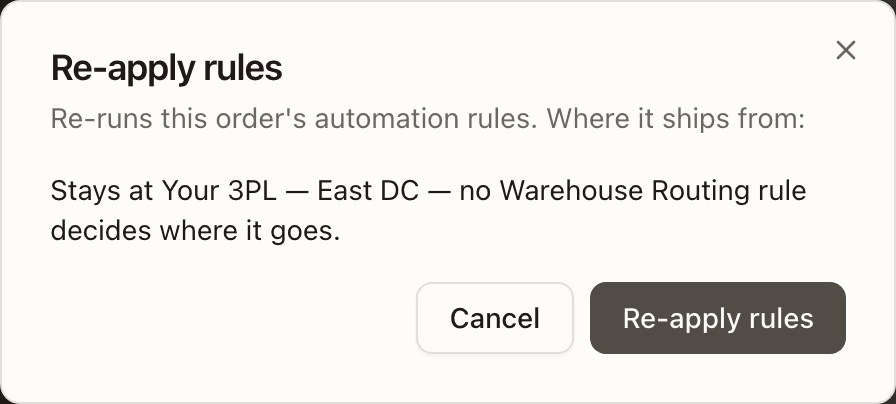
| Reprocess Rules (operator-only) | Pending, On Hold, Allocated, Replenish, Backordered, Partially Shipped | Re-run the automation rules against the order — the client's warehouse routing rules too, so it can move the order to the warehouse they choose. A move can still leave the order backordered (a fixed warehouse isn't checked for stock, and "most units" may hold only part of it), but when the rule finds no warehouse for it the order stays where it is. On a Shopify order, its fulfillment orders are moved in Shopify to the new warehouse's location first; if Shopify won't move them, the order stays where it is and the skip says why. What a move takes with it, and when it is refused, is under Moving an order to another warehouse. A dialog first says where the routing rules would send the order — Moves to Stallion US (rule 'US addresses'), that it splits across more than one of them when a rule places each SKU, or why it stays — and Re-apply rules runs them. |
| The toast lists what was applied and what was skipped: a master that leads a live merge keeps its warehouse (the order leads a merge — the orders merged into it stay in its warehouse; unmerge it to re-route) and is never marked wholesale by a rule, and a line merged in from another order is skipped by the external-fulfilment and replace-SKU rules (SKU: This line was merged in from another order — edit the original order after unmerging). When a Hold Order rule ranked above a Cancel Order rule also matches, the hold wins and the cancel is skipped (Skipped: CANCEL_ORDER — a higher-ranked rule holds the order). A rule that targets a kit's component SKU directly skips that line too — a kit component is never cancelled on its own; point the rule at the kit's own SKU instead. Sometimes routing is skipped because the order waits at its default warehouse, which still can't fill it, and a Hold Order rule now holds it as well. The skip then names that rule and its date (… and rule "…" holds it until …: stock alone won't release it), because stock arriving will no longer release the order. | ||
| Mark Wholesale / Unmark Wholesale (operator-only) | Pending, On Hold, Allocated, Replenish, Backordered — and only while nothing is picked or shipped and no reship is open or has ever re-picked the order | Pull the order out of the retail pick pipeline (releasing its reservation), or return it and re-allocate. Mark is also withheld while the order leads a live merge — "This order leads a merge — the orders merged into it ship in its box, and only the retail flow ships them and tells their channels. Unmerge it to mark it wholesale." — though Unmark stays open. |
| Cancel | Anything except Cancelled, Shipped, Delivered, Partially Shipped, Merged | Cancel the order (won't notify the channel). If units are already picked, the totes are flagged for put-back. On a master the confirm says what becomes of the orders merged into it — "CC-…, merged into this order, goes back to being its own order — with its own lines and reserved stock — and is not cancelled." — and the cancel takes them out itself, as long as the master holds no physical work; otherwise it is refused with the steps back to the shelf ("Cannot cancel order — it is the master of a live merge: CC-… is being packed — void its label first, then cancel the pack, then unpick it, then finish the put-back, then cancel it"), or for good once the box is packed out or a reship has touched the merged lines ("… so it can't be cancelled on its own (the orders merged into it ship in its box)"). It's also refused when another warehouse's open re-send is taking units off this order's box, naming that order's re-send — "CC-…'s re-send is taking units off this order's box 1Z… — cancel that re-send on its order first, or let it go out". It's refused the same way behind a completed Bulk Ship batch's labelled box — its label is live and the batch can't be taken apart to reach it ("its box … was packed and labelled in Bulk Ship batch #N, and its label is live: void its label first (Shipments), then cancel; if the box has left, let it ship"). And once a box has been answered gone on its "is the box still here?" check, Cancel is no longer applied at all — it places a hold instead, naming who cancelled it and that the order needs a refund or a return for what already shipped. On a split order, Cancel reaches every warehouse part at once — refused in favor of Cancel Remainder once any part has shipped (see Hold, release and cancel act on the whole family). A wholesale order whose shipment cycle has completed is refused too ("Cannot cancel order — a wholesale shipment cycle is already complete. Resolve its shipped units through returns or reship before closing any remaining demand."); close what it still owes with Cancel Remainder instead. |
| Cancel Remainder (operator-only) | Partially Shipped — or a remainder re-reading Allocated, Pending or Backordered again on an order that has already shipped units and still owes the rest, before anything is picked | Stop waiting for the units still owed and close the order — see below. On a split order any of whose parts have shipped, it closes every part: the parts not yet shipped are cancelled, and the already-shipped parts' own remainder closes the normal way. |
Cancelling while packing
A cancel that reaches the order from its sales channel, or one a brand presses themselves, doesn't take effect once the order has moved into Packing — it holds the order instead (the EDIT chip, cause Channel changes), and waits for an operator to decide: Apply cancels it — the pack session closes and the tote goes to put-back — and Keep ships the order as packed, leaving a note that it shipped as packed and the brand is owed a refund or a return. Your own Cancel here still cancels right away, packing or not — the person at the bench is already deciding it.
That changes once the order's box has been answered gone on its "is the box still here?" check: the box has already left as packed, so any cancel from then on — yours included — is an after-ship matter. It is never applied and never reopens the box check; it places a hold instead, with a note that the order was cancelled after its box left and needs a refund or a return for what already shipped.
A wholesale order whose carton labels are already bought, or whose freight is already booked, waits a different way: the cancel (or a line change) holds behind the box itself. Scan every carton's label at Boxes to pull to void and reopen them, or, for a booked truck, answer that the freight is still here to cancel the booking with the carrier — either way the change then runs. If the carrier already has it — a carton it refused to void, or a booking it won't cancel — the order is marked gone and ships as it stands, with a note that any carton voided in hand reopens to be relabelled.
A live Bulk Ship member behind its own label waits the same way a retail order does: the cancel (or a line or address change) holds behind its own box, answered at Boxes to pull. Scanning its label there puts its units back from the box and takes the order out of its batch, and the change then runs; marked gone, the box ships with the rest of the batch and the stage reads Shipped, as it does for a retail order answered gone.
Which actions client users can take
The Orders module has no blanket role gate. On the API, a client user can
create an order, edit it (the Partial shipments choice included;
only the minimum and wait before splitting stay yours), allocate,
hold and release (their own hold only: the order's own CLIENT_HOLD,
or a note that isn't a warehouse decision — any other row, including a
warehouse, channel, payment or system hold, answers "The warehouse decides
this hold — contact your 3PL to release it", and a brand's own API
credential is held to the same rule; the action bar shows them Release
only while the order's newest hold is theirs, and the
hold list gives them a button only on their own rows and on
notes; a review card gives them Acknowledge on a note
and nothing else),
re-queue, cancel, add and remove line items, reduce a line's quantity while the order is Allocated, print the packing slip, and run the bulk Hold Selected and Release hold actions on their own orders. Release only reaches a hold the client placed, or a plain note — a row the system placed for the warehouse to decide (a brand's addition waiting on a pick, or a line change held at packing) refuses a client user even when their own edit opened it. A client user also gets one button you never see: Send again, a re-send of shipped units at the brand's own request, billed to the brand as a new order. It lands in the Reship history as Client asked for a re-send · Billed as a new order, marked (client), and they can Cancel re-send while it is open.
Everything else refuses a client user: Pick / Pick Selected, Prioritize, Pack Order, Unpick, Reprocess Rules (single and bulk), bulk Allocate, Mark/Unmark Wholesale (single and bulk), Reship, Recover Order, Create RMA, Cancel Remainder, Mark ext., Reduce qty once picking has started ("only warehouse staff can reduce a quantity now. Ask your 3PL."), Merge Selected, Unmerge and Remove from merge, Ship as packed, Acknowledge, and Apply on a merged order's channel events, a review card's Apply channel's changes and Resolve buttons, and the Postage Type and Service Options overrides.
Three of those still show a client user the button — Pack Order lands on a staff-only page, and the two override saves are refused with "This action is restricted to warehouse staff".
Hold dialog
Hold asks for a Reason and a Hold duration — 24 hours, 48 hours, Custom date (a Release at date-time picker), or Indefinite. A timed hold lifts on its own when its time comes. Only that hold lifts: while another hold is open, the order stays On Hold.
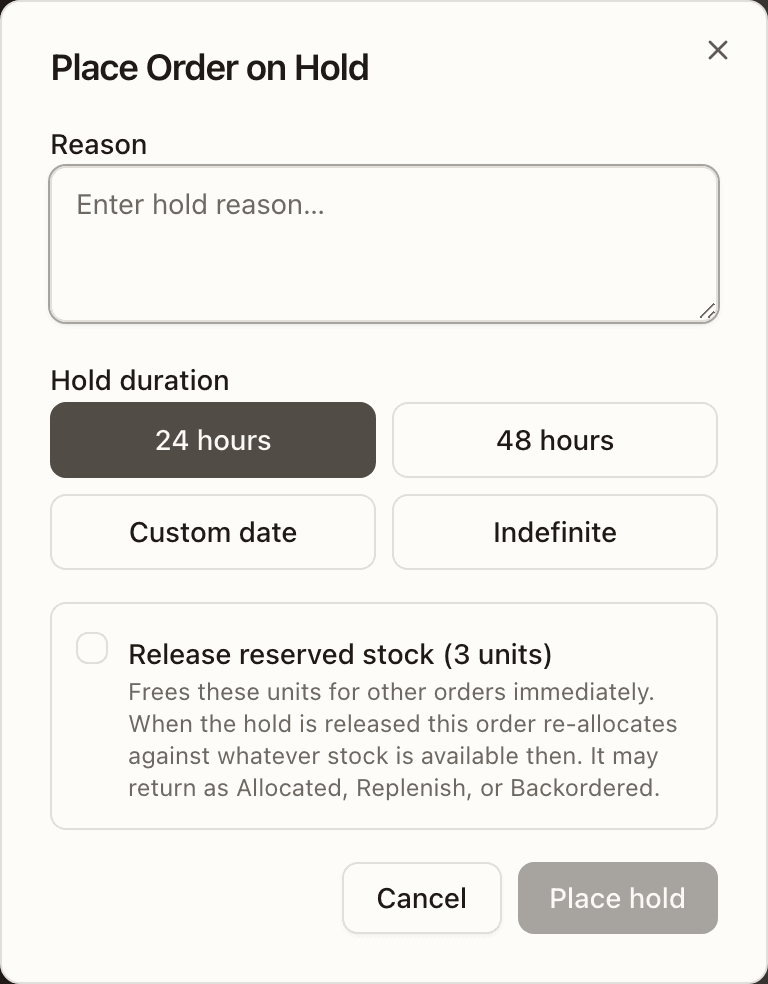
On a Pending, Allocated, Replenish, or Backordered order that holds reservations, the dialog adds Release reserved stock (N units). Ticked, the units are freed for other orders immediately, and the order re-allocates against whatever is available when the hold lifts — "It may return as Allocated, Replenish, or Backordered." It defaults on for an Indefinite hold (nobody knows when that order resumes, so parking stock on it starves everything else) and off for a dated one; either way it's yours to change. The success toast reports what was freed — "Hold placed — N units released for other orders". Bulk holds never offer the option.
Prioritize
Prioritize is for the rush order that's short while lower-priority orders sit on reserved stock. The dialog — "Prioritize CC-… — take reserved stock" — lists each short line with how much free stock covers it and how much must come from other orders, then a default set of donor orders per line. You can swap donors, change quantities, or add a same-priority donor with + take from another order…. Each donor shows its number, priority, status, customer, due date, and how many units it would keep reserved (prefer draining a donor completely). A line that's short even after taking from every eligible order says so — receive stock first.
A Reason is required. Take stock & allocate moves the units; donor orders go to Backordered and re-allocate automatically when stock returns, and both sides keep an audit entry. Donors can themselves be Allocated, Replenish, or Backordered orders, and the target lands on whichever the stock supports — the toast reads "CC-…: Allocated. N orders moved to backorder" or "CC-…: Replenish. …", the latter with "Stock is reserved. Replenish picking locations or fulfill through Bulk Ship." If availability drifted while the dialog was open, the commit is refused and Refresh plan rebuilds it.
Reship
Reship opens a wizard in three steps — what happened, the details, and a confirmation that spells out exactly what will move.
What happened?
The first step is five cards. The fifth appears only while goodwill re-sends are switched on for the tenant.
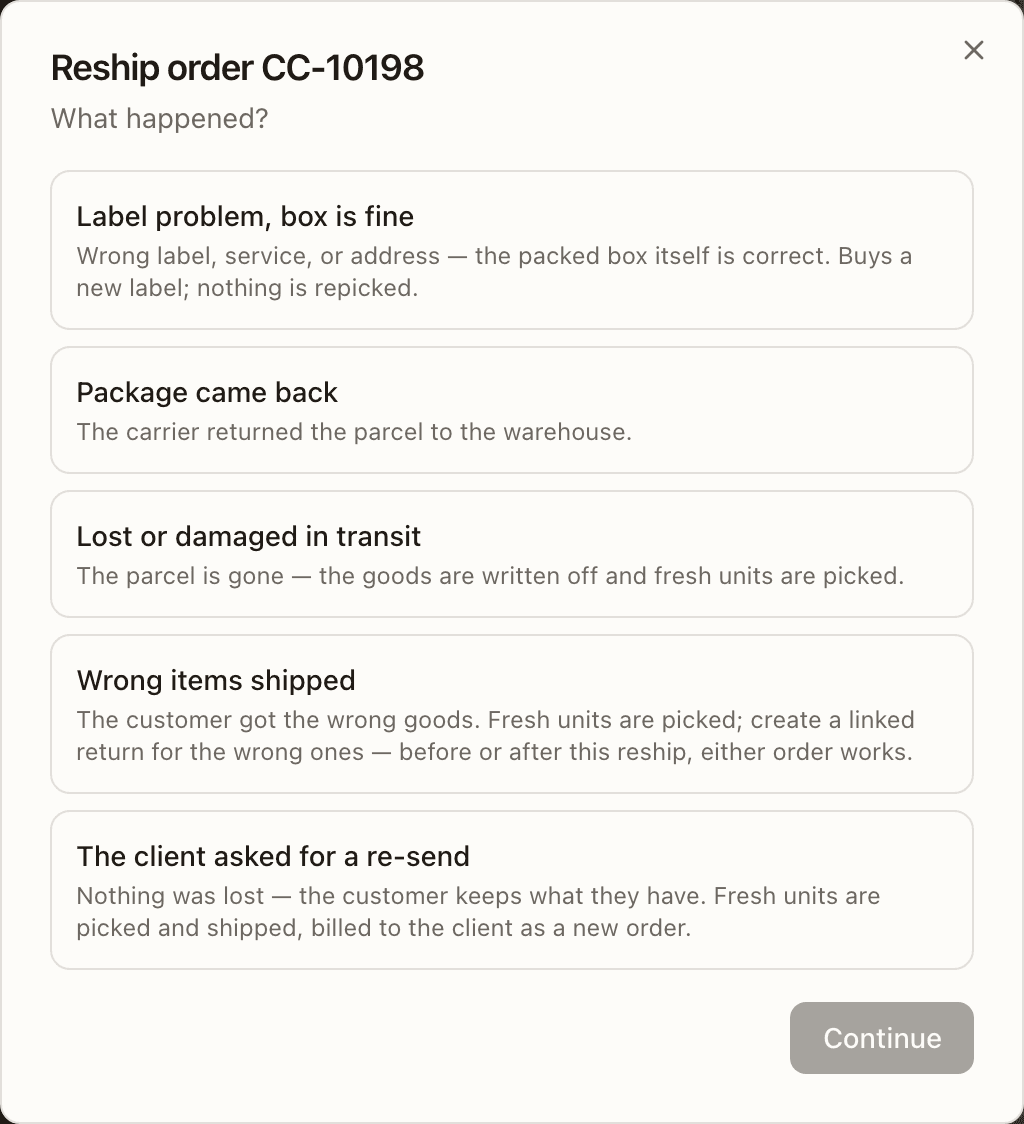
| Card | What it does |
|---|---|
| Label problem, box is fine | Buys a new label; nothing is repicked. |
| Package came back | The carrier returned the parcel. Intact: relabel it. Not intact: the box is received through an RTS return first, then repicked. Until an RTS return has received and completed that parcel, the wizard stops on "Receive the returned parcel first" and hands you to Create RTS return — "Create an RTS return for this parcel, receive and inspect its contents there (restock, quarantine or write off each unit), and complete it. Then come back and re-check — the reship will re-send without touching inventory." |
| Lost or damaged in transit | The goods are written off and fresh units are picked. |
| Wrong items shipped | Fresh units are picked; create a linked return for the wrong ones, before or after. |
| The client asked for a re-send | "Nothing was lost — the customer keeps what they have. Fresh units are picked and shipped, billed to the client as a new order." A goodwill re-send. |
A reship bills nothing — except a client-requested re-send, which is "Billed to the client as a new order: the label, the pick and pack, and any order fees." The confirmation says which applies before you commit.
On a wholesale order the wizard offers repicks only. The Label problem card is left out (a wholesale label is changed on the shipment), Package came back is taken as not intact, and the confirmation ends "Assign picking locations on the wholesale order to reserve replacement stock." instead of "Fresh units are allocated immediately.", because the replacement is picked and boxed on the wholesale order page. A wholesale repick is refused while the order still has stock staged ("Resolve the order's staged wholesale stock before reshipping."). Cancelling one whose replacement is already picked or boxed asks you to undo that first ("Unpack and unpick the wholesale replacement units before cancelling this reship.", "Reopen and empty the replacement cartons before cancelling this reship.").
Details
For a relabel on an order with more than one box, the wizard asks Which box has the bad label? — one radio per parcel (tracking · service · status · newest), the row you opened it from pre-selected — and only that box gets a new label; the order's other boxes keep theirs. A parcel Bulk Ship bought as one multi-package shipment can't be relabelled — one label covers every box, so voiding it would void them all — and the wizard says so before you spend anything: "This shipment covers N boxes on one label — a relabel would void them all and buy a single one-box label. Reship the units instead (a repick), which packs them again and buys their label at the pack station".
For a repick (lost, damaged, wrong, or a client's re-send), after "Checking what can be reshipped…" the step asks What to reship: Everything that can be reshipped — N units, Everything in box <tracking> (with the box's contents), or Choose items — a checkbox and a unit count per line (a line a merge copied onto the master reads SKU from CC-…, on the receipt too, so you know whose store hears about the re-send), kit lines listed with their items, and a per-line choice of which box the units come from (Any box, newest first). Units fulfilled elsewhere — another location's, or marked fulfilled by hand — are counted underneath and are never part of a reship.
Choose items and warehouses (split customer orders)
On a customer order split across warehouses, the repick's Details step lists every warehouse the order was split across, not only the one you opened. While it reads the other warehouses' orders, it shows "Checking what each warehouse can send…". Then it offers:
- Everything that can be reshipped, with the unit count and each from the warehouse that shipped it.
- Everything in box <tracking>, one for each box of any of the orders. Each names the warehouse and the order the box belongs to, the box's status and what is in it. The box you started the wizard from adds · the box you started from.
- Choose items and warehouses.
Choose items and warehouses lists each item once. Under it is one row for every warehouse whose order has it, such as from Your 3PL — West DC (CC-…-S2), with a count and of N. Put each unit under the warehouse that should send it again: "Past what that warehouse shipped itself, the rest are taken from the other warehouses' boxes." The line above the rows counts the units selected. A kit's items sit under Kit SKU — its items:.
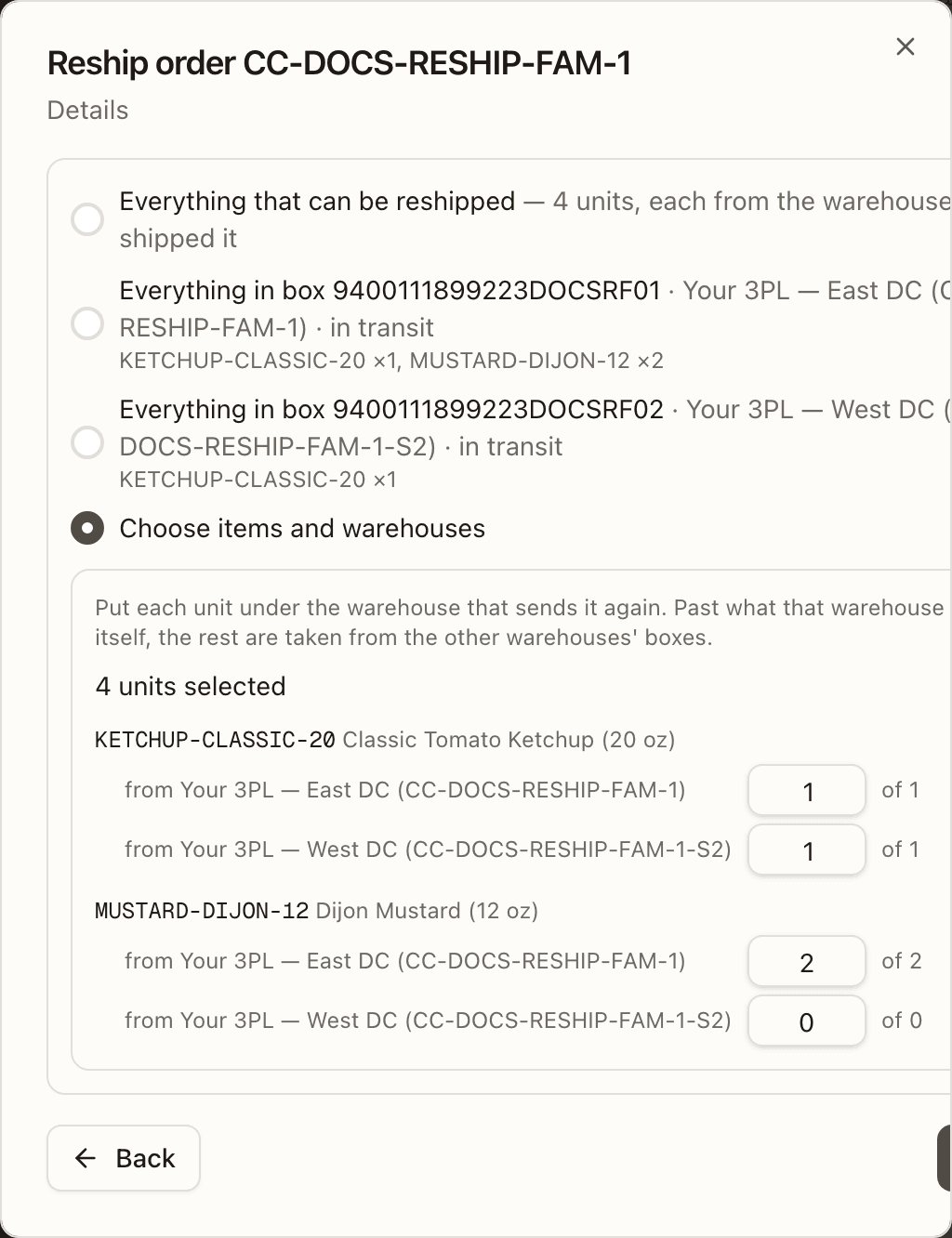
The list changes in two cases. When you start from a box the list does not offer, it adds Everything still in the box you started from. After Package came back and No — needs inspection, the only choices are the returned boxes, each read as Everything received back in box <tracking>. If the other warehouses' orders can't be read, the step says "Couldn't load the other warehouses' orders — close this and try again."
Ship from
When there is more than one warehouse to ship from, a repick also asks Ship from: which warehouse sends the replacement. Each choice says whether it can fill these items or how many units it has (3 of 5 units in stock). For a sales-channel order, only warehouses mapped on that channel are listed. A brand never sees this: its re-sends ship from where the units shipped from.
The choice starts on the warehouse the chosen units shipped from, if it can fill them. Otherwise it starts on the order's own warehouse, if that one can. Under the picker, a note says where the items shipped from. If you pick another warehouse, the note also says the order moves there for the re-send, and moves back if the reship is cancelled. A warehouse that can't fill everything keeps the rest waiting there as a backorder.
Ship from on a split customer order
On a split customer order, Ship from on Review the plan works differently. It starts on Each warehouse sends its own part: "Each unit goes again from the warehouse it is listed under — nothing moves between warehouses." The other choices read Everything from <warehouse>, one for each warehouse the order was split across, each with can fill these items or N of M units in stock. Pick one, and that warehouse's order sends every unit of the selection: "…'s order sends every unit; what the other warehouses shipped is taken from their boxes." What it doesn't have waits there as a backorder. The order never moves. The list is the split's own warehouses, even one the sales channel no longer maps. Like the other Ship from, it is for warehouse staff only.
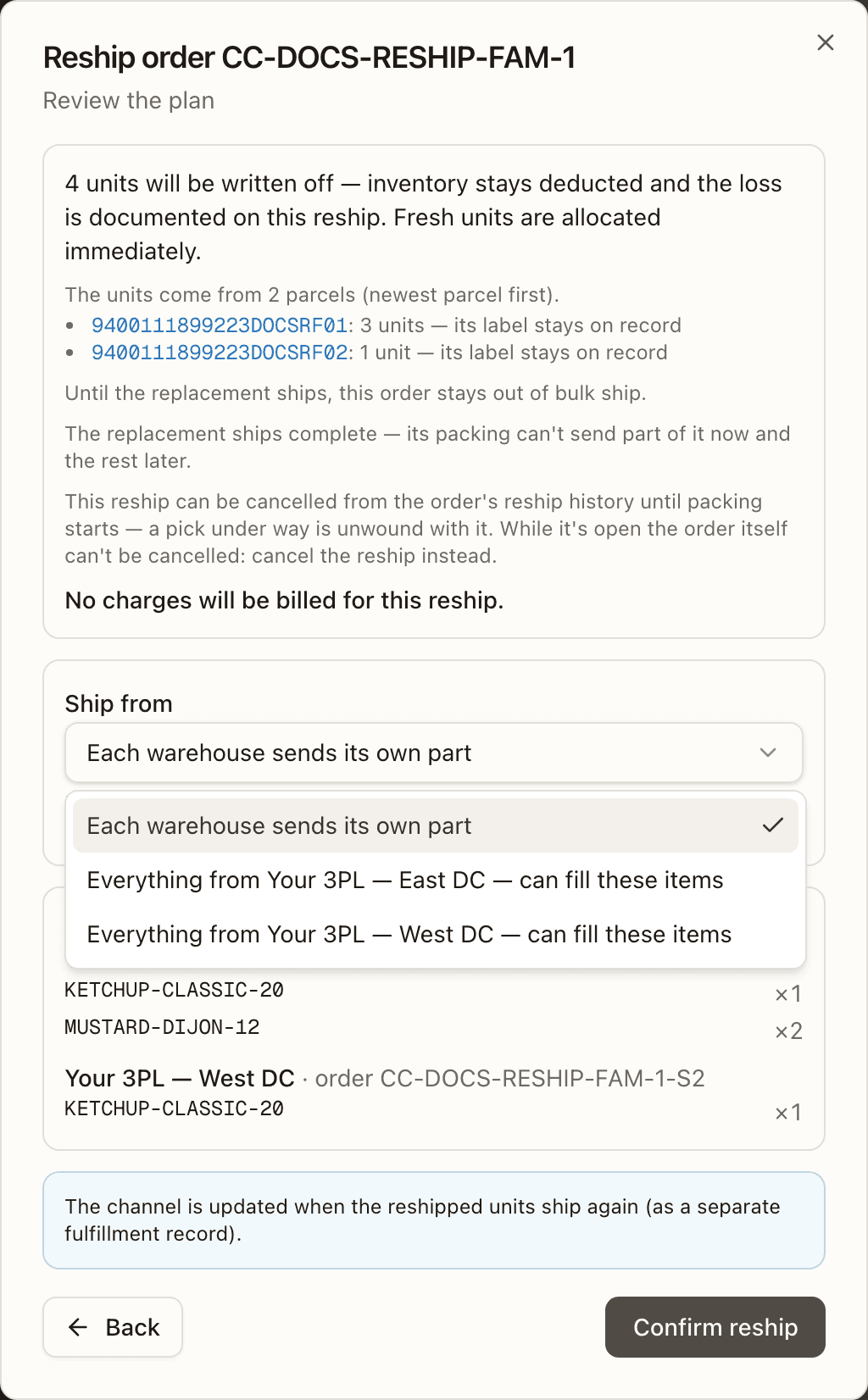
A unit that can't come from the warehouse you picked is refused by name. It is never left out quietly. The refusal names the order to re-send it from instead: for a line another warehouse shipped that the picked order has no line for, or for a warehouse whose boxes can't be drawn from. The refusal shows with Ship from still under it, so you can pick another warehouse or go back to each warehouse sending its own part.
Confirm
The last step is a receipt of what will happen: which units come from which parcel and what becomes of that parcel's label (voided once the replacement label is bought, marked returned to sender, or stays on record); that units the reship doesn't take stay shipped in their boxes; that the replacement ships complete; how each sales channel is updated once it ships; and, for a re-send, that "Nothing is written off; the customer keeps what they have. Fresh units are allocated immediately." One reship is open per order at a time: more units for the same reason are added to the open reship ("one replacement goes out for all of them"); for another reason, let it go out first or cancel it. On a customer order split across warehouses the limit is one re-send per customer order, whichever warehouse's order it is opened on: "A reship is already open on order CC-…-S2, another warehouse's order of this customer order — one re-send at a time per customer order: let it go out, or cancel it, first", or, joining another open re-send, "Another re-send is open on this customer order — one re-send at a time per customer order: edit that one, let it go out, or cancel it first". On a split customer order, adding units plans across the whole re-send: a warehouse that already has its own open part grows it with its share, and a warehouse with no open part yet gets one started — all under the group's own reason and billing. Add to the open reship only adds units. To take units back, or to change what each warehouse sends, use Edit the re-send. When the order's Reship history knows the open re-send, the A reship is already open on this order block offers Edit the re-send beside Add to the open reship. A kit only ever moves, or gives back, whole kits.
A reship can be cancelled from the order's Reship history until its replacement label is bought, or after that while the label stands voided and the re-send was never packed — a pick under way is unwound with it, and on a wholesale order's replacement cycle the same cancel closes its live cart, puts every picked unit back through put-back and retires its boxes as history, instead of asking you to unpick and unbox it by hand first — and while it is open the order itself can't be cancelled: cancel the reship instead.
A re-send ships whole, so anything that would split it — backordering or cancelling a line in Short Picks, a partial pack — is refused with the way to stop it: to stop the re-send, cancel the reship (Reship history → Cancel reship) while it is open, cancel the order once the repick is committed, and on a master that leads a merge the re-send can't be stopped: other orders are merged into this one, and a merge a reship has touched can't be undone or cancelled. A relabel of a master whose label a merged order's channel change holds is refused before anything is voided, and the wizard's preview says so.
Sent again from each warehouse
On a split customer order, the receipt shows the re-send warehouse by warehouse, under Sent again from 2 warehouses, or Sent again from when only one warehouse sends. Each block names the warehouse and · order CC-…, then the items it sends and how many. When a warehouse sends units another one shipped, its block says so: "N units of these were shipped by order CC-… (box …) — its box gives them up, and … sends them now." In the list of parcels the units come from, a parcel of another warehouse's order names that order, (order CC-…). On an order that was never split, the same card reads Items.
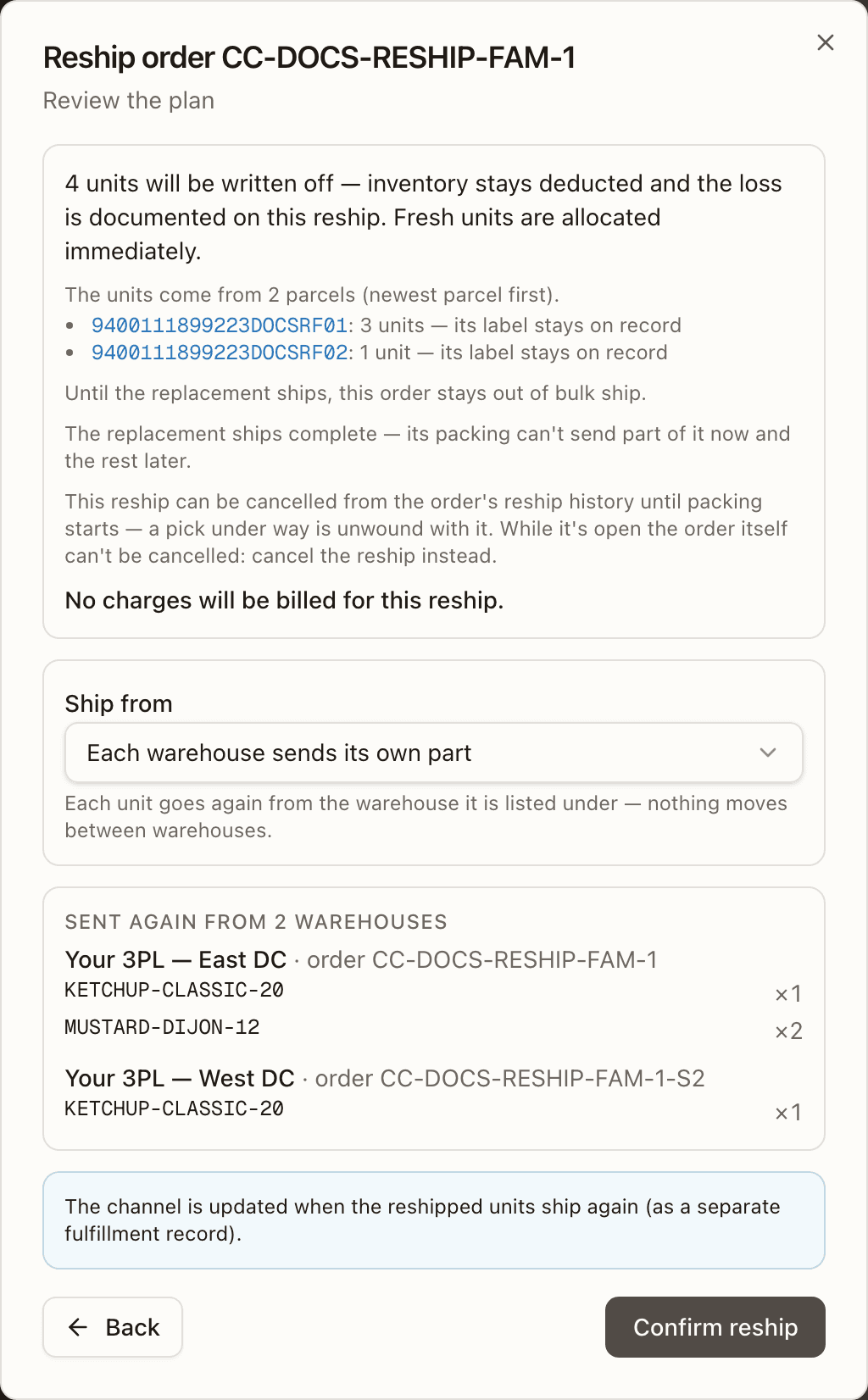
After Confirm reship, the Done step lists the parts: "One re-send, from 2 warehouses — each ships its part and can be cancelled on its own:", then Order CC-… — <warehouse> for each part.
Telling the customer yourself
When a parcel keeps its own tracking number on the sales channel — a KEEP sync on a sibling's take, or a partial reship that pushes no update at all — the confirm step tells you to pass the new number on by hand instead of relying on the channel: "keeps its own tracking number — units still travel under it. The new number isn't sent to the channel for the units taken from it: share it with the customer yourself.", or, for a partial reship, "no tracking update is pushed for a partial reship, so share the new tracking number with the customer yourself once it ships."
Taking units from another warehouse (split customer orders)
On a customer order split across warehouses, a re-send can draw units from another warehouse's own parcel, not just this order's own. Raise a line's quantity past what this order's own parcels can give it, and the rest comes from the warehouse that actually shipped it; or name that warehouse's parcel directly as the source. Or skip the line-by-line choice: pick the warehouse to re-send everything from under Ship from above, and the other warehouses' units are taken from their parcels for you.
You never pick the record that tracks this. Each order keeps its own mark of what another warehouse ships for it, and the engine adjusts that mark on its own. Naming it is refused: "… is this order's record of units another warehouse of the customer order ships — those are re-sent by quantity: raise the line's quantity past this order's own units, or name that warehouse's parcel (shipmentId)".
How much can come from another warehouse is capped twice: by what that warehouse's parcel still accounts for, and by what this order's own record says that warehouse ships of the line, whichever is lower. A sibling's own parcel is labelled Parcel … of <order number>, so you always know whose box a unit is coming from.
The take never changes the other warehouse's label, tracking, or order status. Its parcel still shows as shipped and keeps its own return path; only its record of having shipped those units is adjusted, so a later re-send there can't send the same unit twice. The confirm step and the split-order family view both name the warehouse a take draws from and list its units separately.
A take is refused when the other warehouse has a relabel in progress on that parcel, or when it holds no record of this order's units at all. On a returned-to-sender re-send, the one-box rule counts a sibling's parcel as a source too: a selection drawing from more than one box, whether it is this order's or another warehouse's, must still name the one that came back.
A box that predates per-box tracking has no rows to name a sibling's take on, so its own re-send is refused the moment it would also draw units from another warehouse: "…'s box … predates per-box tracking, so its re-send can't also take units … shipped — each warehouse re-sends its own units here (one re-send can hold both)". Re-send that warehouse's units in their own re-send instead.
Shrinking a line, or cancelling a warehouse's part, can give a take back the same way it came — the other warehouse's record of shipping those units stands again, and its own Timeline gets a note saying so. It's refused when the parcel the units would go back to is no longer active (voided, for example): the units can't go back on a dead label, so the edit is refused until the re-send ships with them instead.
On a goodwill re-send only, a line can also draw on another location's shipment recorded on a different order of the customer order, not this order's own record and not a sibling's own parcel. Only the customer order's parent tracks another fulfiller's shipment; every other order carries a placeholder for those units, and any warehouse's goodwill re-send can spend it now. The units are capped by what the holder's shipment still accounts for and by what this order's own placeholder for it still tracks, whichever is lower, the same two-sided cap as for a sibling's own parcel. The confirm step and the family view list these units the same way, naming the order that holds the record.
A take like this is refused when the holder has no line to record it shipping ("… has no line for SKU to record … shipping it — another location's units of it can't be sent again from here"), or when the holder keeps no record of this order's units at all ("… holds no record of …'s units — another location's shipment it records can't be sent again from …"). Giving units back, whether from a shrink or an abandoned reship, restores the holder's shipment and this order's placeholder the same way a sibling's own parcel comes back.
Unmarking an external fulfillment is refused while another order of the customer order has an open re-send drawing on it this way: "…'s re-send is sending again units this order records as another location's — cancel it, or let it go out, before unmarking an external fulfillment".
Reship history
The order's Reship history on the Details tab records each reship as a Relabel, Repick, or Reset, with the reason (now including Client asked for a re-send), the disposition — Written off, Received via RTS return, or Billed as a new order for a re-send; an older row can still read Restocked, a disposition the engine no longer offers — the lines, who did it ((client) when the brand did), and old → new tracking. A repick carries a Cancel reship button (Cancel re-send on the client's own) while it is still open — and also once it is committed, if the replacement label was voided before the re-send was packed, so a re-send that lost its label can still be called off; whether it's enabled comes from the server's own check, the reason shows under the button when it isn't, and the confirm repeats the server's warnings — Keep it backs out. When the re-send moved the order to another warehouse, one of those warnings says cancelling moves it back: "The re-send moved this order: cancelling moves it back to …". A re-send that is going out through a Bulk Ship batch wears an In Bulk Ship batch #N badge, which opens the batch.
Saving a plan that takes units out of a warehouse's part (Edit the re-send) leaves a note on that order's Timeline: "Reship amended: N unit(s) across M line(s) given back — N on this order's parcel(s) again …", with the re-send's reason and disposition. A warehouse dropped from the plan has its part cancelled, the same as cancelling it from Reship history, and its note starts "The re-send's plan was edited: …'s part of it was taken out."
One re-send from several warehouses
A re-send on a split customer order is one action with a part at each warehouse that sends units. Each part is a repick on that warehouse's own order, so each order's Reship history has its own row. With parts at two or more warehouses, that row adds a box, One re-send from 2 warehouses, listing every part: Order CC-… — <warehouse>, its status (open, label bought or cancelled), and (this order) on the one you are looking at. Another warehouse's open part has its own Cancel CC-…'s part button. It cancels only that part, with the same check and confirm as Cancel reship. This order's own part keeps the row's Cancel reship. The re-send closes once every part has its label or is cancelled.
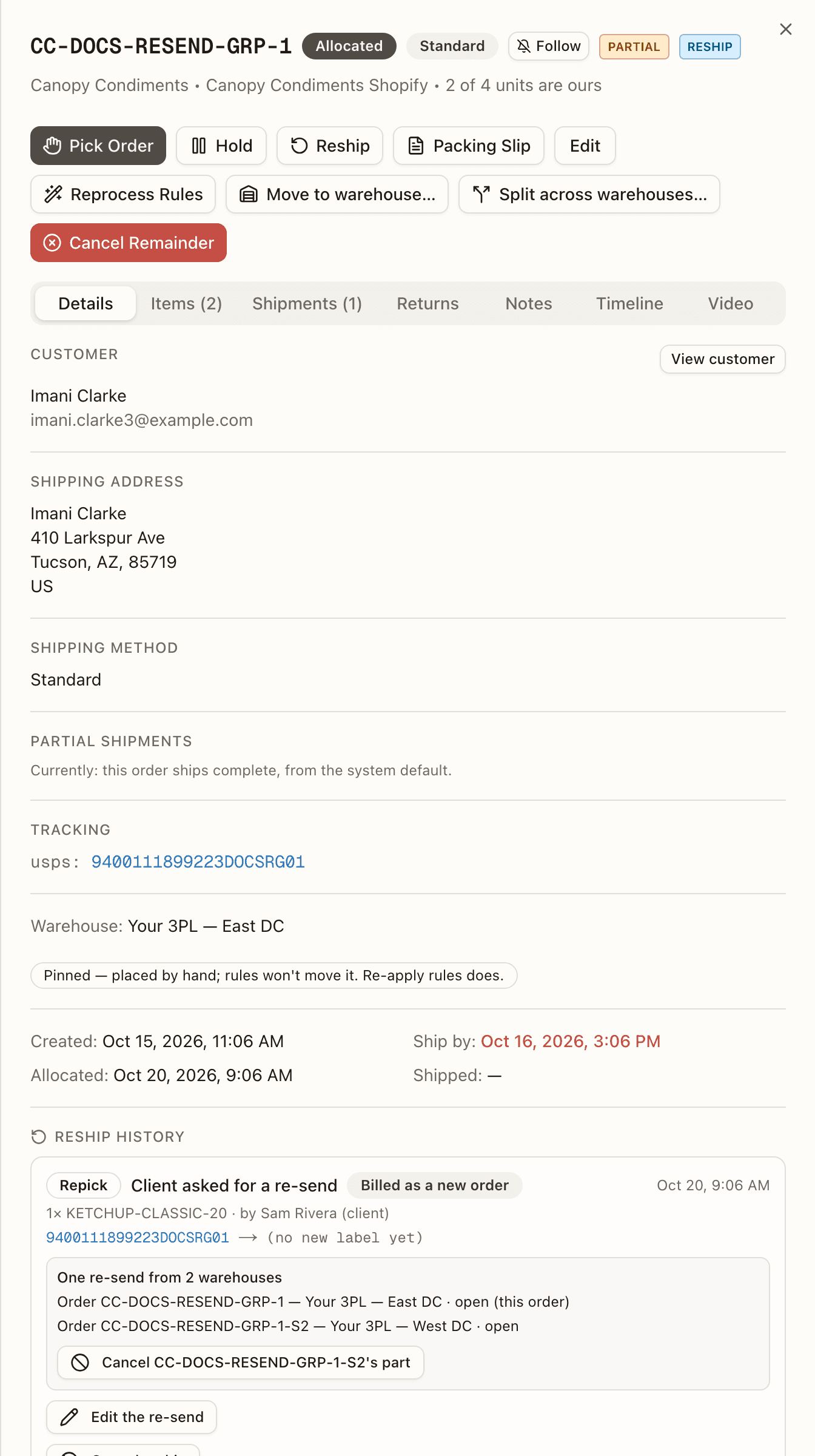
Edit the re-send
An open repick's row in Reship history carries Edit the re-send. It is for warehouse staff only. It opens the wizard as Edit the re-send on order CC-…, straight on its second step, Set how many each warehouse sends again. There is no reason step: the re-send keeps its own reason and billing. The A reship is already open on this order block on Review the plan offers the same editor, and there Back returns to the block.
The step lists each item with a row for every warehouse, filled in with what that warehouse's part sends now (· 1 now). Change the counts: "Fewer takes units back (before picking starts); a warehouse at 0 is cancelled from the re-send." A warehouse with no part yet gets one when you give it units. On an order that was never split, the editor shows that order's own warehouse alone. To stop the whole re-send, cancel it from Reship history instead. Cancel closes the editor and changes nothing.
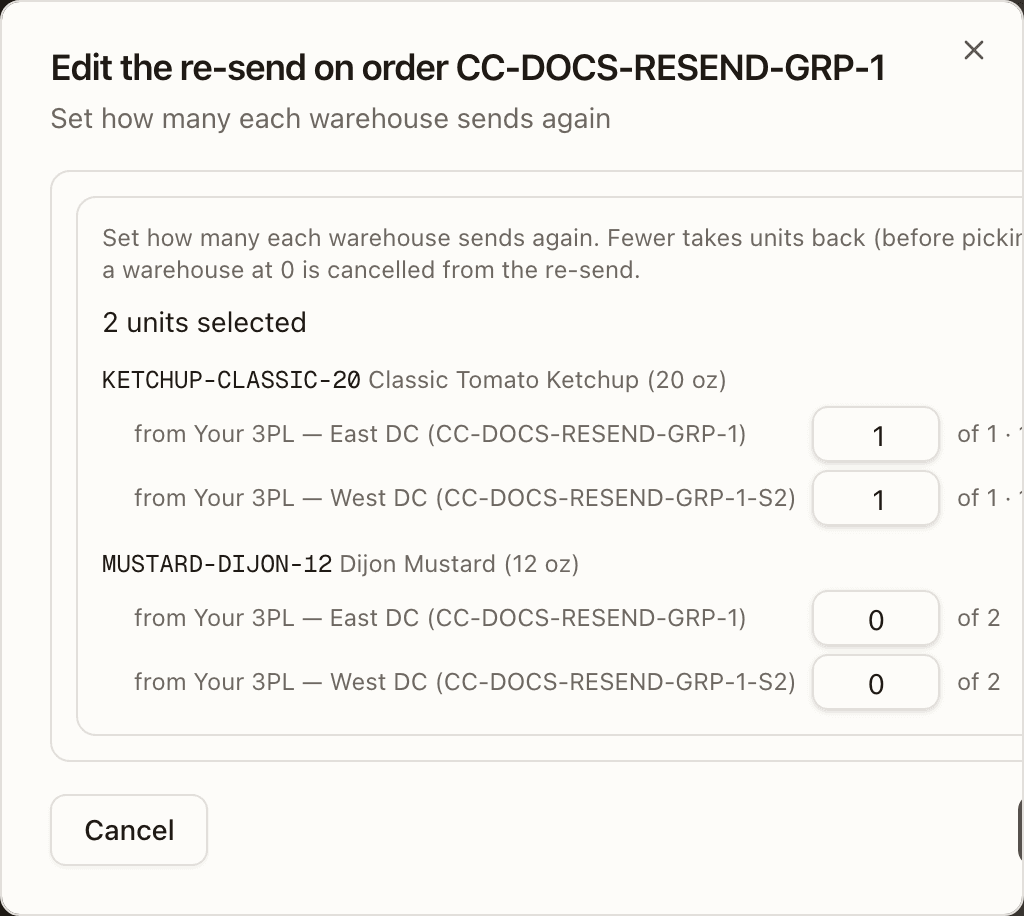
Press Continue. Review the plan opens with "The open re-send changes to the plan you set — below, what each warehouse's part gains and gives back." Units added are listed under Added to the re-send. Units given back are listed under Taken back from the re-send, by warehouse and order, with — its part is cancelled on a warehouse set to 0: "Units taken back stay shipped in the boxes they went out in, and are not sent again." Press Save the plan. A plan the server refuses shows This plan can't be saved with its reason, for example "The plan matches the open re-send — nothing to add or give back". The Done step reads The re-send's plan is saved, then "The re-send, warehouse by warehouse:" with each part's status.
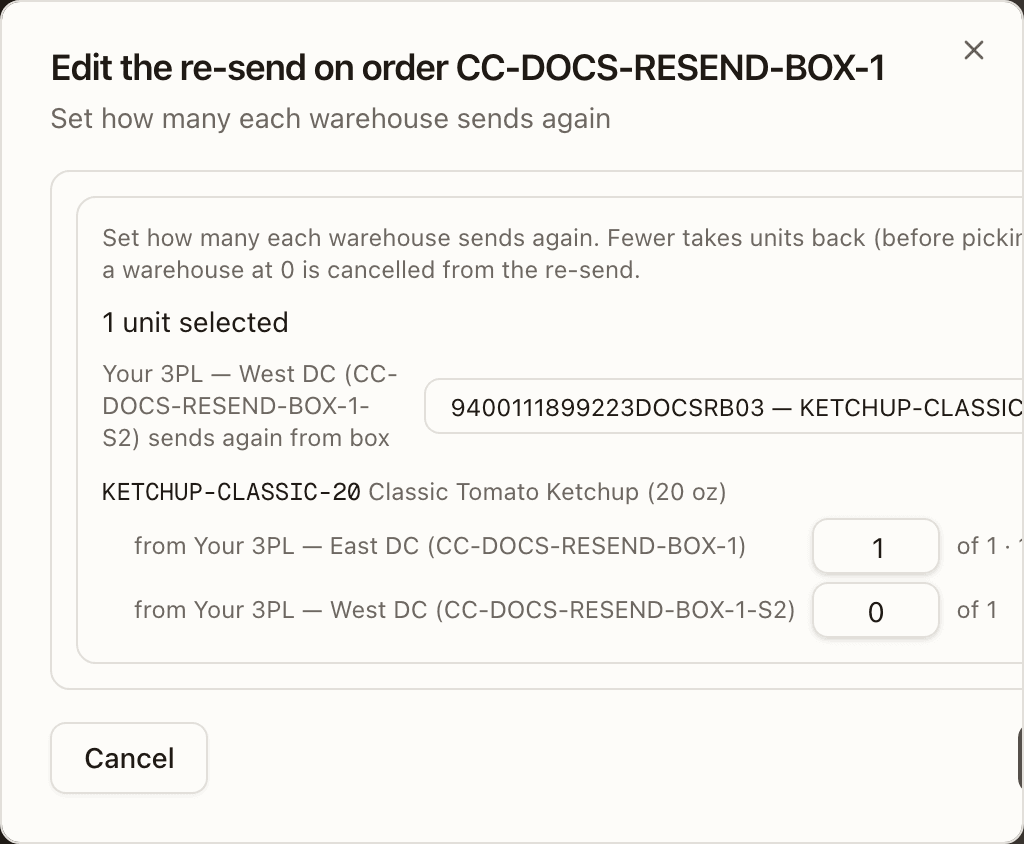
A returned box to choose
When the re-send is of boxes that came back to sender (Package came back, not intact, received on an RTS return), each warehouse sends its units from one returned box. A warehouse whose order has more than one returned box with units left gets a picker above its items: <warehouse> (CC-…) sends again from box, listing each box's tracking number and what is in it. The counts below it are that box's own.
Recover Order
Recover Order restores a cancelled order: its lines return to Pending, any channel edits that arrived while it was cancelled are re-applied, and stock is re-allocated. The dialog offers Fulfill from — keep the current warehouse or pick another — and warns about anything to check before shipping. The button is present on every cancelled retail order but disabled with the reason when the engine would refuse: cancelled by the sales channel (the order no longer exists upstream) or cancelled after packing (its goods are outside the pick pipeline — unpack and adjust stock, or ship the box via the carrier portal). An order cancelled while in a Bulk Ship batch that is still running is refused on Recover — "This order is in Bulk Ship batch #N — remove it from the batch first" — because the batch's cart still holds the units picked for it: Remove from batch returns those units to the shelf, then the order recovers.
The sales channel's hold, checked again
A cancel closes every hold on the order, the sales channel's own hold too. The channel may still be holding the order's fulfillment, or it may have placed a hold while the order was cancelled. So, for an order that came from a sales channel, Recover Order asks the channel again before it reserves any stock. A fulfillment the channel has scheduled for later, such as a pre-order, can hold the order the same way.
When the channel still holds the fulfillment, the order goes back On Hold, held by the sales channel, instead of being allocated. Nothing is reserved. The done screen's Follow up list says "The sales channel still holds this order's fulfillment — it is on hold until the channel releases it, and allocates then". When the channel releases its hold, the order is allocated.
When the channel can't be asked, the order recovers and is allocated as usual, and Follow up says "The sales channel's fulfillment holds could not be checked — confirm the order isn't held on the channel before shipping". Check the order on the sales channel yourself before it ships.
Moving an order to another warehouse
Reprocess Rules judges the client's warehouse routing rules on what the order still owes — the stock it already holds counts as free to it — and moves it only to a warehouse a rule chooses: backorder-at and hold-for-review are where a new order waits, so an existing one is never sent to wait somewhere else. A Follow channel rule is skipped ("Follow channel needs the order's channel location, which the order doesn't record"), and so is a rule none of whose warehouses has a primary location on the order's Shopify channel — either skip ends routing for the order, and no rule below it is tried. A rule that picks the warehouse the order is already in reads already routed to this warehouse. For an order held for review, a rule that now picks the warehouse it waits at releases that hold there — the order allocates, as it does when stock arriving releases it (below) — and so does the built-in default when no rule matches it any more and that warehouse can fill it. An Order Created rule's Hold Order that matches on Reprocess Rules joins routing's hold the way it does when the order comes in, so stock arriving can't release the order past it. A Follow channel rule's hold is yours to release while that rule still matches the order: stock and edits can't judge it either.
The move lands in one step, or not at all:
- The old warehouse's reservations are released and — unless the order is on hold — it allocates at the new one, landing Allocated, Replenish or Backordered on what it finds there. Orders waiting at the old warehouse are offered the stock it freed, and both warehouses' stock is pushed to the sales channels.
- A hold stays, and its release allocates at the new warehouse — except routing's own review hold, which the move lifts.
- A Ship by date Canopy worked out from the client's SLA is worked out again on the new warehouse's business calendar ("Required ship date recomputed on …'s business calendar") — when both calendars give the same date, nothing is written; a date the store or a person supplied is kept.
- The postage type and service options automation set for the old warehouse are decided again for the new one, on the order as it lands there — its stock taken, so a rule reading Any Item Backordered judges the fill it has at the new warehouse: a rule that matches there sets them, and with none they're cleared (the postage then falls back to the channel's shipping-method mapping). A manual override is kept — a manual choice always wins at label time — and the order gets a Check the manual postage note (a review card; its chip reads Manual postage moved) to check it still fits.
- The Timeline records Moved from "…" to "…" by routing rule "…": rules re-applied, and a row for each change that came with it.
The order stays put, with the reason in the toast, once any of its units are picked or shipped — a partially shipped order is never moved — while it is on a pick list or has units in a tote, while a reship is re-sending its units, when it is wholesale, held from any status but Pending, Backordered, Allocated or Replenish, or leads a live merge, and when nothing on it ships from a warehouse. A member of a live Bulk Ship batch never moves either (the order is in Bulk Ship batch N — remove it from the batch to re-route). One order of a customer order split across warehouses never moves on its own: Move to warehouse… refuses it (it is part of a split order — each warehouse's order of it stays at its warehouse), and Reprocess Rules decides for the whole customer order instead (below). On a Shopify order the fulfillment orders move first, never the units recorded as another location's. Should the order change before the move lands — a pick list or an edit got there first: "order changed while the rules were being re-applied — reprocess again" — nothing of the move lands and the fulfillment orders follow the order back; if Shopify won't take them back, the order gets a Not placed where routing chose note.
The Re-apply rules dialog asks the same questions before anything runs — all but whether Shopify will move the fulfillment orders. A move that would be refused reads Stays at … — rule '…' chose …, but …, ending with the reason, and an order the rules can't be re-applied to at all shows why, with Re-apply rules disabled. It's a preview: pressing Re-apply rules decides again on the order as it is then.
Reprocess Rules on a split order
On any order of a customer order split across warehouses, Reprocess Rules runs the routing rules once, for the whole customer order. The rules read the order you pressed it on, and count every warehouse's units as that order's own. What happens next depends on what they decide:
- A rule chooses one warehouse. The customer order folds into it. Shopify's fulfillment orders move there first. The order the split started from moves there, or takes the units on if it is already there, and every other warehouse's order is retired: it stays listed as Cancelled. The dialog reads Moves to … (rule '…'). When no rule matches, the channel's default warehouse, else the client's, takes it the same way: Moves to … — no routing rule matches it now, so the client's default warehouse decides — the customer order's 2 warehouses fold into …. The toast reads Applied: SET_WAREHOUSE (… — …; the customer order's warehouses folded into it).
- A Follow channel rule matches. It keeps the split as Shopify has it, and nothing moves: Stays at … — rule "…" keeps the split as Shopify has it. When any of its orders was not yet placed by that rule, the toast reads Applied: SET_WAREHOUSE (kept as Shopify split it — …; every warehouse's order is the rule's now).
- A rule that splits matches (Each SKU, or Split). The units are spread the way its plan says: Splits across … and … by rule '…'. See Automation.
- A rule would hold the order for review, or backorder it. The order stays where it is, and the dialog says why.
Nothing moves once any order of the customer order is being worked: Stays at … — order CC-… at … is being worked (…) — the family's placement is frozen. Reprocess Rules is the one run that moves a pinned customer order, such as one an operator split. The orders it places are no longer pinned, and their Pinned badge goes.
When routing runs again on its own
Three events run the client's routing rules on an existing order without
anyone pressing Reprocess Rules. Each moves the order in the same single
step, and whatever stops a Reprocess Rules move stops it too, except that
units handed to Canopy can also move an Ext. Fulfilled order. None of them
moves a wholesale order, one that leads a live merge, one still a member of a
live Bulk Ship batch, or one whose warehouse
was named on the order (Ship from, or warehouseId on an API order) or
chosen by an operator, which its Details tab marks
Pinned — though a rule can move an order from before Canopy
recorded what chose its warehouse (its Details tab shows the
warehouse alone), even if its warehouse was named; the built-in default never
does. Un-marking an order wholesale re-runs the rules too, as an edit does.
A customer order
split across warehouses is decided
as one order; see A split order runs as one customer order, after the list.
- Stock arrives. Once a warehouse's own waiting orders have taken what they need of new stock, routing runs again on the client's orders that could use the rest — highest priority first, then oldest, and only under a rule that chooses by First that can fill or Most units. A Backordered order moves to the warehouse its rule now picks when the rule has Re-route backorders on and that warehouse can fill all of it while the one it waits at can't. An order the rule held for review is released where it waits, and allocates there, once the rule picks that warehouse, whatever the switch; with the switch on it can instead move to another of the rule's warehouses (under Most units, one that can fill part of it is enough). The 15-minute backorder sweep catches a stock change that was missed. A rule set to Split moves stock differently here: see Automation → When routing runs again.
- The order is edited. Before it's picked, a new shipping address, shipping method, priority or tags — or a line added, removed or changed in quantity — re-runs the routing rules on the whole order. A sales channel's edit to the address, tags or lines does too. The routing rules run the way Reprocess Rules runs them — a move decides the postage and service options again, as above — and a hold for review is released where the order is when its rule now picks that warehouse.
- Units are handed to Canopy. When the merchant moves units another location held — a 3PL's, say — to a Canopy location that feeds a different warehouse than the order's, the rules run over the whole order with those units, and a Follow channel rule follows that location. Before the order is picked (an order with nothing for Canopy, resting as Ext. Fulfilled, included), it moves to the warehouse a rule picks or backorders at — with no rule, to the warehouse that location feeds — and takes the units on. When the rule picks the order's own warehouse, or the order can't move, the units come to it there instead. A rule that would hold it for review or can't decide (none of its warehouses has a primary location on the channel), a warehouse named on the order or chosen by an operator, an order on hold or already being picked, or Shopify refusing to move the units leaves it as it is, with an Order changed in sales channel review card saying why ("…, and Canopy couldn't take them on: …").
- The merchant moves it themselves. When the merchant moves an order's fulfillment orders in Shopify from one of your Canopy locations to a location that feeds a different warehouse than the order's, only an order the sales channel placed in the first place follows them there before it's picked: one whose warehouse reads channel location, or a rule still set to Follow channel, shown as the channel location once it moves. Every other order, named explicitly, chosen by an operator, sent to a default warehouse, or placed by any other rule, keeps the warehouse it already has, with a review card saying so, and Canopy moves its fulfillment orders back to match instead of following. Only Shopify's report of the very move does any of this; the order sync can't tell the merchant's move from Canopy's own, so a missed report waits for the order to ship, when Canopy moves the fulfillment orders back. Shopify refusing to finish a move that should have been followed keeps the order where it is too, with a review card as well; the card stays until the fulfillment orders are back. Once picking has started, an order that follows stays, and Canopy moves the fulfillment orders back when it ships. It follows only while the fulfillment order the merchant moved is still at that location when Canopy reads Shopify. If it has moved again since, that later move decides. The order never moves back.
A split order runs as one customer order. On an order split across warehouses, an edit re-runs the rules for the whole customer order, the same way Reprocess Rules does. A Follow channel rule that still matches keeps the split, and nothing moves. Any other rule that chooses one warehouse, or with no rule the channel's or the client's default warehouse, folds the customer order into that warehouse, and every other warehouse's order is retired. Three things leave it as it is:
- Work has started. Once any order of it is being worked, its placement is frozen.
- It is pinned. An operator split it, or a person chose the warehouse of one of its orders: its Details tab reads Pinned. Only Reprocess Rules moves it. Units it takes on later (units the store adds, or units handed to Canopy) go to the one warehouse the rules choose for the whole customer order, and the units already placed stay where they are. Under a Follow channel rule, or when the rules would hold or backorder it, the new units stay where Shopify put them.
- Stock arrives. A stock event never folds a split order: each warehouse's order waits for its own stock. Only a rule that splits (Each SKU, or Split), with Re-route backorders on, moves units on a stock event.
The move's Timeline row ends with what set it off — its shipping address changed, re-routed from a backorder — this warehouse can fill it now, held for review until a warehouse could fill it; this one can now, units were handed to Canopy at <location> on the channel, and the like. When stock or an edit would move an order and Shopify refuses to move its fulfillment orders, the order stays where it is with a Not placed where routing chose note, and arriving stock leaves it alone until the note is cleared. A later move that takes its fulfillment orders with it clears the note by itself. When Shopify instead gives no answer at all — down, timed out, or throttled — nothing is noted: the order stays where it is, unflagged, and the next stock event or sweep asks again on its own.
Banners
Nine banners can appear above the tabs:
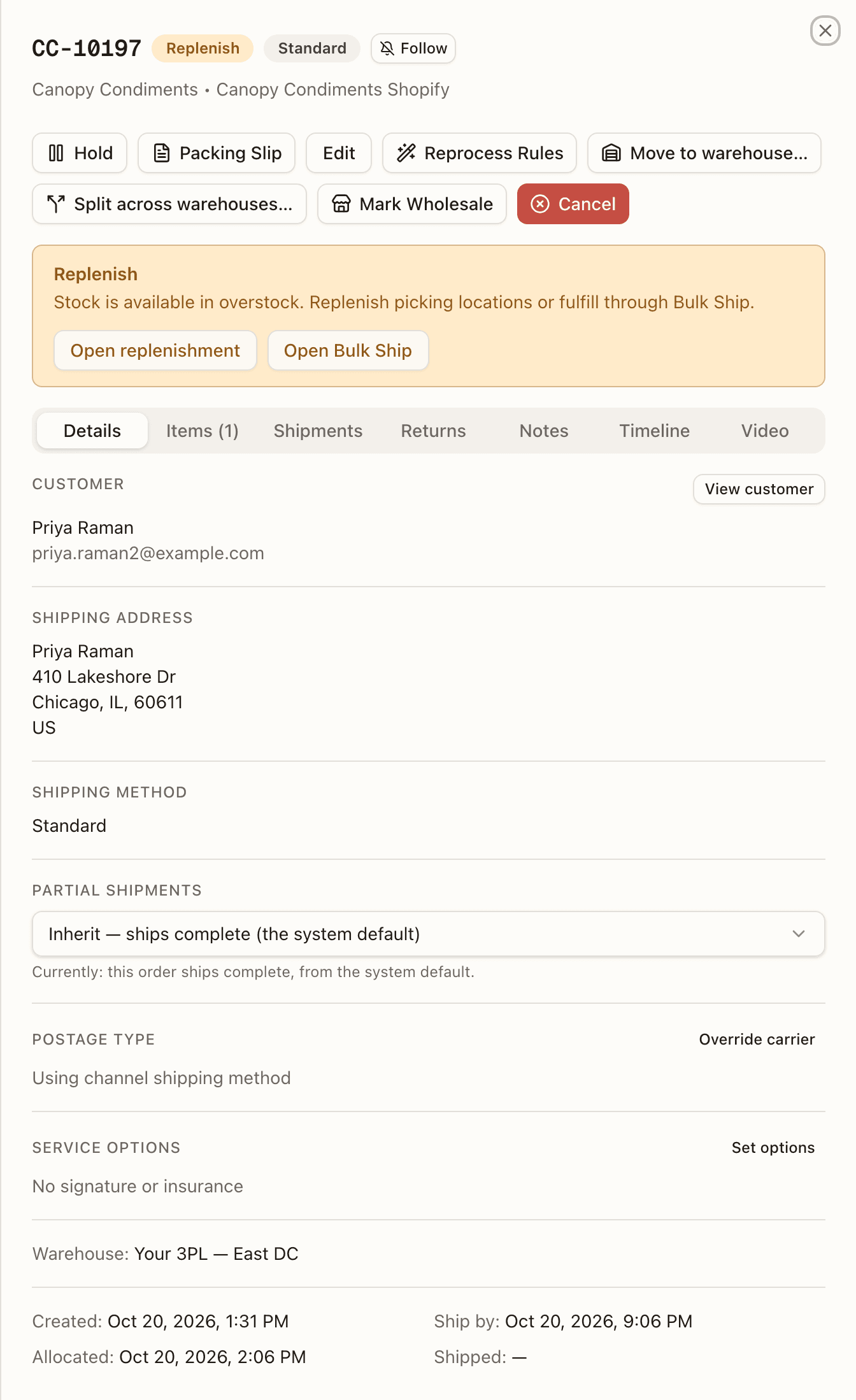
- Replenish — the order's stock is reserved but sitting in overstock, not in a pickable bin: "Stock is available in overstock. Replenish picking locations or fulfill through Bulk Ship." Open replenishment and Open Bulk Ship sit underneath (operator-only, and only once the order has a warehouse); Open Bulk Ship opens Bulk Ship pre-searched for this order. An order that already has shipped units, or an open repick, can't go through Bulk Ship — the banner drops that button and reads "Stock is available in overstock. Replenish picking locations to continue normal picking. Orders with shipped units or an open repick cannot use Bulk Ship."
- Held in picking — short pick needs resolution — the order carries open short picks ("N lines came up short during picking"). It won't advance to packing until each short is resolved: quick-pick the shortfall from another bin, backorder or cancel the line — on a master with merged-in lines, cancel it if it is this order's own (a line merged in from another order can't be cancelled here) — or abandon and re-queue the whole order. Open Short Picks takes you there.
- Merged into CC-… — will ship with it — the order is parked inside another: "Its lines are picked, packed and labelled on CC-…; its sales channel hears about the shipment when CC-… ships." Unmerge (or Remove from merge, when it isn't the last one) takes it back out; the banner says "Can't remove it now: …" when the merge is past that point. Once the master has gone the banner turns green — Shipped with CC-… — and a reship or re-send goes through the master. See Merged orders.
- Split from CC-… — this order is one warehouse's part of a customer order that was split across warehouses: "CC-… is the customer's order, shipped from more than one warehouse. This order is Buffalo's part: it shows the whole order and ships only the units assigned here." The number opens the customer's order. Nothing to press; the order works like any other.
- Charge waiting on <location> — the channel charges the customer when the order ships, but waits until every location has shipped, and that location still has part of this order to ship. The banner carries the reason and the payment authorization's expiry; there is nothing to press — the charge runs once that location ships, or 24 hours before the authorization expires, whichever comes first.
- Archive waiting on another location / Archive waiting on items Canopy did not ship — the channel's archive-on-ship was refused because another location still holds units of this order; the banner carries the refusal.
- An order merged into this one changed on its sales channel — on a master, one block per event: "CC-…, merged into this order, was cancelled on its sales channel" (or edited, put on hold, has a balance outstanding, had units shipped or refunded elsewhere), with the line diff and Detected <time>. The phrase names where that order stands now, not where it stood when the change arrived: a child that has since gone out in the master's box reads "CC-…, which shipped in this order's box, …", and one taken back out reads "CC-… (no longer in this merge) …". The master's own change appears here too, opening "This order …" in place of a child's number — and when that change is a new ship-to, the block says what the box will carry: "The box still carries the address the merged orders share. To send this order to its new address: <step> — each order then ships to its own. Or ship as packed, to the address it carries." Once the master is packed out there is no way back — "This order is packed out and can't be taken apart any more — ship as packed." — and if it no longer leads a merge at all, "It no longer leads a merge, but the new ship-to from its sales channel could not be applied. Check its address and correct it if needed, then acknowledge." The way out of a master's own event is always the whole merge: <blocker>, then unmerge all under Merged orders on the Details tab. When the brand's rules hold the label on such a change the banner is red — Label on hold — … — and "No label can be bought, and the order can't be packed out or marked shipped, until each change marked 'holds the label' is acknowledged or its order is taken out of the merge." Each block can now also be resolved with Apply, next to Ship as packed / Acknowledge: it takes just that child out of the merge on the spot, unwinding its pick and pack work, instead of unmerging it by hand under Merged orders. Behind some masters, the box has to come back first — see Pulling the box first below. It is refused the same way a live shipping label or a Bulk Ship batch membership refuses a full unmerge, naming the step to clear first. If taking the child out leaves this order with nothing of its own still owed, it closes Ext. Fulfilled. Only an operator can press it; a client user is refused.
The refusal itself — on a label purchase, a pack-out, a batch completion or a mark-shipped — names the way back from where the master really stands before the removal (… or void CC-A's label, then cancel the pack, then unpick CC-A, then finish the put-back, then remove CC-B from the merge), and names no removal at all once the merge can't come apart any more.
Pulling the box first
Behind some masters, Apply doesn't take the child out right away: the master's own box has to be pulled back first. The button reads Take CC-… out — pull the box first, and pressing it sends the master's box to Boxes to Pull instead of unwinding anything yet. While it's waiting, the block reads "Taking CC-… out waits on this order's box — pull it at Boxes to pull (its label and an empty tote) and CC-… comes out; if it has left, mark it gone and CC-… ships in it." and the Apply button is hidden until the box is answered.
Scan the master's box at Boxes to Pull and the block turns into a question of its own: an Apply/Keep choice right on the box's row — Apply finishes the take-out, Keep re-packs the box with the child still in it. Pressing Apply on the banner itself for a box-first master only ever starts this: nothing is taken out yet, and a toast from the server says so.
This also holds once the master is paused by a hold placed after it was already packed out: acknowledgeability is judged against the stage behind the hold, not the raw On Hold status, so the banner still reads the packed-out text instead of treating the order as not yet packed.
- Review cards: one card for each change Canopy couldn't apply by itself, most of them from the sales channel, titled Order changed in sales channel, Check the manual postage, Not placed where routing chose or Routing still to run again; see Review cards below.
- Order Unfulfillable — the order was marked unfulfillable during picking for lack of stock. Review the timeline and check stock discrepancies before re-queuing.
Review cards
Sometimes the sales channel changes an order and Canopy can't apply the change by itself. The change then becomes a review on the order, and each open review is a card of its own above the tabs, newest first. A card that holds the order is red and wears Holds the order: the order stays On Hold until someone settles it. A card that is only a note is amber and wears Note: something to read, and the order carries on. Two changes on one order are two cards, each settled on its own. A few notes come from Canopy's own routing, not the channel, such as Check the manual postage after a move to another warehouse.
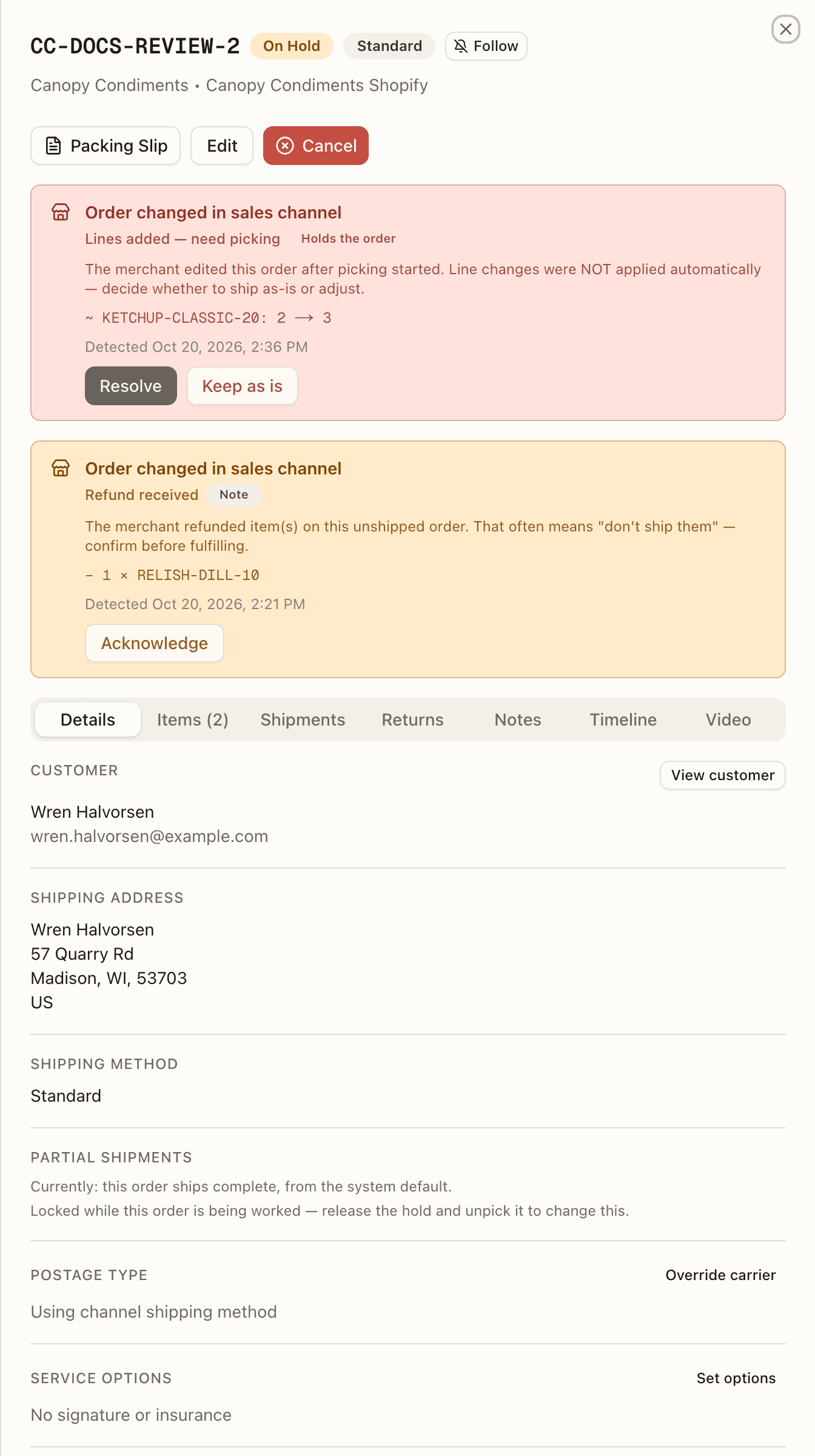
Each card shows, top to bottom:
- Its title. Most cards read Order changed in sales channel. Three notes have titles of their own, described below.
- What it is: the review's kind, such as Lines added — need picking, Staff edit conflict, Refund received or Routing move refused, with its Holds the order or Note badge.
- What happened, and what to do about it, in a sentence.
- The change, line by line, when it touches lines:
+ 2 × SKUfor an added line,~ SKU: 1 → 3for a new quantity,− 1 × SKUfor a removal. - Detected, with the date and time Canopy saw the change.
- Its buttons: the ones the review's kind takes, and only those you may use.
The buttons a card can carry:
- Apply channel's changes (operator-only): on a line change Canopy held back because the order's lines were edited by hand (Staff edit conflict), because applying it failed (Channel edit failed), or because it adds a SKU Canopy doesn't know (Unknown SKU). Offered while nothing on the order is picked or packed. It re-fetches the order from the channel and applies the line diff. The toast reads "Channel changes applied", or "Order already matches the channel — flag cleared".
- Resolve (operator-only): on a Lines added — need picking or Changed after packing card that lists line changes, while the order is Picked or held from Picked. It opens Resolve channel changes: added items and increases are quick-picked from bins you choose into the order's existing tote, and removals stage put-back; on a wholesale order, which has no tote, an addition is planned at a bin instead, for the desk to pick. A line the channel adds after picking has started always reaches this point now: it holds for your pick instead of sometimes being refused. The toast reads "Resolved: …" with what moved.
- Keep as is: ship the order as it stands, without the channel's change (as picked or packed, or with the value staff set). The toast reads "Kept as is".
- Release: lift the hold this card placed, once you have dealt with the change yourself. The toast reads "Hold released".
- Acknowledge: on a note, close it once you have read it. The toast reads "Note acknowledged".
Settling the last card that holds the order takes it off hold. While another hold is still open, the order stays On Hold. After Keep as is or Release, the toast then names what is left: "Kept as is — still held: 1 other reason (Operator hold)". While only cards hold the order, the action bar offers no Release: each card is settled with its own buttons. A client user sees every card, but gets only Acknowledge on a note. A card is never repeated in the hold list, and the cards check for changes every 10 seconds while the order is open.
A newer change replaces the card of an older one of the same sort: a newer line change replaces the older line change, a newer move between locations the older move, and a newer postage or routing note the older note of its kind. Any other change keeps a card of its own, so a refund note and an edit's hold sit side by side.
Order changed in sales channel
Most cards carry this title. The card says why: the merchant edited after picking started; the lines were manually edited in Canopy so auto-applying could revert them; items were refunded before shipping; a kit product was added; the channel moved units between locations and Canopy could not follow ("Nothing was changed on this order — decide with the merchant who ships them"; for units handed to Canopy at a location that feeds another warehouse, it adds why they couldn't be taken on); the channel cancelled a return after Canopy had already received items on it ("The RMA was NOT cancelled — its received units are in stock. Complete it, or unreceive them and cancel it."); the channel cancelled a fulfillment Canopy had recorded as made somewhere else, on a channel that doesn't route orders by fulfillment location — Canopy leaves those units as they were, still counted as shipped elsewhere, for you to decide ("The channel cancelled a fulfillment Canopy had recorded as made elsewhere: … Its units still count as fulfilled elsewhere — nothing on this order changed." — Reship these items on the line takes them back; otherwise acknowledge); and the channel took the very units an open reship was re-sending, with the reship left standing ("The channel took the units this order's open reship was re-sending, and Canopy could not cancel the reship: …") — those last two changed who ships the units, not the units themselves, so they carry no line diff, and the re-send also leaves a RESHIP row on the timeline. When the change touches lines, the card lists them one by one. A move between locations is never applied: there is nothing to apply, only a decision to record, so its card offers no Apply channel's changes or Resolve.
Apply channel's changes is also refused on an order held mid-pick: the hold hides the stage it was held from, so the apply stops before writing anything. It says "Order was held while PICKING — physical work may be in flight. Release the hold and resolve it in that stage first, then retry." A channel edit that arrives on such an order is flagged the way a post-pick edit is, not applied.
A line change the store makes to a customer order split across warehouses has to say whose units it adds to or takes from, because every warehouse's order carries every line at its full quantity. On a Shopify channel with Only import items assigned to our locations on, the fulfillment orders say so, and Canopy changes every warehouse's order at once; a channel with no fulfillment orders at all follows a fixed rule instead. See A channel edit to a split order's lines. Anywhere else, and for a line whose change touches an order already being worked, each warehouse's order gets a card of the kind Split order edit held, with the same diff: "Channel line changes could not be auto-applied (split-order-edit: the channel changed the lines of an order split across warehouses — change each warehouse's order by hand)." That card offers Release only. Make the change on each warehouse's order with the Items tab, then press Release on each.
Three notes have titles of their own, and only Acknowledge: there is nothing to apply. Check the manual postage: a move to another warehouse kept a postage choice made by hand for the old one ("Manual postage chosen while at <old warehouse> (<choice>) — check it still fits <new warehouse>. A manual choice always wins at label time, so the move kept it."). Not placed where routing chose: the sales channel refused to move the order's fulfillment orders to match routing, and the note says where the order and its fulfillment orders ended up ("… It ships from here as it stands — move it in the sales channel and re-apply rules to change that."). It also follows a move or hold release that stock arriving or an edit set off and Shopify refused, and then says "… until this note is cleared, Canopy's stock re-checks leave this order alone"; a later move that takes the fulfillment orders with it clears the note by itself. The note only appears on an actual refusal: when the channel instead gave no answer at all — down, timed out, or throttled — nothing is noted, and Canopy asks again on the next stock event, sweep, or order sync without flagging the order — unless the rule that placed it doesn't re-route backorders, in which case a no-answer placement still gets this note, since nothing else would retry it.
Routing still to run again: an edit re-ran the routing rules, and the run failed for a reason that can pass, such as a lock that timed out. The note says what changed and why the run failed ("… — Canopy runs it again on the order's next channel event and in the 15-minute sweep. Re-apply rules runs it now."). Once a run lands, the note clears by itself.
A reship's rewind re-reads the channel too, but as a rewind: a change that would undo a line edit made in Canopy, or lower units the reship is re-sending, is not applied but flagged here, and the reship's result says so — "Channel changes not applied (SKU 3 → 1) — they lower units this order is re-sending. A refund and a re-send can both stand, so the re-send ships as selected. If it shouldn't go out, cancel the reship (Reship history → Cancel reship — the order goes back to the status it had before the reship, on its original parcel, and the channel's refund needs nothing else in Canopy). Any other change listed here was not applied either: make it on the order by hand before you acknowledge the change on the order (Order changed in sales channel)". And when a channel edit adds units of a SKU an external-fulfilment rule names, the rule is applied to just those units, with a timeline row — "Automation rule marked SKU externally fulfilled on the units a channel edit added (removed from pick/pack)".
Details tab
Top to bottom, the sections that apply to the order:
- Customer — name, email, phone, and a View customer button (when the order has an email) that opens the customer's profile over the order.
- Shipping Address and Shipping Method.
- Partial shipments — a one-line summary of whether this order may split across parcels and where that setting comes from, plus, while the order's status allows it, it doesn't lead a merge and it isn't held mid-cycle (then the line reads "Locked while this order is being worked — release the hold and unpick it to change this."), the Inherit / Allow partial shipments / Ship complete select. Not shown on wholesale orders. See split orders.
- Postage Type — an Override carrier / Change button opens the Override Carrier dialog to force a specific postage type, picked under the carrier account it will be bought on. Available before a label is bought; it beats automation and the channel mapping. The section reads Manual override, Set by automation rule, or Using channel shipping method. When the order moves to another warehouse, what automation set here and under Service Options is decided again for the new warehouse; a manual override stays, with a Check the manual postage review card.
- Service Options — Set options / Change opens a dialog with Signature confirmation and Insure shipment (with a declared value, pre-filled from the order total). Same window as the postage override; a manual setting beats automation, and turning both off reverts to whatever automation set. The pack station only displays the result.
- Tracking — once a label exists.
- Hold Reason: the hold list, one row for each hold or note still open on the order, except a change from the sales channel, which is a review card above the tabs instead. The heading reads Hold Reasons once more than one of its rows holds the order. Routing's own "Hold for review" is the one hold that lifts by itself: stock arriving at a warehouse that can fill the order releases it. When a Hold Order rule matches such an order as it comes in, the rule's hold gets a row of its own, Held by a rule, beside routing's, and the order's reason joins the rule's reason in front of routing's. Stock no longer releases the order. When the rule's date comes, only the rule's row lifts, and the order is back on routing's hold, which stock can lift again. Reprocess Rules joins the two reasons the same way but adds no row of its own: the list shows routing's row alone, and the order waits for an operator to release it.
- Notes, Gift Note (kept separate so a packer can't mistake one for the other; on a merged master the gift note lists each order's on its own line, CC-…: note), and Tags.
- Wholesale — retailer, ship mode, retailer instructions, and a Print packing slip button for the wholesale slip.
- Warehouse — where the order ships from, and what chose it: Warehouse: Stallion US · rule 'US addresses' when a routing rule did, otherwise · explicit (named on the order), · channel location, · channel default, · client default, · only warehouse, · set by an operator (another warehouse chosen under Fulfill from in Recover Order), or, on an older order only, · moved in Shopify. Canopy no longer writes that value: only an order the sales channel placed in the first place now follows a merchant's move there, and a split order's parent folding onto a sibling's warehouse keeps whatever choice it already had instead of taking this one on. See split orders. With no choice on record (an order from before Canopy kept one), it shows the warehouse alone. A placement a person made carries a Pinned badge under this line.
- Dates — Created, Ship by (red once it's past), Allocated, Shipped.
- Merged orders — on a master, the orders merged into it — see below.
- Split across warehouses — on any order of a customer order that was split, the customer order's other orders, one row each: number, status and warehouse, with · the customer's order on the one that keeps the channel's number. See Splitting an order across warehouses.
- Reship history — see Reship.
Pinned placement
When a person chose where the order ships from, a badge sits under the
Warehouse line: Pinned — placed by hand; rules won't move it.
Re-apply rules does. It shows when the warehouse was named on the order
(Ship from, or warehouseId on an API order), chosen by an operator
(Move to warehouse…, another warehouse under a reship's
Ship from, or Fulfill from in
Recover Order), or, on an older order, moved in Shopify.
On a customer order
split across warehouses, one pinned
order pins them all, so an operator's split pins every warehouse's order of
it.
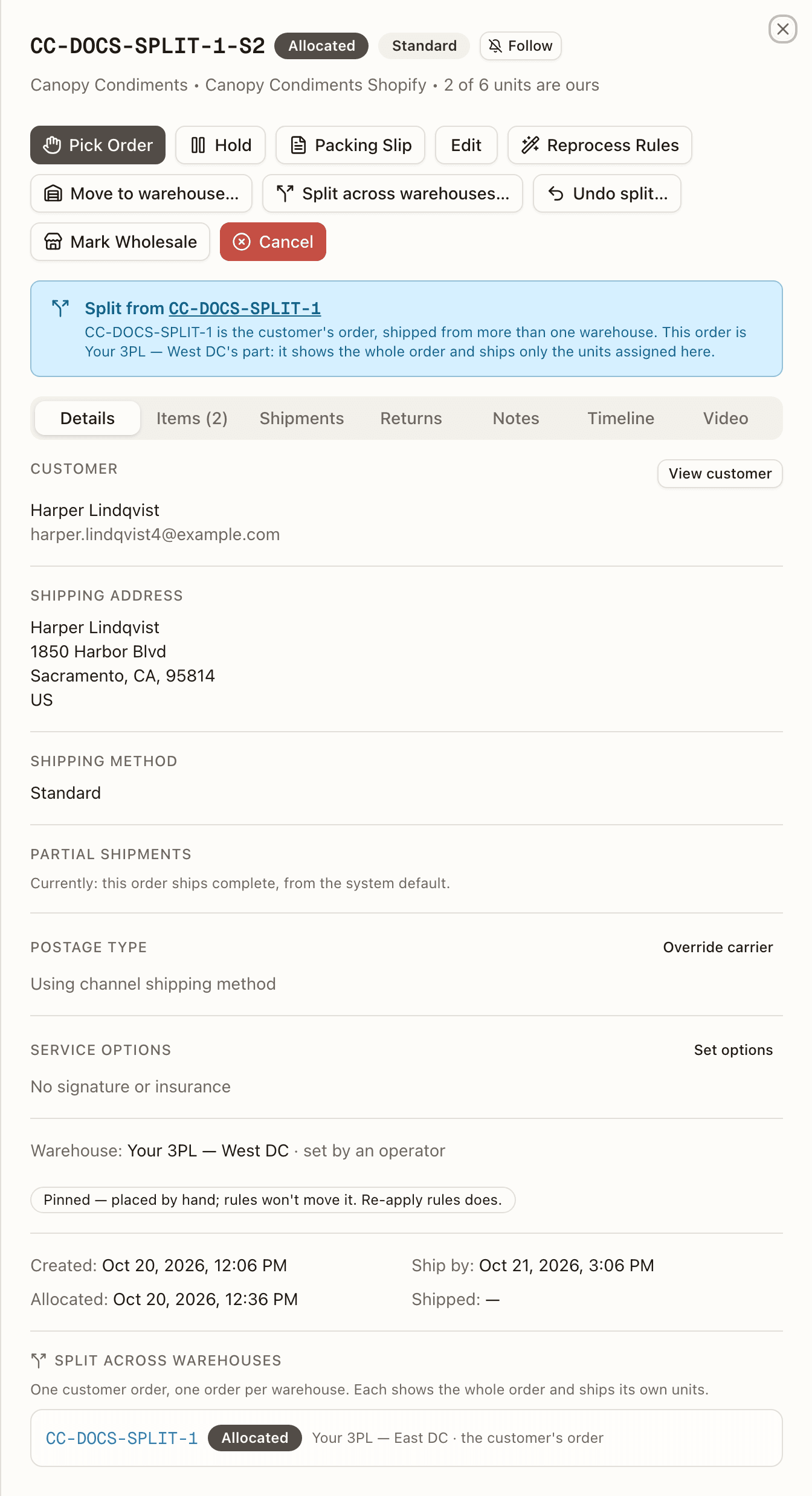
Routing's own runs leave a pinned order where it is: stock arriving, an edit, or units handed to Canopy (see when routing runs again on its own). Reprocess Rules still moves it. An order it places is then placed by the rules, and the badge goes.
Override Carrier dialog
Override carrier (Change, once a choice is saved) opens Override Carrier — CC-…. It has one field, Postage type, which starts on the saved choice, or on No override (use automation / channel default) when there is none. Open the list and the rest of it is grouped by carrier account: one heading per account the order's client may ship on, the account a label buys on by default first, each listing the services that account offers. An account whose services are only known from a live quote has no heading, and Generic Label sits under its own Canopy heading. A choice is the service and the account together. The same service under two accounts is two different choices, and the label is bought on the account you picked, not on the client's default. An account whose sign-in the carrier refused to renew is still listed, last, headed … — needs reconnecting, with its services greyed out: a choice already saved on it stays saved and still shows, but nothing new can be picked there. A saved choice that no heading offers (one saved before accounts were tracked, or on an account the list no longer offers) sits on its own just under No override, so it still reads as set instead of asking you to pick again. Press Save. The toast reads "Carrier override updated", and moving a saved service to another account counts as a change. The server checks a pair that names an account against the order's client before saving it, and refuses with "Carrier account … is not one this client can ship on. Choose an account from the list before saving." or "Service "…" is not offered by carrier account "…" (…). Update the shipping method mapping or the order's carrier override before buying." Generic Label is saved with no account. Which accounts and services a saved choice can name is explained on the Shipping manual; the Bulk Ship session's Postage Type popover offers the same grouped list.
Hold list
The Details tab lists every hold and note still open on the order, newest first, each with its own button. A hold keeps the order On Hold. A note does not: it is something to read, and the order carries on. A change from the sales channel is not in this list: it is a review card at the top of the sheet, with buttons of its own.
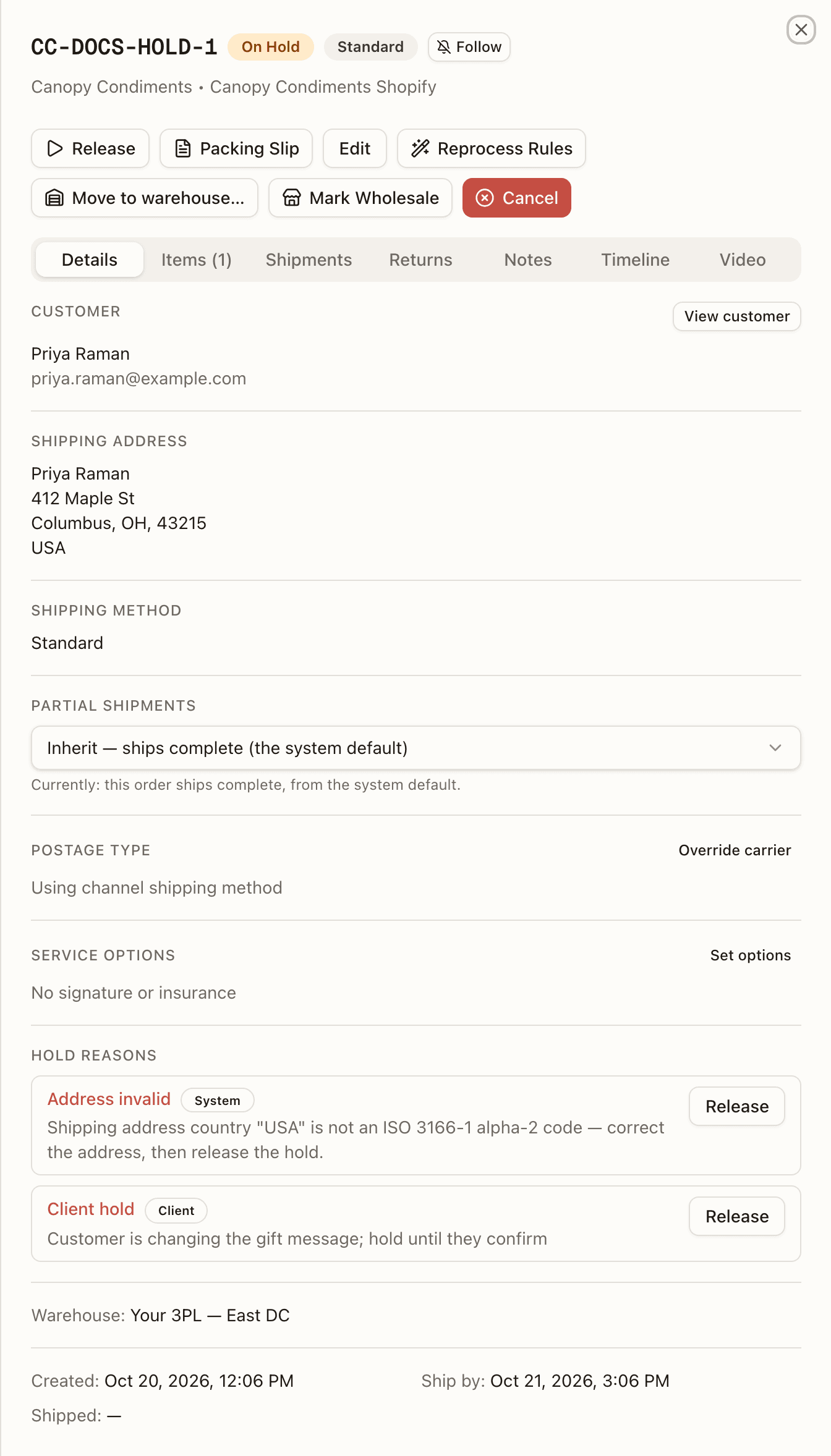
Each row shows:
- What it is, in red for a hold: Operator hold, Client hold, Channel hold, Awaiting payment, Held by a rule, or one of the holds Canopy places when a person has to decide, such as Address invalid, No warehouse can fill it or Merge re-sync.
- Who placed it, as a badge: Warehouse, Client, Sales channel, Awaiting payment or System. A note also wears a Note badge.
- The reason under it, and on a timed hold Releases … with the date, or Hold expired — pending auto-release once the date has passed.
- Release on a hold, or Acknowledge on a note. A few holds offer Keep as is beside Release, such as Cancel blocked, a sales channel's cancel that Canopy refused.
Release on a row lifts that one hold. While another hold is open the order stays On Hold, and the toast names the rest: "Hold released — still held: 1 other reason (Awaiting payment)". Releasing the last hold takes the order off hold, the same way the action bar's Release does, and is refused the same way while the shipping address has a country no carrier serves ("Can't release this hold — …"). Acknowledge closes a note ("Note acknowledged") and leaves the order's status as it is. While the order is open the list checks for changes every 10 seconds, so a hold someone else places or lifts shows up on its own.
A client user sees the same list. They get a button only on a row that is
their own client's hold (Client, kind CLIENT_HOLD), and Acknowledge
on a note that isn't a warehouse decision. Every other row has no button
for them, and the server refuses it: "The warehouse decides this hold —
contact your 3PL to release it".
Merged orders
A master's Details tab ends with Merged orders: one row per order merged into it — its number, status, Ships in this order (Shipped together once it has gone, Taken out if it left), when and by whom it was merged, and Remove from merge while more than one is still in. Unmerge all at the top undoes the whole merge: "Each goes back to being its own order with its own lines and reserved stock, and CC-… gets back the header it had before the merge. Each order's sales channel is checked again for changes made while it was merged." When the merge can't be undone right now the reason shows in place of the button — "Can't unmerge now: …" — worded from where the master really stands, with the steps back to the shelf in the order the floor takes them: "CC-… is being packed — void its label first, then cancel the pack, then unpick it, then finish the put-back", "CC-… is in bulk ship batch #N — remove it from the batch first", "CC-… has an unresolved short pick — abandon it from Short Picks first", "CC-…'s tote T-… is still bound to it — clear the tote first"; a held master's steps start with release its hold. A hold on its own is no obstacle — a master on hold, or one waiting on replenishment, unmerges like any other and keeps its hold — while a master that is packed out, shipped, or whose merged lines a reship has touched can't be unmerged at all ("CC-… is packed out — a packed-out merge can no longer be undone", "CC-… was reshipped with the merged orders' lines — it can no longer be unmerged").
A change the master's own sales channel makes to its tags, notes or gift note while it leads a merge is applied to the master's part only: the tags the merge added, the note lines it appended and the combined gift note stay, and a full unmerge still gives back exactly what the merge wrote.
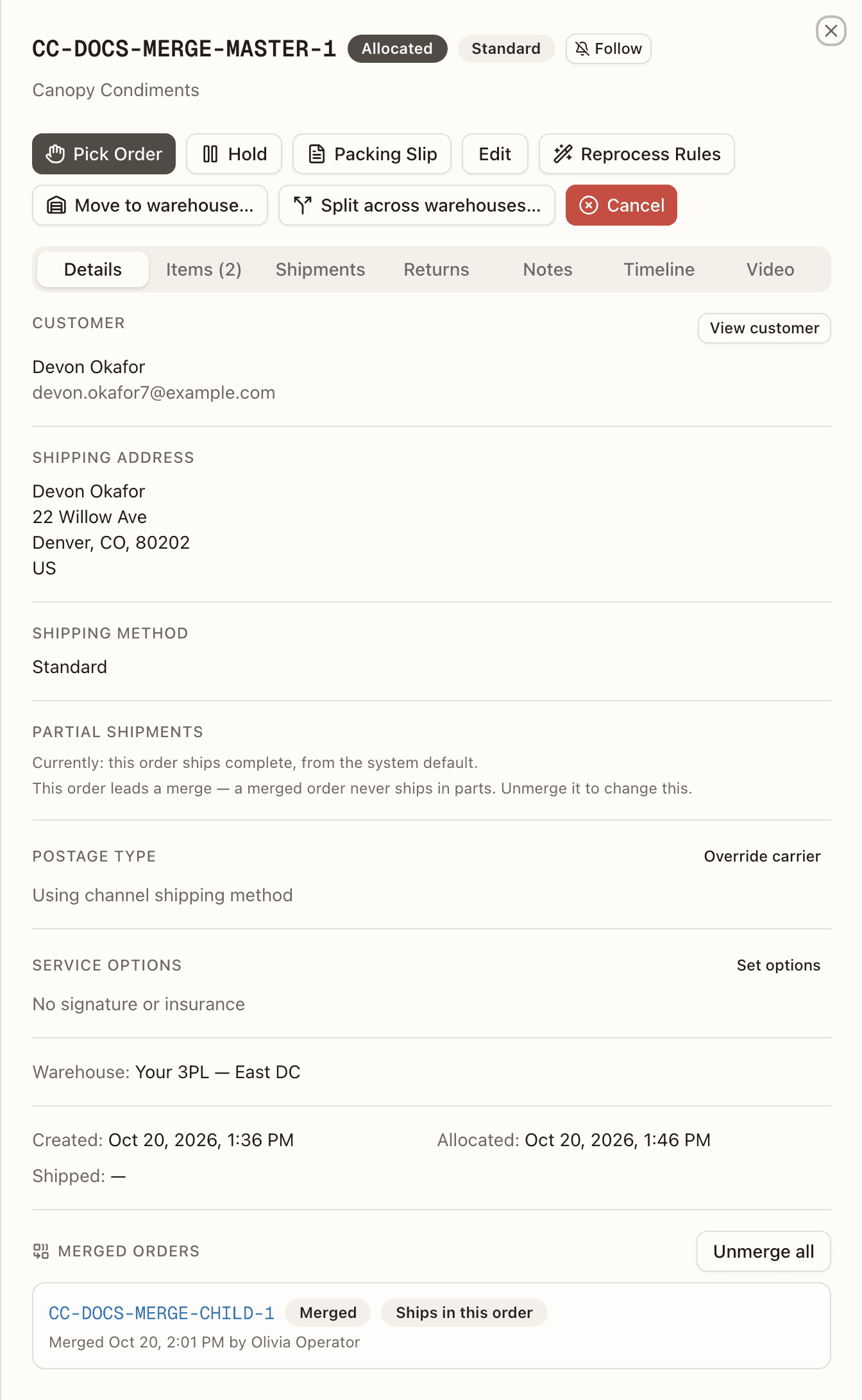
The merged order's own sheet opens on the Merged into CC-… — will ship with it banner, with only Packing Slip in its action bar: everything else that happens to it now happens on the master.
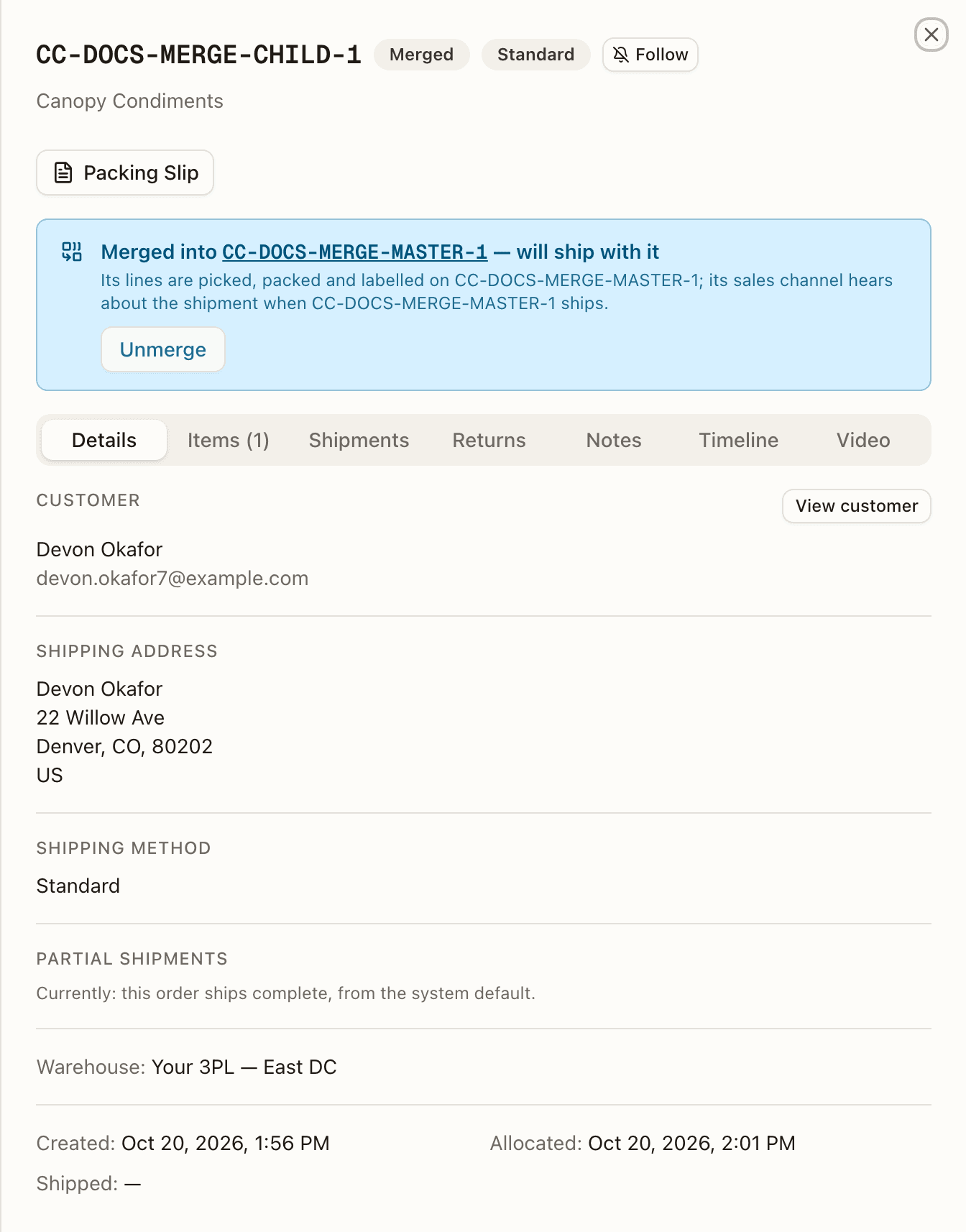
Unmerge confirms first — "Undo the merge into CC-…?" — because the master's header goes back to what it had, and the order's channel is re-read.
The result reports each order as its re-sync with its channel left it: "CC-… is on hold — the hold lifts on its own" for the re-sync hold below, "CC-… is on hold until someone releases it: <reason>" for a hold only a person lifts, and "CC-… is on hold — open it to see why" otherwise. A master that was itself on hold keeps its hold through the unmerge, and its timeline gets a Hold placed row saying what the release now restores — "CC-… left the merge — the order stays on its hold, which now releases to PENDING".
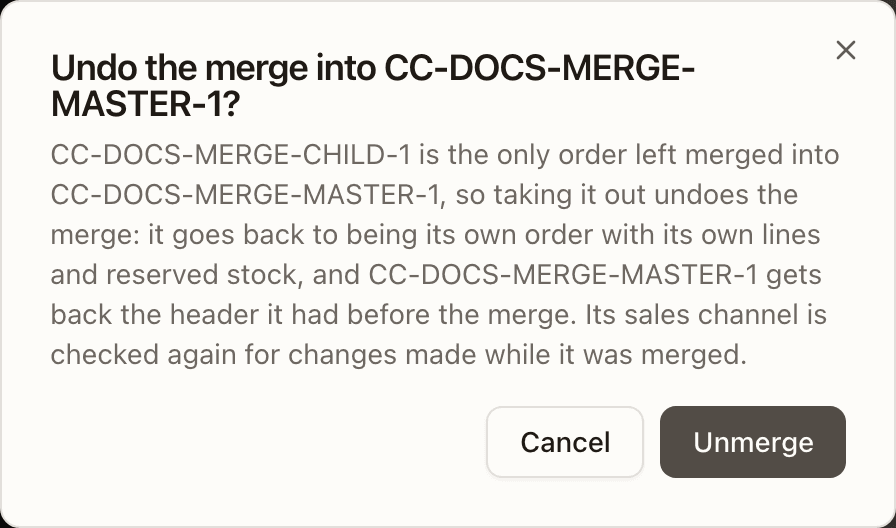
An order taken out of a merge whose sales channel had meanwhile reported units shipped elsewhere doesn't go straight back to work: it lands On Hold with source System and the reason "Left a merge while its sales channel reported units shipped elsewhere — held while Canopy records them; released automatically once that is done". The re-sync lifts that hold by itself once the units are recorded — but only while the hold is still exactly that one; a hold someone placed in the meantime stays.
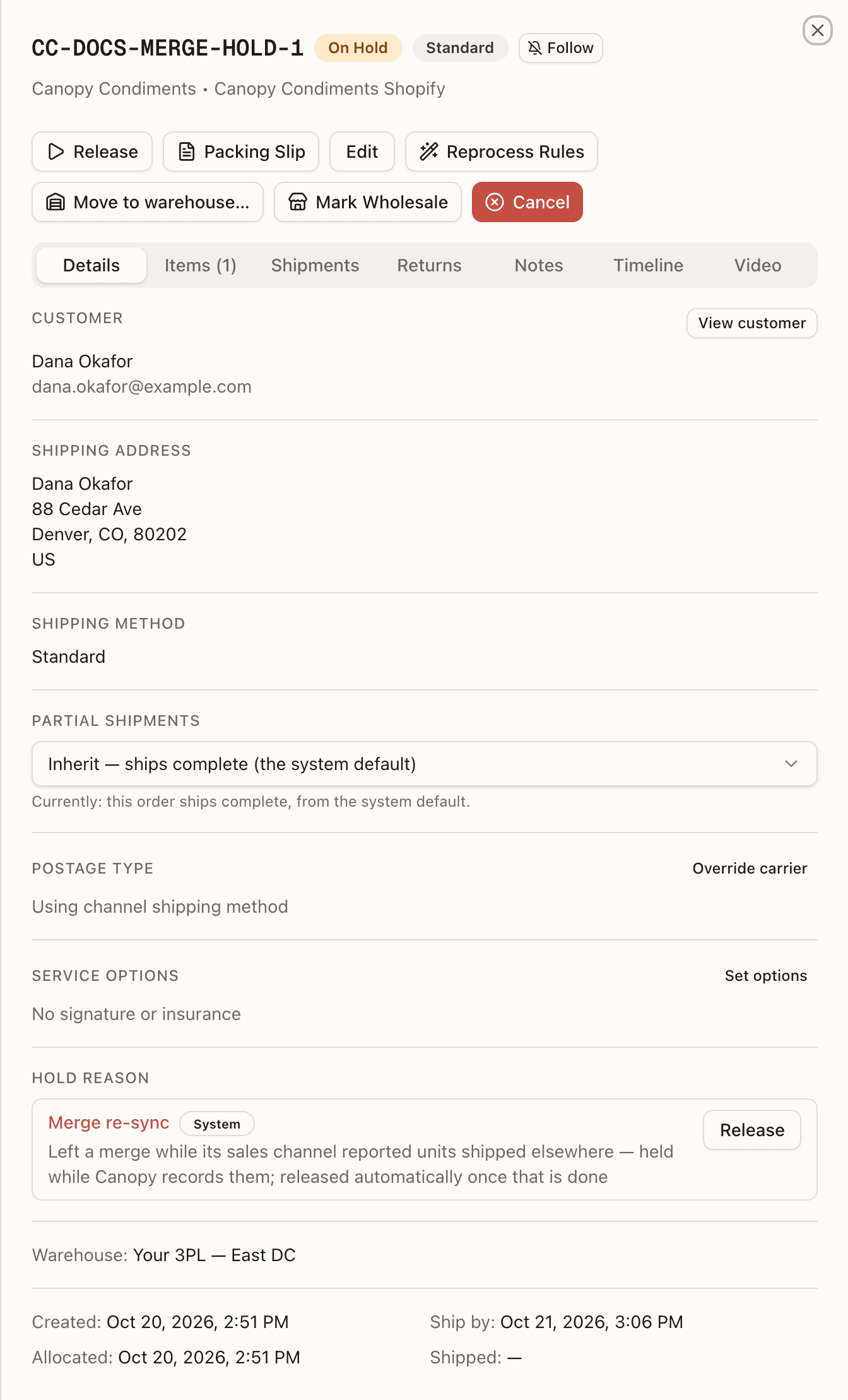
An order that leaves a merge after its master's label was voided — the box taken apart before any new label — may still read fulfilled in its store under that dead number. Its timeline says so as it leaves: "<channel> still shows this order fulfilled under tracking … — the label of CC-… its goods were packed in, voided since — though nothing of it has shipped. The next label bought for its goods takes that fulfillment over and replaces the number there." — or, on a channel Canopy can't update, "… Canopy cannot update it there — correct the tracking in <channel>'s own dashboard."
Items tab
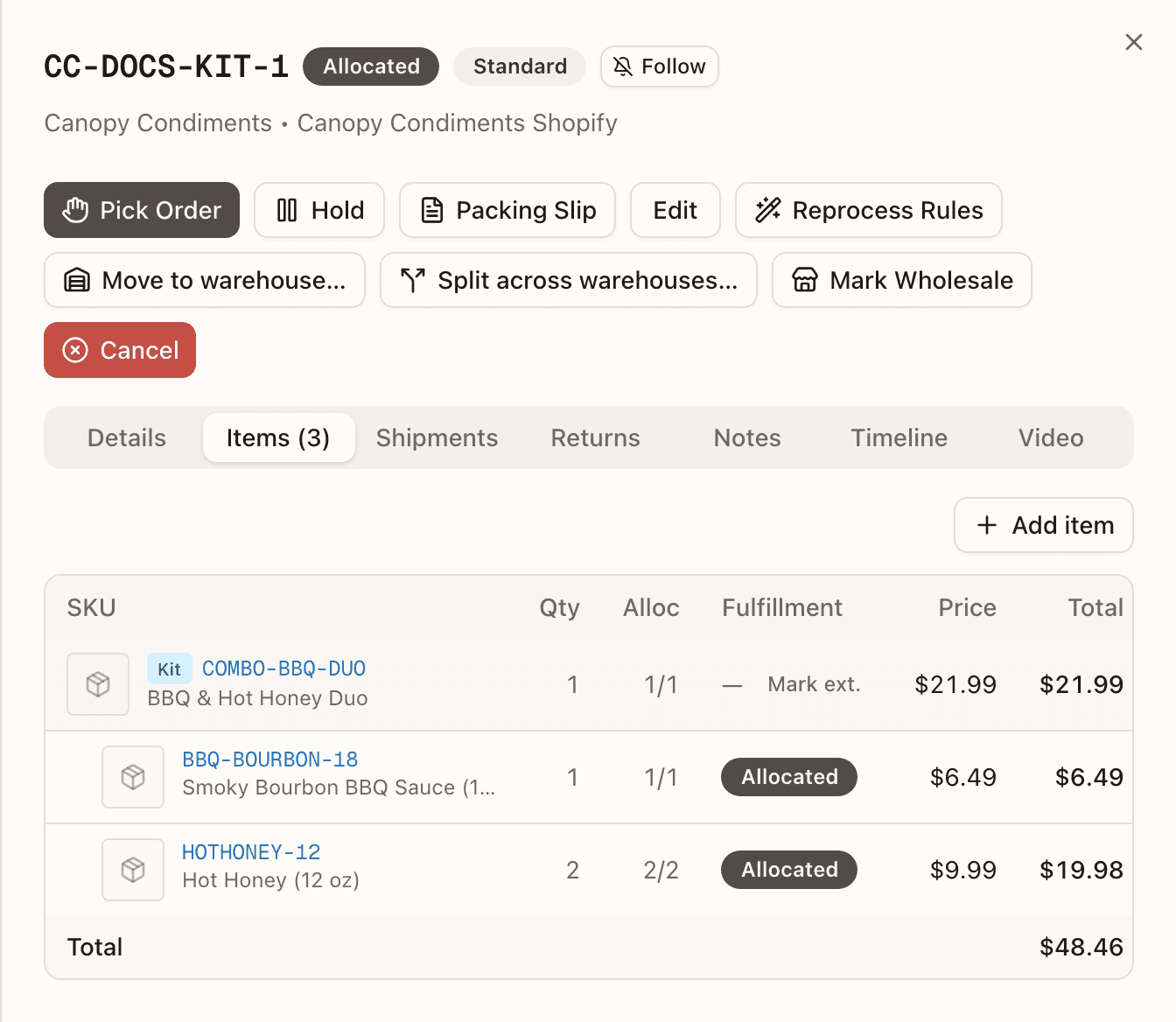
Each line shows the SKU's photo and code (both link to the SKU), its name, Qty, Alloc (allocated / ordered), the Fulfillment status, and Price / Total. Kit parents carry a Kit chip with their components indented beneath. Under the name you may see Picked from — the bins the units came out of, the same trace the pack station shows — and lot badges (Lot number, expiry, × units), coloured for On-Hold or Recalled lots. The footer breaks out Subtotal, Discount, Tax, and Shipping when the order has them, or just the Total. On a merged master, a line that came in from another order wears from CC-… ("Merged in from CC-… — edit it there after unmerging"), and a block under the table, Lines of orders taken out of this merge, keeps the cancelled copies of any order that left — "for their pick and pack history — they ship on their own order now".
On an order split across warehouses every line keeps the customer order's full Qty; the units another warehouse's order ships are recorded on the line as fulfilled elsewhere, so Alloc and the line's status count only this warehouse's units.
You can change the lines locally:
- Add item — on Pending, On Hold, Allocated, Replenish, Backordered, Unfulfillable, or Partially Shipped orders (anyone), and once the order is on a pick list — Picking or Picked (operator only). Search the client's SKUs, set a quantity and optional price. Past Pending/Allocated you also choose the bin (one per component for a kit) and the units are quick-picked into the order's existing tote — on a wholesale order, which has no tote, the units are planned at a bin instead, for the desk to pick. See Wholesale.
- Reduce qty — on an Allocated order (anyone), and on a Picking or Picked order, now from a brand's own edit too (GH #1315 M4) as well as yours — the pick work for the dropped units is unwound the same way either way — wholesale orders included: a wholesale order's own pick plan now comes down with the line instead of being refused, its surplus picked units going back through put-back. Once the order reaches Packing, a brand's or the channel's reduction holds instead of landing: the order waits on its own Apply-or-Keep hold, the same shape as cancelling while packing — Apply closes the pack session and unwinds the change, Keep ships the box as packed and leaves a note naming the line and the change that wasn't made; yours still applies right away, closing the pack session first. See below. A wholesale order whose carton labels are already bought, or whose freight is already booked, waits a different way instead — see Cancelling while packing.
- Remove (the trash icon) — same statuses as Reduce qty, on a line with no fulfilled units; kit components go with their parent. A kit line with some of its kits already fulfilled at another location is still offered: it is lowered to the kits already out, components included, and the confirmation ("Lower … to the kits already out?") says so. Never on a line merged in from another order — edit that order after unmerging — nor on a line a live re-send is sending again (see below). The confirmation says what follows: on a Picking or Picked order the units are staged for put-back, and if the line came from the sales channel, removing it diverges from the channel order and future channel edits will need manual review.
While the order is on a live pick list, line edits are refused: "This order is on an in-flight pick list — wait for picking to finish (or abandon the pick from the Short Picks page) before editing lines".
Local line changes are never pushed back to the sales channel. Before the order is picked, adding, removing or changing a line also re-runs the client's warehouse routing rules on the whole order, which can move it to another warehouse — see When routing runs again on its own.
Reduce qty
Reduce qty lowers a line without removing it. The dialog — "Reduce the quantity of SKU?" — says what follows for the order's state: on an Allocated order, "The stock reserved for the dropped units is released."; on a Picking or Picked one, "Pick work for the dropped units is retired, and any already picked are staged for put-back — pull them out of the tote." Enter the New quantity (or New number of kits on a kit parent; a component can't be reduced on its own — reduce the kit) within the range the hint gives, and Reduce quantity. A line that came from the sales channel warns that the channel keeps the original quantity and future channel edits on the order will need manual review. Reducing a line to nothing is refused — remove the line instead. Neither a reduction nor a removal is allowed on a line the order's live re-send is sending again: "This line is being re-sent for a reship, and a re-send ships whole — let it go out, or cancel the reship (Reship history → Cancel reship — the order goes back to the status it had before the reship, on its original parcel; refund the customer in the channel if no replacement is going out)".
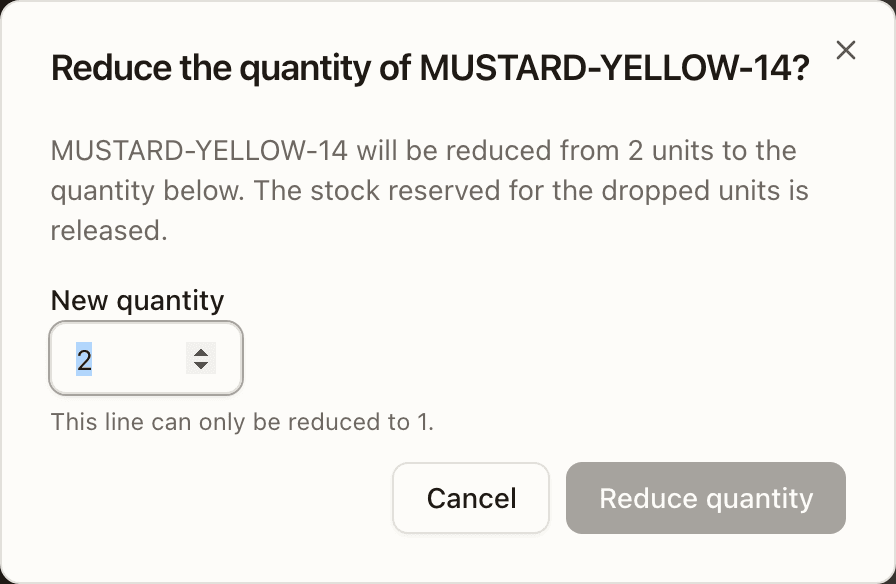
Line-item statuses
The Items tab renders its own per-line status — distinct from the overall order status (a line can read Packed while the order is still Packing): Pending, Allocated, Picked, Packed, Fulfilled, Cancelled, Backordered, plus a derived Partial n/m running count and a · ext suffix on a line fulfilled outside Canopy. Each real line with unfulfilled units also has a Mark ext. button (operator-only) (mark externally fulfilled). On a kit the button sits on the kit parent row and marks the kit, fanning out to its components — a component can't be marked on its own. The button is withheld while a repick is open, on a Partially Shipped or Merged order, and on a line merged in from another order. The reverse is the line's Reship button (operator-only), on an externally-fulfilled line (the kit parent, for a kit) of a Pending, Allocated, Replenish, Backordered, Partially Shipped, or Ext. Fulfilled order: it removes the mark so Canopy ships the units itself — not while a repick is open, not while another order of the customer order has an open re-send drawing on this order's record of another location's shipment, not when every outside unit is merely assigned to another location rather than shipped by it, and not while the order is still a member of a live Bulk Ship batch — refused the same way as Recover Order: "This order is in Bulk Ship batch #N — remove it from the batch first".
Mark ext. — how many
Mark ext. asks how many. "SKU will be marked fulfilled outside Canopy for the units below; they leave the work queue and their allocation is released. The order closes only once every line is fulfilled." — with "and its component lines" on a kit, and a warning that units already picked will be sent to put-back. Enter the Units shipped elsewhere (or Kits shipped elsewhere) of N units still owed; the hint reads "Canopy keeps the other N units to pick and ship." when you mark fewer than all, and Mark externally fulfilled confirms. The toast reports "N of M units marked as externally fulfilled".
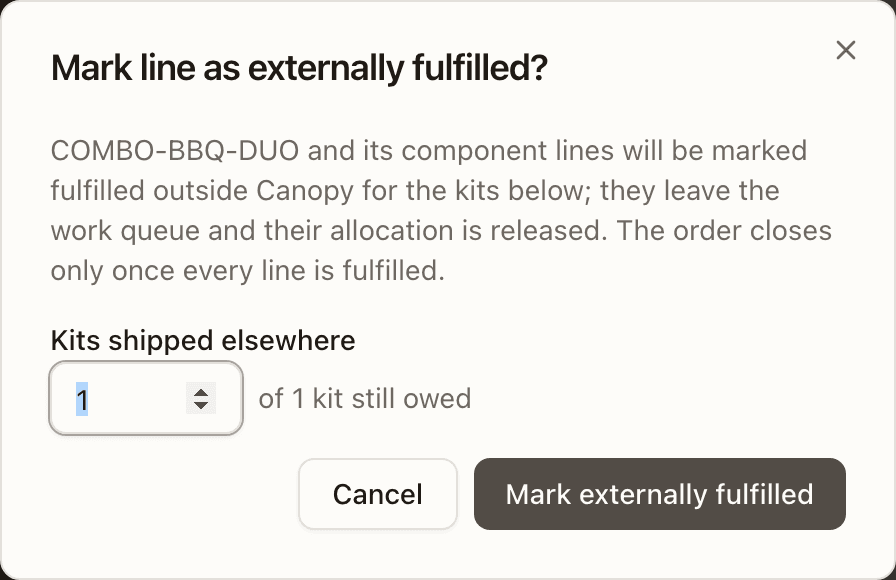
Units at another location
When a sales channel assigns some of an order's units to a location Canopy doesn't run, the order imports with those units recorded as fulfilled elsewhere (see the channel's Only import items assigned to our locations setting). The line wears an outline badge per outside location — "<Location> · not ours", with ×N when the location holds only part of the line — whose tooltip says how many are still open there and how many it shipped; a line wholly elsewhere shows only those badges. The Partial n/m count and the · ext suffix count only units that really went out. The order's header says "N of M units are ours", its row wears PARTLY ELSEWHERE, and the Timeline records every move of ownership. A resting split is no exception: when the store's own fulfillment, or a move of its units to another location, takes the rest of what it still owes, the order records that and closes out instead of being picked again — only Mark ext. by hand still refuses a Partially Shipped order.
Shipments tab
The tab opens with an Order Shipping Context card — method, warehouse, distinct items, total quantity, line-item totals, promotion discount, and the postage-type override when one is set — then one card per parcel, or "No shipments yet" until a label is generated during packing. An order merged into another has no parcel of its own, so its tab shows a Ships in CC-…'s box panel instead — "This order is merged into CC-…: its lines are packed and labelled there, so its label is bought on CC-…" — which turns into Shipped in CC-…'s box once the master has gone ("… its lines went out in CC-…'s parcel, so it has no parcel of its own. A reship or a return-to-sender goes through CC-…"), lists the master's parcels that carried this order's goods with their tracking, and links Open CC-…'s shipments.
Each parcel card is "Shipment 1 of 2" with its ship code, status (Label Created, In Transit, Delivered, Exception, Voided), the tracking number, Packer, carrier and service, ship date, weight, dimensions, and shipping box, the label cost, rate, tax, and cost to customer, and a Contents list of exactly what that box carried (a parcel bought before per-parcel contents were tracked reads "Not recorded for this parcel"). View jumps to the Shipments page; the buttons open the Shipping Label, Track on Carrier, or start a Reship from that parcel (operator-only). Fields marked (x) are placeholders that don't carry data yet. A Contents line reads "× N · M re-sent" when a later reship re-sent units from that box.
The parcel's warehouse
Each parcel card also names its Warehouse: the one that box left from. A parcel keeps it for good. If the order's open work moves to another warehouse later, the card still names the one the box left from.
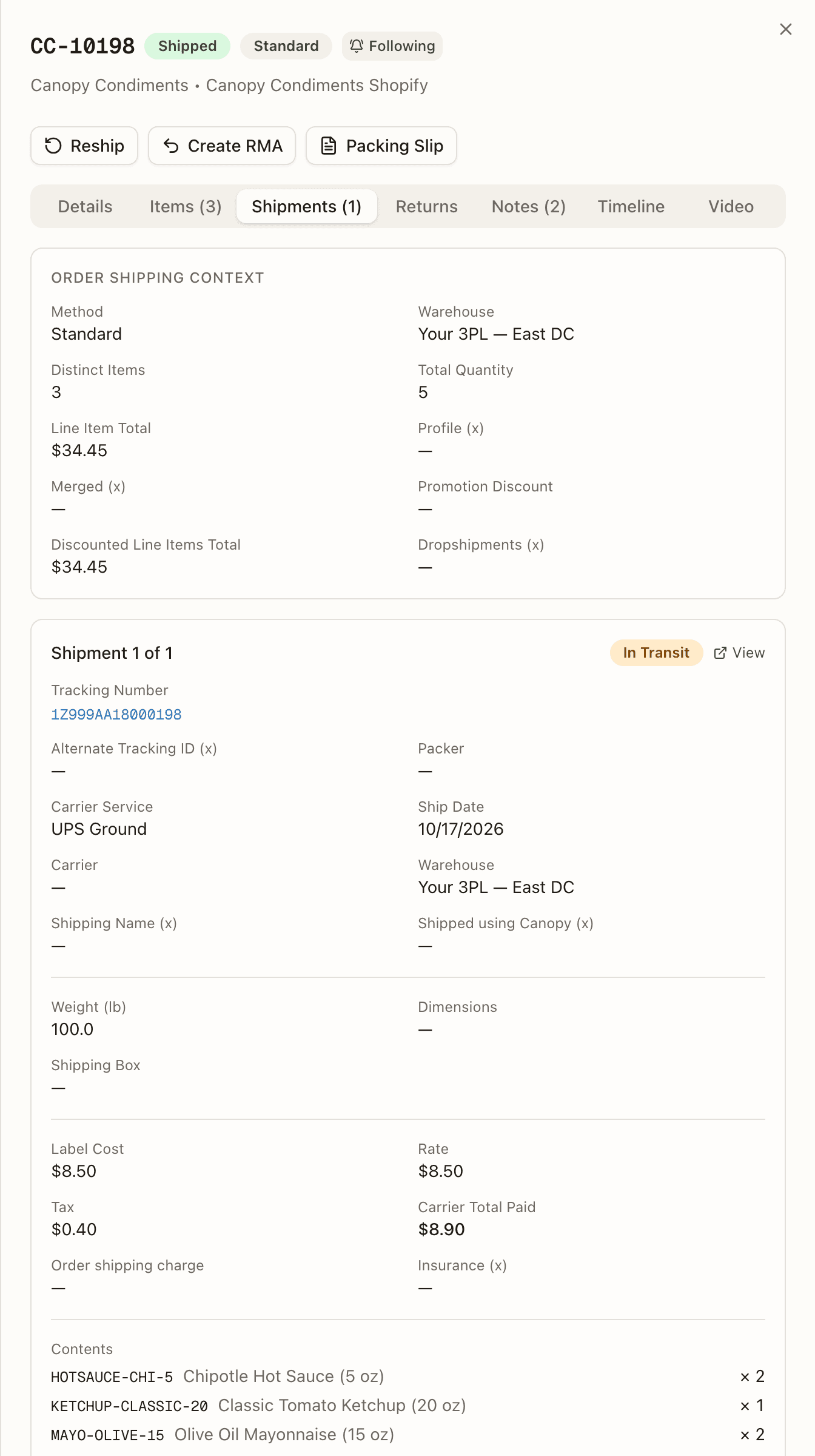
On a merged master's parcel, a Tracking sent to the merged orders' sales channels block lists each merged order with Confirmed to channel, Channel sync pending, or Channel sync failed — and Retry on a failed one ("Tracking push queued again").
Two badges appear on a split that has closed: Drives order status on the parcel whose carrier scans the order now follows, and Status vote retired on the earlier ones (their own tracking still updates; they no longer set the order's status). A Channel sync badge shows whether that parcel's tracking reached the sales channel — Confirmed to channel, Channel sync pending, or Channel sync failed with the reason on hover — or, when a run succeeded but pushed nothing, Not pushed — partial re-send (a partial re-send leaves the channel on the original box's tracking) or Not pushed — channel can't update tracking (the channel already shows an earlier number and takes no update), both telling you on hover to share the new tracking number with the customer yourself. On an order split across warehouses whose channel confirms an order once (Amazon, eBay, Walmart, WooCommerce, Squarespace, TikTok Shop), the first warehouse's parcel reads Waiting for other warehouse until the last warehouse ships; hover for "Not confirmed yet: waiting for order CC-…-S2 at Buffalo to ship. This order is split across warehouses and is confirmed once, for all of them, by the last to ship; …". It is a wait, not a failure: nothing to retry.
Split orders (partial shipments)
When a brand allows it, an order that can't be filled completely can ship what's in stock now and send the rest later, instead of waiting as a whole. Sending part of an order to another warehouse by hand is covered under Splitting an order across warehouses. A split starts in one of three places:
- At allocation. An order that comes up short on a line — say thirteen lines in stock and one at zero — is Backordered, but it still enters picking for the lines that are in stock: it appears in the picking tab's counts (as one of the "(n partial)" orders), on Pick Selected, and in batches like any other order. The pick list names the lines it leaves out, and the pack station's header says what the parcel won't carry. A kit whose components are not all in stock waits whole while the rest of the order ships. Bulk ship admits these orders the same way: a batch groups on what each order can ship now, and the batch row counts them as Partial. Once an order has been admitted, turning partial shipping off for the brand or channel no longer changes that order's cycle — it ships what was allocated and rests as before.
- At the bench. A unit that turns out to be missing is declared short — see declaring a short.
- By a routing rule. A Warehouse Routing rule set to Split (or an Each SKU rule) places the order's SKUs across whichever of its warehouses has stock for each one, instead of choosing a single warehouse for the whole order. See Route to Warehouse. This doesn't wait on a short line: the rule splits the order as soon as it's created, and again whenever routing runs on it again. Each warehouse then ships its own part as its own parcel, the same as any other split order below, and the two causes can combine: a line the rule sent to a warehouse can still wait there as a backorder until stock covers it.
Either way the order then rests in Partially Shipped between cycles: its
remainder re-allocates on its own, and picks and packs again when stock
arrives, until everything owed has gone. Only then does it close as
Fulfilled. While a partial is in motion or resting, its row wears a
PARTIAL badge whose tooltip names the owed lines, and the orders list has a
Partial shipments filter (also reachable as ?partial=true).
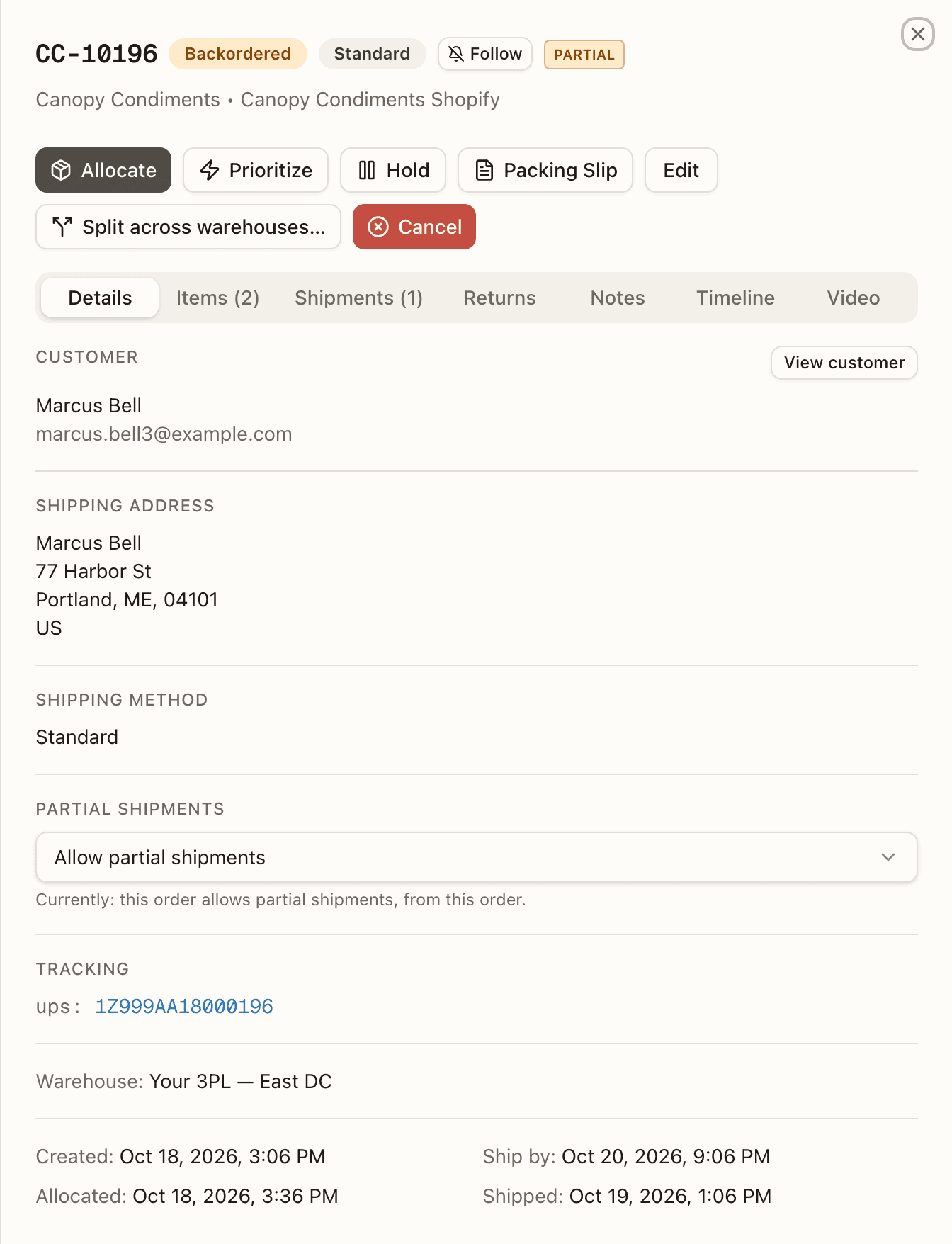
A merged master is the one order that never splits: the merge pins its policy to ship complete for as long as the merge lives (the merge dialog refuses an order that allows partial shipment), and an unmerge restores the policy it had.
Whether an order may split is resolved from three places, most specific first:
- The order itself — set by an automation rule at import, or by hand on the order sheet's Details tab (Partial shipments: Inherit, Allow partial shipments, or Ship complete; the same field is in the Edit dialog). Saves as soon as you choose. Offered while the order is Pending, On Hold, Backordered, Replenish, Unfulfillable, or resting in Partially Shipped — not once stock is Allocated, and not on an order held from Picking, Picked or Packing: the cycle under way pinned the setting, so the sheet's control reads "Locked while this order is being worked — release the hold and unpick it to change this.", the Edit dialog leaves the field out, the API refuses it ("Partial shipping is locked while this order is being worked (held from PICKING) — release the hold and unpick it to change it.") and a re-run of the rules skips it. The sheet's control is also available on the wholesale order page before allocation. A client user can set it on their own order too, since shipping what's in stock first is the brand's call; the minimum and wait below, and the client-level defaults, stay warehouse staff's.
- The sales channel: Allow DTC orders to split across shipments, under the channel's Orders settings. This tier applies to DTC only.
- The client: independent DTC partial shipments and Wholesale partial shipments defaults, on the client detail panel.
Wholesale skips the DTC and channel defaults. Both order types share the client's minimum units, minimum value, and wait before splitting unless an order overrides them.
Off everywhere is the default: every order ships complete.
A rule pins the order
An ALLOW / DISALLOW rule writes the order's own flag, which outranks both the channel and the client. That's why flipping a client's default later appears to do nothing on orders a rule already claimed — those orders are pinned. Set them back to Inherit on the order to un-pin.
When a split's parent empties
A split order's parent (the customer order itself) normally keeps at least one unit of its own, even once every other unit has gone to a sibling at another warehouse. If the merchant moves every one of its units away in the sales channel, Canopy folds the parent instead of leaving it empty: it takes over the warehouse of whichever sibling still holds the most units, retiring that sibling, while every other sibling stays as it is. Its Warehouse line keeps showing whatever already chose it (a rule, explicit, or however it was placed before the fold), since folding moves the same order rather than giving it a new placement, and its postage and service options are decided again for the new warehouse, the same as any other move. If nothing is left anywhere, every sibling is gone too, the parent instead rests Ext. Fulfilled, and every sibling is retired. The operator's own split tool never empties the parent this way; only the merchant's move in the sales channel does.
Holds across a split
A split only moves units of an order that is still at or before Allocated on the work-stage ladder. One already in picking, packing, resting, or finished is left alone, and the channel sync that tried to split it fails instead of touching a stage already under way.
A held order keeps its hold through the split: every sibling that takes its units carries the same hold forward, placed fresh from Pending with a note naming where it came from — "<reason> — carried from order CC-…, whose units this order ships". A sibling asked to take units from a held order, but not held itself, refuses rather than ship them free of the hold: "units of order CC-… (held: <reason>) would ship from <warehouse> on order CC-…, which isn't held — release the hold first". And if units from two orders under different holds would land on the same taker, the split refuses rather than merge the holds into one: "units of order CC-… (held: <reason>) and order CC-… (held: <reason>) would ship together from <warehouse> under one hold — resolve the holds first". Release or match the holds, then run the split again.
Hold, release and cancel act on the whole family
Once an order has split across warehouses, Hold, Release, Cancel, and the bulk Hold Selected / Release hold actions reach every live warehouse order of the same customer order at once, however many of its parts you act on them from — under a lock that serializes against a split, fold, or another such family action running at the same time.
Hold places one hold on every part that can still be held (not yet shipped or fulfilled elsewhere), sharing one key, so Release on any part lifts all of them together — a part's own hold for its own reason (a routing hold, a short pick) stays.
Cancel cancels every live part at once, unless one of them has already shipped: "… is split across warehouses and … shipped — cancelling it would leave those units with the carrier. Cancel the remainder instead: every warehouse order not yet shipped is cancelled, and the open rest of a partly shipped one." Cancel Remainder is then the way to close it — see Cancel Remainder.
Selecting more than one warehouse order of the same split family in Hold Selected or More actions → Release hold holds or releases it once, not once per order selected.
If one part can't take the action at the exact moment another family action is running on it, you're told how many of the family's warehouse orders finished and which didn't; what's done stays done, and running the action again finishes the rest.
A channel edit to a split order's lines
When the merchant adds a line, removes one, or changes a line's quantity on an order the warehouse has split across more than one of its parts, Canopy applies the edit to every live order in the family in one write, not just the order whose own units changed. A line the family doesn't carry yet is added at the edited quantity on every copy, with its kit components for an on-demand kit; a line edited down to zero is cancelled on every copy, kit components included; and any other quantity change is written on every copy, scaling a kit's components by the ratio the order was built with. Each change is logged on every order it touched, the same as a manual add, remove, or quantity change would be (see Editing an order). An order whose own shipped or reserved units don't change is still rewritten to carry the line at the same quantity as its siblings; it just isn't otherwise claimed by the edit.
The same one-write rule now covers a line edit made directly on the order too: Add item, Reduce qty, or removing a line, whether you make the change here, a brand makes it on their own orders page, or an API caller makes it. The floor on a reduction is what the customer order has already settled: shipped from any of its warehouse parts, or shipped or open outside Canopy. Going below it is refused; cancel the remainder instead once the rest is down to what's already gone.
When the change can only land on a warehouse part that's already being worked, nothing is written. Every part of the order that can still be held gets one shared hold instead (see Hold Reason), naming which warehouse part is in the way and who made the change. The warehouse decides: release the hold to keep the order as it is, or wait for that work to clear and make the change again — it's decided fresh against the order as it stands then.
When a short order waits instead
Being allowed to split doesn't mean an order splits the moment one line is in stock. A brand can set a minimum and a wait, and a short order enters picking only once it clears both:
- Minimum to split — the part of the order that's in stock must reach a number of units, a value, or both. Value is unit price × units for the in-stock lines, in the order's own currency (not converted); a line with no price counts as zero. A kit that can ship whole counts at the kit's own price, and as the units of its components. A kit that's missing a component doesn't count — it waits whole either way.
- Wait before splitting — the order must have been short for this many hours. The clock starts when allocation leaves the order short and keeps running while it stays short. It starts over when the order goes back through allocation from scratch: for the remainder after a parcel has gone, or after the order's lines were edited. Cancelling a pick list doesn't make an order wait again.
Each is resolved from two places, most specific first: the order itself (set
by an automation rule at import, or
sent on the create request), then the client's default on the
client detail panel. The
order's own value wins even when it is lower, and 0 on the order means no
minimum or no wait for that order. There is no sales-channel setting and no
control on the order sheet — to change what a rule stamped, edit the rule and
Reprocess Rules.
While an order is held this way it stays Backordered and behaves like an order that may not split: it isn't counted among the picking tab's "(n partial)" orders, Pick Selected and Pick Order won't take it, and bulk ship doesn't offer it. Its row and its sheet header wear a PARTIAL HELD badge; hover it for the reason — "Partial held: 2 of 3 units minimum", "Partial held: $18.00 of $25.00 minimum", or "Partial held: splits after Sep 27, 2026, 2:00 PM". The Partial shipments section of the Details tab says the same, with what clears it. When both a minimum and a wait are holding an order, the badge names the minimum: waiting won't clear it.
An order leaves the hold when more of it comes into stock and the in-stock part clears the minimum, when the wait runs out, when the minimum or wait is lowered, or when the owed lines are cancelled or fulfilled elsewhere. If everything comes into stock first, the order is simply Allocated and ships complete — the minimum and the wait are never consulted for an order that is fully in stock, however they are set.
Two things are deliberately not held: a short declared at the bench, and a short pick resolved as Backorder. Those are an operator's decision to split, made with the goods in hand. And once an order has entered picking, a minimum raised afterwards doesn't pull it back.
Cancel Remainder
Cancel Remainder (operator-only, on a Partially Shipped order) stops waiting: the order closes while its shipped parcels stand. It is also the exit for a remainder — units already shipped, the rest still owed, nothing picked yet — whatever status that leaves it at: Allocated, Pending, or Backordered once it has no stock to reserve (a retail remainder re-admitted, or a wholesale order's next shipment) — since Cancel refuses an order with shipped units. There it also refuses while the remainder already has a label or freight booking ("The remainder already has a shipping label or freight booking (…). Void or cancel it first, then cancel the remainder.") or sits in a live Bulk Ship batch ("This order is in Bulk Ship batch #N — remove it from the batch first"). A line that already shipped some units is lowered to those units — so they stay returnable and reshippable — and only a line with nothing out is cancelled. The confirmation says what follows — the sales channel receives the whole-order shipping confirmation, and automatic payment capture is not taken, because the order's lines no longer match what the customer bought. Collect the right amount in the channel yourself. It can't be undone. It is refused on a retail order while the remainder is being worked ("units are picked into a tote — wait for the cycle to finish or abandon the pick first") and while the remainder is an open reship's re-send: cancel the reship from the Reship history instead, which puts the order back as shipped on its original parcels, or let the re-send go out. On a wholesale order, a next cycle already picked or boxed doesn't block Cancel Remainder — its cart closes, every picked unit goes back through put-back, and its boxes reopen and retire as history, before the remainder closes the normal way.
The quiet close-out holds to the same rule: an order whose lines owe nothing while a re-send is live stays resting instead of closing ("This order is re-sending units for a reship, so it can't be closed out — nothing would send them, and the reship would stay open. Let the re-send go out, or cancel the reship (Reship history → Cancel reship)").
Splitting an order across warehouses
A sales-channel order can ship from two or more of your warehouses. You split it before it is picked: part of its units go to another warehouse, which ships them on an order of its own. From then on the customer's order is one order in the store and several in Canopy, one per warehouse. The first keeps the channel's order number and is called the customer's order here; each other warehouse's order is numbered after it (CC-10196-S2), wears the split chip in the list and opens on the Split from CC-… banner. Every one of them lists the whole customer order, at full quantity, and ships only its own units; the units another warehouse ships are recorded on its lines as fulfilled elsewhere. The Details tab of each ends with a Split across warehouses section naming the others. A split can also arrive with the order: a Follow channel routing rule keeps an order Shopify split at checkout as one order per warehouse (see which warehouse a new order ships from).
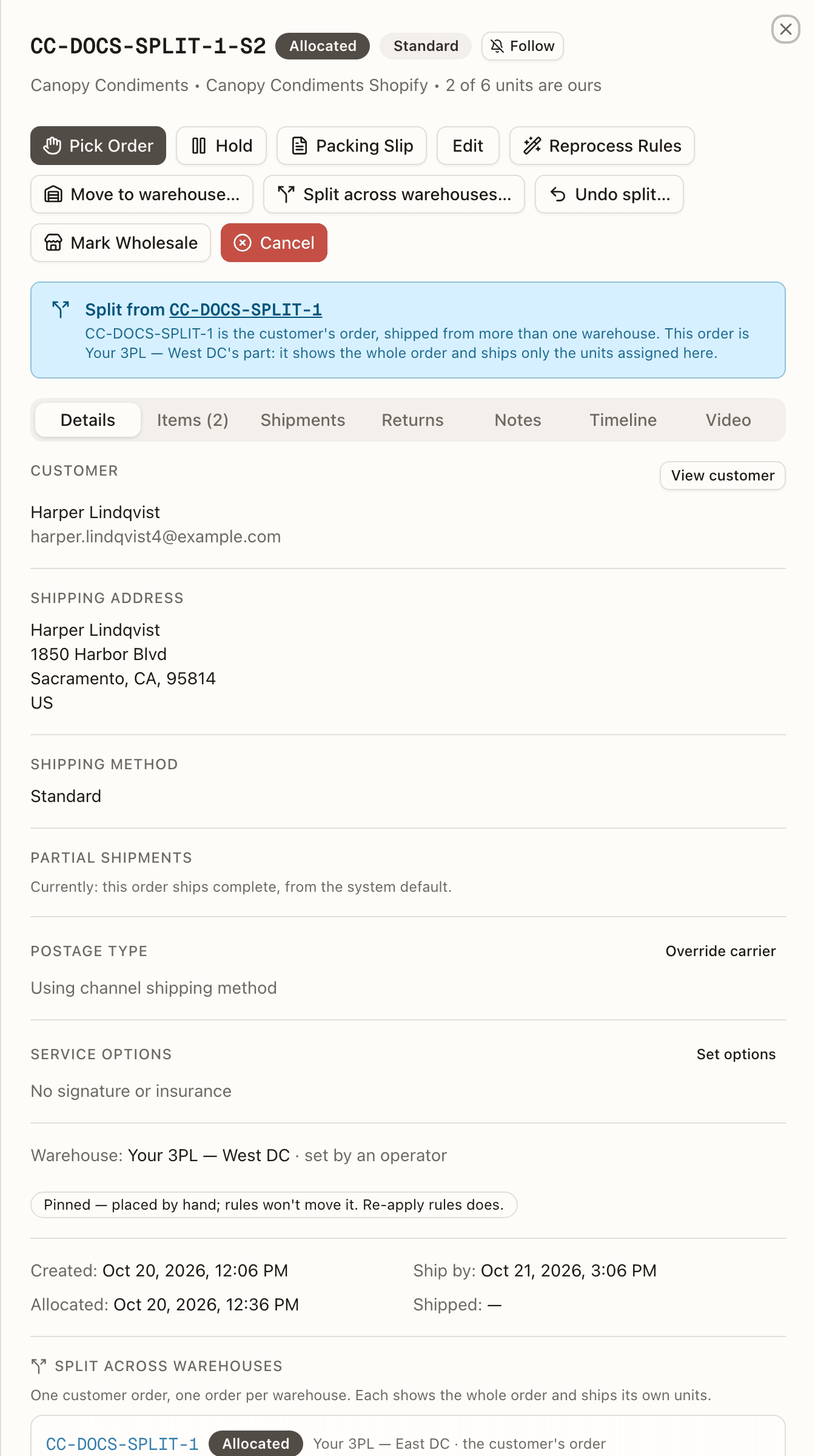
Split across warehouses… on the action bar opens the dialog of the same name: "Sends some of this order's units to another warehouse, which ships them on its own order. Each warehouse's order shows the whole customer order and ships only its units. Before pick only." It shows on a sales-channel order that is Pending, Allocated, Backordered or Replenish, once you run two or more active warehouses. While it checks ("Checking where this order's units can go…") nothing can be chosen; an order that can't be split says why instead ("This order can't be split: …"), and "No other warehouse can take units of this order." means no other active warehouse is mapped on the channel.
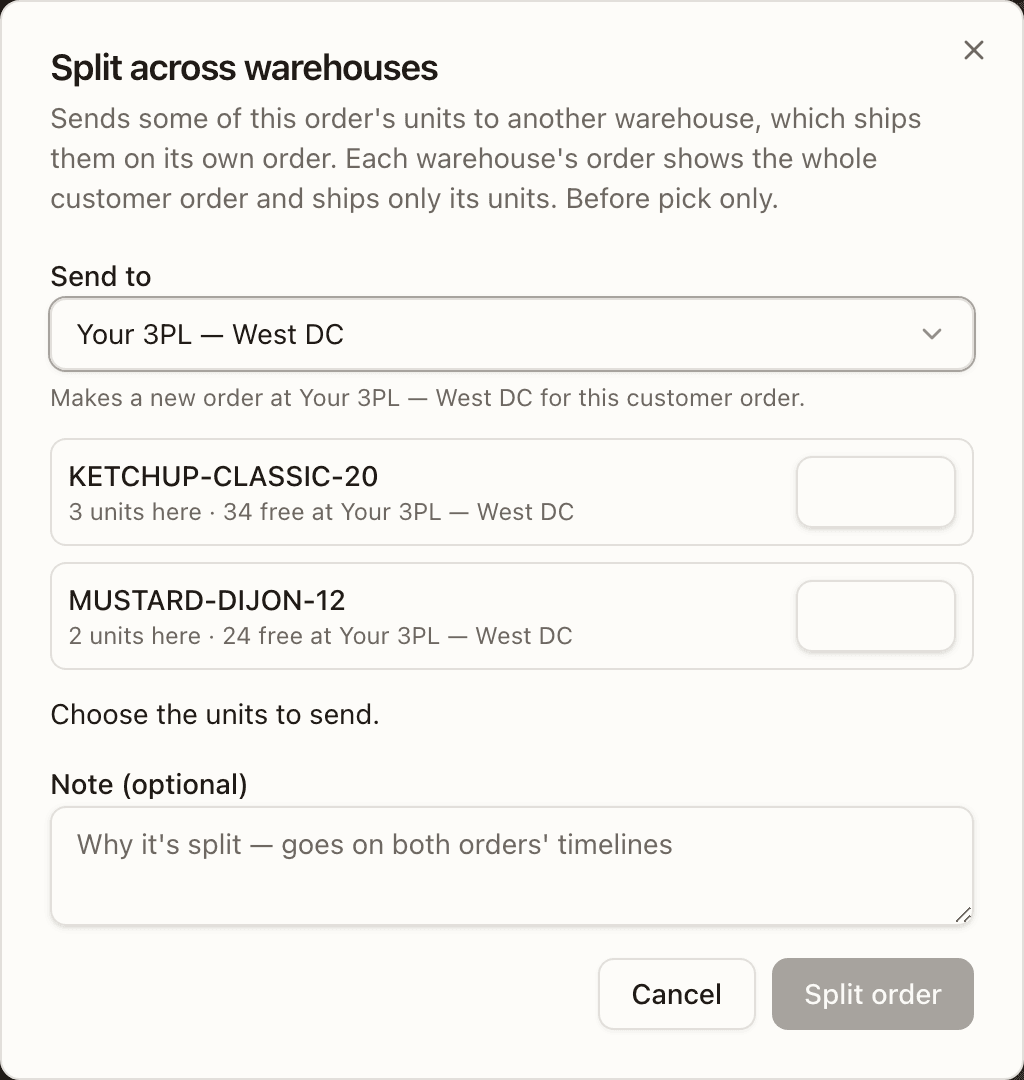
Choose Send to: an active warehouse other than the order's own (on a Shopify channel, only one with a primary location mapped, since Shopify's fulfillment orders move there first). Under it the dialog says what the choice does: "Makes a new order at Buffalo for this customer order." or, when that warehouse already has an order of this customer order, "Adds to CC-10196-S2, this customer order's order at Buffalo." Then, per line, a number box for the units of that SKU to send. Each line shows N units here and, once a warehouse is chosen, · N free at Buffalo; a kit is a checkbox, All N (a kit moves whole). Only the channel's lines are listed: a line added in Canopy stays with this order, and so does a line of a SKU that ships nothing. The status line reads "Choose a warehouse, then the units to send.", "Choose the units to send.", then "Sends 2 units to Buffalo; 3 stay at Mississauga." The customer's order must keep some of its own units ("Every unit would leave — use Move to warehouse to move the whole order."). Add a Note (optional) ("Why it's split — goes on both orders' timelines", 500 characters) and press Split order.
On a Shopify order Canopy first moves exactly the chosen units' fulfillment orders to the warehouse's primary location, then writes the split in one step; if Shopify refuses, or no longer holds the units at this warehouse's location, the split is refused with Shopify's reason and nothing of Canopy's changes ("… Shopify refused to move its units to Buffalo — …", "Shopify has 1 of the 2 units of SKU it needs at Buffalo — the rest isn't at Mississauga in Shopify to move (moved elsewhere there?). Check the order in Shopify, then split again"). The new order is created Pending with the customer order's header, address, priority, tags, notes and original created date, then allocates at its warehouse; both orders re-reserve their own units. A new order's postage type and service options are decided again for its warehouse the way a move decides them; a manual choice is kept, with a Check the manual postage review card. The toast reads "Split: CC-10196-S2 made", or "Split: units added to the order there" when the warehouse already had one.
Undo split… sits on a warehouse's order (never on the customer's order):
"Sends this order's N units back to Mississauga (CC-10196). This order is
then retired — cancelled here, not in the sales channel." It is refused
while the order still ships a line added in Canopy ("it still ships N
units of items added in Canopy, which stay with it — remove or cancel them
first"), and for whatever would refuse a split the other way. The dialog
says which before you press anything, as "It can't be undone now: …",
including "Mississauga can't take units — it isn't active, or isn't mapped
on the channel" when the customer order's warehouse has since been retired
or unmapped. The retired
order stays listed as Cancelled, for history; the toast reads "Split
undone — this order's units are back with the customer's order". Undoing
is always available; making a new warehouse order is switched on per
environment (SPLIT_ORDERS_ENABLED, on for staging and off for production
until the rollout completes), and with it off the dialog says so: "This
order can't be split: splitting orders across warehouses is not enabled
here." Only a warehouse that already holds an order of the customer order
can take units.
When a split is refused. The dialog's preview and the split itself read the same rules, so the reason shows before you press anything. It reads "This order can't be split: …", ending in one of these:
- only a sales channel's order splits — every warehouse's order of it carries the channel's lines; a ShipHero order reports its own picks when it ships — it never splits; wholesale orders ship on their own path.
- it is in a merge, which ships in one box — unmerge it first; it is in Bulk Ship batch #N — remove it from the batch first; it is on hold — release the hold first; only an order before pick splits, and this one is PICKING.
- it may ship in parts, and this channel confirms an order once — turn partial shipment off for it first, on Amazon, eBay, Walmart, WooCommerce, Squarespace and TikTok Shop, which hear about the order once, when every warehouse has shipped.
- for the warehouse chosen: its order at Buffalo is PICKING — units join a warehouse's order only before pick; its order at Buffalo is in Bulk Ship batch #N — remove it from the batch first; Buffalo has no primary location mapped on the channel — Shopify can't move its fulfillment orders there.
- for the units chosen: SKU is part of a kit — a kit moves whole, by its kit line; SKU is a kit — all N of its kits move together, to one warehouse, or none; SKU: only N of its units are this order's to move.
What stays whole. The customer's order is still one order to the store, so Canopy keeps every warehouse's order in step:
- Cancel on any of them cancels them all, until one has shipped; then Cancel Remainder closes the rest (see Hold, release and cancel act on the whole family). The store's cancel reaches them all too, and so does a hold the store places. The one exception is a split kept at import: a hold already on one fulfillment order then holds only that warehouse's order (see which warehouse a new order ships from).
- No one order of it moves on its own. Move to warehouse… refuses it: "it is part of a split order — each warehouse's order of it stays at its warehouse". The routing rules decide for the whole customer order instead, on an edit or on Reprocess Rules, and may fold it into one warehouse; a stock event never does. Your split pins the customer order: the Details tab of each order reads Pinned, and only Reprocess Rules moves it.
- None of them merges (part of a split order: it ships from more than one warehouse).
- A line change made in the store is applied to every warehouse's order at once where the channel says whose units it touches, or, on a channel with no fulfillment orders at all, by a fixed rule. Otherwise each warehouse's order gets a Split order edit held card, for you to make the change by hand; see Order changed in sales channel.
- One re-send is open at a time across all of them, and a return opened on any of them may claim units any of them shipped: the limits are the customer order's.
What the store hears. A Shopify store is told about each parcel as it ships, warehouse by warehouse. A channel that confirms an order once (Amazon, eBay, Walmart, WooCommerce, Squarespace, TikTok Shop) is told once, by the last warehouse to ship, for every warehouse's units; until then the earlier parcels read Waiting for other warehouse on the Shipments tab. A warehouse's order that ends without shipping (cancelled in the store, or fulfilled outside Canopy) releases the others to confirm their own units.
Counted once. Anything labelled orders counts the customer's order, the way the store does: the dashboard's exceptions, the client health backlog, the commitment check and a customer's order count see a split order once, open or late when any warehouse's order is, and fulfilled when the last one packs. Work panels (today's pace, awaiting picking, the queues) count each warehouse's order, and a warehouse filter shows that warehouse's own orders. Billing follows the same rule: per-unit work bills at the warehouse that did it, while per-order fees, a per-order pick charge, the first rung of a tiered pick ladder, each per-line fee and the period's order count are charged once per customer order.
The steps are in How to split an order across warehouses below.
On a split order, pressing Cancel Remainder from any of its warehouse parts closes the whole customer order the same way: parts that haven't shipped are cancelled outright, and an already-shipped part's own owed lines are cancelled the normal Cancel Remainder way, so its shipped parcels stand.
A sales channel's own cancel of a resting partial order does the same thing on its own now: the units still owed are cancelled and a note is left that the shipped part is the brand's to refund or take back — you don't need to press Cancel Remainder for it. It falls back to a hold only when that can't be done cleanly right then (the remainder moved into work in between you and the read) — the hold's Apply cancels it once that clears, Keep ships it as it stands.
Returns tab
Every RMA linked to the order — number, status, items received / expected, tracking, and created date. Click a row to open the return. "No returns linked to this order" otherwise; Create RMA in the action bar starts one.
Notes tab
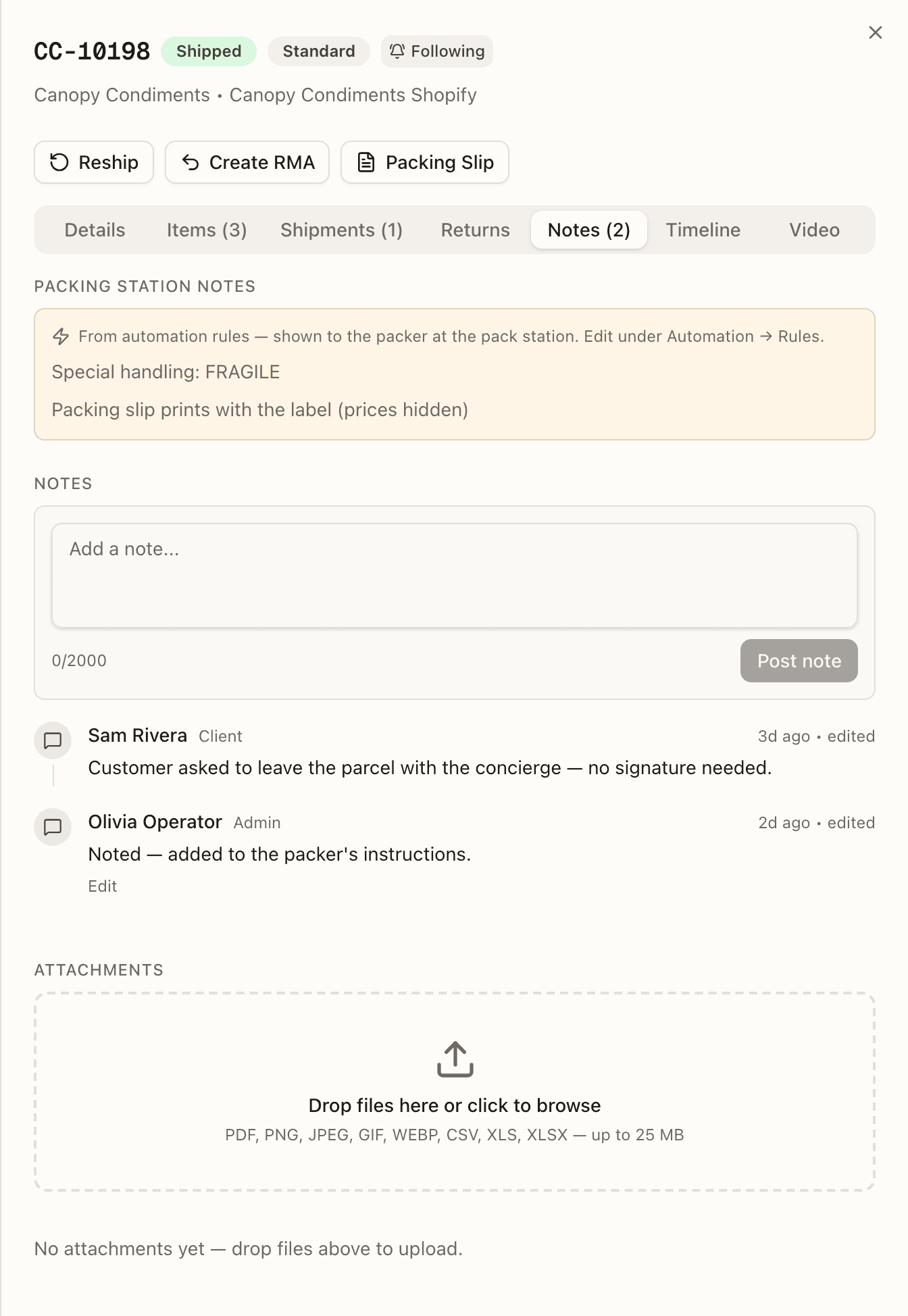
Three things live here, kept apart on purpose:
- Packing Station Notes — shown only when the client's packing automation rules produce packer notes or special instructions for this order. Read-only here; this is what the packer will see at the bench.
- Notes — the threaded conversation on the order, shared between you and the brand. Post note adds one; you can edit your own afterwards (it's marked edited).
- Attachments — files on the order: upload, download, and delete.
The count on the tab label is notes plus attachments. None of this is the free-text Notes field on the Details tab, which is the order's own note from the channel or the edit form.
Timeline tab
The full audit trail — created, allocated, status changes, holds placed and released, edits, and carrier tracking events — each with who did it and when. Newer kinds of row sit in the same list: Orders merged into this one / Merged into another order / Merge undone / Order taken out of the merge (with an Open CC-… link), Reship rows, Line moved by a SKU merge ("SKU A merged into B — N line(s) moved"), the review rows that follow a merged order's channel events, a held master's Hold placed row when its merged orders leave ("CC-… left the merge — the order stays on its hold, which now releases to PENDING"), and the note an order carries out of a merge whose voided label its store still shows — see Merged orders — and Automation rule marked SKU externally fulfilled on the units a channel edit added (removed from pick/pack) where an external-fulfilment rule met a channel edit. A split across warehouses writes a row on both orders: Split: 2 × SKU sent to Buffalo (order CC-10196-S2) — <note> on the order the units left, and Split: 2 × SKU from order CC-10196 at Mississauga on the one they joined (its first row, on a new order). An undo ends the retired order's timeline with Split undone: every unit is back with another warehouse's order — this one is retired.
Warehouse routing writes Automation rule applied rows: Routed to warehouse by rule "…" when a rule placed a new order, and Moved from "…" to "…" by routing rule "…": rules re-applied when Reprocess Rules moved one — ending instead with what set it off when routing moved it on its own, and as an Order updated row when units handed to Canopy took it to their location's warehouse with no rule deciding — followed by the ship-by, postage and hold rows the move changed. A return made in the store that includes items another location shipped reads Channel return not imported — "Return of N × SKU shipped from <location> not imported — that location receives it" — while the channel's Receive returns for items other locations shipped is off (see the Orders tab).
Ownership rows
When a sales channel decides who ships what, the Timeline says so: Units assigned to another location, Units already fulfilled on the channel, Units moved to Canopy, Units moved to another location, Units shipped by another location, Another location's units taken off the order — and, when a move arrives that Canopy can't follow, Channel moved units — not applied, needs review, cleared later by Channel move review cleared. A fulfillment the channel cancelled reads Fulfillment cancelled on the channel — or, on a channel that doesn't route orders by fulfillment location, where Canopy leaves the units as they were for you to decide, Channel fulfillment cancelled — not applied, needs review, which names the fulfillment and its units.
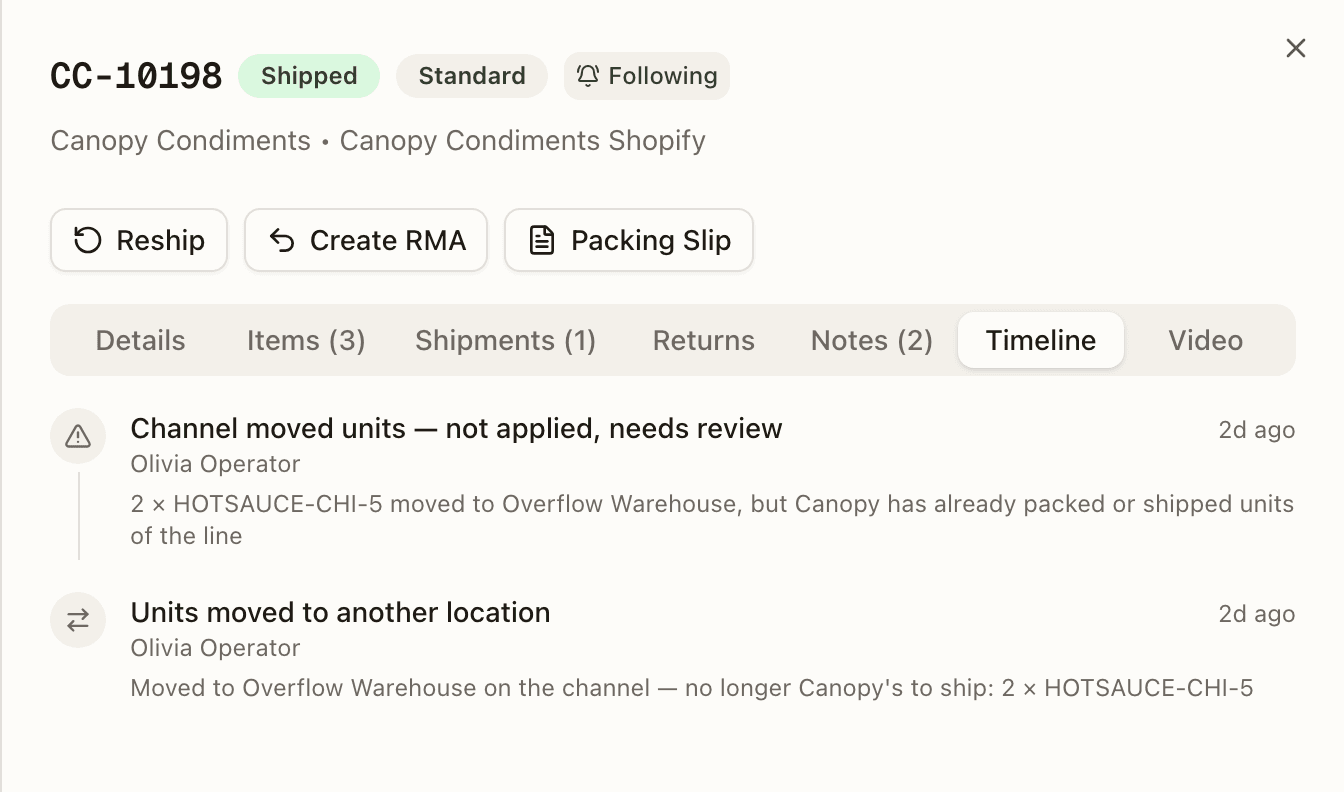
Units shipped by another location is the one of those that fires after Canopy has shipped: another location's own channel fulfillment took over the units an import-time placeholder had assigned to it, and the row names that location, the fulfillment and the units.
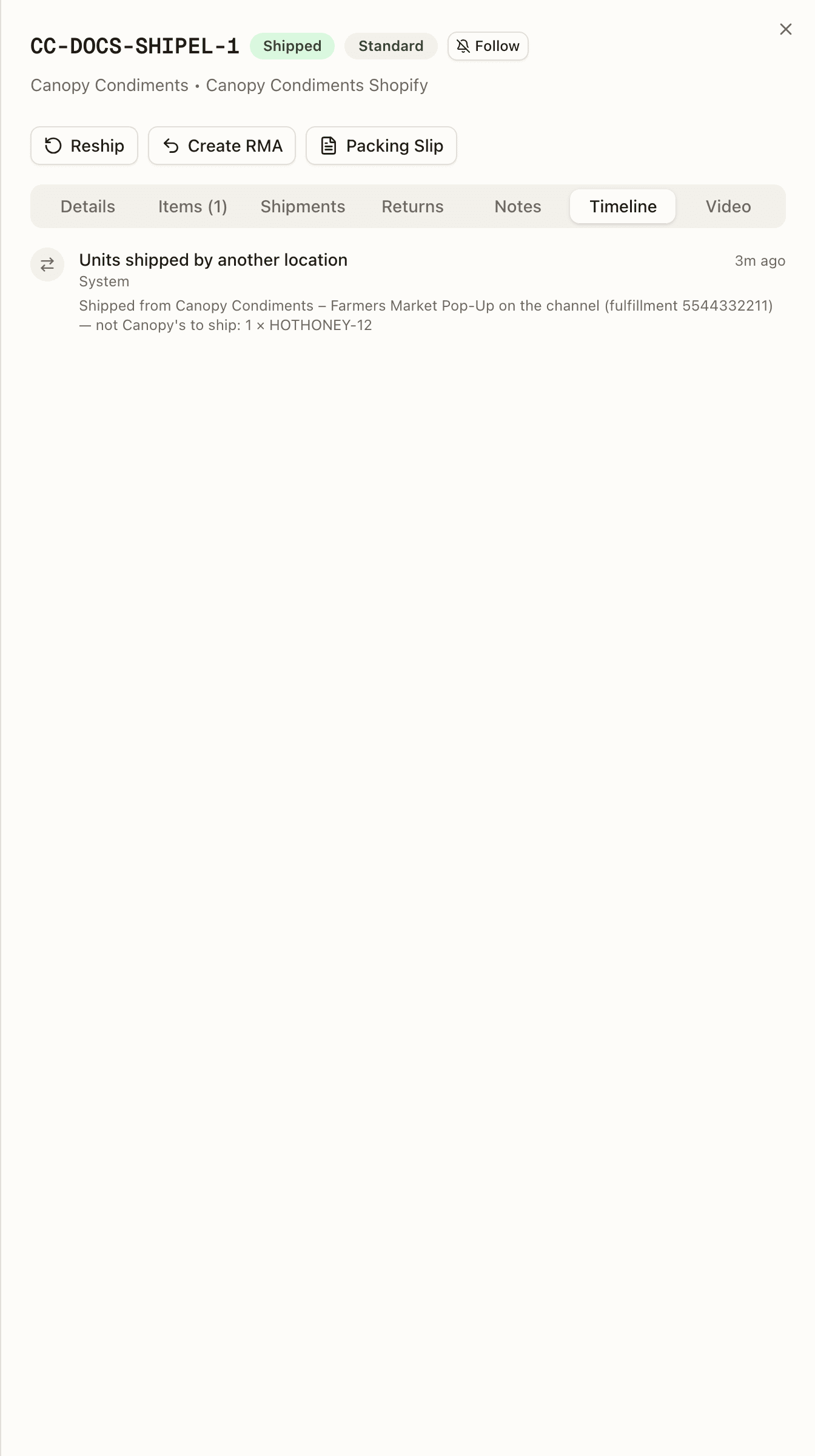
Editing an order
Edit opens a form whose fields shrink as the order advances; the same map gates the API, so the form never offers something the save would refuse:
| Status | Editable |
|---|---|
| Pending, Replenish, Backordered, Unfulfillable, Partially Shipped | Priority, customer name / email / phone, shipping method, shipping address, partial-shipments policy (open to client users on their own orders), notes. |
| Allocated | Priority, customer name / email / phone, shipping address, notes. |
| Picking, Picked, Packing, Fulfilled | Shipping address and notes. |
| Merged | Tags and notes, through the API only — the sheet offers no Edit button; edit the master, or unmerge first. |
On Hold isn't its own row here: it reads this table by the stage underneath the hold, not by the word "held." An order paused before any work started edits like Pending. One paused partway through — mid-pick, mid-pack, or later — edits only what that stage allows, the same narrow set it would have if it weren't held at all. The Details tab's Hold Reason doesn't say which; check the Timeline for when the hold was placed.
The Country field is a dropdown. The shipping address stays editable right up until the order ships, so a bad address can be fixed even while the order is on the packing bench. Editing it by hand makes that order's address authoritative — later address changes from the store no longer apply to it (the channel's Apply address changes setting never overwrites an operator correction).
Saving a new shipping address, shipping method or priority — or new tags, through the API — before the order is picked re-runs the client's warehouse routing rules on the whole order, so the save can move it to another warehouse. See When routing runs again on its own.
Sales Channels
Orders → Sales Channels. The stores feeding orders into the warehouse. A client account sees this page read-only; you manage channels here.
Each row shows the Client code (operator-only), the channel's Name,
its Type as the raw enum (SHOPIFY, AMAZON, WALMART, WOOCOMMERCE,
EBAY, SQUARESPACE, SHIPHERO, MANUAL), Store URL, and Last Sync
(Never until the first sync). Every column sorts. Next to the name, a
Trackstar-connected channel can carry a badge — Syncing while its initial
history import runs, or Connection error, Paused, or Sync errors
when Trackstar reports a problem — and an errored one gets a Re-link button
that reauthorizes the store in place, keeping the channel and its order
history.
Per row, three actions (hidden from client users):
- Sync — pull products, images, and open/unfulfilled orders now, and push inventory if enabled. Only on channels with an integration (a Manual channel has nothing to sync). The runs happen in the background; when each one finishes or fails, the bell's System tab tells the person who pressed the button ("<channel> · Orders sync finished", with N processed, N failed or the error) and links to the channel's settings. An inventory push with nowhere to push to tells you why: "<channel> · Inventory sync failed" with "No usable warehouse mapping — configure one in Channel Settings → Inventory Sync." A scheduled run tells no one. See Notifications.
- The gear — opens the channel's settings page. ShipHero is the exception: it keeps its own settings sheet.
- Disconnect — after confirming "You can reconnect it later. Order sync will pause immediately."
Two panels can sit above the table:
- Pending Shopify connections (Tenant Admins only) — stores you've registered for a specific client (its client code shows) that are waiting on the merchant to open the install link and approve it in their own Shopify admin. Your only actions are Copy link or Revoke — you don't approve it here.
- Trackstar Magic Links — every link outstanding for your tenant, whether generated here or in Trackstar's dashboard, so you can re-send one instead of minting another. See below. If Trackstar can't be reached, the panel shows "Could not load Trackstar magic links" with a Retry button instead.
Trackstar Magic Links
A magic link is a URL a brand opens to connect their own store through Trackstar — no Canopy login, no operator on the call. The panel has an Active and an Archived tab, each with its count. A link shows the client it was stamped for (or Unmatched for one created in Trackstar's dashboard without a match), the platforms it accepts (or Any platform), whether it was Created in Canopy or Created in Trackstar, and its expiry — an Expired badge disables Copy link. Archive hides a link that never got sent or was superseded; nothing is deleted, the link stays valid in Trackstar, and Restore brings it back. Pinning a client in the top bar narrows the list to that client's links (unmatched ones stay visible).
Add Channel
Add Channel opens a picker of eleven integrations:
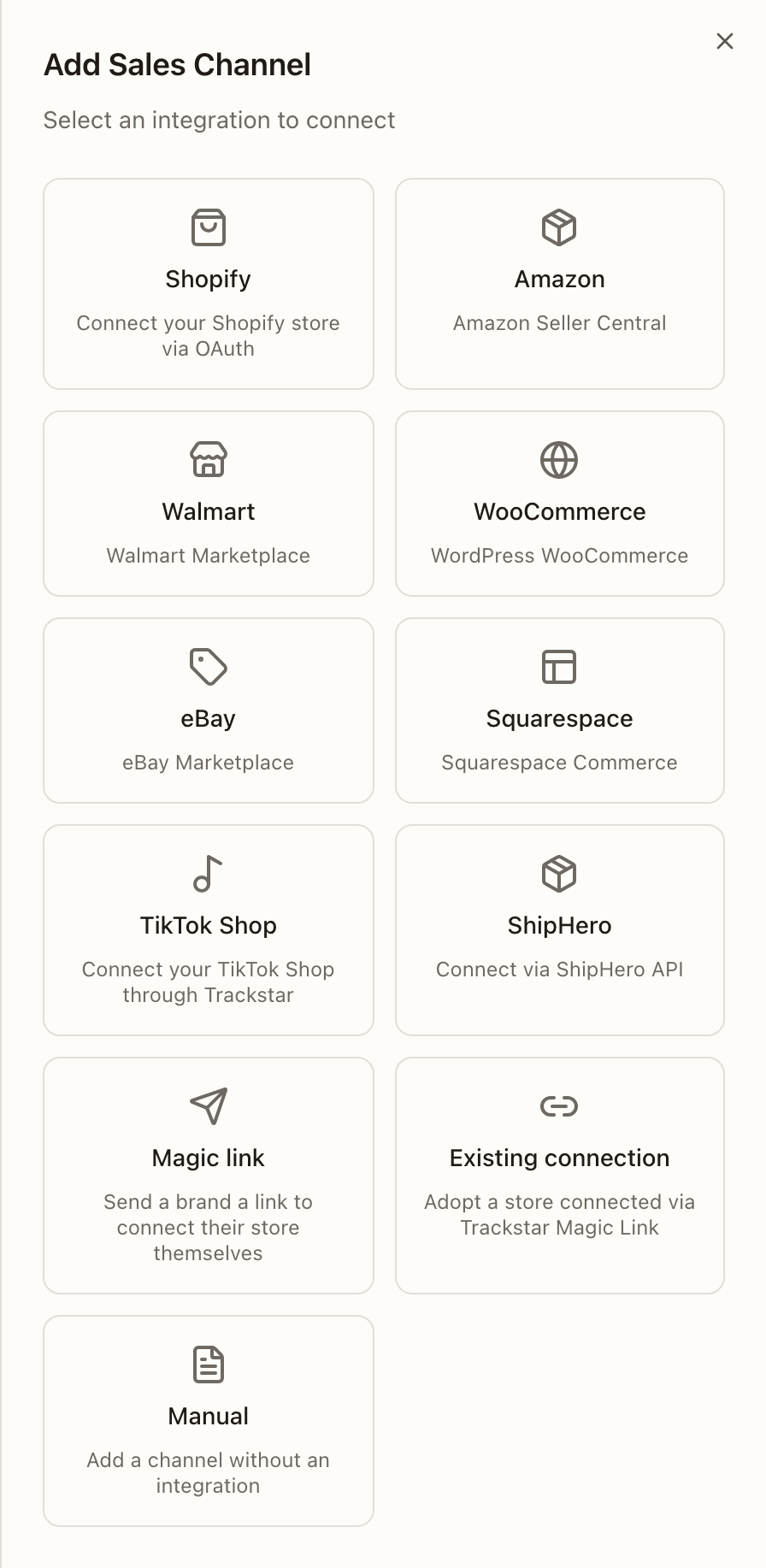
| Tile | What happens |
|---|---|
| Shopify | Register the store and generate an install link for the merchant to approve — the connect a sales channel guide walks through it. |
| Amazon, Walmart, WooCommerce, eBay, Squarespace, TikTok Shop | Connect through Trackstar: pick the client, press the Connect button (it names the platform), and authorize the store in the secure window that opens. The channel appears with a Syncing badge while its recent history imports; orders flow once that finishes. |
| ShipHero | Pick the client, name the channel, and paste the ShipHero API token (optional if one is configured on the server). |
| Magic link | Create a Trackstar magic link to send to a brand — client, Platform (Any supported platform or one of the six), and Link valid for 7, 14, or 30 days. Once the brand connects, the store appears under Existing connection. |
| Existing connection | Adopt a store the brand connected through a magic link. Pick it from the list (rows can read Not supported, Matched to a different client, or Paused), confirm the client, name the channel, and paste the connection's access token from the Trackstar dashboard. |
| Manual | A channel with no integration — for manual order entry or CSV import. Client, name, optional store URL. |
Every path asks for the client first (locked when the top bar is pinned). Connecting, reconfiguring, and disconnecting are all refused for a client user on the API, not just hidden.
Channel settings
The gear on a channel row navigates to the channel's Sync Settings page, with a Sales Channels link back at the top (a client user who reaches the URL sees only "Channel sync settings are managed by your fulfillment provider."). Its tabs are Orders, Inventory, Products, and History — but Inventory and Products only appear when the channel's integration supports location mapping / inventory push and product sync respectively, so a Manual channel shows just Orders and History. Every switch saves the moment you flip it.
Rows carry two chips: To store marks a setting that writes into the merchant's live store, and Default on marks one that runs without anyone having turned it on — so an ON switch without the chip means a person chose it.
Orders tab
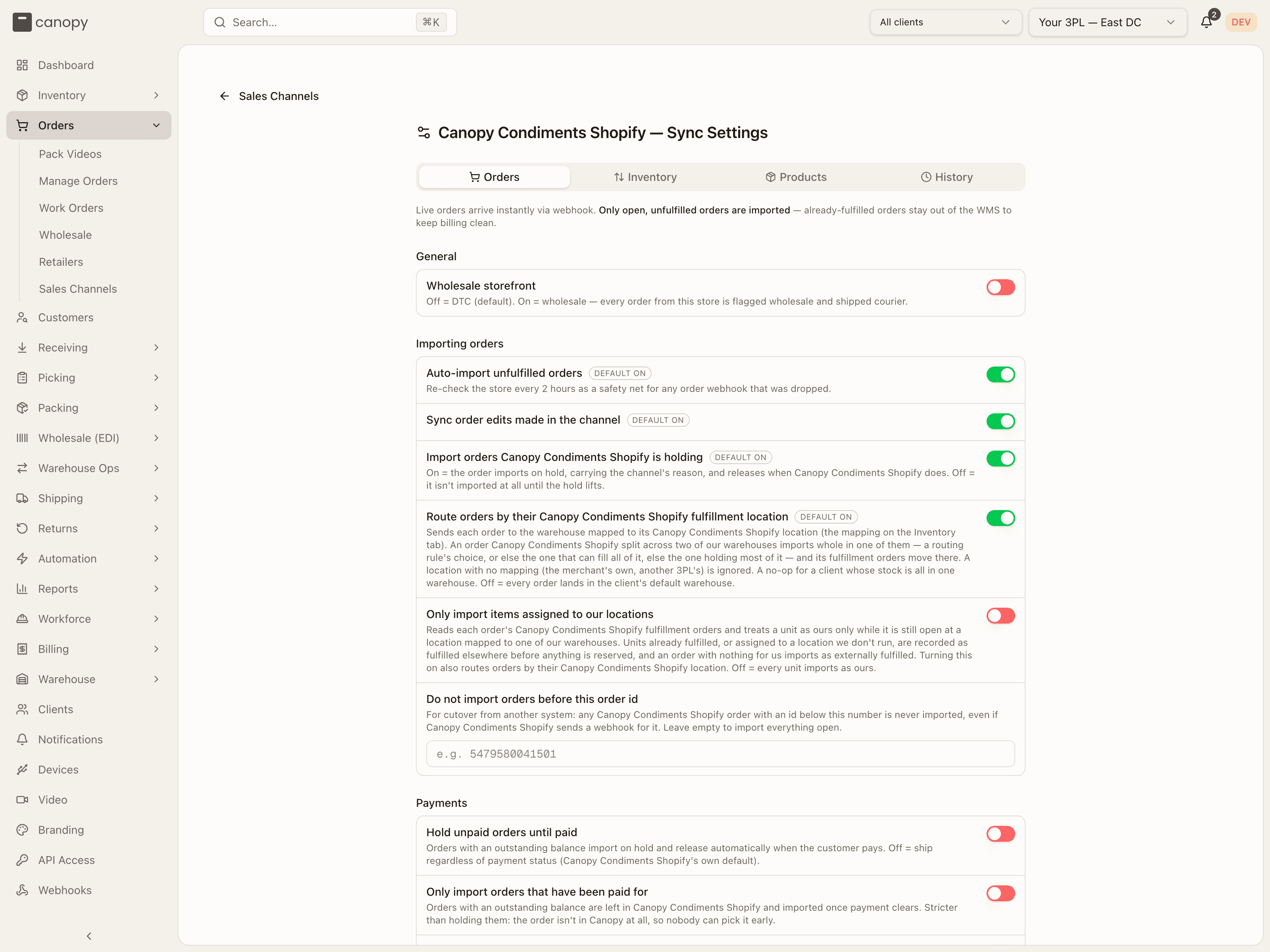
Live orders arrive by webhook; only open, unfulfilled orders are imported. The settings are grouped by topic (each group shows only the settings the integration supports):
- General — Wholesale storefront: on, every order from this store imports flagged wholesale and ships courier.
- Importing orders — Auto-import unfulfilled orders (re-check the store every 2 hours as a safety net for a dropped webhook), Sync order edits made in the channel, Import orders the store is holding (on: they import on hold and release when the store does; off: not until the hold lifts), Route orders by their fulfillment location (to the warehouse mapped on the Inventory tab, unless one of the client's routing rules chooses first; an order Shopify split across two of your warehouses is placed as which warehouse a new order ships from describes. A location with no mapping, the merchant's own or another 3PL's, is ignored), Only import items assigned to our locations (Shopify only, off by default: each order's fulfillment orders are read and a unit counts as yours only while it is still open at a location mapped to one of your warehouses — units already fulfilled, or assigned to a location you don't run, are recorded as fulfilled elsewhere before anything is reserved, and an order with nothing for you imports as externally fulfilled; turning it on also switches location routing on and locks it, "Stays on while 'Only import items assigned to our locations' is on."), and Do not import orders before this order id — a cutover floor for stores migrating from another system.
- Payments — Hold unpaid orders until paid, Only import orders that have been paid for (stricter: the order isn't in Canopy at all), Drop the payment hold when the store reports the order paid (never an operator's hold), and Charge the customer when the order ships — enabling it confirms "Start charging customers when orders ship?" because it moves real money; orders whose lines were changed in Canopy are skipped and flagged on the timeline. Under it, on Shopify, sits Wait until every location has shipped (off by default, and greyed out — Turn on "Charge the customer when the order ships" first. — until that is on): on an order another location ships part of, the charge waits until that location has shipped too — the order's sheet shows Charge waiting on <location>, and its Timeline "Payment capture waiting. … Do not collect manually." It charges anyway 24 hours before the payment authorization expires, and at once when the store doesn't say when it expires; with the store's locations unmapped on the Inventory tab it can't tell whose they are, and charges without waiting.
- Addresses — Apply address changes made in the store (up until it ships; never over an operator's correction) and Push address corrections to the store.
- Customer notes — copy the checkout note into the order's notes (where the packer sees it) and/or into the gift note (off by default — a checkout note is as often a delivery instruction). This setting covers the checkout note only. Some Shopify stores have a gift message field of their own, saved on the order as Gift message or Gift note. Canopy always copies that into the gift note, whatever this setting says, and it wins over the checkout note. No other channel is read for one.
- Fulfillment — Send tracking through customer notes (off by default, and only offered when the integration supports it — WooCommerce: adds the tracking number and link to a customer note in the store, which sends the store's own customer-note notification, then marks a fully shipped order Completed; it uses built-in order notes rather than the Shipment Tracking extension), Import fulfillments created in the store (closes those lines here; stock isn't adjusted), Allow DTC orders to split across shipments ("For DTC orders, ship what's in stock now and backorder the rest. Per-order rules and flags override this. Off = DTC orders ship complete. Wholesale orders use the client's Wholesale partial shipments default instead.", explained under split orders; the note underneath says whether the store hears about each parcel or only the last one), and Archive the order once fully shipped.
- Returns — Receive returns for items other locations shipped (Shopify, on by default): a return made in the store imports here even for items another location shipped, so the box is expected at your warehouse. Off, only the items Canopy shipped import, the order's Timeline notes the rest for that location to receive (Channel return not imported), and a return with nothing of Canopy's creates no RMA.
- Customer emails — whether the store emails the customer on ship and on refund, for stores that give Canopy that control.
Below the groups, Order Import Status shows the last run (Never run, Completed, Running, Failed), how many orders it imported and how many need attention, and an Import unfulfilled orders button to pull now.
Inventory tab
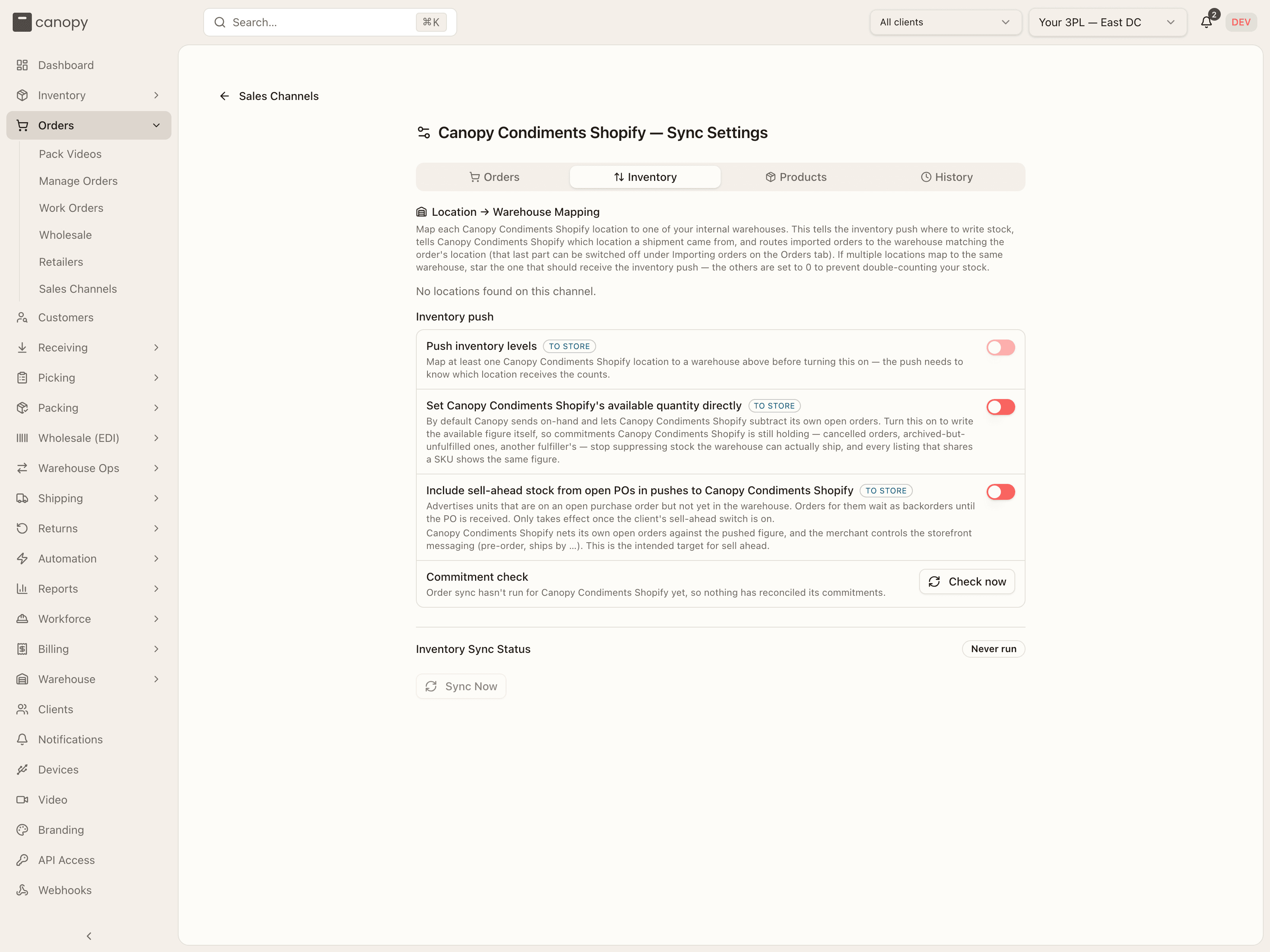
- Location → Warehouse Mapping — map each store location to one of your warehouses. This tells the push where to write stock, tells the store which location a shipment came from, and routes imported orders (switchable on the Orders tab). When several locations map to the same warehouse, star the one that should receive the push — the others are set to 0 to avoid double-counting. A mapping whose location the store no longer returns shows dashed, still targeted, with a Remove mapping button.
- Inventory push — Push inventory levels (To store) pushes stock every 15 minutes and on stock changes; where the store expects a mapping, the switch stays off until at least one location is mapped. Advertise stock from (To store) is for a store the push sends one stock figure for the whole store: an Amazon, WooCommerce or Squarespace store always, and an eBay or Walmart one while none of its locations is mapped (once one is, the row says the mapping decides). It sets which warehouses that figure counts: All warehouses, the default, or Chosen warehouses, picked by name — "Choose the warehouses its orders can ship from — the ones your routing rules send its orders to — so it never sells stock another warehouse holds." The store's own open orders count against the figure wherever they landed. For a kit SKU, the figure is capped further: by what each of those warehouses can build from its own component stock, since components split across warehouses never pool into a kit no single warehouse could build. Save appears once you change it; with the push on, it first asks Re-send <channel>'s stock? — every listing is re-sent now, and it says how many SKUs will push 0 — and Save and re-send confirms. A chosen warehouse that's no longer active is taken off, with a note to save the rest. Set the store's available quantity directly makes Canopy write the available figure itself instead of on-hand for the store to net — only offered where the platform nets by default, and meant to be turned on once the commitment check reports attribution complete. Include sell-ahead stock from open POs advertises units not yet received (only once the client's sell-ahead switch is on; the note underneath spells out who owns the netting for this store). A commitment health row sits under them with the evidence those decisions rest on.
- Inventory Sync Status and Sync Now for an immediate push.
Enabling the push, and the first push, both confirm
Turning Push inventory levels on, or pressing Sync Now, opens a preview: total mapped SKUs, how many have stock, and how many will push 0 (on a store pushed one figure, counted from its Advertise stock from warehouses), plus a check of the store's committed units against Canopy's open demand ("Review before enabling" when it finds rows the push can't account for; an order merged into another is counted once, on the master's copy of its line under its own channel ids, so a merge never reads as a gap — and the push leaves its parked lines out, since the master's reservation already covers them; a customer order split across warehouses is read once too, on the customer's order).
On the first push for a channel with zeroes you must tick "I understand this will overwrite live … stock with the current Canopy values." — if the brand's stock hasn't been received into Canopy yet, confirming sets their storefront to zero. And every enable requires the cutover attestation: "No other system is still managing this store's inventory — the previous WMS's sync has been turned off." Two systems pushing counts to the same store overwrite each other. Receive stock first, switch the old system off, then enable the push.
Products tab
- Catalog — Auto-create SKUs from products found in the store.
- Product Mappings — how many listings are mapped, a Sync Products button, and a table of SKU, Product, Listing (the variant's options, with (unpublished) where the listing isn't live), and External ID. A Conflict badge marks a SKU that several listings share while disagreeing on their options — a merchant catalog error; hover for the message to forward.
- Image Sync — status and a Sync Images button.
- Take product details from the store — per-field switches (name, barcode, price, weight, HS / tariff code, country of origin, vendor) that update Canopy's copy when the store's changes; an empty store field is skipped, never cleared. Only import products that are published skips drafts and archived products.
- Push product details to the store — per-field switches (barcode, SKU code, weight, HS code, country of origin) that write a Canopy edit onto the store's product. All off by default: Canopy won't touch the catalog unless you turn a field on.
History tab
One row per sync run — type, status, items processed (and failed), started —
and a run with failures expands to its per-SKU failure detail ("No detail
recorded for this run." otherwise). An order-import run that imported orders
with nothing assigned to your locations adds "· N imported as fulfilled
elsewhere"; orders that arrived by webhook aren't counted there — filter
Orders by Externally fulfilled to see them all. When Shopify refuses to
move an order's fulfillment orders to the warehouse
routing or
a move chose, that refusal is a row
of its own — type FO_MOVE, Failed — naming the order and Shopify's
reason.
How to create an order by hand
Open Manage Orders and press Create Order
Open Orders → Manage Orders. Press Create Order in the top right. A sheet titled Create Order slides in, subtitled "Create a manual order for B2B or wholesale". Client users can use it too, for their own brand.
Choose the client, and the warehouse if you run more than one
Under Client, pick the brand in Select a client.... When the top bar is pinned to a client, the field shows that client's code and name instead and cannot be changed. With two or more active warehouses a Ship from select follows, for warehouse staff only. It starts at Automatic (routing rules), which follows the client's routing rules and then its default warehouse; choose a warehouse to send the order there instead. The warehouse the top bar is on is never used. See which warehouse a new order ships from.
Set the priority, and the wholesale switch for a B2B order
Priority starts at Standard; the other choices are Expedited and Rush. Leave Wholesale order off for a parcel to a shopper. Switch it on for an order that must stay out of the retail pick pipeline: the block expands to Retailer (optional), a Shipping method of Courier or Freight, a required Ship by date, and Retailer instructions, which print on the packing slip. Choosing a retailer fills in its saved ship mode and packing instructions.
Enter the customer and the shipping address
Fill in Customer Name, Email and Phone. On a retail order, type the service the customer paid for in Shipping Method; a wholesale order has no such field, because its carrier is chosen at label time. Under Shipping Address, fill in Address Line 1, Address Line 2, City, State and ZIP, and pick the Country. The address is saved only when Address Line 1 is filled in; once it is, Create Order stays off until Country is a valid one.
Add the line items
Under Line Items, type in Search SKU to add…. The matches show the SKU code and name; press one to add it. Each added line has a quantity box, a Price box for the unit price, and a trash icon that removes it. "Search and add at least one SKU above" stays under the list until the first line is in.
Add notes and press Create Order
Type anything the packer should know in Notes. Press Create Order. The button is off until at least one line is added, and on a wholesale order until the ship by date is set; it reads Creating… while saving. The sheet closes and the new order is in the list. Canopy reserves stock for it on its own, and its Details tab names the warehouse it ships from. A refused order shows the reason in red under the buttons, for example when no warehouse could be chosen; see which warehouse a new order ships from.
How to hold and release an order
Open the order and press Hold
Click the order's row in Manage Orders. Its sheet opens with the action bar under the header. Hold shows on any order except one that is Cancelled, Delivered, On Hold, Shipped or Merged. An order merged into another cannot be held; the server answers "Cannot hold an order that is merged into another order — remove it from the merge first". Press Hold.
Type the reason
The Place Order on Hold dialog opens. Type why in Reason ("Enter hold reason…"). Place hold stays off until there is one. The reason shows on the order for everyone who opens it.
Choose how long
Under Hold duration, press 24 hours (chosen to start with), 48 hours, Custom date or Indefinite. Custom date adds a Release at date and time picker. A timed hold lifts on its own when its time comes; an indefinite one waits for someone to release it.
Decide what happens to the reserved stock
On a Pending, Allocated, Replenish or Backordered order that has stock reserved, the dialog adds Release reserved stock (N units). Ticked, those units go to other orders now, and this order reserves again from whatever is free when the hold lifts. It is ticked for you on an Indefinite hold and clear on a timed one; change it either way. The full rule is under Hold dialog.
Press Place hold
The button reads Placing hold…, then the dialog closes. The order now shows On Hold, and the hold list on its Details tab gains a row: Operator hold with a Warehouse badge, your reason under it, "Releases …" with the date for a timed hold, and its own Release. When stock was released the toast reads "Hold placed — N units released for other orders".
Release it with Release
On an On Hold order the action bar shows Release in place of Hold. Press it; there is no dialog. It lifts every hold a person or Canopy placed on the order at once. The toast reads "Hold released", and the order goes back to the status the hold found it in, or straight to Allocated when everything it still owes is reserved by now. When another hold was waiting behind this one, the toast says so instead: "Hold released — the order is now waiting for payment (channel)", "Hold released — its sales channel still holds the order", or "Hold released — the order is on another hold". A release is refused with "Can't release this hold — …" while the shipping address has a country no carrier serves; fix the address with Edit first. The action bar has the full rule. While only review cards hold the order, the action bar shows no Release: each card is settled with its own buttons.
Release one hold from the list
To lift one hold and leave the others, press Release on its row in the hold list on the Details tab. While another hold is still open the order stays On Hold, and the toast names what is left: "Hold released — still held: 1 other reason (Awaiting payment)". On a note the button reads Acknowledge. Pressing it closes the note ("Note acknowledged"), and the order's status does not change. A change from the sales channel is not in the list: settle it on its review card instead (see How to settle a change from the sales channel).
Hold or release several at once
Tick the checkbox at the left of each row. The bar above the table reads "N orders selected". Hold Selected opens the same dialog, titled Hold N Selected Orders, without the reserved-stock option. More actions → Release hold lifts the holds on the selected orders, and the toast counts any that ended on another hold.
How to settle a change from the sales channel
Find the orders with a change
In Manage Orders, press Filters and tick Changed on the sales channel only under Channel changes. The list keeps the orders with a change still open, and the chip Channel changes: Holds and notes sits above the table. Each row's chip says which kind it is: Needs a decision when a change holds the order, otherwise the newest note's kind.
Open the order and read its cards
Click the order's row. Each change is a card above the tabs, newest first. A red card wears Holds the order; an amber one wears Note. Read what happened, the lines it changes and when it was detected.
Press the card's button
Pick what fits the change. Apply channel's changes takes the channel's lines on an order with nothing picked. Resolve opens Resolve channel changes on a picked order: choose the bins the added units come from, then press Resolve; removed units are staged for put-back. Keep as is ships the order as it stands. Release lifts the card's hold once you have made the change by hand. Acknowledge closes a note. Each button is described under Review cards.
Check where the order stands
The toast says what was done: "Channel changes applied", "Resolved: …", "Kept as is", "Hold released" or "Note acknowledged", and the card goes. When another hold still holds the order, it stays On Hold, and after Keep as is or Release the toast names what is left, as in "Kept as is — still held: 1 other reason (Operator hold)". Once nothing holds it, it goes back to the status the hold found it in.
How to reship an order
Open the shipped order and press Reship
Click the order's row in Manage Orders. Reship sits in the action bar of a Fulfilled or Shipped order, and of a Delivered one once a line has shipped units; it is for warehouse staff only. It also sits on each parcel's card on the Shipments tab, except a voided one, and starts the wizard on that box. Press it. The Reship order CC-… dialog opens on its first step, What happened?.
Say what happened
Press the card that fits: Label problem, box is fine, Package came back, Lost or damaged in transit, Wrong items shipped, or The client asked for a re-send. The last card shows only while goodwill re-sends are switched on for your tenant. Package came back asks Is the box intact and sealed?: answer Yes — ship it as-is for a relabel, or No — needs inspection to receive it through an RTS return first. The cards say what each one does to stock. Press Continue.
Fill in the details of a relabel
For a label problem, or a returned box that is intact, the Details step first asks Which box has the bad label? when the order has more than one parcel; only the chosen box gets a new label. Ship to the same address. has an Edit address button for a corrected address. Same service as the original label. has Choose service, which fetches the rates; press Use on another carrier service to take it. When no carrier quotes, the list under Choose service stays empty and the original service stands. Get rates shows only when the quote failed or an address edit cleared it; after an edit the card reads Address will be updated. Press Continue.
Or choose the units of a repick
For lost, damaged or wrong goods, a box that needs inspection, or a client's re-send, the Details step reads "Checking what can be reshipped…", then offers Everything that can be reshipped with the unit count beside it, one Everything in box … choice per box when the order has parcel records, and Choose items, with a checkbox and a count per line. Units that were fulfilled elsewhere are named and left out ("… fulfilled elsewhere (another location, or marked fulfilled by hand) — not part of this reship."). Details says what is never offered. On a split customer order, the step lists every warehouse instead: Choose items and warehouses gives each item a count under each warehouse's order, as Choose items and warehouses explains. Press Continue.
Read the plan
The Review the plan step is a receipt of what will happen: what becomes of the old label, whether units are written off or kept by the customer, that fresh units are allocated immediately, how the sales channel hears about it, and the billing line, "No charges will be billed for this reship." or "Billed to the client as a new order: the label, the pick and pack, and any order fees." When something stands in the way, the step shows why instead, for example Receive the returned parcel first or A reship is already open on this order, with Re-check and, where it fits, a way through such as Create RTS return. Confirm explains each line.
Choose where the replacement ships from
On a repick with two or more warehouses, the same step adds a Ship from select under the billing line. Each warehouse reads "can fill these items" or "N of M units in stock". It starts on the warehouse the units shipped from, when that one can fill them. Picking another warehouse moves the order there for the re-send, and back again if the reship is cancelled; what that warehouse lacks waits there as a backorder. See Ship from.
On a split customer order, Ship from starts on Each warehouse sends its own part. Choose Everything from … to have one warehouse's order send every unit, taking the other warehouses' units from their boxes. The order does not move. See Ship from on a split customer order.
Press Confirm reship
Press Confirm reship, or Add to the reship when the units join a reship already open on the order. The Done step reads Replacement label bought for a relabel, Order reset for re-fulfillment for a repick, or Units added to the open reship; anything to chase shows under Follow up. After Wrong items shipped, Create linked return opens the return for the wrong goods. Press Done. The order's Reship history on the Details tab records the reship, and a repick can be cancelled there with Cancel reship until its replacement label is bought. A relabel whose label purchase failed stays open as a Relabel row reading (no new label yet); pressing Reship on that shipment again warns "An in-progress relabel already exists for this shipment — executing will resume it", and Confirm reship picks it up. On a split customer order, the Done step also lists each warehouse's part of the re-send, and each part can be cancelled on its own.
How to edit an open re-send
Open the order and find its Reship history
Click the order's row in Manage Orders. On the Details tab, find the open repick in Reship history. When the re-send has a part at more than one warehouse, the row shows One re-send from 2 warehouses with each warehouse's part and its status. One re-send from several warehouses explains the box.
Press Edit the re-send
Press Edit the re-send on that row. It is for warehouse staff only. The Edit the re-send on order CC-… dialog opens on Set how many each warehouse sends again, filled in with what each warehouse's part sends now.
Set how many each warehouse sends
Change the count under each warehouse. A lower count takes units back, as long as picking has not started. A warehouse at 0 is cancelled from the re-send. A warehouse with no part yet gets one when you give it units. On a re-send of returned boxes, choose the box first where a warehouse has more than one: see A returned box to choose. Press Continue.
Read the plan and press Save the plan
Review the plan lists what each warehouse's part gains under Added to the re-send and what it gives back under Taken back from the re-send. Press Save the plan. The Done step reads The re-send's plan is saved and lists each warehouse's part with its status. Press Done. To stop the whole re-send instead, cancel it from Reship history.
How to recover a cancelled order
Open the cancelled order and press Recover Order
Click the order's row in Manage Orders. Recover Order sits in the action bar of a cancelled retail order, for warehouse staff only. When the order can't be recovered, the button is disabled and its tooltip says why. Press it. The Recover order CC-… dialog opens and reads "Checking this order…".
Choose where it is fulfilled from
Under Fulfill from, leave Keep current warehouse or pick another warehouse. Read the Check before shipping list when it shows. When the order can't be recovered, the dialog says This order can't be recovered with the reason, and Close is the only way out.
Press Recover order and read Follow up
Press Recover order. The dialog reads Order recovered, with anything to chase under Follow up. When the sales channel still holds the order, Follow up says so and the order waits On Hold for the channel: The sales channel's hold, checked again explains it. Press Done.
How to merge orders
Open Manage Orders and press Mergeable
Open Orders → Manage Orders. Press Mergeable, beside Filters; it carries a count when there is anything to merge. The button shows for warehouse staff while merging is switched on for your tenant. The table gives way to the mergeable view, and a View: Mergeable chip sits above it; remove the chip to get the table back. You can also tick two or more rows and press Merge Selected in the bar above the table; when that button is off, hovering it says why.
Pick the orders and the one that ships
Each block is one recipient: name, client, address, "N orders", and "N with differences" when a method or priority differs. Every order starts included; clear Include CC-… on any to leave out. The Master radio, Ship as CC-…, marks the order that ships; the oldest is chosen to start with. Press Merge group, or Merge N selected after leaving some out. The button needs two orders. When nothing qualifies the view reads "No orders to merge right now." and counts the near-misses; Merging orders says what keeps an order out.
Check the preview
The Merge N orders into one shipment dialog opens. Under Orders — pick the one that ships, each order has its radio, the suggested one marked oldest, any "Can't be merged: …" reason, and warnings with a triangle that never block, such as a differing shipping method (the master's wins), a postage type or its carrier account that differs (the master's wins) or priority (the highest wins). CC-… will carry shows the priority, ship by date, method, tags and gift note the master ends up with; a highlighted row is one where the orders differed. Items (N) lists every line by the order it comes from. Changing the radio rebuilds the preview.
Press Merge N orders
Press Merge N orders. If any order changed since the preview, nothing is merged: "Not merged — these orders changed since the preview:" names them, and Refresh rebuilds the preview. On success the toast reads "Merged N orders into CC-…", with "Stock is being reserved for the lines it took on." when the master still has lines to reserve. The selection clears and the master's sheet opens.
Check the master
The master's Details tab now has a Merged orders section, one row per merged order marked Ships in this order, and Unmerge all. The merged orders show Merged in the list, under the master's merged chip (see Merged orders in the list). Pick, pack and ship the master as usual; each merged order's channel hears about the shipment when the master ships. To take an order back out, see Merged orders.
How to split an order across warehouses
Open the order
Click the order's row in Manage Orders. Split across warehouses… shows in the action bar for warehouse staff on a sales-channel order that is Pending, Allocated, Backordered or Replenish, once you run two or more active warehouses. It must also be off hold, out of any merge and out of any Bulk Ship batch, or the dialog says so in the next step.
Press Split across warehouses…
The Split across warehouses dialog opens and reads "Checking where this order's units can go…" while it asks the server. Wait for that to clear. An order that cannot be split says why instead, "This order can't be split: …"; "No other warehouse can take units of this order." means no other active warehouse is mapped on the channel. Splitting an order across warehouses lists the reasons a split is refused.
Choose the warehouse under Send to
Under Send to, open Choose a warehouse and pick one. Read the line under it: "Makes a new order at … for this customer order.", or "Adds to CC-…, this customer order's order at …" when that warehouse already has an order of this customer order.
Enter the units to send
Each line reads "N units here" and, once a warehouse is chosen, "· N free at …". Type the units of that SKU to send in the box at the right. A kit is a checkbox, All N (a kit moves whole). Leave at least one of the order's own units behind, or the status line reads "Every unit would leave — use Move to warehouse to move the whole order." When the numbers add up it reads "Sends N units to …; N stay at …".
Add a note and press Split order
Type why in Note (optional) if the reason should be on both orders' timelines. Press Split order. The toast reads "Split: CC-…-S2 made", or "Split: units added to the order there" when the warehouse already had one. The new order is made Pending and allocated at its warehouse in the same step, so it shows Allocated by the time the sheet refreshes. Open it from the Split across warehouses section at the end of this order's Details tab, where each warehouse's order is a link.
Undo it from the warehouse's order
To take the split back, open the warehouse's order, the one with the Split from CC-… banner, and press Undo split…. The Undo split dialog reads "Sends this order's N units back to … (CC-…). This order is then retired — cancelled here, not in the sales channel." When it cannot be undone it says "It can't be undone now: …". Press Undo split. The toast reads "Split undone — this order's units are back with the customer's order", and the retired order stays listed as Cancelled.