

Wholesale (EDI)
Retailer EDI orders — 850 in, SSCC cartons, the routing-guide ship-confirm gate and the 856 ASN out — plus the simpler non-EDI wholesale orders and retailers that live under Orders.
A wholesale order is a bulk order to a business — a retailer's distribution center, a store buying on Faire, a B2B storefront — rather than to one shopper. CanopyWMS runs two separate flows for it, and they don't share records:
- Wholesale (EDI) — the sidebar group for retailers you trade with by EDI. A purchase order arrives as an 850, you pack SSCC-labelled cartons (and pallets for freight), a ship-confirm gate checks the retailer's routing guide, and the 856 ASN goes back. Four pages: EDI Orders, Compliance, Trading Partners and EDI Lab. Warehouse staff only.
- Orders → Wholesale and Orders → Retailers — non-EDI wholesale. A normal order flagged wholesale is picked into a staging location, boxed, then either labelled by courier or booked as LTL freight. No trading partner, no EDI documents. Open to the brand as well as to you.
Operator vs. client view
The whole Wholesale (EDI) tree is staff-only three ways over: the sidebar
hides it from a CLIENT_USER, typing the URL lands on "Access restricted —
The wholesale EDI area is available to warehouse staff only.", and every
/api/wholesale and /api/edi request is refused server-side. Orders →
Wholesale and Orders → Retailers are client-visible: a brand can create a
wholesale order, keep its retailer list, watch picking and packing progress and
print the packing slip — but every control that reserves or moves stock, buys a
label, books freight or reads the floor's staging directory is operator-only
and simply doesn't render for them. Each section below says which.
The vocabulary
850 — the retailer's purchase order, inbound. The retailer transmits it as EDI; Orderful (the Canopy-managed EDI network) translates it to JSON, and Import PO (850) turns that into an EDI order: PO number, department and store, the don't-ship-before / must-arrive-by window, the ship-to DC, and one line per product matched to your SKUs.
856 — the advance ship notice, outbound. The electronic packing manifest sent before the truck arrives so the retailer's dock knows exactly what's in each handling unit: pallet → carton → item, each pallet and carton tagged with the SSCC printed on its label. It is built from your closed cartons; the WMS previews it and logs it, and the transmit itself is the Orderful step. The 855 (PO acknowledgment, "here's what I'll ship") and 810 (invoice) bracket it.
SSCC and GS1-128. An SSCC is the 18-digit "license plate" allocated to each carton or pallet when it closes, built on your tenant's GS1 company prefix; a GS1-128 barcode is how it's printed. The retailer scans that barcode at the dock and matches it to the 856.
Routing guide and the ship-confirm gate. A retailer's routing guide is its rulebook — ship within the window, every label printed, cartons under a weight ceiling, one SKU per carton, and so on. Each rule is set to block or warn, and the ship-confirm gate evaluates them against the real cartons before the order can ship.
Chargebacks. The fines retailers issue for compliance failures: a late ASN, a label that doesn't match the manifest, shipping outside the window, missing or wrong documents. Compliance detects the exposure while you can still fix it, and tracks a real chargeback from open through disputed to resolved or waived, with its dollar amount.
Courier vs. freight. Small wholesale ships as parcels — one carrier label per box, tracking per box. Large wholesale ships as freight (LTL) — boxes stacked on pallets, the carrier rates the handling units, and the Bill of Lading rides with the truck instead of parcel labels. The EDI flow calls these Parcel / Freight (the order's ship method); the non-EDI flow calls them Courier / Freight (the order's ship mode).
Cases vs. eaches on an 850 line. A retailer orders in whatever unit it likes
— EA (eaches), PK (inner packs), CA (cases) or PL (pallets). Stock,
picking and cartons are always counted in base eaches, so the importer
converts each line through the SKU's pack level (24 CA × 12 per case = 288)
and keeps the original denomination beside it, so the 855 and 810 answer in the
retailer's unit. A CA line for a SKU with no CASE pack level can't convert
and lands as unmatched — needing pack-level setup (define it under the SKU's
packaging). Picking and carton close only
ever take loose eaches; a sealed case has to be broken down first.
Which flow is which
| Wholesale (EDI) | Orders → Wholesale (non-EDI) | |
|---|---|---|
| Where | Sidebar Wholesale (EDI) group | Orders → Wholesale, Orders → Retailers |
| Who | Operators only | Operators and clients |
| Buyer record | Trading partner (tenant-wide, has an EDI ISA ID) | Retailer (per client, no EDI identity, optional) |
| Order record | Its own EDI order (DRAFT → PACKING → READY_TO_SHIP) | A normal order with the WHL flag, using the wholesale status ladder |
| Setup needed | GS1 company prefix, trading partner, routing guide | None — a retailer is optional |
| Labels | SSCC carton/pallet labels, shipping marks, retailer label templates | Courier parcel labels, or a BOL from an LTL booking |
| Documents | Packing list, BOL, 855 / 856 / 810 | Packing slip, picking slip, BOL |
An order tagged wholesale in the sales channel or with Mark Wholesale in Manage Orders is a non-EDI wholesale order — it shows up under Orders → Wholesale, never under EDI Orders.
EDI Orders
Wholesale (EDI) → EDI Orders lists every EDI order for the pinned client
(pin one in the topbar; the list follows it). Each row shows the order number,
the trading partner and client, the retailer's PO number, a carton count,
and the order's raw status (DRAFT, PACKING, READY_TO_SHIP…). With nothing
yet: "No wholesale orders yet — Create one to start building cartons." Two
actions sit in the header.
Import PO (850)
Opens the Import retailer PO (850) panel. In production the 850 arrives from Orderful automatically; here you paste the translated JSON (or Load sample for a representative Nordstrom-style PO) and the importer does what the feed would.
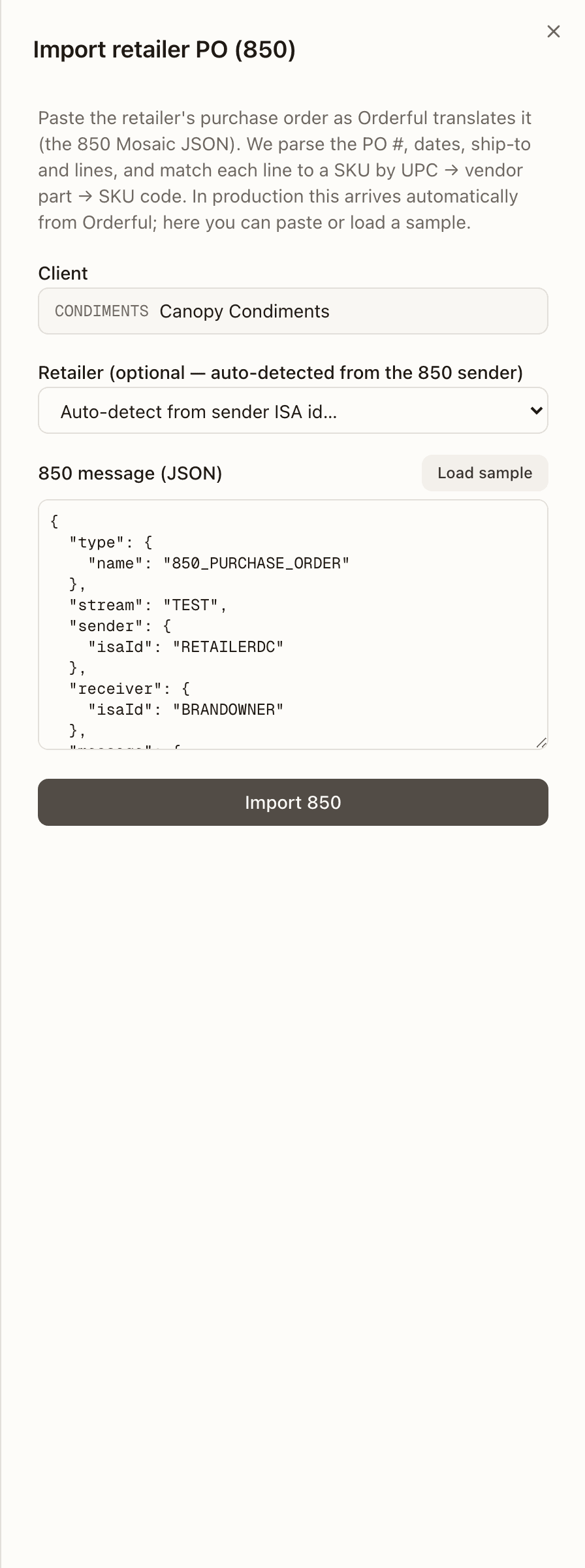
- Client — which brand the PO is for.
- Retailer — optional. Leave it on Auto-detect from sender ISA id… and the importer matches the 850's sender to a trading partner's EDI ISA ID; if nothing matches you get "Couldn't determine the retailer — no trading partner matched the 850 sender ISA id. Pick one explicitly."
- 850 message (JSON) — the Orderful Mosaic payload. Non-JSON is refused before anything is sent.
Import 850 parses the PO number and date, department and store numbers, the
ship-to DC, the date window (X12 DTM qualifiers 037/010/118 become
don't-ship-before, 038/002/001/017 become must-arrive-by) and the lines. Each
line is matched to a SKU by UPC → vendor part number → SKU code, and its
quantity converted to eaches as described above. A SKU since merged into
another matches by its code only — never by its UPC or vendor part number,
which an active SKU may share — and the line lands on the SKU it was merged
into. The result panel reports
"Imported WO-… — N lines matched", lists any lines that couldn't be matched
(identifier × quantity) and any parser warnings, then Open order → takes
you to it. The inbound 850 is logged on the order's EDI timeline.
Re-importing the same PO
One EDI order per client per PO number. Importing an 850 whose PO already exists returns the existing order and does not apply the new lines — the timeline entry says "PO … re-received — order already imported; revision NOT applied (delete + re-import to replace lines)." Revised POs are not merged automatically.
New Order
Opens New Wholesale Order for an EDI order entered by hand: Client, Trading partner (with a nudge to add one under Trading Partners first if the list is empty), Retailer PO #, Ship-to — Retailer DC (the distribution center, not a store), Don't ship before / Must arrive by, and What's ordered — search a SKU, set a quantity, add it. Create order needs a client, a partner and at least one line.
An EDI order
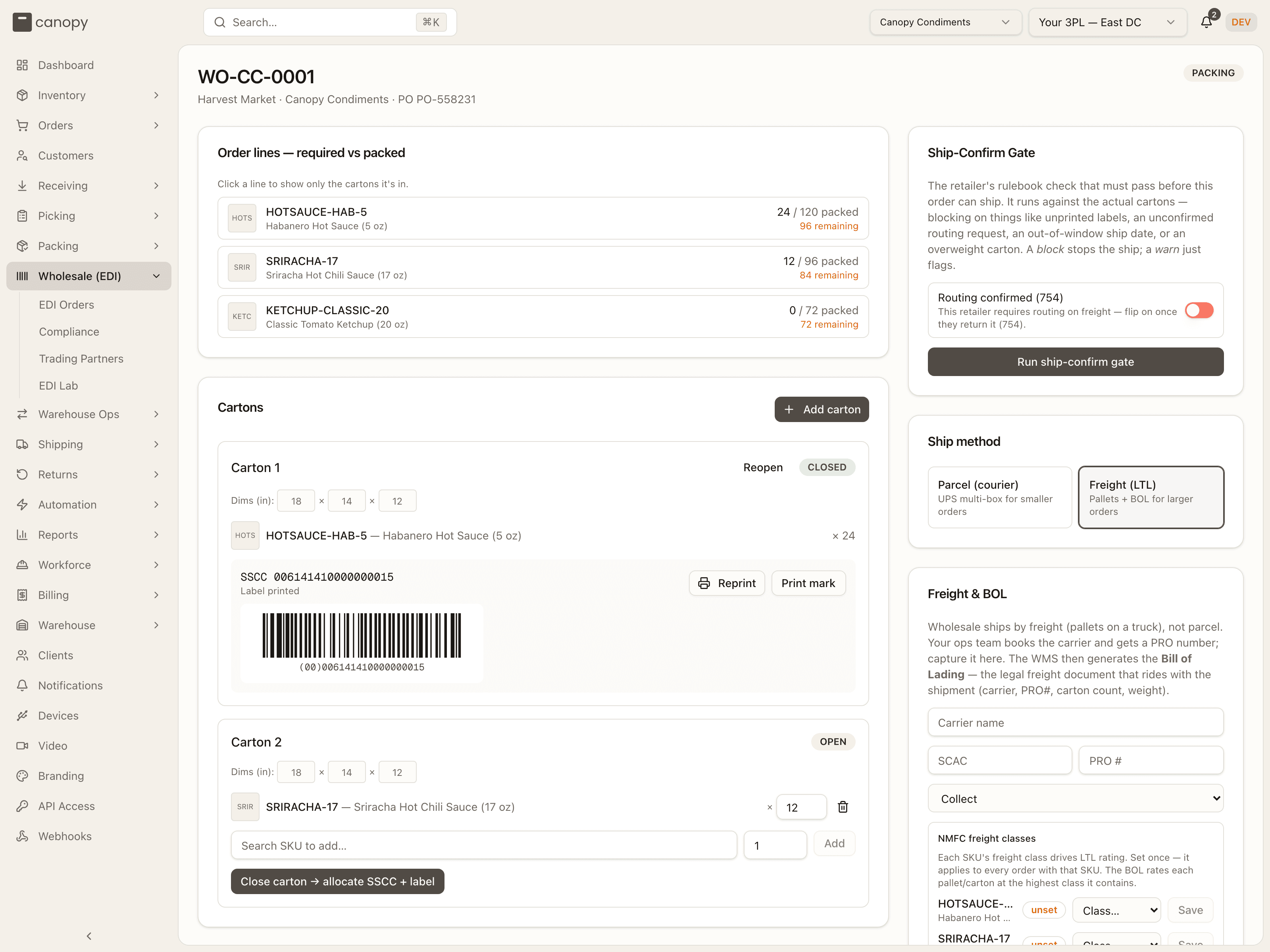
Open an order for the packing workbench. The header carries the order number, partner · client · PO, and the status badge; the left column is what you pack, the right column is everything that gates and documents the shipment.
| Status | Meaning |
|---|---|
DRAFT | Created or imported; no carton closed yet. |
PACKING | At least one carton has been closed (or reopened) — stock is moving. |
READY_TO_SHIP | The ship-confirm gate passed; the 856 is logged and ready to send. |
The status enum also holds VALIDATED, PACKED, SHIPPED, DELIVERED,
CLOSED, ON_HOLD and EXCEPTION, but nothing on these screens sets them —
they wait on the Orderful transmit and carrier-status (214) integrations.
Order lines and cartons
Order lines — required vs packed shows each line's packed / owed count — owed being what Canopy still has to ship on the line: its quantity less any units fulfilled elsewhere (green when complete, "N remaining" in amber otherwise). Click a line to filter the cartons to the ones containing that SKU; Show all clears it.
Cartons is where the pack happens. Add carton creates Carton N; while
it's OPEN you set its dimensions and weight, add items with the SKU picker
(it never offers a merged SKU; each item records the bin it came from) and
edit or remove them. Adding an item is checked against the bin there and then,
under the same lock every stock move takes: if a location transfer has moved
those units away since you opened the picker, the add is refused on the spot
rather than at close — "<bin> holds N loose unit(s) of this item, not M — the
stock may have been moved. Refresh, then add it from where it is now." The
reverse holds too: a transfer refuses a bin an open carton item is sourcing
from. Close
carton → allocate SSCC + label does three things at once: allocates the
carton's SSCC from your GS1 prefix, deducts the packed units from their source
bins (loose eaches only, with an adjustment-ledger row per bin — a shortfall
is a hard error, never a silent skip), and moves the order to PACKING. A
carton with no items can't close, and if no GS1 prefix is configured the error
points you to Settings.
Once closed the carton shows its SSCC, a rendered GS1-128 barcode, and
either "Label printed · n×" or "Label not printed yet" in amber. Print
label (then Reprint) sends a 4×6 SSCC label to whatever printer the
browser has and records the print — only a print that actually left the browser
counts, because all labels printed is a gate rule. Print mark prints the
human-readable shipping mark (SHIP TO / MARK FOR store, PO and dept,
Carton N of M, the SSCC as text). Once a parcel label is bought the carton
also shows its Parcel tracking link. Reopen clears the SSCC and any
label and drops the order back to PACKING; a carton closed under the old
drain-on-close code sends its units back through a
put-back task rather than
crediting the shelf directly (a carton closed since picking itself moved the
stock is stock-neutral and reopens with nothing to put back). It is refused
once the order is SHIPPED, DELIVERED or CLOSED.
Pallets (freight)
Shown only when the ship method is Freight. Add pallet (enabled while a closed carton is still unassigned) creates Pallet N; give it dimensions, add closed cartons from the Add carton dropdown (or remove them), then Close → SSCC + label allocates the pallet's own SSCC. A closed pallet gets the same Print label / Reprint / Print mark controls and barcode as a carton, and Reopen takes it back. Once an order has any pallet, the 856 and the BOL switch to pallet → carton → item — so a closed carton left off a pallet blocks ship-confirm ("N closed carton(s) are not assigned to a pallet — assign them or remove the pallets (floor-load) before ship confirm.").
Ship-Confirm Gate
The retailer's rulebook, run against the actual cartons. If the partner's guide requires it you'll see a Routing confirmed (754) switch (freight orders only — flip it on once the retailer returns the routing) and a Delivery appointment booked switch. Run ship-confirm gate evaluates every rule and shows one of three banners — Blocked (red), Ready to ship (green) or Warnings (amber) — above the rule-by-rule result: a check for satisfied, a red cross for a failed block rule, an amber triangle for a failed warn rule, and a grey dash for rules that don't apply to this order.
An order with no cartons is always blocked ("No cartons packed — nothing to
ship-confirm."). The first passing run moves the order to
READY_TO_SHIP and logs an outbound 856 on the EDI timeline ("ASN
generated — N carton(s), M pallet(s)"); running it again doesn't log a second
one. A partner with no guide of its own is checked against the default rule
set (all ordered units packed, ship window, labels printed, routing when
required, carton weight ≤ 1120 oz).
Ship method
Two tiles: Parcel (courier) — "UPS multi-box for smaller orders" — and Freight (LTL) — "Pallets + BOL for larger orders". A new order starts as Freight. The choice decides which of the next two cards you see.
Parcel Labels
For a Parcel order. Generate parcel labels (N cartons) buys one carrier label per closed, unlabelled carton and lists each with its tracking number, carrier, cost and a View label button; once every closed carton has one the button reads All cartons labeled. SSCC labels and the 856 still apply — this only replaces the BOL on the carrier side.
Live carriers are fenced off here
An EDI order carries the retailer DC's name, not a full address, so a real label would ship to a placeholder. Against a live carrier the button fails with "EDI wholesale parcel labels are not available yet…"; it works only with the mock carrier used in dev and staging. Use Freight + BOL for real EDI shipments, or run the order through the non-EDI flow, which has a real ship-to.
Freight & BOL
For a Freight order. Your ops team books the carrier; you capture Carrier name, SCAC, PRO # and the freight terms (Collect / Prepaid / Third party), then Save. The NMFC freight classes block lists every SKU in the cartons with its freight class (one of the 18 standard classes, 50 through 500); a SKU with none shows an amber unset badge. Classes are SKU master data — set once, every order carrying that SKU inherits it — and the BOL rates each handling unit at the highest class it contains. Generate BOL (PDF) opens the Bill of Lading, with any warnings (missing weights, unset classes) listed underneath.
Documents
- Packing list (PDF) — the human-readable manifest keyed to each carton's SSCC and the PO/store/dept, in the format set by the retailer's packing-list template. After generating, the card shows N cartons · N units · N SKUs.
- Shipping marks (PDF) — one 4×6 mark per box, for the receiving dock.
- Carton labels (GS1-128) and, once pallets exist, Pallet labels (GS1-128) — template-driven compliance labels carrying exactly the barcodes and zones the retailer's label template specifies, printed one per page. Warnings (for example a barcode the template asks for but the order can't supply) appear under the buttons.
Compliance & chargebacks
The card scans the order's current state for the failure modes retailers charge back for and lists what it finds under Detected now, each with a Violation or Warning badge:
| Detected | Type | Severity |
|---|---|---|
| N closed unit(s) without a printed label | LABEL_MISMATCH | Violation |
| Routing not confirmed | ROUTING_VIOLATION | Violation |
| Shipped before the allowed window | SHIP_WINDOW | Violation |
| Must-arrive-by date has passed | SHIP_WINDOW | Warning |
| Past must-arrive-by and not yet shipped | LATE_ASN | Violation |
Record turns a detected item into a tracked exception (it then reads
recorded); with nothing found the card says "No compliance exposure
detected." OTIF (on-time-in-full) failures need the carrier's 214 delivery
feed and aren't detected yet. Log a chargeback records an actual retailer
chargeback by hand: a type (LATE_ASN, LABEL_MISMATCH, ROUTING_VIOLATION,
SHIP_WINDOW, OTIF_FAILURE, RETAILER_DEFECT, OTHER), a title and an
optional amount. Everything recorded appears under Tracked with its status
and the same Dispute / Resolve / Waive actions as the
Compliance page.
856 ASN, 855 and 810
856 ASN — Preview 856 ASN builds the manifest from the closed cartons (pallet → carton → item when pallets exist, carton → item otherwise; a live LTL booking's BOL number is included as a reference) and shows the JSON; Rebuild refreshes it, Show / Hide toggle it. Preview only — sending is the Orderful step.
EDI documents (855 / 810) — Preview 855 ack acknowledges each line in the PO's own unit: the full ordered quantity before packing starts, the packed quantity once it has (a partial case rounds down to whole cases). Preview 810 invoice bills the packed quantity of each line in eaches at the SKU's unit price, in the client's currency.
EDI timeline
Every EDI document in the order's life, newest first: a document badge
(850 PO, 855 Ack, 856 ASN, 810 Invoice, 997 FA, 214
Status, 753 Routing req, 754 Routing), the direction (← from
retailer / → to retailer), a status badge, the summary and the time. Statuses
start at GENERATED and advance to SENT, VALID, DELIVERED or
ACKNOWLEDGED (or INVALID / FAILED) as the Orderful transmit reports back.
The 850 logs itself on import and the 856 on a passed ship-confirm; the three
Record outbound buttons — 855 Ack sent, 856 ASN sent, 810 Invoice
sent — log the documents you send by hand. Empty until then: "No EDI events
yet. Import a PO (850) or pass ship-confirm (856) to populate the timeline."
Compliance
Wholesale (EDI) → Compliance — titled Retail Compliance — is the tenant-wide view of every exception and chargeback recorded on any EDI order. Four tiles count Open, Disputed and Resolved exceptions and total the Open chargeback exposure in money. Filter with All / OPEN / DISPUTED / RESOLVED / WAIVED.
Each row shows the exception title, its status badge, then type · order number (a link to the order) · trading partner · chargeback amount. Open and disputed exceptions offer Dispute (not shown once already disputed), Resolve and Waive; resolved and waived ones are terminal and show no actions. With nothing recorded: "No compliance exceptions — Detected exposure and chargebacks recorded on wholesale orders show up here."
Trading Partners
Wholesale (EDI) → Trading Partners opens the page titled Wholesale Settings — the one-time setup the EDI flow needs.
GS1 Company Prefix — the GS1-registered number every SSCC is built on. It is tenant-wide (one prefix for the 3PL, not per client), registered with GS1 — not invented here — and required before any carton can close. Enter the Company Prefix (7–10 digits) and the Extension digit, then Save prefix; the current prefix shows above the form with an active badge, and an invalid prefix is refused with the reason.
Trading Partners (retailers) — the retailers you ship EDI wholesale to. Each row lists the name, its internal code (your short handle, used in dropdowns) and its EDI ISA ID when set, plus a Routing guide → link. Add one with Retailer name, Internal code and an optional EDI ISA ID — the retailer's interchange identifier that Orderful routes on and that Import PO (850) auto-detects by; leave it blank until the retailer provides it. Add retailer needs a name and a code.
Routing guide
Routing guide → on a partner (/wholesale/guides/…) opens that retailer's
rulebook, versioned — the header badge shows the version in effect. The rules
start as a generic template, not the retailer's real rules and not fetched
from Orderful: configure them from the retailer's published routing guide or
vendor compliance manual during onboarding.
Compliance rules — toggle each rule on and choose Block or Warn:
| Rule | Checks | Setting |
|---|---|---|
| All ordered units packed | Every line fully packed — Block means ship-complete, Warn allows partials | — |
| Ship within the MABD window | Not before don't-ship-before, not past must-arrive-by | — |
| All carton labels printed | Every carton (and pallet) label actually printed | — |
| Routing confirmed when required | The 754 routing switch, on freight orders | — |
| Single-SKU cartons only | No carton mixes SKUs | — |
| Carton weight limit | No carton over the ceiling | Max oz |
| Required documents | The listed documents have been generated | Docs (comma-separated, e.g. BOL, PACKING_LIST) |
| Delivery appointment booked | The appointment switch on the order | — |
Saving always creates a new version and keeps the old one for audit.
Publish new version takes effect immediately, or on the Effective date
if you set one (a Scheduled badge in the history); Save as draft holds the
change for review — "Saved · vN (draft — pending approval)" — and the current
guide stays in force until someone clicks Approve in Version history
(Discard throws the draft away). Each version there shows its rule count,
effective date, an In effect or DRAFT badge, and View to expand its
rules.
Two templates live on the same page. Packing-list template controls how
this retailer's packing list renders: Show Lot / Batch column, Show carton
weights, a Header note, Footer note and Packing instructions
(falls back to the tenant default when unset). Carton label template and
Pallet label template decide what the GS1-128 compliance labels carry —
which barcodes (SSCC (00), Content GTIN (02), Item count (37), PO
number (400), Ship-to ZIP (420)), which human-readable zones (Ship From,
Ship To, Mark For (store), PO Number, Dept, Carton/Pallet N of M, Contents) and
a Header banner such as the DC name. Unset, the order prints a generic
SSCC-only label.
EDI Lab
Wholesale (EDI) → EDI Lab is a workbench for the compliance engine — nothing here touches an order or is saved; it runs on built-in sample data so you can see what the pieces do before a trading partner is set up.
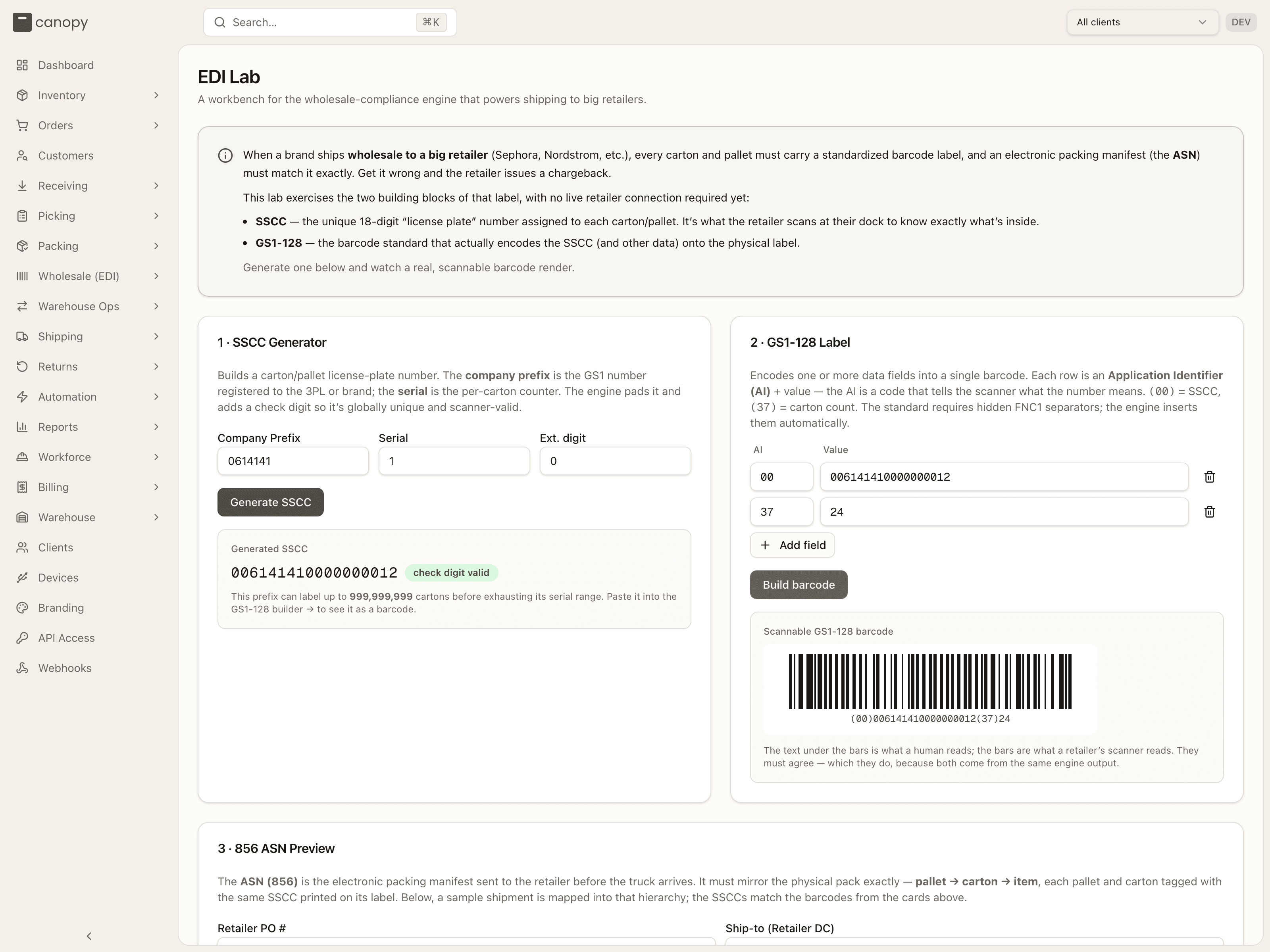
- SSCC Generator — a company prefix, a serial and an extension digit → Generate SSCC returns the 18-digit number with a check digit valid badge and how many cartons that prefix can label before its serial range runs out.
- GS1-128 Label — rows of Application Identifier + value (
00= SSCC,37= carton count; Add field for more) → Build barcode renders a real, scannable barcode with the human-readable text beneath, plus any encoding warnings. - 856 ASN Preview — edit the sample Retailer PO # and Ship-to, Build 856 ASN, and see the pallet / carton / unit totals, the pack hierarchy the 856 transmits, and (Show Orderful Mosaic JSON) the payload handed to Orderful.
- Ship-Confirm Gate (routing guide) — a fixed sample guide and a set of toggles (Ship timing On time / Too early / Late, All labels printed, Overweight carton (>640 oz), Mixed-SKU carton, Routing request required, Routing confirmed (754), Appointment booked, BOL + packing list ready). Evaluate ship-confirm gate shows BLOCKED, Ready to ship or Can ship, with warnings and the per-rule verdicts — the same engine the real gate runs.
Orders → Wholesale
Orders → Wholesale lists every non-EDI wholesale order: orders flagged wholesale at import from a B2B channel, marked wholesale from Manage Orders, or created here. It is visible to clients; the two operator-only controls are called out.
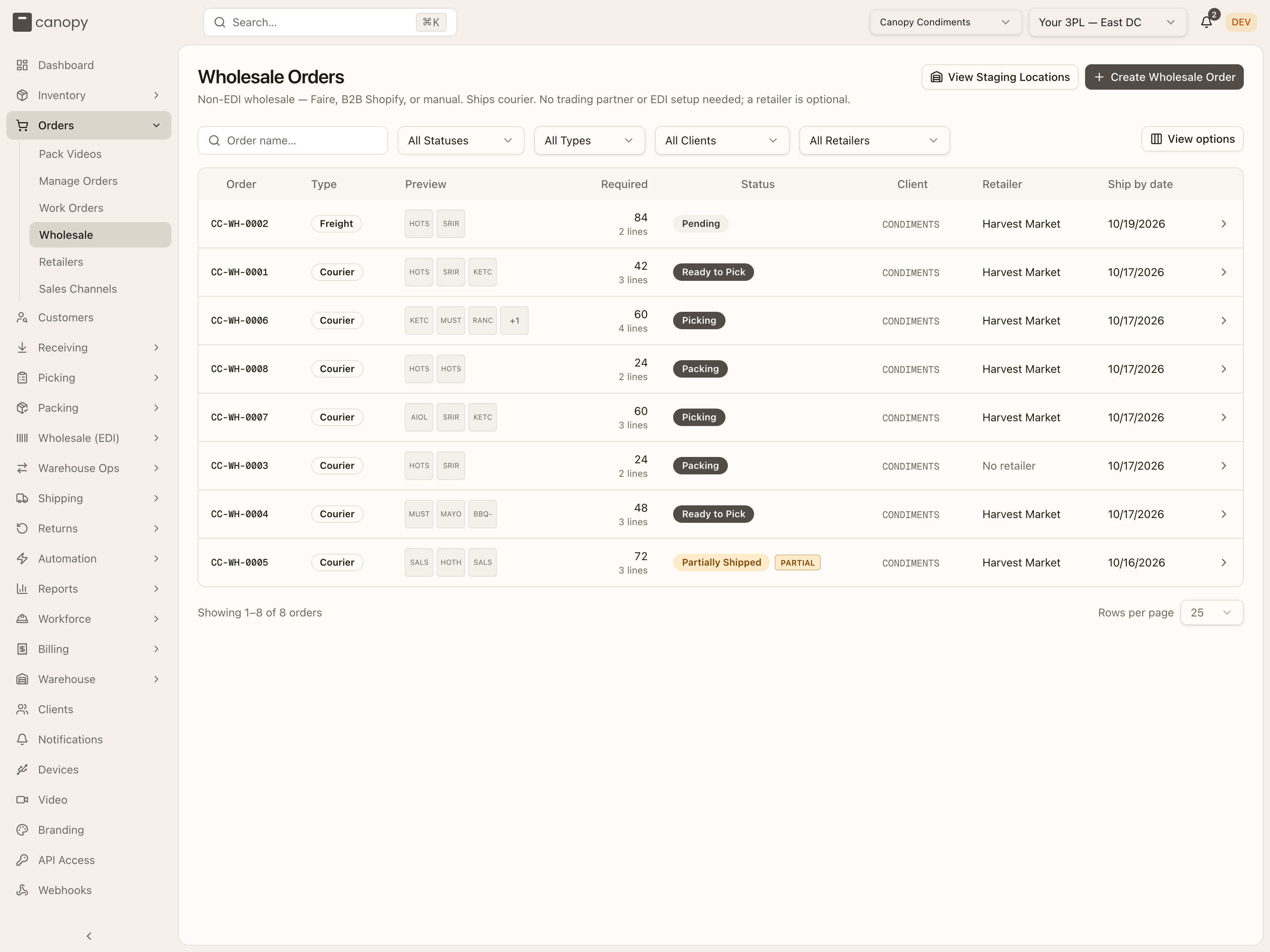
Filters: a search box (Order name…, sent once you've typed three characters), a status multi-select, Type (All Types / Courier / Freight), a Client dropdown (operators only — a client is already pinned to their own) and a Retailer dropdown. Columns: Order, Type (Courier or Freight), Preview (up to three item thumbnails and a +N), Required (units and line count), Status, Client (operators only), Retailer (or No retailer) and Ship by date; sort by order, status or client. Clicking a row opens the order.
The status column speaks the wholesale vocabulary, not the retail one — the same underlying order statuses, relabelled for what a wholesale packer is looking at, and sharpened by box and label state where the list can't see it:
| Badge | Underlying state |
|---|---|
| Pending | Nothing assigned yet. |
| Ready to Allocate | Still pending, but every unit has a source location (detail page only). |
| Ready to Pick | Allocated — stock reserved. |
| Picking | Picking in progress. |
| Packing | Picked, or boxes open. |
| Packed | Every box closed, labels not all bought (detail page only). |
| Generating Labels | A label purchase is in flight (detail page only). |
| Ready to Print | Every label bought, not all printed (detail page only). |
| Ready to Complete | Bought and printed — waiting on Mark Warehouse Complete (detail page only). |
| Warehouse Complete | Fulfilled — handed off; outbound scheduling begins. |
| Fulfilled | Shipped, delivered or externally fulfilled — the goods have left. |
| On Hold / Backordered | A deliberate pause or a stock wait. |
| Partially Shipped | One shipment has gone out and units are still owed. The next shipment is planned on the order page. |
| Cancelled / Unfulfillable | Terminal. |
A PARTIAL pill sits beside the badge on an order that ships in more than one shipment. It is amber while units are still owed (hover it for the owed lines) and grey once the last shipment has gone, so a finished split is still visible in the list.
The status filter offers Pending, Ready to Pick, Picking, Packing, Warehouse Complete, Fulfilled, Delivered, Partially Shipped, On Hold, Cancelled — the stored statuses only, so the label-driven states can't be filtered on, and a delivered order (badged Fulfilled) is found with the Delivered filter.
A line cut to nothing it still owes — a quantity dropped to what's already shipped, or the line removed — can empty a cycle's whole pick plan. When that happens the order drops back to Pending (or Partially Shipped if it has already shipped units) instead of sitting Picked or Picking with nothing left to pick: allocate it again once the line change settles.
A line lowered or removed after its units are already boxed comes out of its cartons instead: the surplus is taken from the newest cartons holding that SKU first, and any closed carton it touches reopens — no carton with a live label is ever touched this way; a label already bought is the point where the change waits on the box itself, as above.
Adding a line once the order is already in work goes onto the plan instead of a tote: Add item on Manage Orders — yours, or a brand's own channel edit once you Resolve it — names a bin for the new units, the same choice Step 1's Assign location makes, and the order goes back to Picking for the desk to pick them. It's refused while the order is out on a cart: "This wholesale order is on a cart — finish its trip (drop it off) or recall it, then add the units to its plan" — drop the cart off or recall it first.
View Staging Locations
Operator-only. The whole floor's staging locations in one dialog — "Where picked units wait before they're boxed. One order at a time per location, and a location has to be empty before another order can take it." — with a live count of available / in use / unavailable. Search by location, zone or order; filter All statuses / Available / In use / Unavailable; CSV exports what's on screen. Each row shows the location and its zone · warehouse, a status badge (Unavailable rows say why — holding stock, or sellable / pickable), the order (a link) or work order holding it, and the units staged. With no staging bins at all: "No staging locations yet. Create bins of type STAGING on the warehouse map, non-sellable and non-pickable."
Create Wholesale Order
Opens the same Create Order panel as Manage Orders with the Wholesale order switch already on.
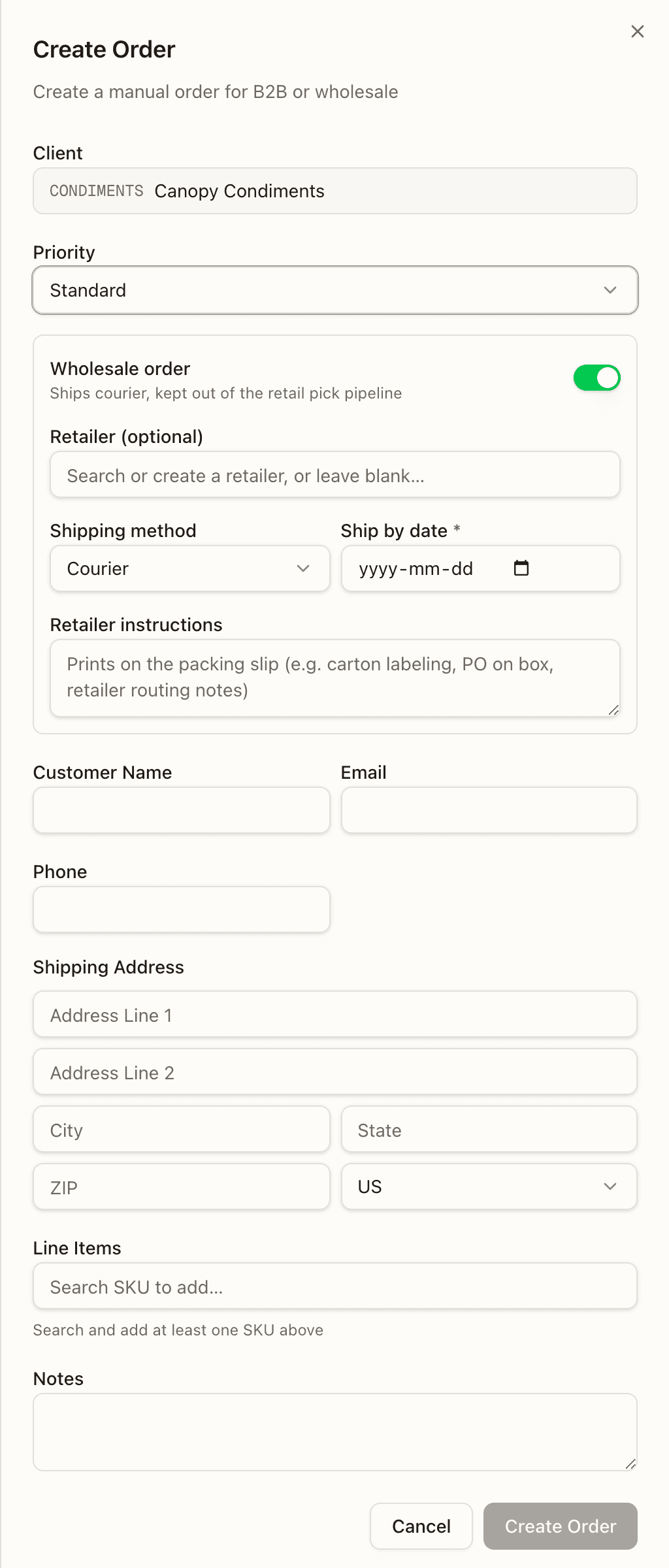
The wholesale block adds a Retailer (optional — search the client's saved retailers or type a new name and create it inline), a Ship mode (Courier / Freight; picking a retailer adopts its default) and Retailer instructions (prefilled from the retailer's saved instructions; they print on the packing slip). A ship-by date is mandatory on a wholesale order.
A wholesale order
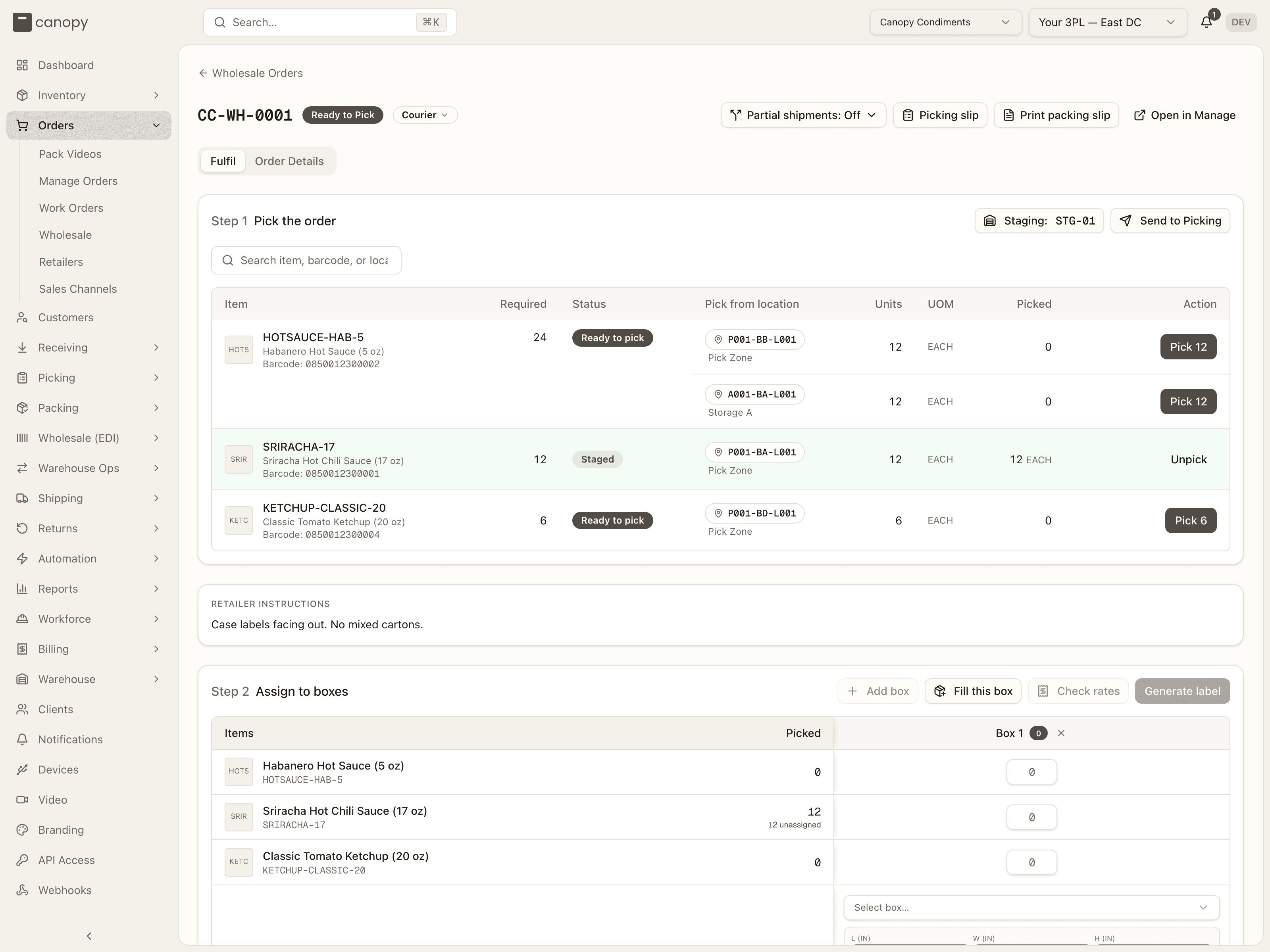
Clicking a row opens /orders/wholesale/… — the order's own pick-and-pack
page. The header shows the order number, the wholesale status badge, the
PARTIAL pill when the order ships in parts, and a
ship-mode pill (a Courier / Freight dropdown while the order is pending,
on hold, allocated, picking or picked; it locks into a plain badge once courier
labels are bought or freight is booked, with the reason as a tooltip). The
buttons beside them: Partial shipments: On / Off (everyone; it opens
the setting described under Partial shipments and
reships), Reship (operators only, on an
order that has shipped), Print all labels / Reprint all labels (N) and
Picking slip (operators only — the pick sheet prints bin labels and zone
names), Print packing slip (everyone) and Open in Manage (the Manage
Orders sheet has the mirror-image Open in Wholesale button). Two tabs:
Fulfil and Order Details.
Picking slip is greyed out until the order has an eligible staging location and every required physical unit has a pick location. Hover the button for the reason: "Assign a staging location before printing the picking slip.", "Assign pick locations for every required unit before printing the picking slip.", or "Update pick locations to match the required quantities before printing the picking slip." (or "Could not load picking setup. Refresh and try again." when the plan or staging failed to load; an order with no physical unit left to pick reads "There are no physical items to pick."). For a partial shipment, allocate the chosen units first ("Allocate this partial shipment before printing its picking slip."). Its slip then covers only that shipment.
What a client sees here
A CLIENT_USER gets the same page read-only: the pick table, box grid and
completion status without their buttons, no staging controls, no Send to
Picking, no picking slip, no Reship, no label printing, no LTL panel
and a fixed ship-mode badge. Print packing slip, Notes and
Attachments still work, and so does Partial shipments: On / Off:
a brand may set Allow partial shipments or Ship complete on its own
order (the client-wide default is yours to set, on the client panel).
Step 1 — Pick the order
A wholesale order is picked from its own table, line by line. There are two ways to walk it: an operator picks it here at the desk (Pick N, N to staging), or sends it to the floor with Send to Picking, where a picker takes it through Active Pick on a cart of totes and drops it at the staging location. Both end the same way: every unit staged, ready to box. The buttons sit in the step's header, and the first thing to do is always the primary one.
- Set staging location / Staging: BIN — where picked units are put down
before boxing. It is the primary button until a location is set. The dialog
lists every
STAGINGbin in the warehouse, greying out the ones this order can't use with the reason ("Holds stock — a staging spot has to be clear.", "Already assigned to CC-…", "Must be non-sellable and non-pickable…"). Use this location claims it; Clear releases it (refused while units are staged there). No staging bins at all: "This warehouse has no staging bins. Create one on the warehouse map with type STAGING, non-sellable and non-pickable." Allocation and picking are both blocked until the order has one ("Set a staging location before allocating."; on an allocated order the step reads "No staging location yet — picking is blocked until this order has one." and every Pick N button is greyed out with "Set a staging location first — picked units need somewhere to go."). The button is disabled while the order is on the floor. - Assign location on a line (or Add to split it) opens Assign picking location — every location holding that SKU in the order's warehouse, with UOM, lot, expiry, a pickable check (information, not a gate — a reserve bin is a fine source for wholesale), the quantity there, and a Units box per row. Sort by Most stock, Least stock, First to expire or Last to expire; search by location, zone or lot. Sealed packs are listed but read break pack first — picking only takes loose eaches. The footer counts N of M assigned; Assign N applies every filled row. Already-assigned rows show at the top with Remove (disabled once picked).
- Auto assign (Re-assign once everything has a location) chooses locations for every unassigned unit by five priority rules, top to bottom: 1. Prioritized locations (tried first, in order), 2. Location type (Non-pickable first keeps pick faces stocked for retail, or Pickable), 3. Prioritize largest unit of measure (no effect yet — picking draws on loose eaches), 4. Lots (FIFO / LEFO / LIFO / FEFO, plus Expires in more than N days, the only rule that excludes a location rather than ranking it) and 5. Stock (Least or Most). Start over drops every existing assignment first; otherwise hand-picked locations stay. Lines the rules couldn't cover are listed with the reason so you can finish them by hand.
- Allocate order — enabled once the order has a staging location and every physical unit has a location — reserves the stock (the order becomes Ready to Pick). It turns primary as soon as the staging location is set; disabled, its tooltip says why ("Set a staging location first" or "Assign every unit or allow partial shipments"). On an order allowed to split it reads Allocate partial shipment while units are still unassigned, and reserves only the assigned ones. The timeline notes Wholesale locations assigned. Stock reserved. After allocation the location pills go inert. A line assigned more than Canopy still owes — units fulfilled elsewhere since, or a line removed — is refused first: "Remove the extra locations first: SKU: N assigned, M owed."
- Send to Picking — shown on an allocated order nothing has been picked on yet. It hands the order to the floor: pickers find it under Active Pick → Wholesale (desktop or the floor app) in the order's warehouse, listed as Wholesale orders sent to picking, and scan cart totes for it. The button is disabled until the order has a staging location and every unit has a location, with the reason as its tooltip ("Set a staging location first — picked units need somewhere to go." or "Every unit needs a location before sending."). Once sent, the step reads "Sent to picking. Open Active Pick → Wholesale to follow the pick and drop-off at staging." with a Sent to picking badge beside the buttons (hover it for the time); the desk controls go quiet (the Action column reads On the floor, then On a cart once a picker has started it, and the step's line changes to "A picker has this order on a cart."), the staging button is disabled, and any change to the plan is refused: "This order was sent to picking. Recall it before changing the plan, or finish its pick list." Recall (hover: "Take it back off the floor — only while no picker has started it") takes it back while no picker has started it and nothing is picked; after that it comes back only when the picker's list is completed or cancelled ("A picker has already started this order — it comes back when their pick list is completed or cancelled.", or "Units have already been picked — finish the pick, or unpick them first."). Both actions are logged on the order timeline (Sent to picking — pickers take it from Active Pick → Wholesale, Recalled from picking). The floor's pick lands in this same table, cart by cart: a picker can drop off a part-filled cart at the staging location and start another trip for the rest, and once every unit is staged the order leaves the Active Pick queue on its own and Step 2 opens. A cart that is cancelled, or an order cancelled under a cart, sends the cart's units to put-back; they are never credited back to the shelf. How the picker works the cart is on Picking.
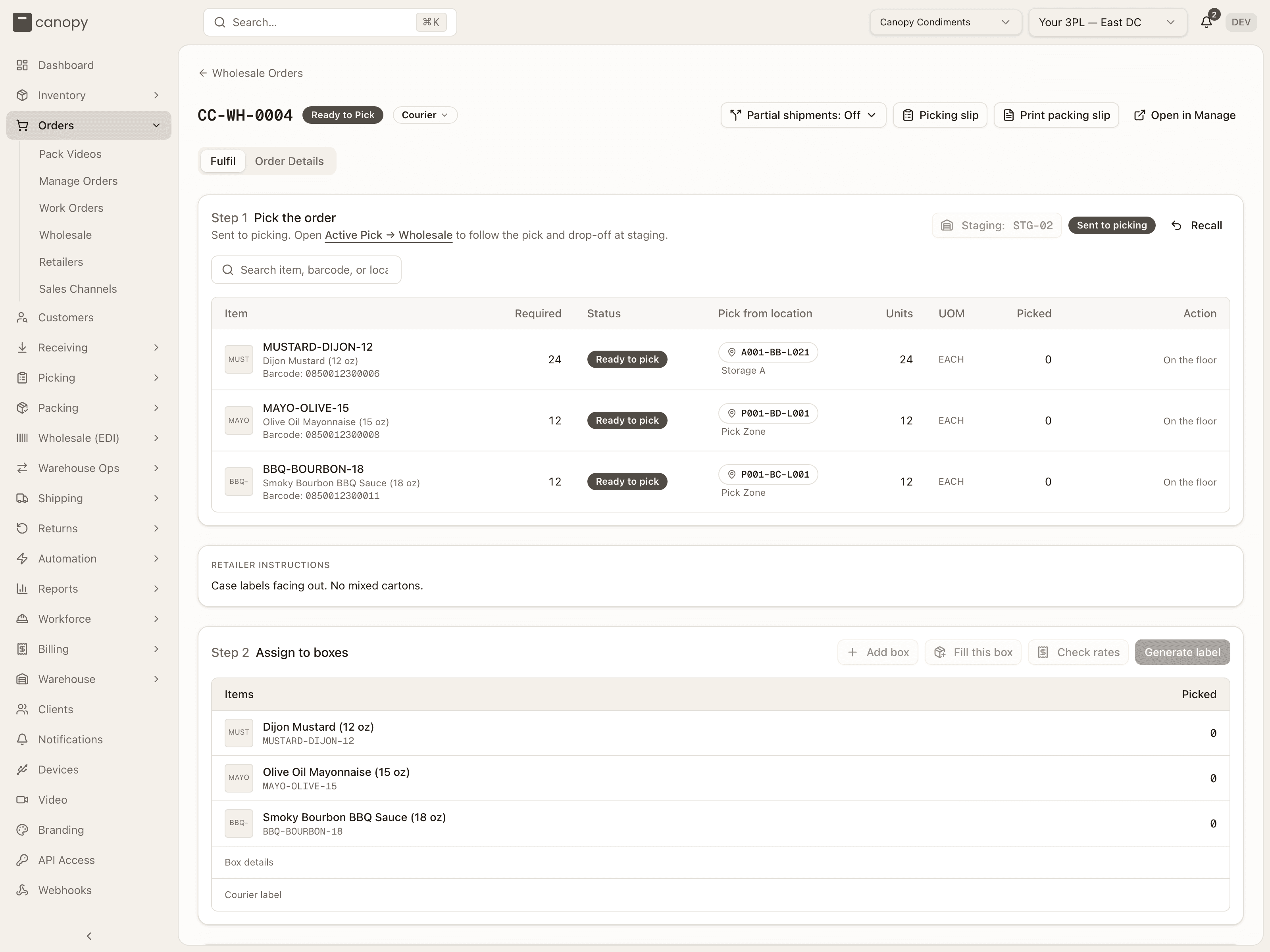
The table lists each line with its SKU (click it for the SKU detail modal), barcode, Required — the units Canopy owes, the line's quantity less any fulfilled elsewhere, and once a shipment is allocated, only the units reserved for that shipment; a line owing nothing drops off the plan unless a location is still assigned to it, and then only so you can clear it (with N unassigned in amber). Under the number, a SKU that comes in cases reads the same count in packs, 3 cases of 12 or 2 cases of 12 + 4 ea, so the floor picks in the form it handles; the plan itself stays in eaches. Then a Status badge (No location, Partly assigned, Ready to allocate → Ready to pick, Picking, Picked, Staged, with N/M picked under it while a line is part-way), one row per Pick from location with Units, UOM and Picked, a Lot column only when a location on the order carries a lot, and the Action column: Allocate first until the order is allocated, then Pick N takes the units off the shelf (the row turns amber — not in staging yet), N to staging puts them down in the staging bin (green), and Unpick sends either leg's units back through a put-back task instead of crediting the shelf directly (disabled with the reason once the units are already boxed). A pick never goes past what the line owes: "Only N unit(s) on this line are still Canopy's to pick — the rest were fulfilled elsewhere.", or "Nothing on this line is left for Canopy to pick (fulfilled elsewhere, or removed) — remove this location instead." An order with no warehouse cannot be picked: "Select a warehouse before picking this order." A search box filters the display only. When everything is off the shelf but not yet down: All units picked — move them to staging to finish; when every unit is down: All units staged in STG-01.
Step 2 — Assign to boxes / Build the pallets
Only staged units can be boxed: what is still on a cart, or on the shelf, stays out of the grid. The grid has the order's SKUs down the side (the Picked column is the units in staging, with N unassigned or all boxed under it), one column per Box N with a unit count, and a quantity cell per SKU per box; typing a quantity writes it to the box, and you can't box more than is in staging ("SKU: only N unit(s) in staging — M already in other boxes."). A courier order gets its first box on its own the moment the first units are staged; Add box (in the step's header, beside Fill this box) adds another, and an empty open box can be removed with its ×. Before anything is staged both buttons are greyed out with "Move the picked units to staging first" (or "Allocate the order first"). Fill this box puts every staged unit into the one box when there's exactly one; its tooltip says why it is off otherwise ("Add a box first", "Only with a single box — with more than one, put the units in per box", "This box is closed", "Every picked unit is already in the box"), and the server refuses the same case with "Nothing to add — every staged unit is already in this box."
The Box details row gives each box a box size (searchable; a box with items and no size is flagged amber), L / W / H (in) and Weight (lb) — what the carrier rates on — and Close box (needs items and all four measurements) / Reopen. A box whose shipment has just completed can no longer be reopened ("This box's shipment just completed — it can no longer be reopened."). The status line underneath reads "N picked units still unassigned.", "Pick a box size for every box holding items." or "Box plan complete — N boxes." followed by Generate the label., Close them to buy the label. or Print the labels to finish. Nothing shows there until units are staged.
Courier orders add a Courier label row. Check rates (once every unit is boxed and every box measured) opens Estimated shipping cost — the carrier and postage type the order's labels will actually buy, quoted as one multi-parcel shipment where the account supports it or box by box otherwise, a total, anything Already spent, boxes Not counted for missing weight or dims, and the other services on that carrier with their totals; Re-quote asks again. The quote and the labels both name the order's warehouse as the sender, so on a Stallion v5 account the boxes are priced and labelled from that warehouse rather than the account's default ship-from address (where a parcel ships from). Generate label (N boxes) is a single purchase for every closed box — all boxes must be closed first, and every box must hold at least one physical item. A box filled only with non-physical SKUs (shipping protection, inserts) refuses the whole purchase with "Box N holds no physical items — there is nothing to ship in it. Move its items into a box with goods, then delete it."; the rate preview reports it per box rather than failing outright. The labels print as soon as they are bought, one print dialog per box, and each box that printed is marked printed; if nothing came out of the printer, the step reads "Labels were bought but nothing printed. Use Print all labels." Each box's cell then offers Print label / Reprint with its tracking number; a carrier that renders the label file after the buy has it fetched before the boxes' pages are split out. A box bought against a carrier that returned no label file says so and offers Mark done instead, so the order can still complete.
Freight orders show one grid per Pallet N instead, each with the pallet's L / W / H (in) and Gross (lb) (entered, not summed), Add box inside the pallet, Remove pallet when empty, and Add pallet below; an order switched to Freight gets a first pallet automatically and any boxes made earlier appear under Not on a pallet (N) until they're moved. There is no courier-label row — the BOL from the freight booking is the shipping document — and no Check rates.
Freight (LTL)
Operators only, freight orders only. Simulated — no carrier connected marks a sandbox; an account not on Stallion API v5 reads "Carrier … can't book LTL freight". Until the pallets are ready the panel lists what's missing under "Before freight can be quoted:". Ready, it summarises N pallet(s), X lb gross — quoted from the warehouse to the order's ship-to; pick a Pickup date, tick any accessorials (Liftgate at pickup, Liftgate at delivery, Residential delivery) and Get freight quotes for a table of service, carrier, transit days and total, each with Book (a pickup date is required). Booked, the panel shows the carrier / service, cost, BOL and PRO numbers (assigned later by the carrier until it is), Print BOL or Open BOL, and Cancel booking — a two-step Yes, cancel the booking / Keep it, because a booked truck is real money. A booking the carrier never gave an id has to be cancelled with the carrier directly: "This LTL booking has no carrier shipment id — cancel it with the carrier directly." If the carrier answers that the booking can't be voided, the panel shows its reason (a cancel Canopy already sent that never landed here is completed on the retry instead, with the usual Freight booking cancelled). A live booking freezes the box plan: Reopen on a box and the ship-mode pill both explain why. Once its shipment is complete, a booking has no cancel: its units are recorded as shipped, so the panel says to contact the carrier and resolve the units through a return or reship. Earlier shipments' bookings still awaiting pickup are listed under the current one the same way.
Cancelling or changing a boxed order
Once a box has a live carton label, or a freight booking is live, a cancel or a line change from Manage Orders doesn't land right away — it holds the order behind the box itself, the same kind of hold a retail order waits on while its label is live. Scanning every live carton label at Boxes to pull voids and reopens those cartons where they stand — no tote, since the units are already boxed in the order's staging location — and the change then runs. A live freight booking is answered by confirming the freight is still on the dock: the booking is cancelled with the carrier, then the change runs. Either way, if the carrier refuses — a carton it won't void, or a booking it won't cancel — the box is marked gone and the order ships as it stands; any carton the carrier did void while the rest refused reopens too, to be relabelled.
Cancelling after cartons are closed but before any label is bought reopens them the plain way, with no box to answer. If a carton label somehow turns out to be live by then, Cancel on the order simply refuses instead of voiding it for you — a carton label is live — answer its box at Boxes to pull (scan it to void and reopen it, or mark it gone) — rather than silently voiding it on your behalf.
Completing the order
The bar at the bottom names the one thing standing in the way, in flow order — Put every unit into a box, Close every box, then for courier Buy a courier label for every box and Print every courier label, or for freight Put every box on a pallet and Book the LTL freight. When nothing is left, Mark Warehouse Complete moves the order to Warehouse Complete (the server re-checks the same gates and refuses an order on hold). It also weighs the boxes against the shipment, per SKU, and names the first thing wrong: "Pick and stage every assigned unit before completing this shipment.", "Not all units are packed correctly. Pack exactly the units assigned to this shipment. Unassigned units stay on the order.", "More is packed or picked than Canopy still owes (SKU: N owed, M too many boxed, K too many picked). Remove the extra units and unpick them before fulfilling." when units were fulfilled elsewhere or taken off the order since, "The picking locations no longer match the allocated shipment. Restore its assignments before completing.", or "A picker still has this order on a cart. Drop off or cancel that cart before fulfilling." — checked once up front and again under the order's lock, so a change landing in between is caught. A courier shipment is also checked against its labels: "The live shipping labels do not cover this shipment's picked units. Reopen and relabel any voided carton first." The packing slip is built from the shipment's boxes, so it lists exactly what is in them (nothing fulfilled elsewhere) and refuses until a box exists: "Pack this shipment into cartons before printing its packing slip."; on a finished order it prints the last completed shipment. What happens next depends on the mode:
- Courier — there is deliberately no "mark shipped": the labels created real shipments, so the carrier's first scan moves the order to Fulfilled and on to delivered, exactly like a retail order.
- Freight — LTL isn't tracked by the carrier API, so Confirm carrier pickup appears once the order is complete and a booking exists; it is the missing scan that marks the order shipped. Each completed shipment's truck is confirmed on its own: with several due, each gets its own Confirm pickup — BOL …, and the order is marked shipped once no truck is left.
A shipped, delivered or cancelled order shows "This order is … — nothing left to do here."
Partial shipments and reships
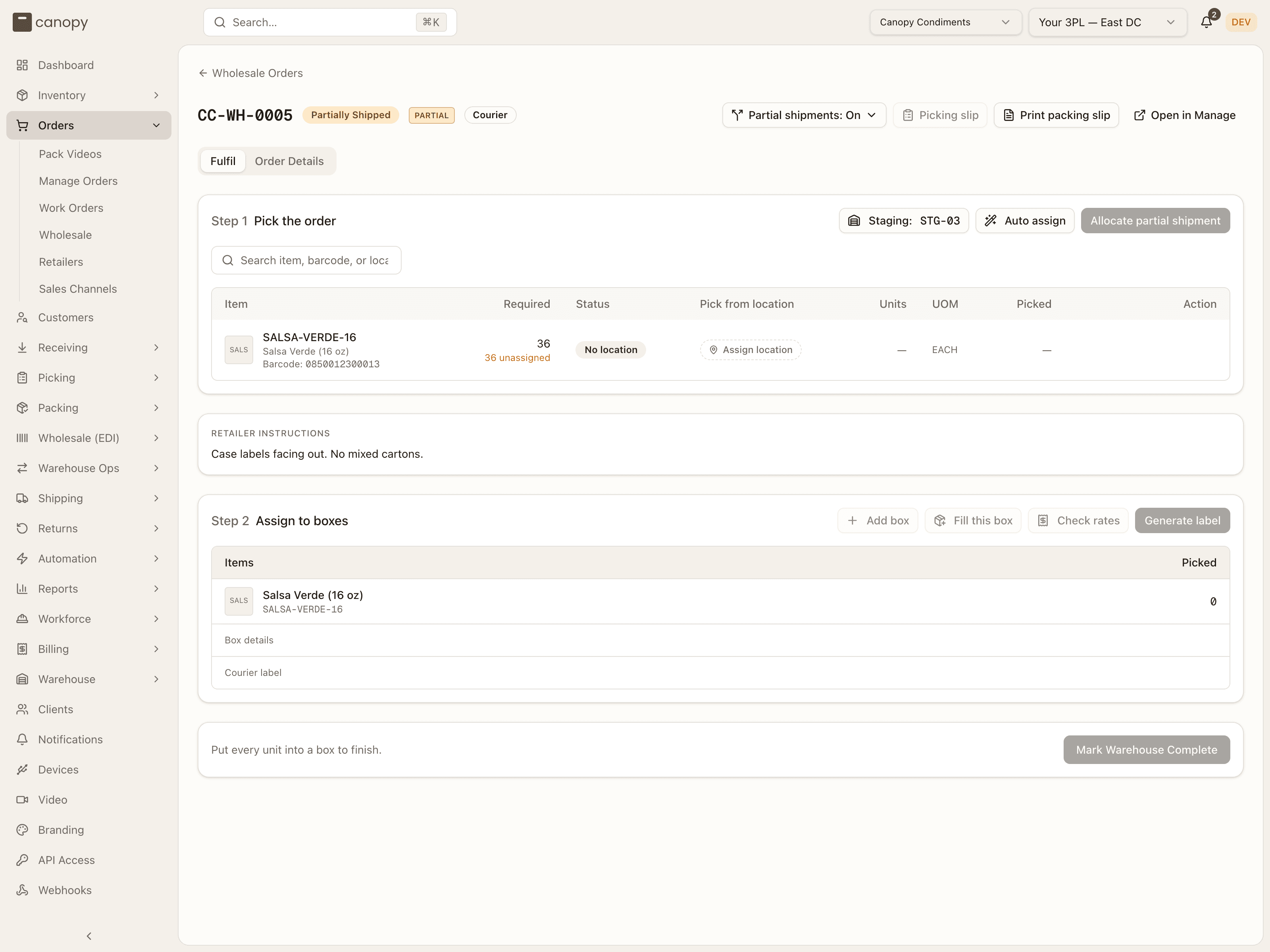
The client's Wholesale partial shipments toggle controls the inherited default and starts off. The DTC toggle and sales-channel setting do not apply. An order override or automation rule takes priority over the wholesale default. Click Partial shipments: Off / On beside the print actions to expand the setting. It starts collapsed and shows the order's current effective setting and the tier that decided it ("Currently: this order ships complete, from the client default.", "Currently: this order allows partial shipments, from this order."). Choose Allow partial shipments (the Inherit option names what the client default would do), assign locations for the units to send now, and click Allocate partial shipment; the timeline notes Wholesale partial shipment allocated. Unassigned units remain outstanding. Minimum units, minimum value and wait-time policies are shared with DTC orders and still apply: an allocation under them is refused with "Partial shipment does not meet the minimum units: N of M." (or minimum value) or "Partial shipments are waiting until <date>."; a kit's remaining components must travel together ("Assign all remaining components of a kit to the same shipment."); and with the setting off a short plan is refused with "Assign a location for every unit first, or enable partial shipping for this order." Once a shipment is allocated the setting is pinned until it completes: "Partial shipments are locked for this shipment. Change it before allocating the next shipment." Pick, stage, box and label those units, then Complete partial shipment. No barcode scans are required.
The order stays Partially Shipped with its remaining quantities available for another allocation (the timeline: Wholesale shipment completed: N carton(s). Remaining units await another shipment.). The pick plan opens again for the rest exactly as on a pending order: assign locations, allocate, pick, stage and box. Completed boxes and shipments stay in history. Each new shipment uses fresh picking assignments and cartons. Freight can confirm pickup of a completed partial shipment without closing the remaining order.
On a completed order, Reship opens the same reason, item selection and confirmation flow as regular orders. Select the units to send again, then assign their wholesale picking locations and continue through pick, stage, pack and ship. All units selected for that reship must travel in its replacement shipment. The existing reship rules govern returns, write-offs and billing. Order Details includes shipment links and Reship history.
Order Details
At the top, Reship history when the order has any, then one card per shipment the order has made: the carrier service and the shipment's status, a View shipment link to the Shipments page, and its tracking events. Below them, Notes, Attachments and the Order timeline (edit log and tracking events, shared with Manage Orders), plus a summary card: Retailer, Ship mode, Ship by, Client, the Ship to address and the Retailer instructions (which also appear as a card on the Fulfil tab when set, since they're a pack-time instruction).
Orders → Retailers
Orders → Retailers is the non-EDI retailer directory, per client — "Wholesale accounts you ship to. Saved packing instructions prefill onto orders." These are not trading partners: no EDI identity, no routing guide, and a brand maintains its own list (the routes are open to clients). An operator must pin a client first — "Select a client (top bar) to create a retailer."
New retailer takes a Name, an optional Code, a Default ship mode (Courier / Freight) and optional Retailer instructions, the saved default that prefills onto the retailer's orders (per-order instructions win). Add retailer saves it. The Retailers list shows each name with its code badge, a Courier / Freight badge and its instructions; empty, it reads "No retailers yet. Add one to tag wholesale orders and save packing instructions." There is no edit or delete control on this page.
How to receive an 850 and ship it with an 856
The EDI round trip, start to finish, for a freight order.
Set up the retailer once. In Wholesale (EDI) → Trading Partners, save your GS1 Company Prefix (no carton can close without it), then add the retailer with a name, an internal code and — once they've given it to you — their EDI ISA ID. Follow Routing guide → and replace the generic template with the rules from the retailer's compliance manual, choosing Block or Warn for each; Publish new version. Set the packing-list and label templates if the retailer mandates extra barcodes or a DC banner.
Import the PO. In EDI Orders, click Import PO (850), pick the client, leave the retailer on auto-detect, paste the 850 JSON (or Load sample) and Import 850. Read the result: every unmatched line needs either a SKU with that UPC / vendor part, or a CASE pack level defined on the SKU, before you re-import. Open order →.
Choose the ship method. In the order's Ship method card, pick Freight (LTL) for pallets and a BOL (or Parcel (courier) for a multi-box parcel shipment).
Pack the cartons. Add carton, enter its dimensions and weight, add each item and its quantity, then Close carton → allocate SSCC + label. The SSCC is allocated and the units leave their bins. Print label and Print mark for every closed carton — the gate checks that each label was actually printed — and watch Order lines — required vs packed reach N / N packed on every line.
Build the pallets (freight). Add pallet, set its dimensions, add each closed carton, Close → SSCC + label, and print the pallet label and mark. Leave no closed carton off a pallet — the gate blocks on it.
Book the freight and print the documents. Capture the carrier name, SCAC, PRO number and terms under Freight & BOL, set an NMFC class on any SKU flagged unset, Save, then Generate BOL (PDF). Under Documents, generate the Packing list and Shipping marks, plus the Carton labels (GS1-128) and Pallet labels (GS1-128) if the retailer's template requires them.
Run the ship-confirm gate. If the guide requires them, flip Routing
confirmed (754) once the retailer returns routing and Delivery appointment
booked once it's scheduled. Click Run ship-confirm gate. Fix anything red
(a blocked rule) and re-run; amber warnings let you proceed. On Ready to
ship the order becomes READY_TO_SHIP and the 856 is logged on the EDI
timeline.
Send the documents and close the loop. Preview 856 ASN to check the hierarchy matches what's on the pallets. Send the 855, 856 and 810 through Orderful, and record each with 855 Ack sent / 856 ASN sent / 810 Invoice sent on the EDI timeline. Glance at Compliance & chargebacks — record any detected exposure so it's tracked, and if the retailer later issues a chargeback, Log a chargeback and work it through Dispute → Resolve or Waive on the Compliance page.