

Automation
Rules that fire automatically as orders flow through — warehouse routing, postage, holds, order lines, packing, box selection, and replenishment.
Automation lets you set up rules that run on their own as work moves through the warehouse: choose the warehouse a new order ships from, pick a postage type or hold an order when it lands, print a packing slip or add a fragile flag at pack time, or top up a pick face when it runs low. It's operator-only, and the rules are per client, so pick a client in the topbar first — with no client selected you'll see a "Select a client" prompt.
Rules
Rules → /automation/rules. Every rule belongs to a trigger — the moment
it's evaluated — and the page groups rules under their trigger: Order Created,
Warehouse Routing, Packing, then Replenishment Check. Warehouse Routing runs
first, though: it picks the warehouse before the Order Created rules see the
order. With a client pinned, the header offers Lists (see
Saved lists) and Create Rule.
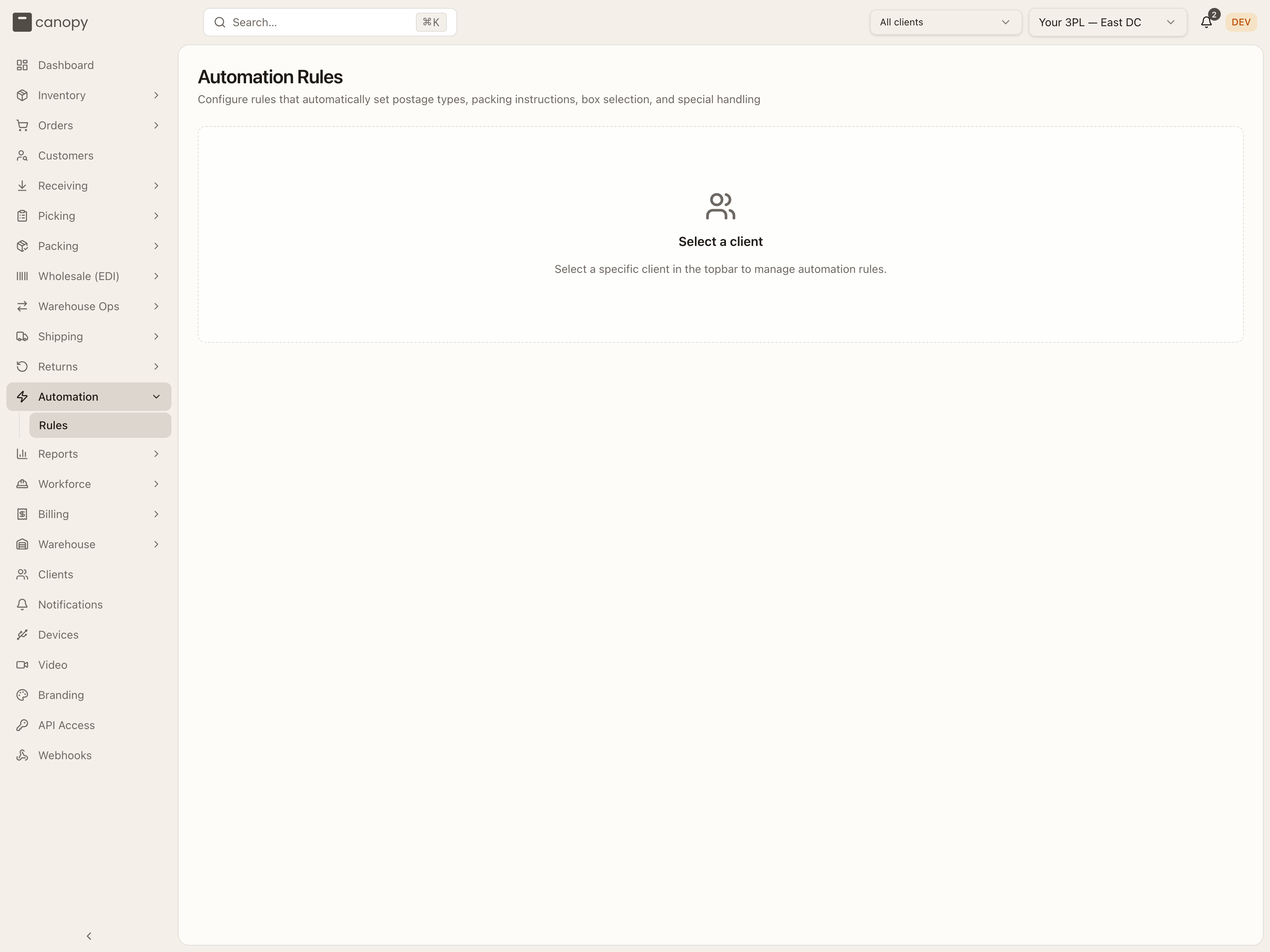
With All clients selected the page asks you to pick one, as above. A client with no rules yet shows the "No automation rules configured" empty state instead, with its own Create Rule button. Once rules exist, the page becomes one table per trigger, each headed by the trigger's badge and a one-line reminder of how that trigger evaluates:
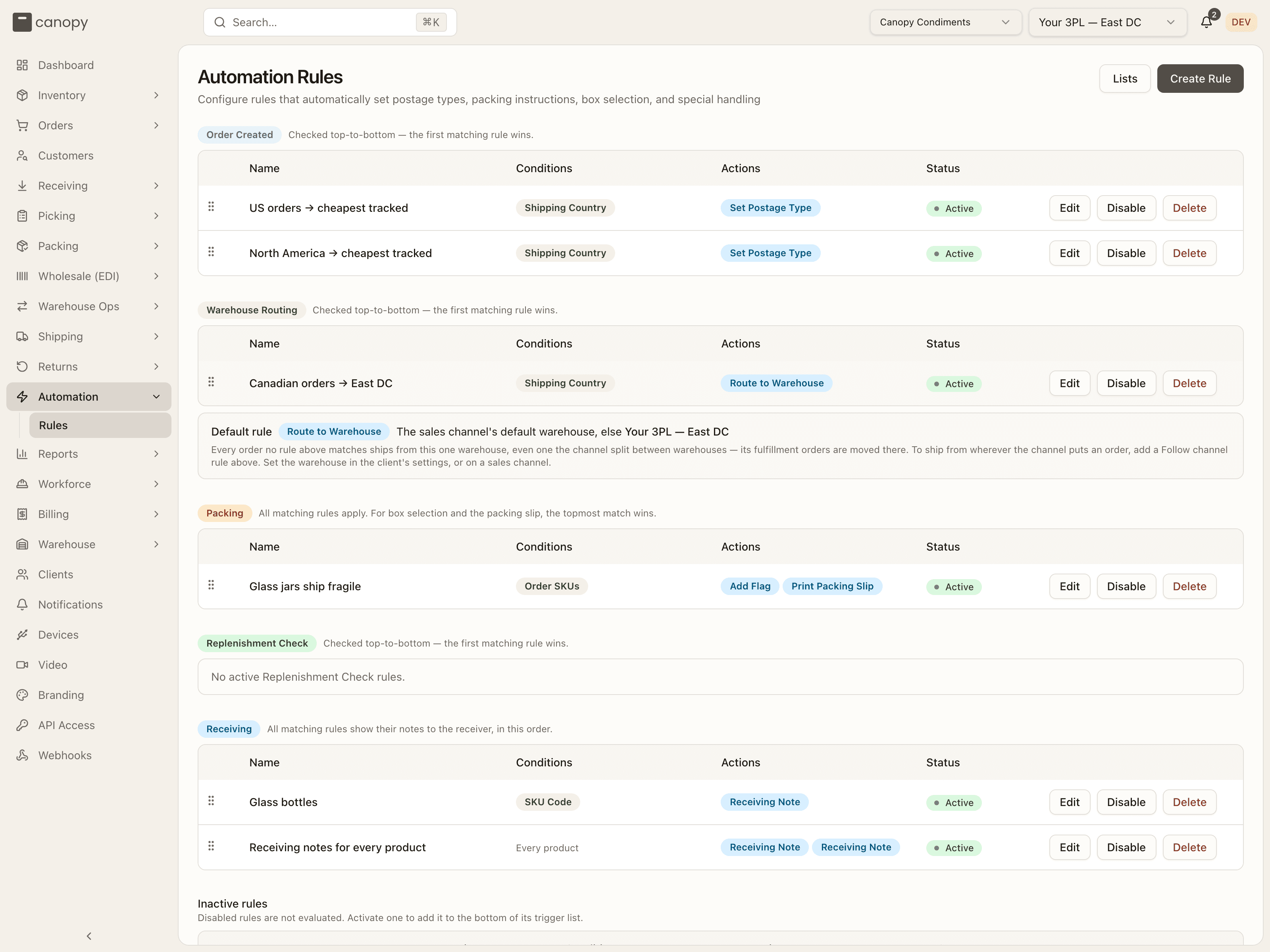
There are five triggers, each with its own set of possible actions and its own evaluation style:
| Trigger | Runs when | Evaluation | Actions available |
|---|---|---|---|
| Order Created | An order is created or imported. Reprocess Rules runs them again on a saved order. | Checked top-to-bottom, and every matching rule applies; where two set the same thing, the one higher in the list wins — except Add Tag and Remove Tag, which run in list order, so when two name the same tag the lower one sticks. (The page's caption says the first matching rule wins.) | Set Order Priority, Set Postage Type, Require Signature, Insure Shipment, Set Required Ship Date, Add SKU to Order, Add SKU per Units Ordered, Replace SKU, Remove SKU from Order, Remove Product from Order, Mark SKU Externally Fulfilled, Hold Order, Cancel Order (don't notify channel), Add Tag, Remove Tag, Mark as Wholesale, Allow Partial Shipment, Disallow Partial Shipment, Set Partial Shipment Minimum, Set Partial Shipment Wait. |
| Warehouse Routing | An order is created or imported, before it's saved — it picks the warehouse the order ships from. The rules run again on a saved order on Reprocess Rules, after an edit, when stock arrives, and when units are handed to Canopy. | Checked top-to-bottom — the first matching rule wins. | Route to Warehouse (its only action). |
| Packing | An order enters the packing station. | All matching rules apply. For box selection and the packing slip, the topmost match wins. | Print Packing Slip, Add Insert, Packer Note, Select Box Size, Add Flag. |
| Replenishment Check | Inventory at a bin drops (a pick, transfer, cycle count, or manual adjustment) — event-driven, not a scheduled batch. | Checked top-to-bottom — the first matching rule wins. | Create Replenishment Task. |
| Receiving | The warehouse receives one of the client's POs. | All matching rules apply, in list order; their notes show to the receiver on the scan screen. | Receiving Note (its only action). See Receiving rules. |
Each row shows the rule's name, one condition pill per condition naming the field it tests (Order Priority, Shipping Country, …; a rule with no conditions reads Always — Every order for a Warehouse Routing rule, Every product for a Receiving rule), its action badges, and an Active status.
Because a rule's place in the list matters, you drag rows by the handle to reorder them — higher up means evaluated sooner. Edit, Disable, and Delete sit on the right. A trigger with nothing active reads "No active Order Created rules" (or Warehouse Routing, Packing, or Replenishment Check).
Disabled rules drop into an Inactive rules section at the bottom, which adds a Trigger column since it mixes them. They aren't evaluated until you Activate one, which adds it to the bottom of its trigger list.
The Replenishment Check rules here are the same "bulk rules" surfaced from Warehouse Ops → Replen Rules. That page shows the per-SKU thresholds; this one is where the bulk, condition-based rules are authored.
Building a rule
Create Rule (or Edit on a row) opens the builder.
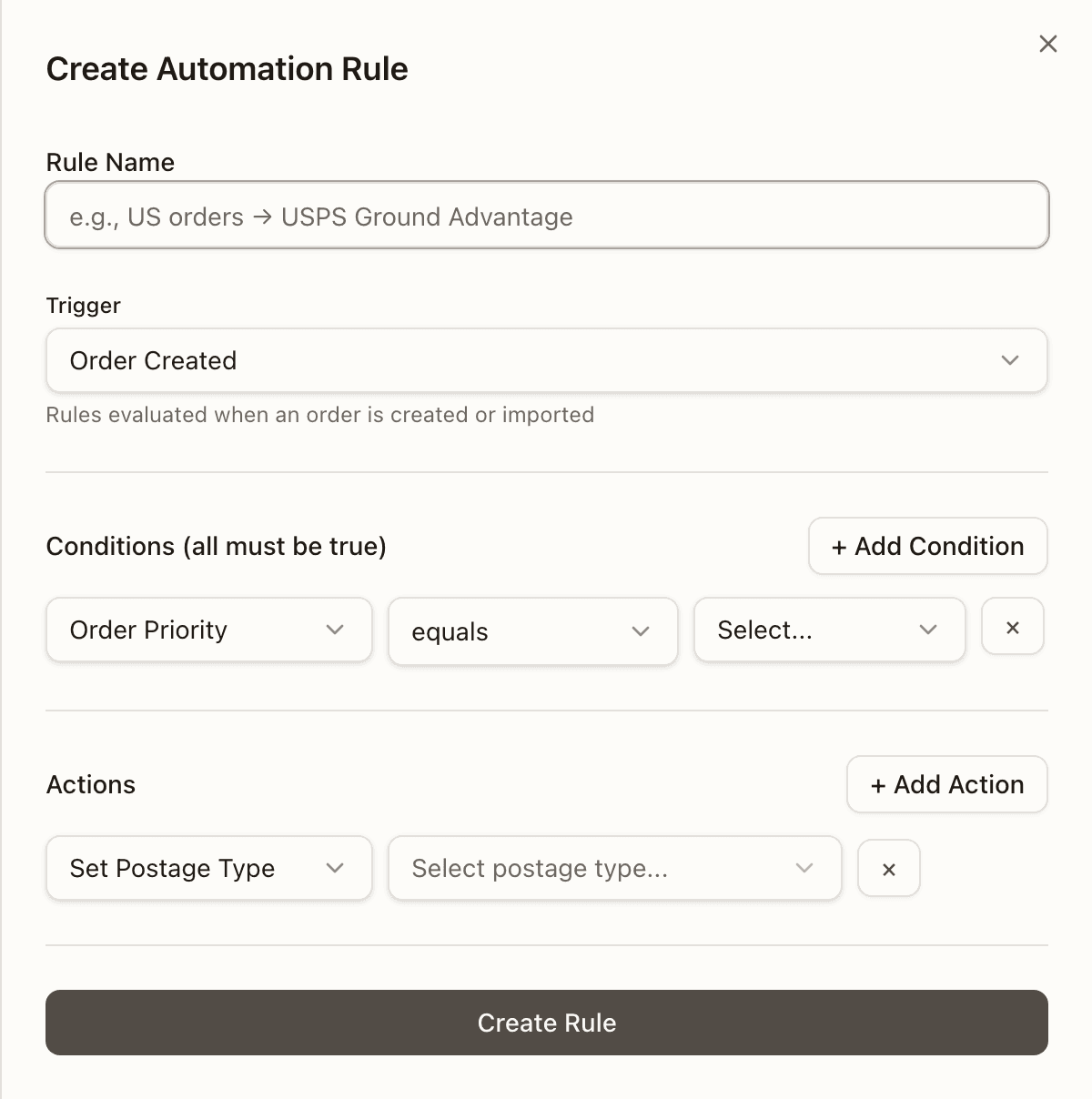
A rule has a name and three parts:
- Rule Name — required (the placeholder suggests the shape: US orders → USPS Ground Advantage).
- Trigger — chosen up front, with a one-line description of when it fires. It's locked once the rule exists, so to switch triggers you create a new rule.
- Conditions (all must be true) — each is a field (a searchable picker),
an operator, and a value; the row starts as Order Priority · equals
(or Zone Type · equals · Picking for a Replenishment Check). + Add
Condition adds another, × removes one. The builder requires at least
one condition ("At least one condition is required"), so for an "always
fire" rule add a condition that's always true — except on a
Warehouse Routing rule or a
Receiving rule, which may have none.
Dropdown values like priority (
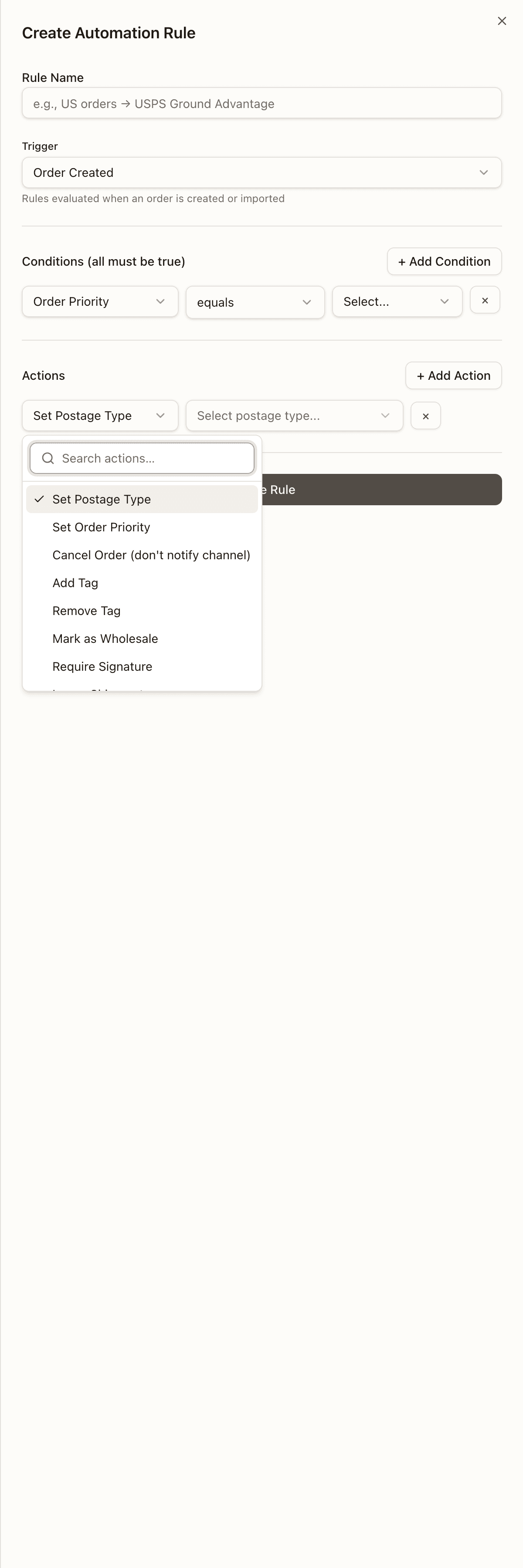
STANDARD/EXPEDITED/RUSH) and SKU size show as raw all-caps enums. - Actions — what the rule does when it matches, each picked from a searchable list of the trigger's actions with its own settings (for example Set Postage Type → a service and the carrier account it buys on). Add more with + Add Action; at least one is required. A Warehouse Routing rule's action works differently — see Route to Warehouse.
Save with Create Rule or Update Rule; a problem shows as a red banner at the top of the form.
Condition fields
Which fields you can test depends on the trigger:
- Order Created / Packing — Order Number, Sales Channel, Customer Email, Any Item Backordered, Order Priority, Total Amount, Shipping Company, Shipping Address Line 1, Shipping Address Line 2, Shipping State, Shipping Country, Shipping Zip, Shipping Method, Warehouse, Is Wholesale, Has gift note, Order Tags, Order SKUs, Product Name, Line Count, Total Units, Total Weight.
- Warehouse Routing — the Order Created fields except Warehouse, with a Sales Channel of its own (below).
- Replenishment Check — SKU Code, SKU Size, SKU Weight, Bin Label, Bin Aisle, Zone Type, Zone Name, Warehouse, Current Quantity at Bin.
Is Wholesale is a true / false pick. Like every condition it reads the
order as imported — a Mark as Wholesale action applied by another rule in
the same pass isn't visible to it, so a wholesale-flagging rule should carry
its own follow-on actions. Product Name tests each line's product name as a
case-insensitive substring, so contains Snuffle Mats also matches Snuffle
Mats - Large. Total Amount is the sum of the order's lines — unit price ×
quantity over the lines still on the order — the number routing read when the
order came in, not the sales channel's order total, which can include shipping
and tax.
Has gift note is a true / false pick: true for an order whose gift
note has something in it, false for one with no note or only blank space.
Pair it with Print Packing Slip to send a gift order's parcel out with the
prices and bill-to address suppressed. On a merged order it reads the master's
note — the one the slip prints.
Warehouse is the warehouse the order ships from, picked by name. Pair it
with Shipping Method to choose a different service per warehouse — Shipping
Method equals Standard Shipping and Warehouse equals Stallion US → Set
Postage Type USPS Ground Advantage. Choosing the warehouse itself is a
warehouse routing rule's job, not an Order Created
action — and a routing rule can't test this field, since it's the warehouse the
rule decides.
Sales Channel, a Warehouse Routing field, is the sales channel the order came in through, picked by name from the client's channels. None (manual / API) matches an order with no channel — one entered by hand or sent through the API — and a channel that's no longer on the client's list shows as Unavailable channel.
Sales Channel, on Order Created and Packing rules, selects from the active sales channels belonging to the selected client. Choose equals for one channel, does not equal to exclude one, or is one of for several. Rules keep matching if a channel is renamed. Orders without a sales channel do not match equals or is one of, but do match does not equal. (A Warehouse Routing rule's Sales Channel is the one described above.)
Any Item Backordered → equals → true matches when at least one physical item still needs stock after allocation, including an item with only part of its required quantity reserved. Cancelled items, virtual kit parents, non-physical products, and units already shipped or fulfilled elsewhere do not count. Choose false to match an order with no backordered items.
On Order Created, rules using this condition wait for the order's first automatic allocation to finish. Their actions then run once, such as adding a tag or holding the order. Regular creation rules run before allocation. If a higher rule in the list already set the same thing at creation, such as the order's priority, the backordered rule leaves it as it is. Tags and added or removed items still apply. A Warehouse Routing rule with this condition runs then too, as Reprocess Rules runs routing: under First that can fill the order moves only to a warehouse that can fill all of it, Most units may leave part of it backordered, and a Fixed rule moves it to its warehouse whether or not the stock is there — short there, it is backordered at that warehouse. Later stock changes do not automatically rerun these creation rules. Orders held before allocation and wholesale orders skip automatic allocation, so this check does not run on their creation. You can still manually reprocess rules after allocation. On Packing, the condition checks the current order when packing starts.
Customer Email reads the email stored on the order, including the email
supplied by a connected store. Contains, starts with, and ends with
ignore capitalization. For example, starts with wholesale+ matches
wholesale+toronto@example.com, and ends with @example.com matches that
domain without matching buyer@example.com.other. Equals and does not equal
use exact, case-sensitive comparison, as on other text fields. Missing emails
do not match contains, starts with, or ends with. Enter a nonblank email or
fragment. Warehouse Routing rules can use it too.
Shipping Company reads the company line in the order's shipping address.
For example, contains Greenhawk matches Greenhawk Guelph regardless of
capitalization. A missing company does not match contains. Billing company,
recipient name, and sales channel name are separate fields and are not used
as fallbacks. Warehouse Routing rules can use it too.
Shopify imports retain shipping and billing company when provided. Existing orders missing the value are not automatically backfilled by this change.
Operators
The operator list depends on the field:
| Field | Operators offered |
|---|---|
| Numbers — Total Amount, Line Count, Total Units, Total Weight, SKU Weight, Current Quantity at Bin | equals, does not equal, greater than, greater than or equal to, less than, less than or equal to |
| Pick-lists — Order Priority, SKU Size, Zone Type, Is Wholesale, Has gift note | equals, does not equal, is one of |
| Warehouse (a warehouse picker — the order's on Order Created / Packing, the bin's on Replenishment Check) | equals, does not equal, is one of |
| Sales Channel (a channel picker, Warehouse Routing only) | equals, does not equal, is one of |
| Shipping Country (a country picker) | equals, does not equal, is one of — plus the four saved list operators |
| Sales Channel (the client's channel picker) | equals, does not equal, is one of |
| Any Item Backordered (true / false) | equals, does not equal |
| Order Tags, Order SKUs | contains, does not contain, starts with, is one of — not equals / does not equal: these fields hold a list (one entry per tag or line), so a whole-list equality could never be true |
| Product Name | contains, does not contain |
| Order Number | equals, does not equal, contains, does not contain, starts with, does not start with, ends with |
| Customer Email | equals, does not equal, contains, does not contain, starts with, ends with |
| Other text — Shipping Company, address lines, Shipping State, Shipping Zip, Shipping Method, SKU Code, Bin Label, Bin Aisle, Zone Name | equals, does not equal, contains, does not contain, starts with, is one of |
Text fields that can use a saved list — and Shipping Country — add the four list operators to their menu. Choosing is one of switches the value box to toggle chips (pick-lists), a multi-select (Shipping Country, Warehouse, Sales Channel), or a type-and-Enter chip input (text — Enter or a comma commits each value), and matches if the field equals any value. In the ordinary single-value box Enter does nothing, so it can't submit a half-written rule.
A blank value is a half-finished condition, and the rule won't save — "Condition value is required". The exception is the handful of free-text fields where blank is a real question: Shipping Address Line 1 and Line 2, Shipping State, Shipping Zip, Shipping Method and Bin Aisle, under equals or does not equal only, where an empty value asks "is this blank?" and matches a missing one. It must be genuinely empty — spaces are not blank. Sales Channel's None (manual / API) is the same kind of blank. Everywhere else a blank would quietly mislead: a dropdown, a list field or an always-set field never equals it so the rule would never fire, does not equal and starts with would match everything, and a numeric comparison would read it as 0. is one of needs at least one value ('"is one of" requires at least one value"), and the single-value operators refuse a list outright (Operator "…" expects a single value, not a list).
Order Number uses the full order number, including prefixes, punctuation,
and leading zeros. Equals and does not equal are case-sensitive; contains,
does not contain, starts with, does not start with, and ends with ignore
capitalization. For WEB-00123-CA, contains 00123, starts with WEB-,
does not start with B2B-, and ends with -CA all match.
Does not start with web- does not match. Prefix and suffix comparisons
only check their respective ends, while contains checks anywhere. A missing
or blank order number does not match does not start with. Enter a nonblank
text value. Numeric comparisons are not offered for order numbers.
Saved lists
Use Lists at the top of the Automation Rules page to maintain named sets of values that several rules can share. Select a client first. Each list belongs to that client, and its values can include SKU codes that do not exist in Canopy yet.
- Click Lists → Create List and enter a name, such as Oversized SKUs.
- Paste the values, separated by commas or new lines, then click Save List. Leading zeros are kept. Duplicates and surrounding spaces are removed.
- Create or edit a rule. On a text field such as Order SKUs, Order Tags, Order Number, Product Name, or Shipping Method, select is in list (exact) and choose the saved list.
Each condition chooses how to compare the field against its saved list:
| Operator | Matches when |
|---|---|
| Is in list (exact) | At least one complete field value equals a list value. Case-sensitive. |
| Is not in list (exact) | No complete field value equals any list value. Case-sensitive. |
| Contains a value from list | At least one field value contains any listed text. Ignores capitalization. |
| Contains no value from list | No field value contains any listed text. Ignores capitalization. |
For a list containing 47570962, exact matching matches SKU 47570962.
Partial matching also matches 50105747570962. For an order with several SKUs,
one matching SKU is enough for either positive operator. The negative operators
require every SKU to avoid the match. An empty SKU array satisfies a negative
condition when the selected list is valid and nonempty. These conditions do not
require the order to contain only one SKU.
Partial matching treats list values as literal text, with no wildcard or regular expression syntax. Separate conditions on the rule still all need to be true.
Shipping Country compares against the 2-letter country code stored on the
order, so a list used by a Shipping Country condition can only hold codes such
as US and CA, in capitals — the builder says so under the list picker:
"The list can only hold 2-letter country codes such as US or CA." Country names and lowercase codes would never
match, and is not in list would then match every order, so Canopy refuses to
save the rule. It also refuses to save any other value into a list while a
Shipping Country condition uses it, including a condition on a disabled rule.
An older order stored with a lowercase code or a country name, such as ca or
Canada, is compared as the code it resolves to, for every Shipping Country
operator.
Use a saved list here when several rules share one country group, or for
is not in list, which the country picker does not offer.
Open a list to add or remove values and see the rules that use it. Saving updates those rules for their next evaluation, including packing and replenishment checks. It does not automatically rerun order-created rules on existing orders. Use Reprocess Rules for eligible existing orders.
A list cannot be deleted while an active or inactive rule references it. Remove or change those references first. Missing or empty lists never cause a rule to match, including both negative list conditions.
What each action asks for
Order Created actions:
| Action | Setting |
|---|---|
| Set Postage Type | A service from this client's shipping service catalog, searched by service name or by carrier account nickname. Every account the client may ship on is listed, and each service shows its account's nickname beside it. The rule saves the service and the account together, so the order's label is bought on that account; the same service under two accounts is two different choices. An account that needs reconnecting shows … — needs reconnecting beside its services and cannot be picked. Generic Label saves with no account. A rule saved before accounts were recorded names none and buys on the client's default; its saved service stays in the list so an edit need not re-pick it. |
| Require Signature | The signature tier — today only Standard signature is offered. |
| Insure Shipment | Order value (with an optional cap) or Fixed amount (a declared value). |
| Set Order Priority | Expedited or Rush. Rush ranks above Expedited for allocation and priority-based picking. This does not change the shipping service. |
| Set Required Ship Date | A number of business days from order creation. |
| Add SKU to Order | A quantity and a SKU from this client's catalog (a gift-with-purchase or free sample). Kits can't be added. |
| Add SKU per Units Ordered | Add X × [SKU] for every Y units of [SKU] present in the order — both SKUs required. |
| Replace SKU | An exact incoming SKU code and an existing replacement SKU from this client's catalog. Keeps quantity, price, and the channel line reference. |
| Remove SKU from Order | A SKU (kits allowed). |
| Remove Product from Order | A product name, or part of one — matched as a case-insensitive substring. On a Shopify import the product title is shared by every variant, so one rule strips the whole product. |
| Mark SKU Externally Fulfilled | A SKU (kits allowed). |
| Hold Order | A hold reason and a duration: 24 hours, 48 hours, Custom hours…, Custom date… (an absolute release date), or Indefinite — only an operator releases an indefinite hold; the others release on their own. |
| Cancel Order (don't notify channel) | (no settings) — cancels without telling the channel. |
| Add Tag / Remove Tag | A tag string — required ("A tag value is required"). The engine trims a tag and skips an empty one, so a blank here would save a rule that does nothing; it is refused at save instead. |
| Mark as Wholesale | (no settings) — pulls the order out of the retail pick pipeline. |
| Allow Partial Shipment / Disallow Partial Shipment | (no settings) — sets the order's own partial-shipment flag, which outranks the channel and client defaults, so a later change to either won't reach an order the rule has already claimed. |
| Set Partial Shipment Minimum | A number of units, a value, or both — at least one. The part of a short order that's in stock must reach them before the order splits. 0 means no minimum on this order. |
| Set Partial Shipment Wait | A whole number of hours, 0 to 720, that the order must have been short before it splits. 0 means no wait on this order. |
Saving a rule with Set Postage Type checks the pair against the rule's client, or the save is refused. The account must be one that client can ship on ("Carrier account … is not one this client can ship on. Choose an account from the list before saving."), and it must offer the service ("Service "…" is not offered by carrier account "…" (…)…"). When the rule fires it writes both onto the order, and the order's history note reads Automation rule set postage type to "…" on carrier account …, the account by its id; a rule that names none gets no account clause. Reprocess Rules treats a rule moved to another account as a change, even when the service stayed the same. How the saved account is used at label time, and when a buy refuses it, is under which services a saved choice can name.
When a Hold Order rule and a Cancel Order rule both match an order, the one higher in the list decides: a higher hold keeps the order and skips the cancel. A hold whose release date has already passed doesn't count, so the next rule decides. A single rule with both actions cancels the order.
Warehouse Routing has one action, Route to Warehouse — see Route to Warehouse.
Set Order Priority runs when the order is created or imported, before allocation. With an Any Item Backordered condition, it runs after the initial allocation check instead. The topmost matching priority action wins. A rule only raises priority: an order that is already Rush stays Rush when an Expedited rule matches. Manual rule reprocessing can also change priority before picking starts.
Packing actions:
| Action | Setting |
|---|---|
| Print Packing Slip | Price visibility on the slip that's stapled to the label print job: Show prices (the default), Hide prices, or Hide prices and bill-to (gift / dropship). One slip prints per order: when several Packing rules with this action match, the one highest in the list sets it. |
| Add Insert | A message. |
| Packer Note | Free text shown to the packer. |
| Select Box Size | One of the client's active box sizes, searched by name or dimensions. |
| Add Flag | A fixed picklist: FRAGILE, GIFT WRAP, SIGNATURE REQUIRED, HANDLE WITH CARE, PERISHABLE. |
Replenishment Check action:
| Action | Setting |
|---|---|
| Create Replenishment Task | A target quantity and a source strategy: Highest quantity available, Oldest lot first (FEFO/FIFO), or Nearest bin to destination. |
The two partial-shipment settings decide when an order splits, not whether: they do nothing on an order that isn't allowed to split, so pair them with Allow Partial Shipment in the same rule unless the channel or client already allows it. They write the order's own value, which outranks the client's default even when it is lower. When several matching rules set them, the first rule that names a given setting wins for that setting — one rule can supply the units and a later one the value. Reprocess Rules re-applies them to an order that hasn't entered picking, replacing what was there.
To ship SKU 47570962 for orders containing 50105747570962, create an
Order Created rule with Order SKUs → is one of → 50105747570962.
Add Replace SKU, enter 50105747570962 as the incoming code, and select
47570962 as the replacement. The source does not need to exist when you save
the rule. Three ordered units become three units of the replacement, including
when this is the order's only line. No Cancel Items or Add SKU action is needed.
Replacement matches the entire SKU code, case-sensitively. The first matching replacement for each source wins. It runs before removal and add-SKU actions. Existing orders can use Reprocess Rules before picking starts. Held orders stay held. Replacements skip picked or fulfilled lines and expanded kit lines, and the destination cannot be an on-demand kit.
Per-SKU rules beat bulk rules
When a per-SKU replenishment rule and a bulk Replenishment Check rule both apply to the same SKU and bin, the per-SKU rule wins. See Warehouse Ops → Replenishment.
Warehouse Routing rules
A Warehouse Routing rule chooses the warehouse a new order ships from. The
rules run when an order is created or imported, before it's saved, in the order
they're listed, and the first matching rule decides — a match whose
warehouses are no longer active, or that can't be judged on the order (none of
its warehouses mapped on the order's channel; Follow channel on an order
with no channel location), is passed over. A warehouse named on the order
itself — Ship from on
Create Order, or warehouseId
on an API order — outranks every rule. When no rule decides, the
default rule does. It ships from the sales channel's default
warehouse, else the client's Default warehouse, and its section says when an
order goes elsewhere. With no warehouse from any of these, the order goes to the
tenant's only warehouse. On a multi-warehouse tenant the order is refused instead
("Cannot create order: no warehouse could be resolved…").
The order's Timeline records the decision — Routed to warehouse by rule "…", with the reason when no candidate qualified — and its Details tab shows Warehouse: … · rule '…'. On a Shopify channel with locations mapped to warehouses, only warehouses with a primary location mapped there are candidates, and Canopy moves the order's fulfillment orders in Shopify to the chosen warehouse's location before saving the order; a hold for review moves nothing. If Shopify won't move them, the order gets the ROUTING note (Not placed where routing chose on its sheet), and when Shopify has it at one other Canopy warehouse, it's placed there instead — see Which warehouse a new order ships from.
To build one, pick Warehouse Routing as the trigger in the rule builder. Its conditions test the Warehouse Routing fields, and it's the one trigger that may have none: remove the starting condition and the builder reads "Every order — with no condition, this rule matches every order. Keep it last: the rules below it never run." In place of Actions, the builder shows a single Route to Warehouse section, with no action picker and no + Add Action: a routing rule carries that one action, and no other trigger can carry it.
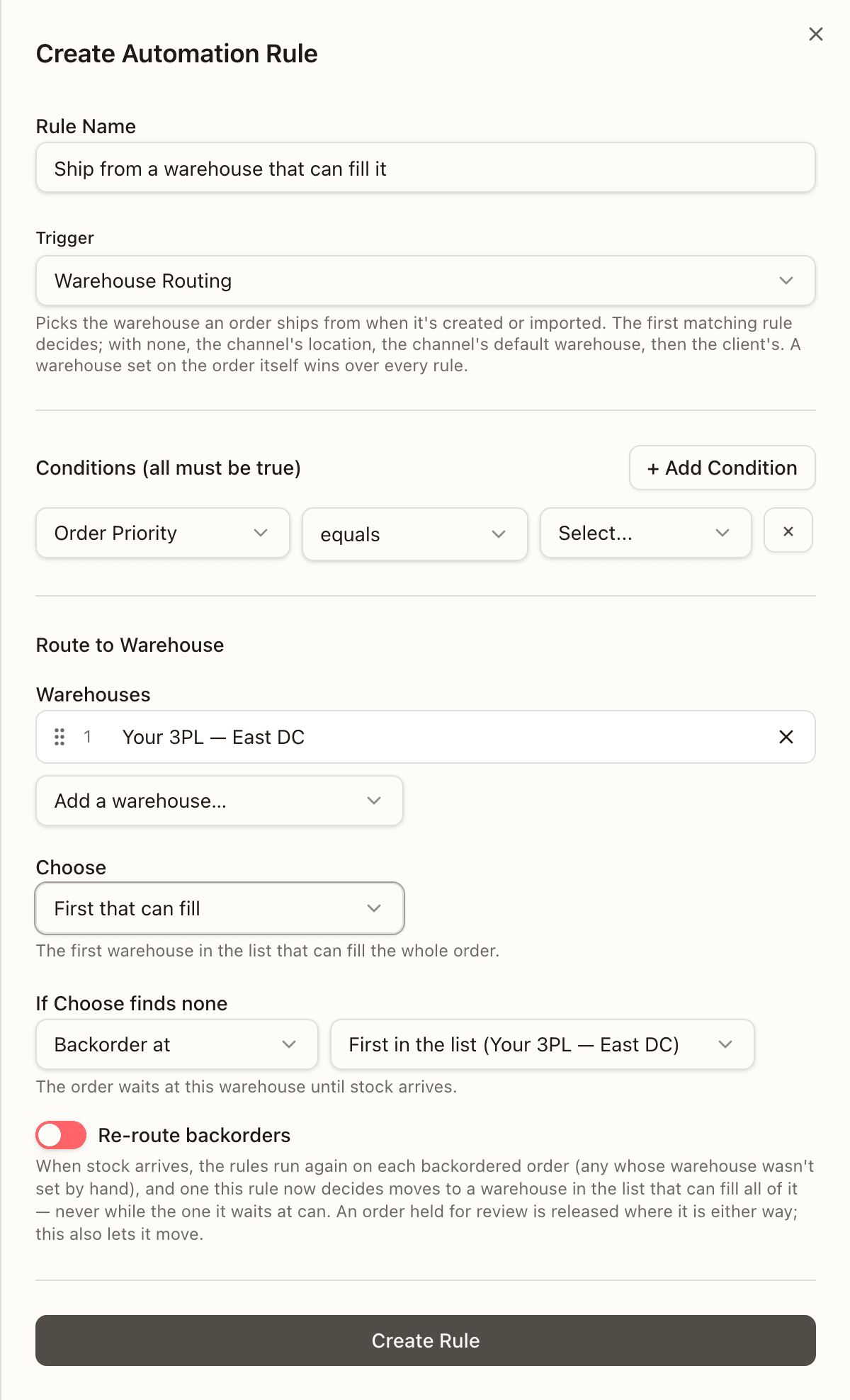
Route to Warehouse
A new rule's section starts with no warehouse, Fixed, and Backorder at the first in the list.
Warehouses are the candidates, in priority order. Add a warehouse… offers your active warehouses that aren't listed yet (Every warehouse is listed once none are left); drag a row by its handle to move it, and × takes it off. A candidate deactivated since the rule was saved reads Warehouse no longer active, with remove it to save. A rule needs at least one ("Select at least one warehouse"). A Follow channel rule shows no list; see Follow channel.
Choose says how a candidate is picked, with a line under it saying what the choice does:
| Choose | The order goes to |
|---|---|
| Fixed | The first candidate. Stock isn't checked. |
| Follow channel | Wherever the sales channel put the order: any active warehouse mapped on the channel, with no list to pick from. A Shopify order split at checkout can stay split, one order per warehouse. An order with no channel location, such as a manual or API order or a marketplace order through Trackstar, isn't judged by the rule. It's passed over, and the next rule or the default rule decides. See Follow channel. |
| First that can fill | The first candidate, in order, that can fill the whole order. |
| Most units | The candidate that can fill the most of the order's units — a tie goes to the earlier one. A warehouse that can fill none of them doesn't count. |
If Choose finds none says where the order goes then. Backorder at places it at a candidate to wait for stock there — First in the list (…), or another candidate picked beside it. Hold for review places it at the first candidate On Hold, reason No warehouse can fill this order — rule "…", and it reserves nothing while it's held. Split places the order across more than one of the rule's warehouses, each SKU at whichever can fill it, instead of backordering or holding it whole. It can be picked once your 3PL has splitting orders across warehouses enabled; where it isn't, saving a rule with Split (or an Each SKU rule) is refused: "A rule that splits orders across warehouses (Each SKU, or Split) needs splitting orders to be enabled here." A rule that splits still decides an order it can't actually split (no sales channel, a ShipHero order, or one shipping in parts on a channel that confirms once), but places it whole at one warehouse instead.
A Follow channel rule words this setting differently and names one warehouse of its own; see Follow channel.
Re-route backorders lets stock arriving move the rule's orders — see When routing runs again. It's for First that can fill and Most units only; under the others the switch is greyed out: "Needs First that can fill or Most units: Fixed always picks the first warehouse, and Canopy doesn't keep the channel location Follow channel reads."
A warehouse can fill an order when its free stock — sellable on-hand less what's already reserved there — covers every SKU the order will allocate. For a new order, it judges the order as its Order Created rules will shape it: on-demand kits count as their components, the rules' replace, remove, add and externally-fulfilled SKU actions — and any Add Tag / Remove Tag they apply — are played out first, and units the sales channel assigns to another location don't count. For a saved order, it's what the order still owes, and the stock the order already holds counts as free to it. It's a read, not a reservation: two orders racing for the last unit can both be routed to it, and the second backorders there.
Follow channel
Pick Follow channel under Choose and the Warehouses list goes away. The rule ships each order from wherever the sales channel put it: any active warehouse mapped on the channel, listed or not. The line under Choose reads Ships from wherever the channel put the order — any warehouse mapped on the channel. An order the channel split between warehouses stays split, one order per warehouse. On Shopify, the warehouse it follows needs no primary location, since Shopify already has the order's work there.
The next setting is labelled If the channel's location maps to no Canopy warehouse. It decides where an order goes when its channel location feeds none of your active warehouses. On Shopify, routing sees an order's location only when that location is mapped, so there it covers a location mapped to a warehouse you have deactivated. A Shopify order at no mapped location is passed over, like an order with no channel location. Pick Backorder at or Hold for review. A second select beside it lists all your active warehouses: pick the one such an order goes to. It reads At warehouse… until you pick, or shows the first warehouse you listed before picking Follow channel. On Shopify that warehouse needs a primary location mapped on the channel, as any rule's candidate does; without one, the rule is passed over. Under Backorder at the order waits there for stock (The order waits at this warehouse until stock arrives.). Under Hold for review it lands there On Hold (The order lands at this warehouse, held for review.). The order's Timeline then gives the reason the channel's location maps to no Canopy warehouse, and a held order's reason ends with it in brackets. A rule saved with no warehouse picked is refused: "Select where an order goes when its channel location maps to no Canopy warehouse".
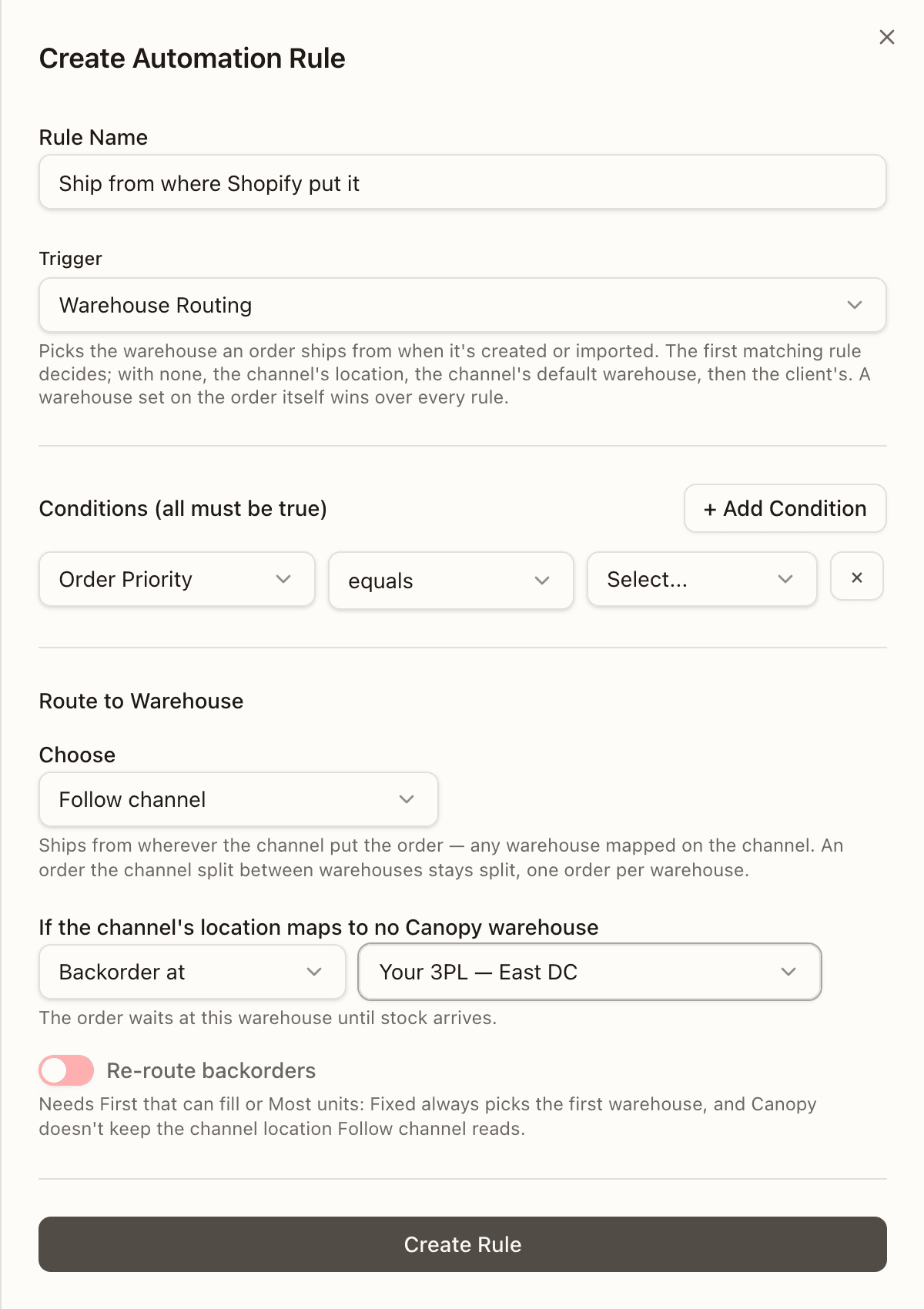
A Shopify order can arrive split at checkout: Shopify puts its work at locations that feed two or more of your warehouses. A Follow channel rule keeps that split. The order imports at the warehouse that holds most of it, and each other warehouse gets a sibling order with its own part. On a tie, the rule's fallback warehouse wins, then the one Shopify lists first. These are the same kind of orders an operator's split makes; see Splitting an order across warehouses. A hold Shopify puts on one location's fulfillment order holds only that warehouse's order, and a hold on the whole order holds them all.
Canopy moves nothing in Shopify for a kept split, with two exceptions. A kit whose units sit at two warehouses is pulled to the one holding most of them. Work at a mapped warehouse you have deactivated goes to the main order's warehouse. If Shopify refuses either move, the order imports whole, On Hold.
Keeping the split needs two things on. One is the channel's Only import items assigned to our locations setting. The other is splitting orders across warehouses, which is switched on for your Canopy environment, not by a control on screen (see Splitting an order across warehouses). With either off, the rule is passed over for a split, and the next rule or the default rule imports it whole at one warehouse.
Default rule
The Warehouse Routing section always ends with a Default rule line, under its rules (or under No active Warehouse Routing rules. when it has none), wearing the Route to Warehouse badge. It is the one rule you don't write: it decides every order that no rule above it matches. When the client has a Default warehouse, the line reads The sales channel's default warehouse, else and that warehouse's name. When it has none, the line reads The sales channel's default warehouse — the client has no default, so other orders stay where the channel puts them. A client with no rules at all shows the No automation rules configured empty state instead, without the line.
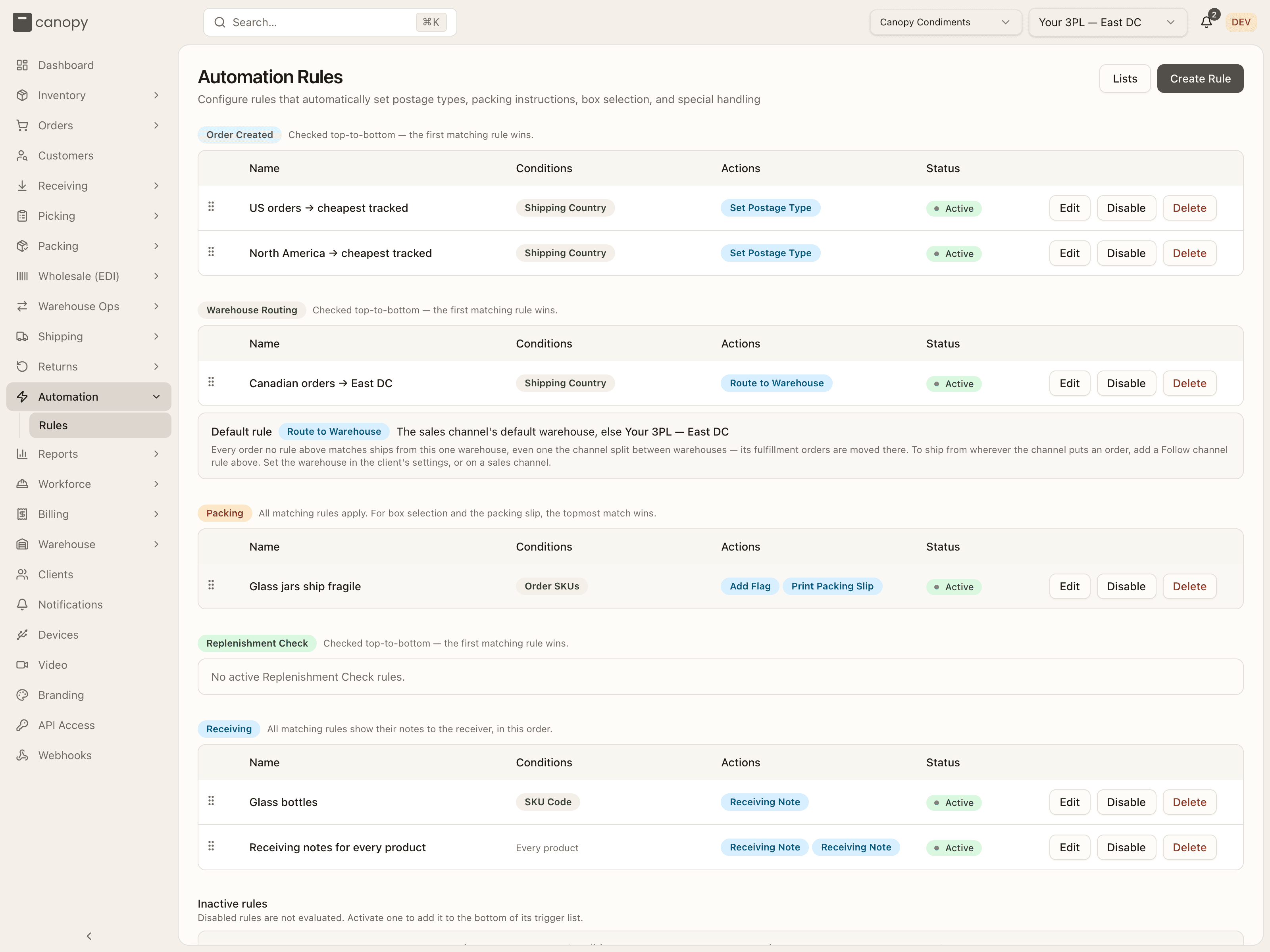
The line has no buttons, so you can't edit, drag or delete it, and every rule you add sits above it. To change where it ships, change the defaults. The note under it says Set the warehouse in the client's settings, or on a sales channel. The client's is its Default warehouse on the client detail panel, a control only admins see. A sales channel's own default, when it has one, comes first. No screen or API in Canopy sets a sales channel's default warehouse, so the client's is the one you can change.
For a Shopify order, the default rule ships the whole order from that one warehouse. That holds even when Shopify split it at checkout between locations that feed two of your warehouses. Canopy first moves the order's fulfillment orders in Shopify to that warehouse's location, as the note under the line says: Every order no rule above matches ships from this one warehouse, even one the channel split between warehouses — its fulfillment orders are moved there. A default counts only when it is active and has a primary location mapped on the channel. If the channel's default doesn't, the client's is tried.
With no default it can use, a Shopify order stays where Shopify put it. A split goes to the warehouse holding most of it, and the rest of its work is moved there.
If Shopify refuses to move a split's fulfillment orders, the order still imports, but On Hold, with a reason that starts Shopify split this order between warehouses. Move them in Shopify and release the hold, or press Reprocess Rules on the order to try the placement again. An order at one location that Shopify won't move stays where Shopify has it, with the ROUTING note, as under a rule.
Any other new order checks one place before the defaults: the warehouse its channel's location maps to, as for a ShipHero order whose ShipHero warehouse is mapped. To keep where Shopify put an order instead, add a Follow channel rule above the line, as the note suggests: To ship from wherever the channel puts an order, add a Follow channel rule above. It keeps a checkout split too, with the two things on that Follow channel lists.
When routing runs again
The rules also run on orders already saved — as written, on the order as it is now, with whichever rule matches it then deciding; a rule that can't be judged on the order is passed over, as when the order came in. That happens on Reprocess Rules, after an edit, when stock arrives, and when units are handed to Canopy. When no rule matches the order any more, the built-in default after the last rule decides — the sales channel's default warehouse, then the client's — so an order a rule placed goes back to the default rather than staying where that rule put it (on Reprocess Rules and after an edit; stock arriving acts only through a rule, and an order whose warehouse was named, chosen by an operator or set by the channel's own location stays). Only Reprocess Rules moves an order whose warehouse was named when it came in or chosen by an operator — a rule may; the built-in default never moves an order from before Canopy recorded what chose its warehouse, since that is unknown — and none of them moves an order once pick work has started (it's on a pick list or has units in a tote), or one that's partly shipped, wholesale, being re-sent by a reship, leading a merge, or still a member of a live Bulk Ship batch (a move asks you to remove it from the batch first).
An order split across warehouses is routed as one customer order. On Reprocess Rules (pressed on any of its orders) and after an edit, the rules decide for the whole family, judged on the details of the order edited or pressed on, with every order's units:
- A rule whose Choose picks one warehouse folds the family there. The customer's order (the one with the plain number) ships every unit from there, moving there if it isn't and taking over the units of any order already there, and every other order of the split is retired, as Cancelled.
- With no rule matching, the built-in default folds it the same way: the sales channel's default warehouse, else the client's, if the channel can ship from it. With neither, it stays as Shopify has it.
- A Follow channel rule keeps the split as Shopify has it.
- A rule that splits (Each SKU, or Split) spreads the units again as it plans.
- Backorder at or Hold for review leaves it where it is.
Pick work on any order of the family freezes all of them where they are. A split an operator made is pinned, every order of it: an edit never moves it, and the order sheet shows "Pinned — placed by hand; rules won't move it. Re-apply rules does." Only Reprocess Rules moves a pinned family, and the orders it places are the rules' from then on. Units a pinned family takes on later, such as a channel edit adding units, go where the rules say on their own; the rest stay. When stock arrives, each warehouse's order of a family waits for its own stock: only a rule that splits, with Re-route backorders on, may move a waiting line.
What a move takes with it — reservations, a hold, the ship-by date, postage — is under Moving an order to another warehouse, and each move is on the order's Timeline — Moved from "…" to "…", with the routing rule, when one chose it, and why.
Reprocess Rules on an order runs them when you ask, and its Re-apply rules dialog first says where they'd send the order. It moves the order only to a warehouse a rule's Choose picks — never to a Backorder at or Hold for review fallback — and a Follow channel rule can't be judged, since Canopy doesn't keep an order's channel location: the next matching rule decides, and the dialog says so when none does. On a split order it can be judged, from where each of its orders ships, and it keeps the split: Stays at … — rule "…" keeps the split as Shopify has it. There the dialog speaks for the whole family. A rule's fold reads Moves to … (rule '…'). The built-in default's fold ends the customer order's 2 warehouses fold into …. A rule that splits reads Splits across ….
See the action bar. One kind of order is the exception: an order held by the import's own placement, whose reason starts Shopify split this order between warehouses. On it, Reprocess Rules tries that placement again instead. It reads Shopify afresh, runs the rules and the default rule, and lifts the hold once the order lands. There, a Follow channel rule can keep the split.
An edit to what the rules read runs them the same way: the shipping address, tags or lines, whoever changed them — the sales channel, a client user, or your team — or the shipping method or priority, changed in Canopy by your team or a client user (a sales channel's edit never carries those two). Any rule but Follow channel may move the order, a Fixed one included. An order on routing's own hold has the hold released — in the move, or where it sits when the rule now picks that warehouse. That still happens after the client's last Warehouse Routing rule is gone: an edit re-checks an order on routing's own hold, so the built-in default warehouse can release it.
Stock arriving at a warehouse runs them for the client's waiting orders once that warehouse's own waiting orders have taken what they need, highest priority first, then oldest; a sweep every 15 minutes catches an arrival that was missed. Stock acts only through a rule that chooses by stock — First that can fill or Most units: a Fixed rule picks its first warehouse whatever arrived, and a Follow channel rule can't be judged. Two kinds of order are re-checked:
- A backorder moves only when the rule that matches it now has Re-route backorders on: to the warehouse that rule chooses, and only when that warehouse can fill the whole order and the one it waits at can't, so an order never moves between two warehouses that each have part of it, except under a rule set to Split (or an Each SKU rule), which may instead move just one line of the order once a warehouse has stock for that line alone, leaving the rest of the order where it is. See split orders across warehouses.
- An order the rules held for review is re-checked whether the switch is on or not. When the rule now picks the warehouse the order sits at, the hold is released there and the order allocates; with the switch on, the rule may instead move it to another of its warehouses, lifting the hold in the move. Under Most units, a warehouse holding some of the order is enough, as it is for a new order. A hold anyone else placed — or added in front of the review hold — is never released this way.
Units handed to Canopy. A Shopify order can have units another location ships, such as a 3PL's (see Units at another location). When the merchant moves those units in Shopify to a Canopy location that feeds a different warehouse than the order's, the rules run over the whole order with those units counted in — when Shopify reports the move, or at the next order sync, every two hours. Before the order is picked, it moves to the warehouse the rules choose — a Follow channel rule follows that location, and a Backorder at fallback moves it too — or, with no matching rule, to the warehouse the location feeds; the move takes the units on and allocates there — though an order resting Ext. Fulfilled that kept a hold lands On Hold there instead, and allocates once it's released. When the rules pick the order's own warehouse, when no rule matches and the location's warehouse has no primary location on the channel, or when the order can't move, Canopy moves the units' fulfillment orders in Shopify to the order's warehouse and takes them on there. The order is left as it is, with a review flag that says why, when a rule would hold it for review, when routing can't decide (the rule that matches has no warehouse with a primary location on the channel), when its warehouse was named or chosen by an operator, when it's on hold or in picking or packing, or when Shopify won't move the units.
The merchant's own move. When the merchant moves an order's fulfillment orders in Shopify to a location that feeds a different warehouse, the order follows there only when its own warehouse came from Shopify in the first place: a channel location, or a routing rule still set to Follow channel. Any other placement stays, and Canopy moves the fulfillment orders back to match it. When it follows and when it stays is under Moving an order to another warehouse.
When stock or an edit would move a Shopify order, or release its review hold where it is, and Shopify refuses to move the order's fulfillment orders to match, the order stays as it is and gets the ROUTING note. Until someone clears it with Acknowledge on the order's banner, or a later move lands, the stock re-checks leave the order alone; an edit still tries, and Reprocess Rules still tries a move. When Shopify instead gives no answer at all — down, timed out, or throttled — nothing is noted and no ROUTING chip appears: the order stays as it is, unflagged, and the next stock event or the 15-minute sweep asks again on its own.
Where Route to Warehouse went
Route to Warehouse used to be an Order Created action. Each Order Created rule that routed with it was converted: its routing became a Warehouse Routing rule with the same name, conditions and priority, Fixed on the warehouse it named, and its other actions stayed where they were. A rule whose routing never worked — no warehouse named, or a Warehouse condition — wasn't converted: one with other actions lost its Route to Warehouse, and one that did nothing else kept it and moved to Inactive rules. Opened in the builder, its action reads Route to Warehouse moved to Warehouse Routing — recreate it there, with × to take it off; activating the rule, or saving it with that action, is refused: "Route to Warehouse belongs to a Warehouse Routing rule — create the routing as a rule of that trigger."
Receiving rules
A Receiving rule writes a note for the receiver. When the warehouse receives one of the client's POs, the notes of every rule that matches show on the scan screen, in the rules' order: notes for every product in a bar pinned above the lines, a product's own notes on its row. They inform. They never block a scan or the PO.
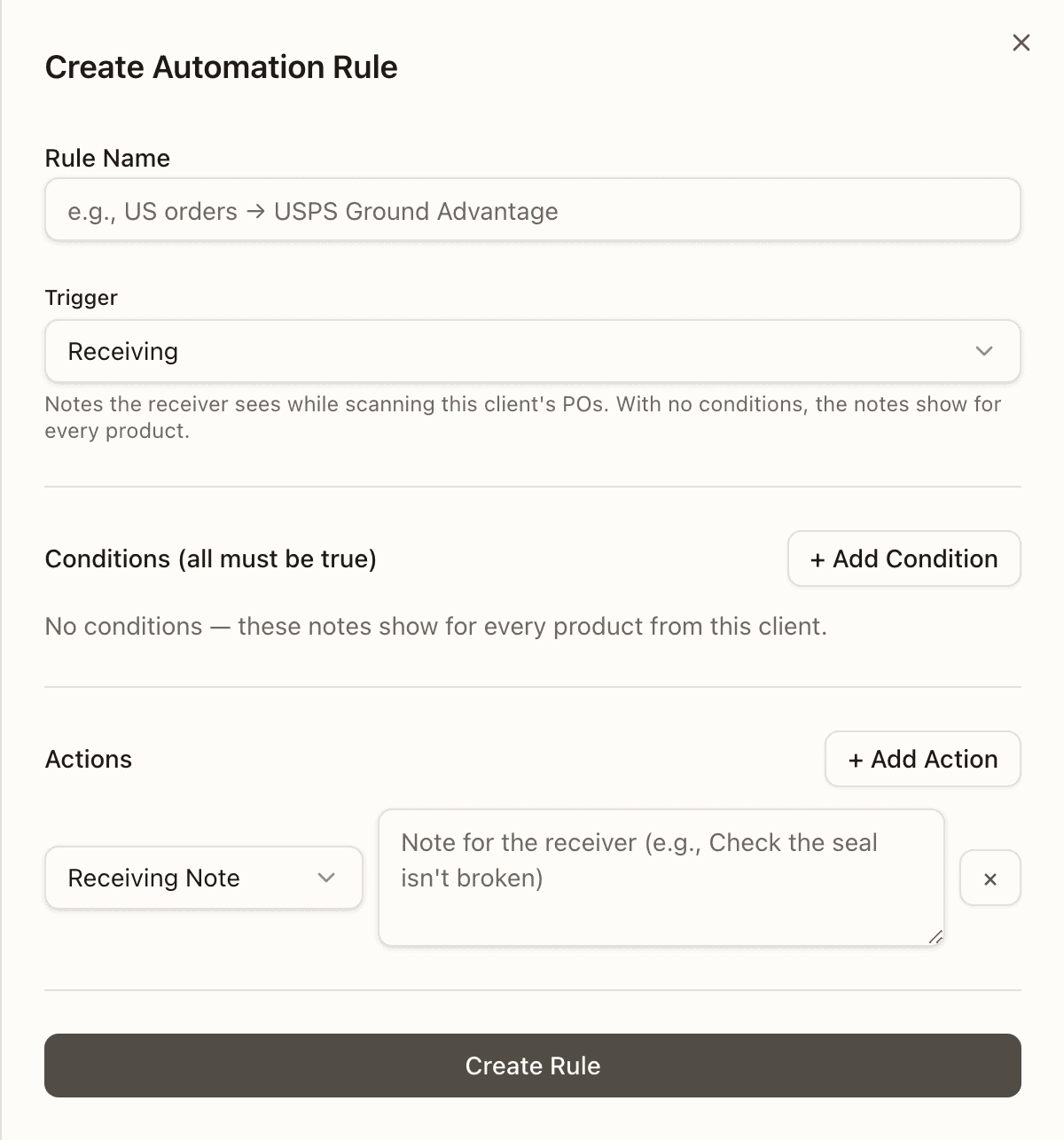
- Conditions can only check the product: its SKU Code or SKU Name. Any other field is refused ("Receiving rules can only check the product's SKU code or name"). With no conditions the builder says so ("No conditions — these notes show for every product from this client."), and the rule's pill on the list reads Every product.
- Actions: one kind, Receiving Note, a short text of up to 500 characters. A Receiving rule can carry nothing else, and no other trigger can carry a receiving note.
- A Receiving rule can't be tried against an order in the preview. Its notes are for the receiving screen.
What the receiver sees, and how a rejected unit records which note was broken, is on Receiving.
How to build a rule
Pin a client and press Create Rule
Open Automation → Rules. With All clients in the topbar the page shows Select a client (Select a specific client in the topbar to manage automation rules.), because rules belong to one brand. Pin the brand, and the header offers Lists and Create Rule. Only warehouse staff can write rules: a brand's user sees no Create Rule, and the server refuses their writes.
Name the rule
The Create Automation Rule sheet opens. Rule Name is required; its placeholder, e.g., US orders → USPS Ground Advantage, shows the shape to copy: what it matches, then what it does.
Choose the trigger
Trigger is the moment the rule is checked: Order Created, Warehouse Routing, Packing, Replenishment Check or Receiving. A line under the select says when the chosen one fires. Changing it resets the conditions and actions below to that trigger's starting ones. Choose with care: once the rule is saved the select is locked, and the line reads A rule's trigger can't be changed after creation — create a new rule to use a different trigger.
Set the conditions
Under Conditions (all must be true) the first row starts as Order Priority · equals with an empty value. Each row is a field (press it and type in Search fields… to pick another), an operator, and a value. + Add Condition adds a row and × removes one. A rule needs at least one, or the save is refused with At least one condition is required; only a Warehouse Routing or a Receiving rule may have none. The fields and operators each trigger offers are under Condition fields and Operators.
Add the actions
Under Actions the first row starts as Set Postage Type. Press that box and type in Search actions… to pick another; the list holds only the trigger's own actions, and each one's settings appear beside it. For Set Postage Type the setting is a second box, Select postage type...: press it, type in Search postage types… to filter by service or by account nickname, and pick the service whose nickname, shown to its right, is the account the label should buy on. A service on an account marked … — needs reconnecting cannot be picked. + Add Action adds a row, × removes one. A rule needs at least one (At least one action is required). What each action asks for is under What each action asks for.
Press Create Rule
The button at the bottom reads Saving... while the rule is written, then the sheet closes and the rule appears in its trigger's table as Active. A refusal shows as a red banner at the top of the form; fix it and press again. On an existing rule the button reads Update Rule.
Put it in order
Rules are checked from the top of their trigger's table down, so drag the new row by its handle (Drag to reorder) to where it belongs. The caption beside each trigger says how the order counts: Checked top-to-bottom — the first matching rule wins. for Order Created, Warehouse Routing and Replenishment Check; All matching rules apply. For box selection and the packing slip, the topmost match wins. for Packing; All matching rules show their notes to the receiver, in this order. for Receiving. How each trigger actually evaluates, including where Order Created applies every match, is in the table under Rules.
How to route orders to a warehouse
Start a rule on the Warehouse Routing trigger
Pin the client, press Create Rule, name the rule and set Trigger to Warehouse Routing, as in How to build a rule. The line under the select reads Picks the warehouse an order ships from when it's created or imported. The first matching rule decides; with none, the channel's location, the channel's default warehouse, then the client's. A warehouse set on the order itself wins over every rule. For a Shopify order the two defaults come first, ahead of the channel's location; see Default rule.
Decide which orders it covers
Set conditions as usual, say Shipping Country · equals · CA to send Canadian orders one way, or Sales Channel to route one store's orders. For a catch-all, press × on the starting row so no condition is left; the builder then reads Every order — with no condition, this rule matches every order. Keep it last: the rules below it never run. The fields a routing rule can test are under Condition fields.
List the candidate warehouses
In place of Actions, the sheet shows one Route to Warehouse section, with no action picker and no + Add Action. Under Warehouses it starts with Add the warehouses this rule can send orders to. Pick each from Add a warehouse…; it offers your active warehouses not yet listed, and reads Every warehouse is listed once none are left. The list is the priority order: drag a row by its handle to move it, and × takes it off. A Follow channel rule needs no list, so skip this step: the list goes away when you pick Follow channel in the next step, and the first warehouse you list here shows as its fallback warehouse.
Pick how to Choose
Choose (placeholder How to choose…) says which candidate wins, and a line under it explains the pick. Fixed: The first warehouse in the list, stock or not. Follow channel: Ships from wherever the channel put the order — any warehouse mapped on the channel. An order the channel split between warehouses stays split, one order per warehouse. Picking it hides the Warehouses list. First that can fill: The first warehouse in the list that can fill the whole order. Most units: The warehouse that can fill the most units; a tie goes to the earlier one. For a one-warehouse answer use Fixed; to send an order where its stock is, use First that can fill; to ship from where the channel put the order, use Follow channel, which can also keep a checkout split (see Follow channel).
Say what happens when no candidate can fill the order
If Choose finds none (placeholder Then…) offers two choices. Backorder at adds a second select, First in the list with that warehouse's name, or any candidate, and reads The order waits at this warehouse until stock arrives. Hold for review reads The order lands at the first warehouse, held for review. Split is listed but greyed out: needs split shipments.
Under Follow channel the label reads If the channel's location maps to no Canopy warehouse. Beside either choice, a second select reading At warehouse… lists all your active warehouses. Pick the one an order goes to when its channel location feeds none of yours. On Shopify, pick one with a primary location mapped on the channel, or the rule is passed over; see Follow channel. Hold for review then reads The order lands at this warehouse, held for review.
Decide whether stock arriving moves backorders
The Re-route backorders switch lets a later delivery move this rule's waiting orders to a listed warehouse that can fill all of them. It only works under First that can fill or Most units; under the other two it is greyed out and reads Needs First that can fill or Most units: Fixed always picks the first warehouse, and Canopy doesn't keep the channel location Follow channel reads. What a re-route does is under When routing runs again.
Save, order the rules, and check an order
Press Create Rule. A rule with no warehouse is refused: Select at least one warehouse, or for Follow channel Select where an order goes when its channel location maps to no Canopy warehouse. The new rule joins the Warehouse Routing table, where the first matching rule from the top decides, so drag a catch-all to the bottom. The Default rule line stays under the table, below every rule, and takes the orders none of them match. From then on each new order's Timeline records Routed to warehouse by rule "…", and its Details tab shows the warehouse with rule '…' beside it.