

Shipping
Every outbound label and its tracking, live carrier rates, the carrier accounts labels are bought on, and the channel-to-postage mapping that drives label generation.
Shipping covers everything leaving the dock. The group has five pages: Shipments, the list of every label with live tracking across all clients; a Rate Calculator for comparing carrier prices; Carriers and Shared Carriers, where a tenant admin connects the accounts labels are bought on; and Shipping Mappings, the operator-owned config that tells the system which postage type to buy for each channel shipping method.
Operator vs. client view
A brand watches its shipments and tracking. You do the parts they can't: run the Rate Calculator, void a label, reship an order, open an RTS return, connect carrier accounts, and own the Shipping Mappings that decide which service each order ships on. The client sees results, not these controls — with one exception: a brand can ask for a re-send of its own, billed to it as a new order (Send again on the order sheet).
Carriers, postage types and labels
Labels and rates come from the carrier accounts connected under Shipping. Two kinds can be connected today: Stallion (Stallion Express, a carrier aggregator, spoken to natively) and Webhook — your own receiver sitting in front of any other aggregator or TMS. Accounts live at two levels: a client's own accounts on Carriers, and the tenant's shared ("house") accounts on Shared Carriers that every client can fall back to. Which tier a client ships on is the client's carrier sourcing setting.
A postage type is the service a label is bought for — a named carrier service such as USPS Ground Advantage, one of the meta types Cheapest Tracked / Cheapest Express Tracked (the aggregator picks the service at purchase), or Generic Label, an internal option that buys no carrier label at all. An order's postage type resolves in this order: a manual override on the order, then a Set Postage Type automation rule, then the client's Shipping Mappings — and the same chain applies whether the label is bought at a pack station or in a bulk-ship batch.
Which services a saved choice can name. Anywhere a postage type is saved for later (a mapping, the default fallback, an order's manual override, a bulk-ship override, a Set Postage Type rule) the dropdown lists every carrier account the client may ship on, one group per account under the account's nickname (the rule picker has no headings, so it shows the nickname beside each service); a webhook account that declared no service list has nothing to list and is left out. The account a label falls back to when nothing names one comes first, then the rest, ending with Generic Label under Canopy; an account that needs reconnecting is listed after all of them. A client still on the legacy Stallion key sees the Stallion list. What saves is the service and the account it sits under, so the same service on two accounts is two different choices, and the label is bought on the account you picked. A choice saved before accounts were recorded names no account; it buys on whatever the client's default account resolves to, as it always has, and stays selectable where it was saved so nobody has to re-pick it.
Saving checks the pair. The account must be one the client can ship on under its carrier sourcing setting, or the save is refused: "Carrier account … is not one this client can ship on. Choose an account from the list before saving." The account must offer the service: "Service "…" is not offered by carrier account "…" (…). Update the shipping method mapping or the order's carrier override before buying." Generic Label saves with no account. An account whose card wears Reconnect required on Carriers is still listed, marked … — needs reconnecting, with its services greyed out, so no new choice can be picked on it; whatever is already saved on it keeps showing by name.
Every buy checks the saved choice again before any money moves. The label is bought on the saved account, or on the client's default when the choice names none. If the saved account has since been removed or deactivated, or put out of the client's reach by its carrier sourcing setting, the buy refuses rather than falling back to another account, and names the layer the choice came from: "The shipping method mapping for this order names carrier account "…", which has been deactivated. Update the shipping method mapping before buying." The layer reads manual postage override, automation rule's postage override, shipping method mapping or client default postage type; the reason reads has been deactivated (removing an account on Carriers deactivates it), is not available to this client under its carrier sourcing mode, or no longer exists when no account in the tenant has that id. The service is then checked against that account, with the same refusal as at save time. A Stallion-only choice such as Cheapest Tracked on another carrier's account (and that is what an unmapped method falls back to) refuses with "No service mapping for this channel; set one. "Cheapest Tracked" is a Stallion-only choice and this order would buy on carrier account "…" (…), which does not offer it." A rate picked from the live list at the pack station is never re-checked: the account just quoted it.
Where a parcel ships from. An outbound label is bought, and its rates quoted, with the order's warehouse as the sender. A reship's relabel is the exception: it replaces the label on a box that already left, so it uses the warehouse that box left from, even if the order's open work has moved since. Each parcel keeps the warehouse it was bought from for good. On a Stallion v5 account that address is the parcel's origin, so each warehouse — a US one beside a Canadian one, say — is priced and labelled from its own address. v4 has no origin field: a v4 parcel always leaves the account's own default address, and the warehouse rides only as the return address. A warehouse missing any of Address, City, State / Province, ZIP / Postal Code or Country sends no sender at all, and the account's default address stands in.
A Stallion parcel that crosses a border has each item's tariff code checked before the quote or label is requested: a code Stallion would refuse — it takes 6, 8 or 10 digits — stops it, naming the SKU ("SKU …: tariff code … has N digits; Stallion accepts 6, 8 or 10"). On v5 a parcel crosses a border when its warehouse and its recipient are in different countries, so a US warehouse shipping to a US address skips the check; on v4, whose origin is always the account's default — taken to be in Canada — only a Canadian warehouse shipping to a Canadian address skips it. A warehouse whose address is incomplete counts as Canadian on both.
Shipments
Shipping → Shipments lists every label created, across all clients (or the pinned client).
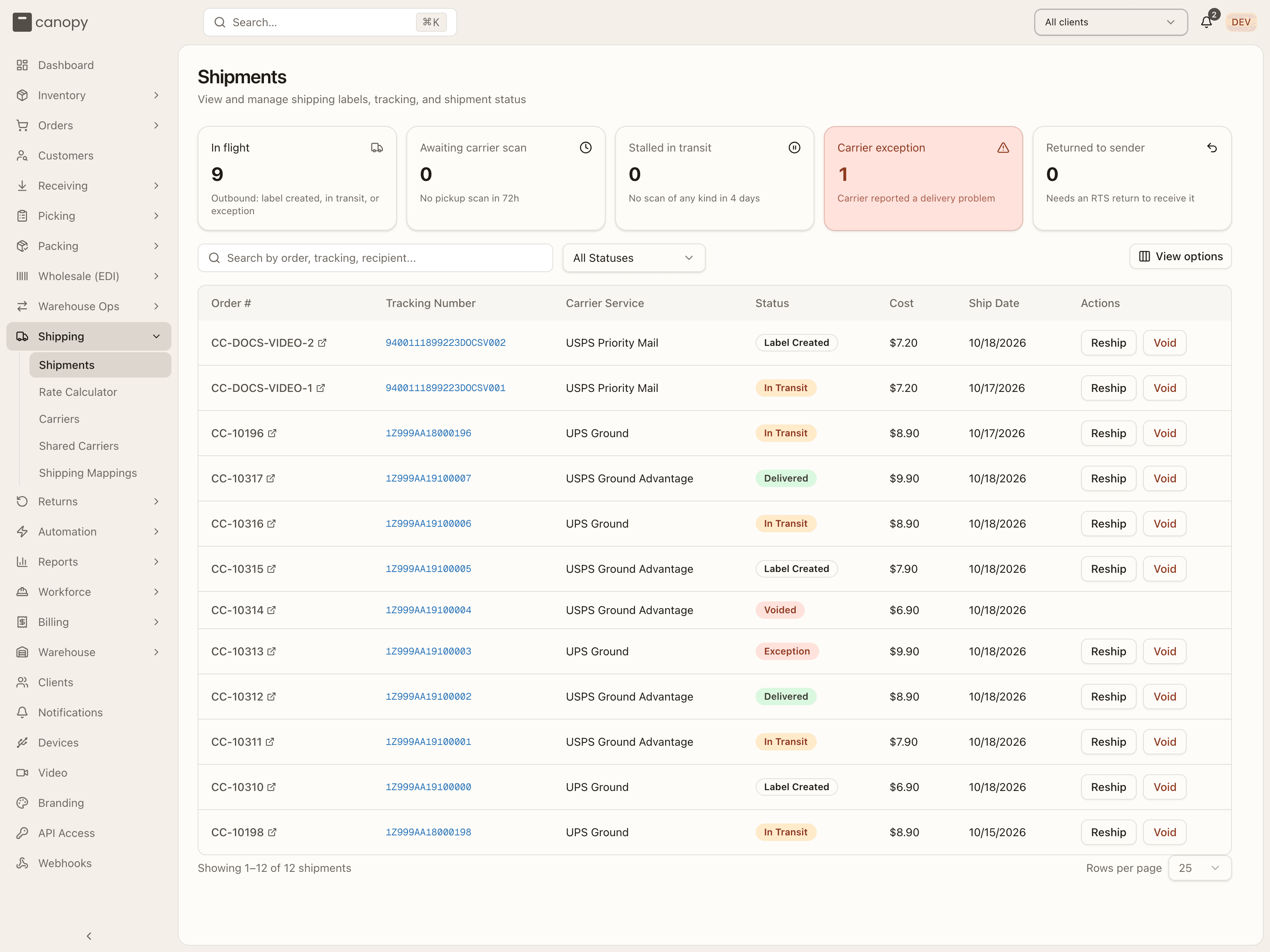
The attention row
Five cards sit above the list. In flight counts everything outbound that is label-created, in transit or in exception. The other four are problems, and clicking one filters the table to that bucket (click again to clear; picking a status in the dropdown clears it too):
| Card | What it counts |
|---|---|
| Awaiting carrier scan | Labels with no pickup scan after the threshold (72 hours by default). |
| Stalled in transit | Parcels with no scan of any kind for the threshold (4 days by default). |
| Carrier exception | The carrier reported a delivery problem. |
| Returned to sender | Parcels the carrier sent back that have no RTS return yet — "Needs an RTS return to receive it." |
A card only takes on its warning colour when its count is non-zero. Shipments that haven't been checked with the carrier recently are held out of the stall counts rather than reported as problems; when there are any, a line under the row says so — "N in-flight shipments haven't been checked with the carrier recently, so they are excluded from the counts above." — with a View link that filters to them.
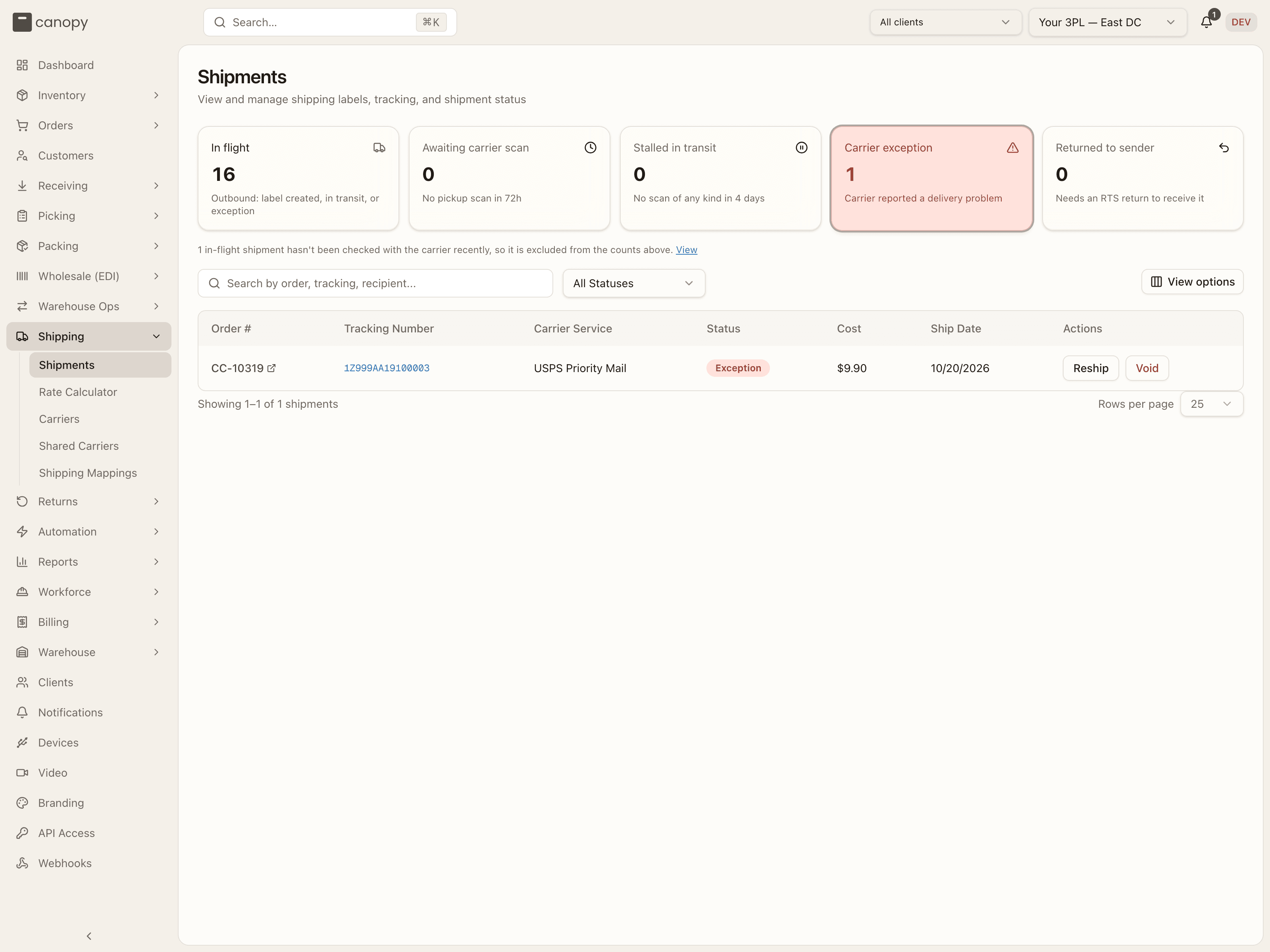
The list
Search by order number, tracking number or recipient; filter by status; and sort on any column (Order #, Tracking Number, Carrier Service, Status, Cost, Ship Date). View options chooses which columns show. The order number links to the order sheet, the tracking number to the carrier's tracking page, and the carrier-service cell carries Signature / Insured chips when those services were requested at purchase. The table is paged (Showing 1–25 of N shipments, with Rows per page). A search with no match reads "No shipments match "…""; with no labels at all, "Labels generated during packing will appear here."
A row is one carrier shipment, and that is not always one box. When a bulk-ship batch buys a multi-box order on an account that can take it (Stallion v5), every box rides one shipment: a single row, one tracking number, one Cost, and the boxes' combined weight — nothing on the row names the box count. Void on it cancels every box's label at once, Download Label / Reprint Label hand back the whole document (a label page per box on Stallion, whose adapter declares that layout; a carrier with no documented layout hands back the whole document for every box), and Reship refuses a relabel — "This shipment covers N boxes on one label — a relabel would void them all and buy a single one-box label. Void the labels and generate them again from Bulk Ship instead". Boxes bought one label each still show one row per box.
| Status | Meaning |
|---|---|
| Label Created | Label generated; not yet scanned by the carrier. |
| In Transit | Moving through the carrier network. |
| Delivered | Delivered to the customer. |
| Exception | A carrier problem — delayed, undeliverable, etc. |
| Voided | The label was cancelled. |
RETURNED | The parcel came back to you on a return-to-sender. Terminal like Voided, but the label was really used, so nothing is voided or credited. The filter has no entry for it and the badge shows the raw token. |
Statuses past Label Created advance automatically from carrier tracking. The row actions are the operator's:
- Reship (any non-voided shipment with an order) opens the reship wizard — the same one as the order sheet — to fix the label or replace the goods. A relabel asks Which box has the bad label? with the row you clicked pre-selected, and only that box gets a new label; a reship bills nothing unless it is a client-requested re-send, which is billed as a new order. See Reship. No label can be bought for an order that shipped inside a merged order's box — "Order CC-… shipped in merged order CC-…'s box — reship or relabel CC-… instead" — it owns no parcel, so the label, the relabel and the reship are the master's; and a relabel of a master whose label a merged order's channel change holds is refused before anything is voided.
- Void (any non-voided shipment) invalidates the carrier label after a confirm — "This cannot be undone." The carrier is called for any label that was bought from one, on the account the label was bought on; a Generic Label is voided locally only. When that account is gone and the client's current setup resolves to a different carrier, the void is refused rather than sent to a carrier that never sold the label: "This label was bought on STALLION, but this client now resolves to WEBHOOK — WEBHOOK cannot act on a STALLION shipment. Reconnect the STALLION account the label was bought on, or handle this shipment in the STALLION portal." Refused on an OPERATOR void while an open re-send is replacing this box — the order's own, or a split sibling's re-send taking units off it — with the reason on a failed-void toast: "A re-send is open for this box — cancel the re-send first if the box is going out after all, or let the re-send go out." Bulk Ship's own Void labels on a batch's parcels is exempt from this check, so a re-send open on one member doesn't stop the rest of the batch's labels from voiding.
Voiding a merged master's label after its customers were charged, or after its tracking reached their channels, writes a warning on each merged order's timeline — the capture is not reversed, and a channel that already has the number keeps it. The second warning is written only for a channel that can't take a tracking update (Trackstar); where the channel can, the next label bought for the goods re-points its fulfillment, and an order taken out of the merge before that label carries the note on its own timeline.
- Create RTS return appears only while the Returned to sender card is the active filter: every row there is a parcel that came back with no return yet, and the button opens the create-return page in RTS mode for that order and parcel. That page refuses a label the carrier never took custody of — "This label was never used (no carrier scans) — void or relabel it instead of creating an RTS return" — since a parcel that never left can't have come back.
A link into the list with ?shipmentId= (the order sheet uses this) opens
that shipment's sheet directly, whatever page it is on.
Shipment detail
Click a row for the Shipment Details sheet.
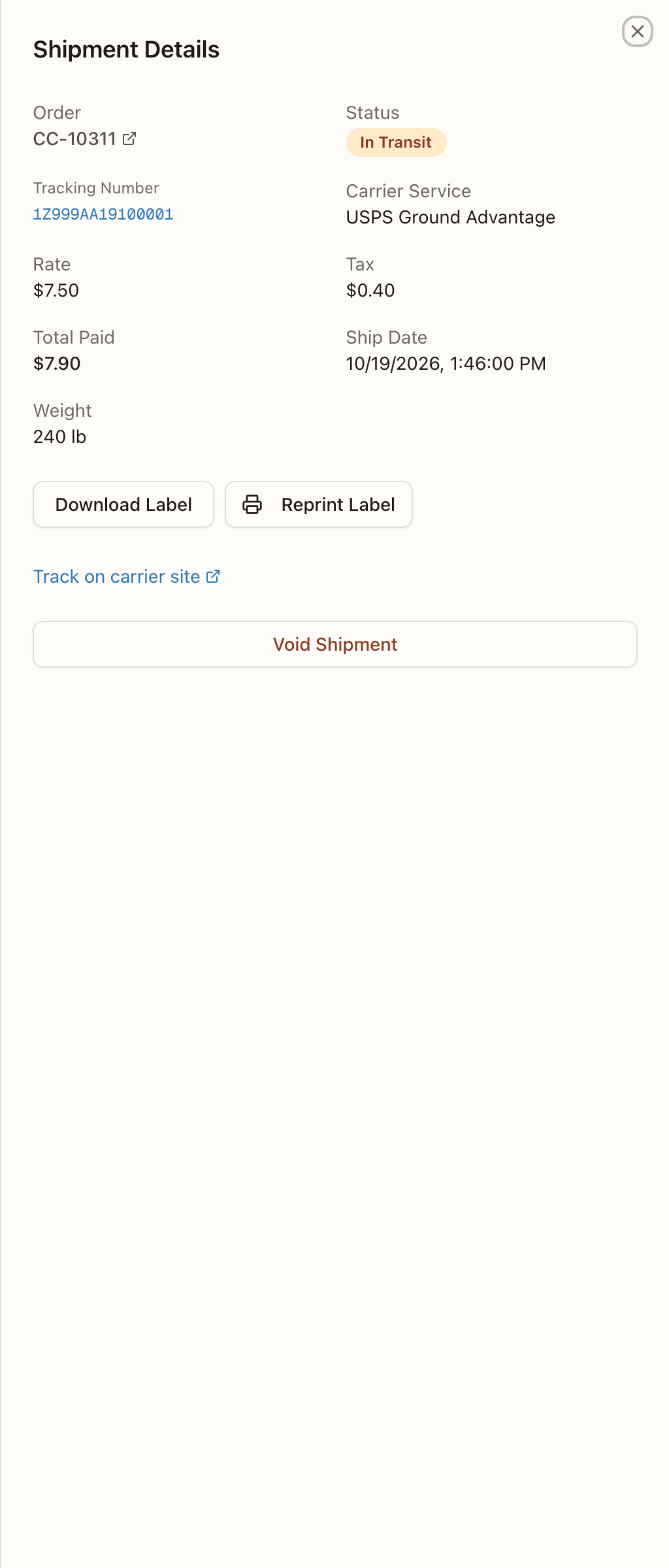
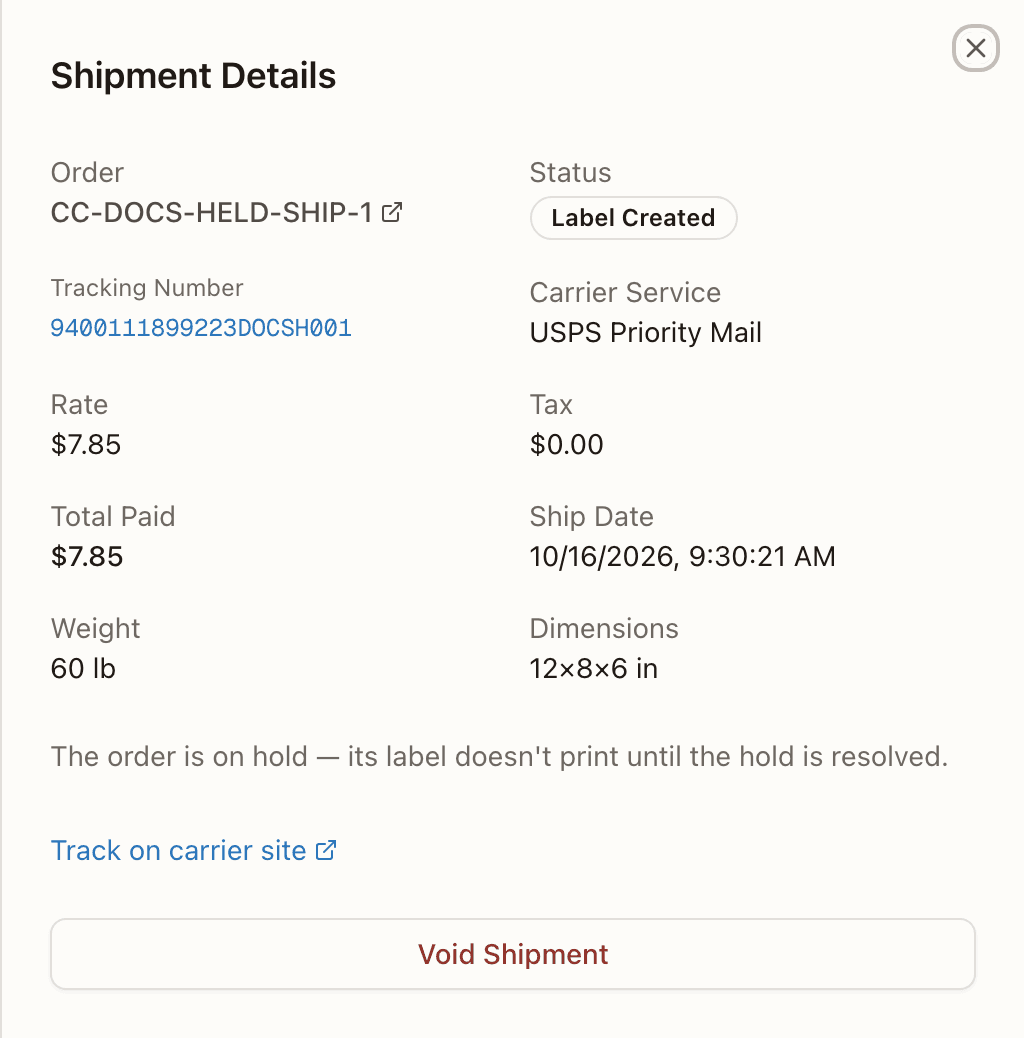
It shows the order (a link), status, Tracking Number, Carrier Service, Rate, Tax, Total Paid, Ship Date, Service Options (Signature required, (adult) when so, and Insured to X CUR) when any were requested, Weight, and Dimensions when the label carried them — on a multi-box shipment the weight is every box's combined and the dimensions are the first box's. When the label file is stored, Download Label and Reprint Label sit under the facts — reprint is the recovery for a jammed or lost label. A label bought from a carrier that renders the document after the sale (Stallion v5) shows "Label bought — the carrier is still rendering its PDF." and a Fetch label button in their place until the file is in; too early, it answers "The carrier is still rendering this label — try again in a minute."
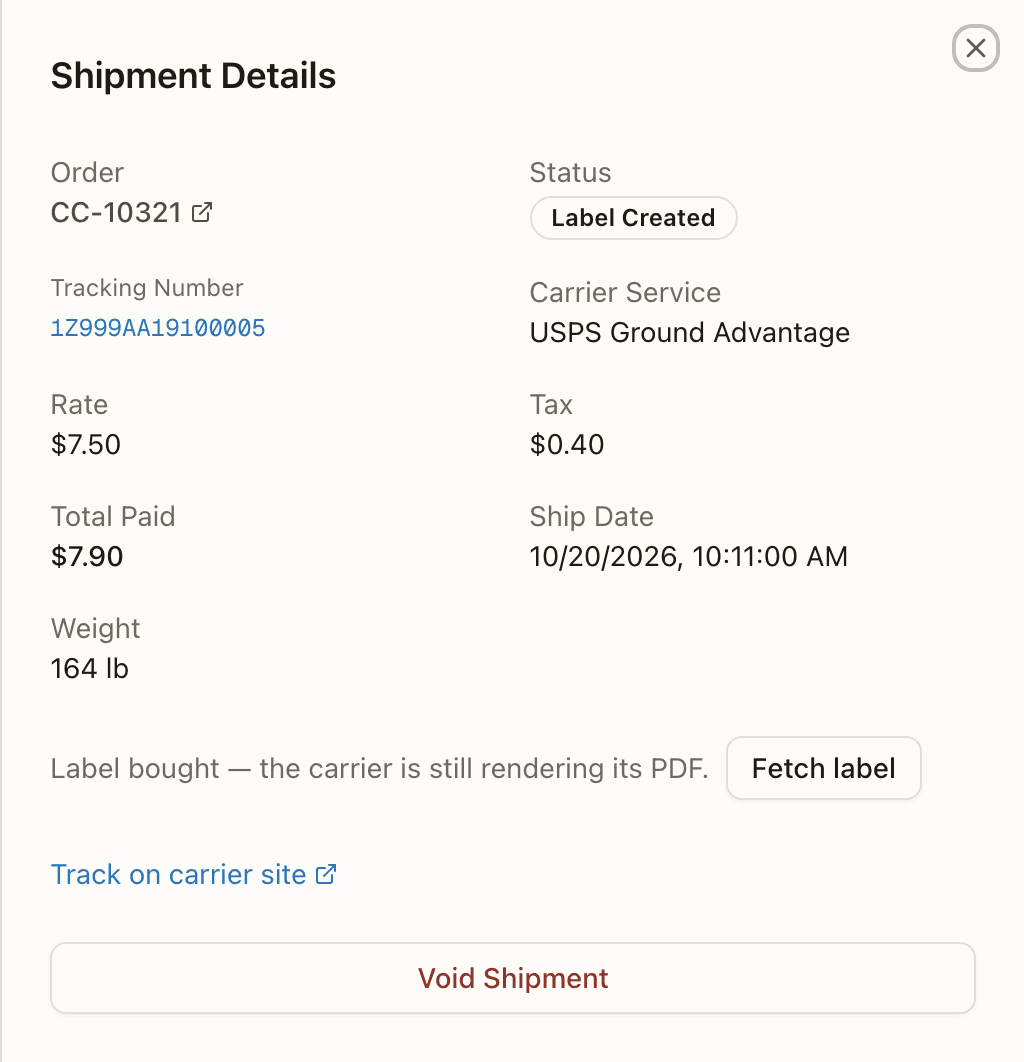
A shipment in Exception gets a red "Carrier reported an exception" banner with the latest scan and its time, or "The carrier has not returned any scan detail for this shipment." when there is none — the carrier's top-level status and its scan lines can disagree, and the banner says so outright.
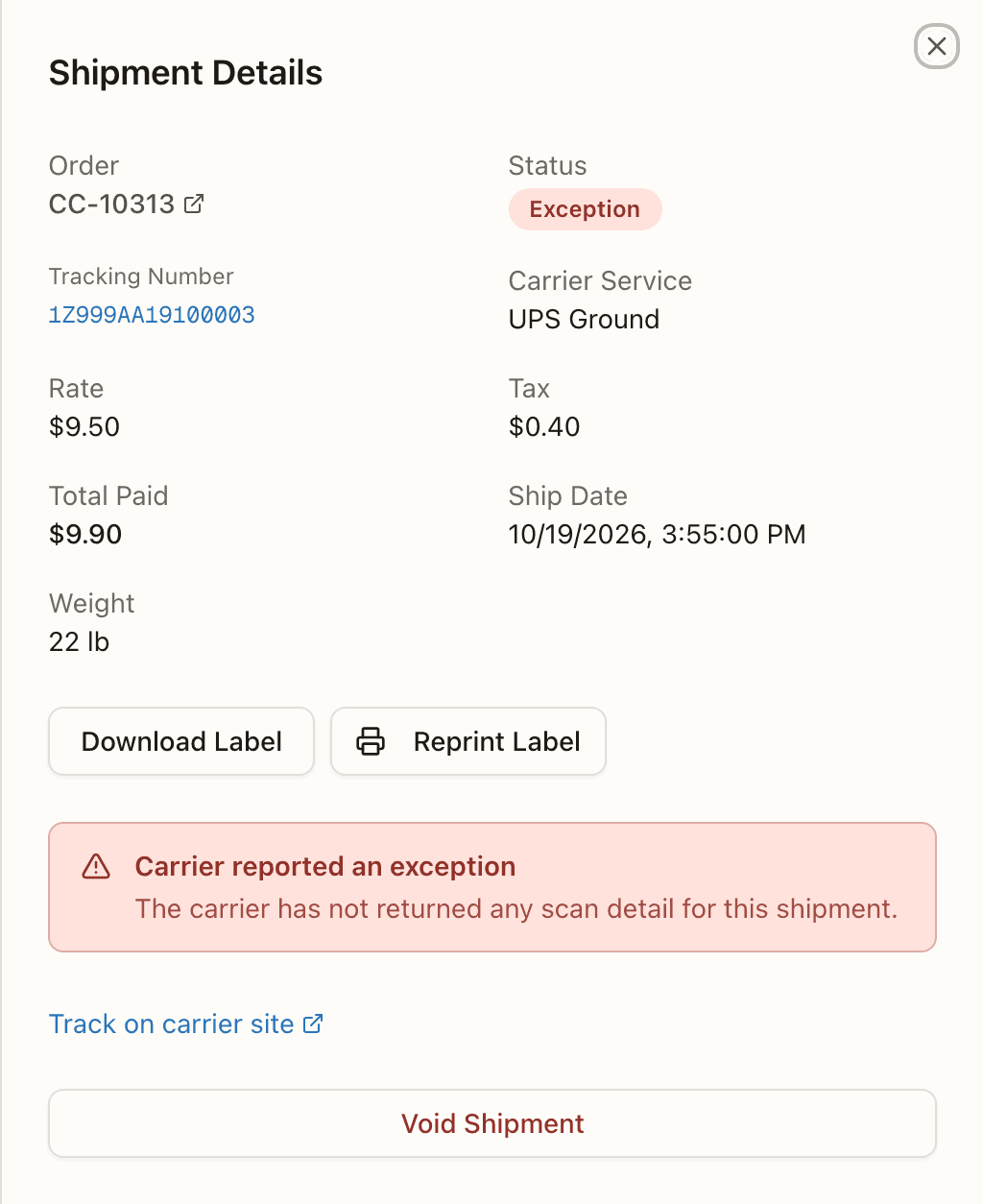
Tracking Events lists the carrier's scans with a freshness label: Live from carrier when fetched just now, Checked <time> for a stored timeline, or Not yet checked with carrier. Track on carrier site opens the carrier's page. Void Shipment (non-voided only) is the same two-step confirm as the row action; Void is the only manual status change. A refusal — the open re-send check above, or a carrier error — surfaces as a toast naming the reason, rather than failing silently.
On a Generic Label shipment the tracking block is different: it reads No tracking required until someone adds a number, and — once the pack is complete — offers Mark shipped and Add tracking / Edit tracking to staff. Both are refused on a merged master whose label is held by a merged order's channel change ("Can't mark CC-A shipped: …"), and a tracking change is refused when the channel of an order merged into this one can't change tracking once it has it.
A held order's label
A held order's label does not print from this sheet. A hold is a stop put on the order, by a person or by the system. While the order is on hold, the sheet reads "The order is on hold — its label doesn't print until the hold is resolved." where Download Label and Reprint Label would be, and offers no Fetch label either. The label itself stays bought: the hold does not void it. Once the hold is resolved, the buttons come back.
Rate Calculator
Shipping → Rate Calculator shops live rates across the pinned client's carrier accounts so you can sanity-check shipping costs. Rates are per client, so pin a client first; with none pinned the page says "Select a client from the client selector to get rates." and Get Rates stays greyed out, even after Pre-fill from Order has filled the form from an order. Picking an order fills in its warehouse, items and postage override; the client still has to be pinned. Without an order, the quote uses the warehouse pinned in the topbar — on All warehouses none is sent, and the carrier account's default address stands in (where a parcel ships from).
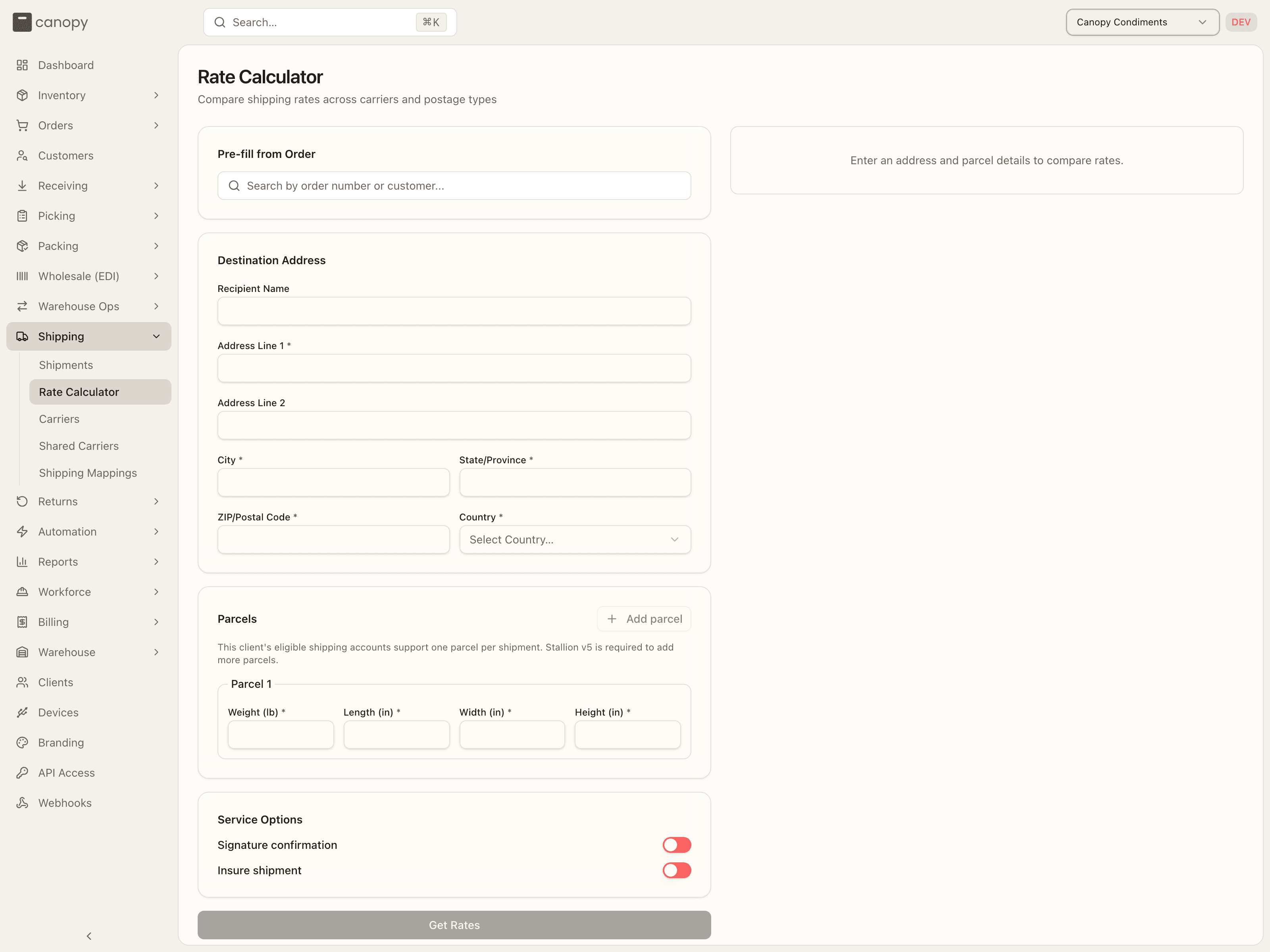
The form's panels:
- Pre-fill from Order — search by order number or customer and pick an order to copy its shipping address and its resolved signature / insurance options into the form ("Address pre-filled from CC-10198 — Shipping method: …", naming the order's method for reference). The order's items also serve as the shipment contents. Clear resets everything.
- Destination Address — Address Line 1, City, State/Province, ZIP/Postal Code and Country are required.
- Parcels — every parcel needs Weight (lb), Length (in), Width (in) and Height (in). Add parcel (up to 50) is enabled only when the client's eligible accounts support multi-parcel shipments; otherwise the panel explains, e.g. "This client's eligible shipping accounts support one parcel per shipment. Stallion v5 is required to add more parcels." With several parcels, "Rates cover all N parcels in one shipment. Only services that support multiple parcels are included."
- Shipment Contents — appears when no order is selected and the quote is multi-parcel: a contents description, a total declared value and its currency.
- Service Options — Signature confirmation and Insure shipment; the latter reveals a Declared value field (prefilled from the order total when an order is selected), so the totals come back all-in.
Get Rates returns a table headed "Rates for 1 parcel" or "Shipment totals for all N parcels": Carrier (with the account nickname under it), Service — with a Cheapest badge on the lowest total, a Fastest badge on the shortest delivery estimate when that is a different row, and Tracked on trackable services — Rate, Tax, Total and Delivery days. Sort on any column; it opens cheapest-first. When some accounts quote and others refuse, a "Not quoted: …" line above the table names each account that refused and the reason it gave, so a carrier missing from the table is explained rather than silently dropped.
An empty result reads one of two ways. If carriers refused, the panel says "No carrier returned a rate:" and lists one line per account — account: reason, with the reason relayed from the carrier. If nothing refused and nothing quoted, it falls back to "No rates available for this shipment."
Estimates, not labels
The Rate Calculator quotes live rates but doesn't buy a label — labels are generated during packing.
Carriers
Shipping → Carriers → /shipping/carriers. The carrier accounts a single
client ships on. The link is admin-only in the sidebar, and the server
allows only a tenant admin to connect, edit, test or remove an account; a
tenant operator who opens the URL sees the accounts read-only. The page is per
client — with none pinned it reads "Select a client".
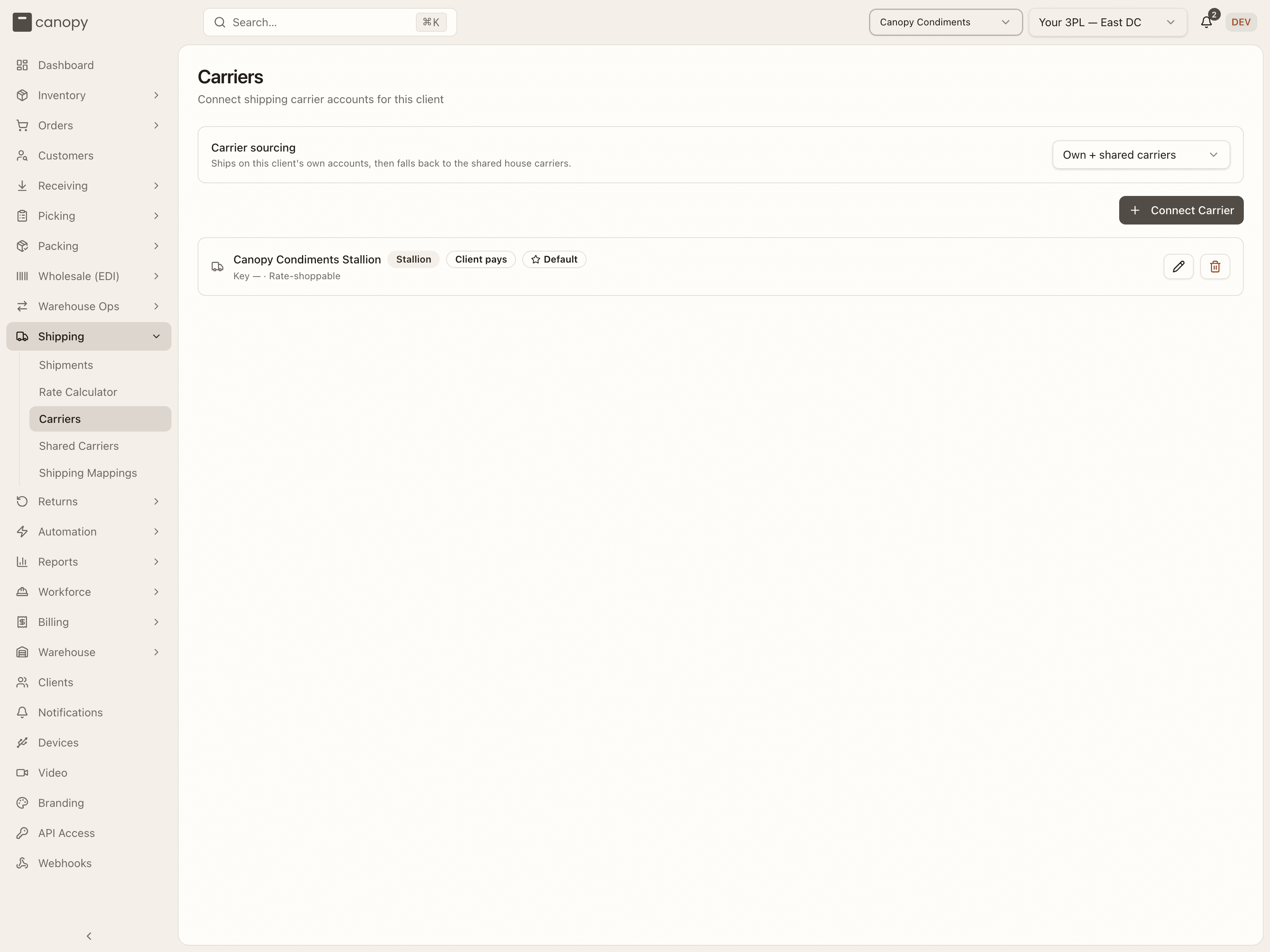
Carrier sourcing (admins) sets which accounts this client's labels and rates use: Own + shared carriers (the default — "Ships on this client's own accounts, then falls back to the shared house carriers."), Own carriers only or Shared carriers only.
Connect Carrier offers Stallion and Webhook — one account per carrier per client, so a carrier already connected drops off the menu. Each account is a card: nickname, carrier badge, Client pays or 3PL pays, Default when it is the default account, and a line with the masked key (or the webhook's label URL) and Rate-shoppable / Not rate-shoppable. Admins get an edit and a delete button; removing warns "Shipping that relies on this carrier will fail until another is configured." Every connect dialog but Stallion's asks Who pays for labels? the same way: You (3PL) — labels are billable to the client ("You front the label cost and it's charged back to the client per the rate card.") or The client — they pay the carrier directly (no label charge) ("The client's own account fronts the cost — no postage charge is generated."). A Stallion account always bills as 3PL pays, so its dialog does not ask.
Connecting by signing in at the carrier
The page is ready for carriers that connect by sending you to the carrier's own sign-in page instead of taking a key, but no carrier offers that yet: the Connect Carrier menu is still Stallion and Webhook. When one does, its dialog reads "You'll sign in at <Carrier> and come back here with the account connected. Settle who pays for its labels first." with the Who pays for labels? choice and a Continue to <Carrier> button (a shared account skips the question: "Taking you to <Carrier> to sign in. The shared account comes back here connected."). Coming back, the page reads "Finishing the carrier connection…", then toasts "Carrier connected"; a failed attempt shows a "<Carrier> was not connected" banner with the reason ("The connection attempt expired before it was finished.", "The carrier declined the connection.", "The carrier did not complete the connection.", and so on, or, when the attempt cannot be found, "The connection could not be completed. Start it again from Connect Carrier.") and a Connect again button. Such an account's card reads "Connected as <account>" in place of a masked key, and wears Reconnect required with a Reconnect button (admins) when the carrier stops renewing its sign-in; reconnecting is the same sign-in again. While it waits, the account stays in every dropdown that saves a postage choice, its nickname followed by — needs reconnecting and its services greyed out, so none of them can be picked for a new mapping, rule or override; see which services a saved choice can name. Its edit dialog is settings only, since its credentials live at the carrier.
Connect Stallion
Nickname; API version — v4 (API key) or v5 (token), with the matching credential field (the v5 note lists the scopes to create the token with, and switching an existing account to v5 keeps the stored v4 key so recent labels stay voidable); Include in rate shopping; Default account. On an existing account the dialog also has Test connection → Run test, which checks the saved credentials against Stallion. Credentials are encrypted before storage and never shown again in full. Only a v5 account ships from each warehouse's own address — see where a parcel ships from.
Shipping from a US warehouse. One Stallion account can ship from Canada and the US, but labels and quotes from a US warehouse — and return labels into one — need the account on v5, and Stallion must enable region switching on the account. Ask Stallion to enable it before the first US label. Until they do, those labels and quotes fail with "Stallion refused the US region: this account isn't enabled for region switching…". A v4 account refuses them outright: "This Stallion account is on API v4, which can't take a ship-from address…". A Canadian warehouse needs neither.
Connect webhook carrier
For an aggregator CanopyWMS doesn't speak to natively: "Hand shipments off to
your own receiver, which talks to the aggregator (ShipStation, ShipBob, an
in-house TMS…)." Fields: Nickname; Label URL (required); Rate URL,
Track URL and Void URL (optional); Receiver auth header (optional, if your endpoint is gated);
Service tokens (comma-separated names your receiver understands, e.g.
ground, express); Who pays for labels? — You (3PL) — labels are billable
to the client or The client — they pay the carrier directly (no label
charge); Include in rate shopping; Default account. Connecting shows a
Webhook connected step with the signing secret — shown once; your
receiver verifies the x-canopy-signature header with it — and a Send
test that pings your label URL.
Shared Carriers
Shipping → Shared Carriers → /shipping/shared-carriers. The tenant-wide
"house" accounts every client falls back to when they have no carrier of their
own: "you (the 3PL) front the label cost, billed back per each client's rate
card." Admin-only on both sides — an operator who opens the URL sees
"Admins only — Shared carrier accounts are managed by tenant
administrators."
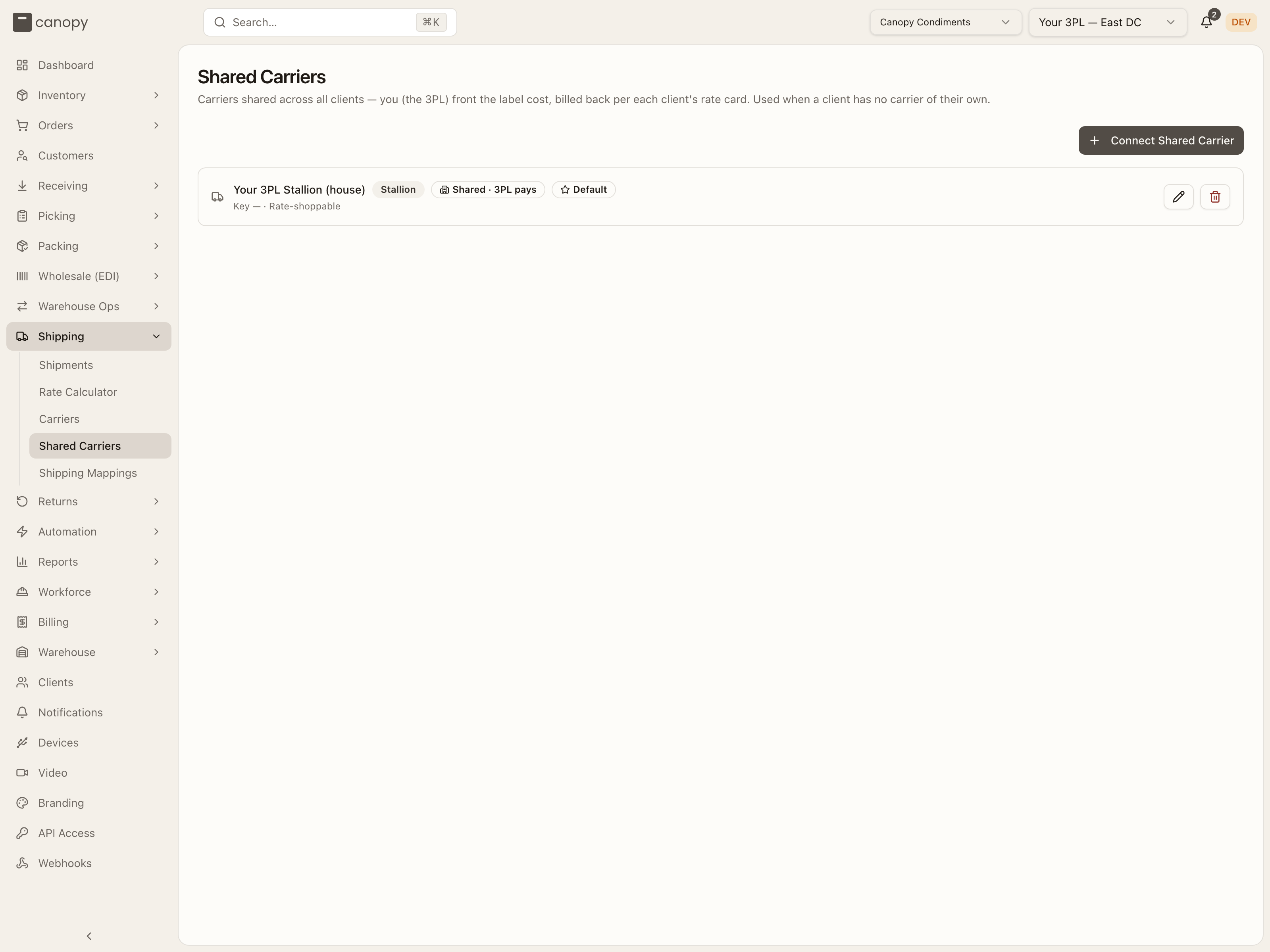
Connect Shared Carrier offers the same Stallion and Webhook dialogs (one house account per carrier), minus the Who pays choice — a shared account is always Shared · 3PL pays. Cards and edit / delete work as on Carriers, including the Reconnect required / Reconnect state and the "Connected as …" line for an account connected by signing in at the carrier (none can be yet; see the Carriers callout); removing one warns that clients relying on it "will fall back to their own account, legacy key, or fail if none exists."
Shipping Mappings
Shipping → Shipping Mappings. This operator-only page, configured per client, maps each channel shipping method (e.g. a Shopify "Standard Shipping") to the postage type the label buys. Because it's per client, pin a client in the topbar first — with none pinned the page shows a "Select a client" prompt and everything below stays hidden.
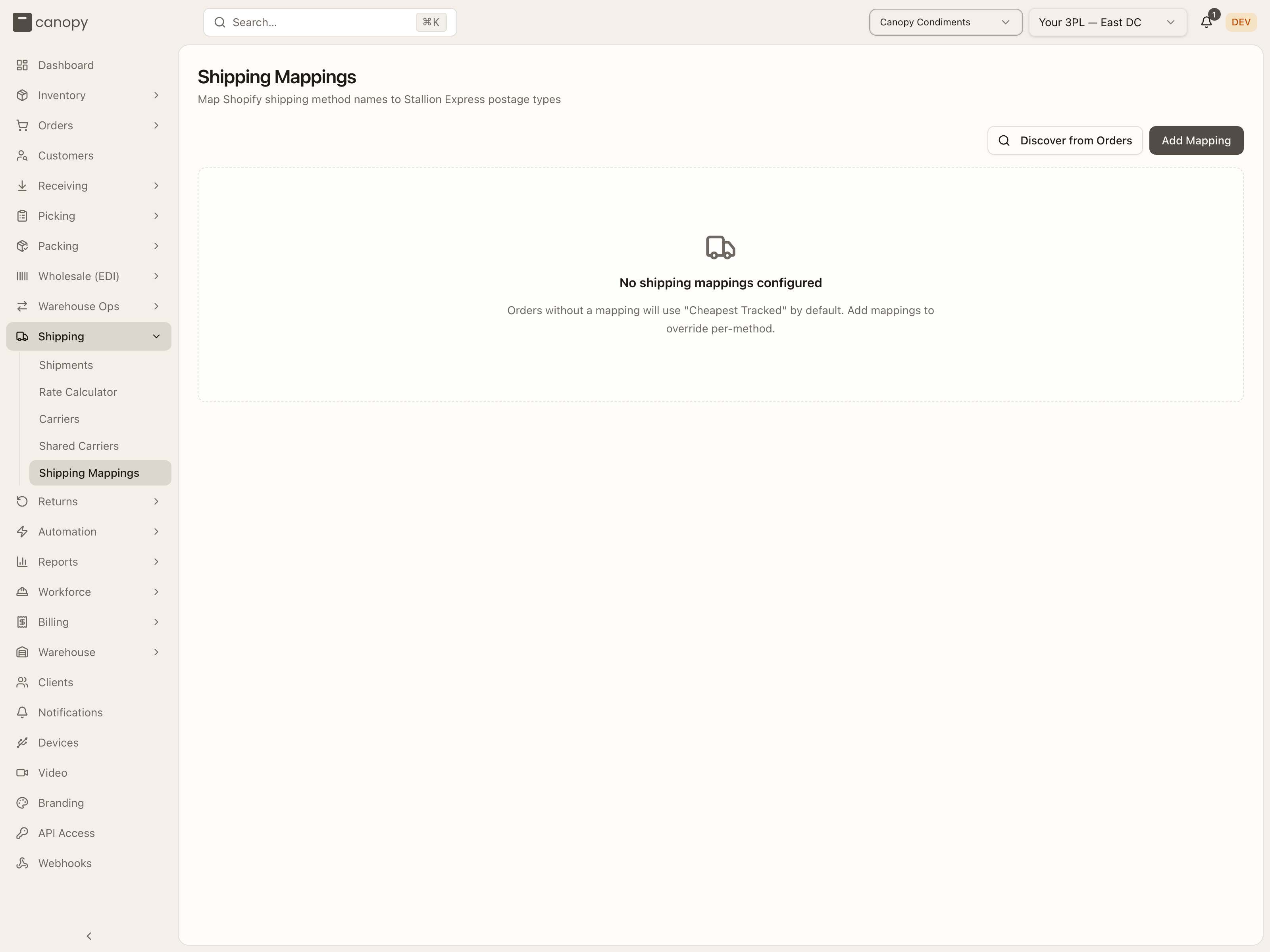
With no mappings the page reads "No shipping mappings configured — Orders without a mapping will use "Cheapest Tracked" by default. Add mappings to override per-method." Once there are rows, each pairs a Channel Method with a Stallion Postage Type (both sortable). A method with no postage type assigned shows an Unmapped pill, and a banner tallies how many need(s) mapping. Unmapped methods don't block packing: an order whose method is unmapped (or has no row at all) ships with the client's Default Fallback Postage Type, or with Cheapest Tracked if no default is set. Map the method to control which service it buys — until then, expect it on the fallback, including for premium or international methods the customer paid for. Beyond the table:
- Discover from Orders (shown when the client has a sales channel) scans the client's channels and pulls in every shipping method name customers have actually used, so you're not guessing.
- Default Fallback Postage Type sets what to buy when an order's method matches no mapping or the mapping is still unmapped — so a label always generates. It holds the same account-grouped list as the mapping sheet, Generic Label included; the first entry, Cheapest Tracked (default), is what applies when nothing is chosen. The pick saves at once; one the server refuses falls back to the previous value with no message.
Use Add Mapping to create a pairing, or Edit / Delete to change one. Carrier credentials are not on this page — they live on Carriers and Shared Carriers.
Choosing the carrier account
Both dropdowns, the mapping's Stallion Postage Type and the fallback, group their services by carrier account: one heading per account this client may ship on, under the account's nickname, with the account a buy falls back to first and Generic Label under Canopy. Pick the service under the account it should buy on. The mapping saves the service and the account together, and the row shows the service by its name. The same service under two accounts is two different choices, so one method can go to the client's own account and another to a house account. An account that needs reconnecting is listed last, headed … — needs reconnecting, with its services greyed out. A mapping saved before accounts were recorded names no account and keeps buying on the client's default; it stays selectable in the sheet so an edit need not re-pick it. The server refuses a save whose account is not one this client can ship on, or does not offer the service, and the sheet shows the reason in its red banner: "Carrier account … is not one this client can ship on. Choose an account from the list before saving." From then on the label is bought on the saved account, and the buy refuses, naming the mapping, when that account is gone or out of the client's reach; see which services a saved choice can name.
Generic Label
Generic Label is a postage type with no carrier behind it. Choose it anywhere a postage type is chosen — a mapping, the default fallback, an order's manual override, a bulk-ship postage override — and label generation buys nothing: the system prints its own label from the warehouse address and the order's ship-to (the warehouse address must be complete, or generation refuses with "Complete the warehouse address before generating a generic label"), at a cost of $0, with no tracking number and no signature or insurance options. Use it for a customer pickup, a hand delivery, or a parcel you hand to an external shipping service. It's refused on a wholesale order — a wholesale carton always ships on a carrier label ("Generic labels are supported in Pack Station and Bulk Ship. Select a carrier postage type for wholesale carton labels.").
Because no carrier will ever scan it, the order waits at Fulfilled until staff act on the shipment sheet: Mark shipped once the parcel has left ("If the sales channel captures payment on shipment, the customer is charged now."), or Add tracking with the external service's number and URL — saving that marks the order shipped and, on a channel order, sends the tracking to the channel — and to the channel of every order merged into it. Tracking added this way is never synced from a carrier, and Generic Label shipments are left out of the attention row. Both actions are also refused on a cancelled order — there's nothing to track — and while the order is waiting on an "is the box still here?" check: settle that check on the order first, then come back to track or mark it shipped.
How to connect a carrier
Pin the client and open Carriers
Sign in as a tenant admin: only an admin can connect, edit, test or remove an account, and the sidebar link is admin-only. Pick the client in the topbar, then open Shipping → Carriers. With no client pinned the page reads Select a client. A client with nothing connected yet reads No carriers connected.
Press Connect Carrier and choose Stallion
Press Connect Carrier in the top right. The menu offers Stallion and Webhook. A client holds one account per carrier, so a carrier that is already connected is missing from the menu, and with both connected the button itself is gone. Choose Stallion; the Connect Stallion dialog opens. A house account, one every client can fall back to, is connected the same way from Shared Carriers with Connect Shared Carrier; see Shared Carriers.
Name the account and choose the API version
Nickname starts as Stallion; change it if the client will tell accounts apart by name. Under API version choose v4 (API key) or v5 (token). Choose v5 when the client ships from a US warehouse, or needs more than one parcel on a shipment; the US rule, and what Stallion must enable first, are in Connect Stallion.
Paste the credential
On v4, paste the key into API Key (Enter Stallion API key...). On v5, paste the token into API Token (Enter Stallion v5 API token...); the note under the field says where in Stallion to create the token and which scopes it needs. Connect stays greyed out until the field is filled. The value is encrypted on save and shown only masked afterwards, so keep your own copy somewhere safe.
Set rate shopping and the default, then press Connect
Include in rate shopping is on by default; it lets the Rate Calculator and the pack station quote this account. Turn on Default account if this is the account the client's labels should buy on when a saved postage choice names no account of its own; only one account per client is the default, so turning it on here takes it off any other. Press Connect. A toast reads Stallion connected and the account appears as a card with its nickname, a Stallion badge, 3PL pays, Default when set, the masked key and Rate-shoppable.
Run a connection test
Press the pencil button on the card. The Edit Stallion dialog has a Test connection row; press Run test. A v4 key answers Stallion v4 API key is valid.; a v5 token is checked scope by scope and the result names any scope the token is missing. A test that fails shows its reason as a toast, not in the dialog. The test uses the saved credentials, so save any change first; Save toasts Carrier updated. Press Cancel to close.
For a webhook carrier, choose Webhook instead
Pick Webhook from the Connect Carrier menu for an aggregator CanopyWMS does not speak to natively. The Connect webhook carrier dialog needs a Label URL (required) on public HTTPS and a Void URL: its placeholder says optional, but Connect is refused without one ("A void URL is required for a webhook carrier: without it a label can never be voided, and the order can't be re-labelled after a box or address change."). Rate URL, Track URL, Receiver auth header and Service tokens are optional. It also asks Who pays for labels?, which the Stallion dialog never does; the two choices are spelled out in Connect webhook carrier. After Connect, a toast reads Webhook carrier connected and the dialog switches to Webhook connected, showing the Signing secret once with a copy button. Hand it to whoever runs the receiver, press Send test to ping the label URL, then press Done.
Check which accounts the client ships on
The Carrier sourcing box at the top of the page says which accounts this client's labels and rates use. Own + shared carriers (the default) uses the account you just connected first and falls back to the house accounts. Own carriers only never falls back. Shared carriers only ignores the client's own accounts, so the new account would never be used. Changing it toasts Carrier sourcing updated.
How to map a shipping method
Pin the client and open Shipping Mappings
Mappings are per client, so pick the client in the topbar first, then open Shipping → Shipping Mappings. The link is operator-only and the server refuses a client user's changes. With no client pinned the page reads Select a client; with no rows yet it reads No shipping mappings configured and explains that unmapped orders ship on Cheapest Tracked.
Pull in the client's methods with Discover from Orders
When the client has a sales channel, a Discover from Orders button sits beside Add Mapping. Press it; it reads Discovering... while it scans the client's channel orders and adds a row for every shipping method name a customer has used. Each new row shows an Unmapped pill, and a yellow banner counts how many need(s) mapping. Skip this step if you already know the exact method name.
Press Edit on the row, or Add Mapping for a new method
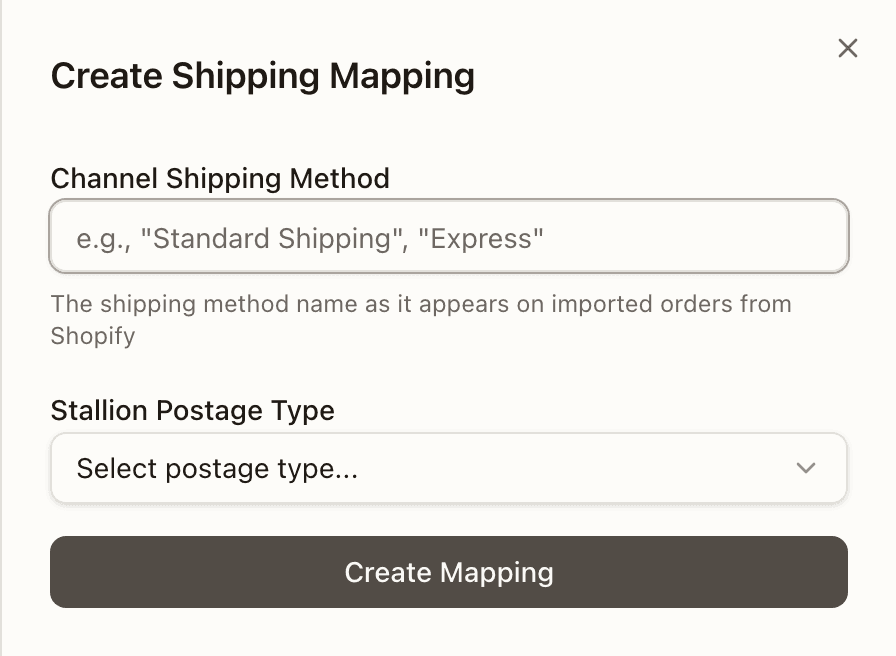
For a discovered row, press Edit in its Actions column; the Edit Shipping Mapping sheet opens with the method name fixed (This is the shipping method name from Shopify and cannot be changed). For a method with no row yet, press Add Mapping; the Create Shipping Mapping sheet opens.
Type the method name exactly as the channel sends it
In a new mapping, fill Channel Shipping Method with the name as it appears on imported orders, for example Standard Shipping or Express. An order is matched to its row by the exact name, so spelling and capitals must agree with the channel's. A name that already has a row is refused: A shipping method mapping for "…" already exists, shown in a red banner at the top of the sheet.
Choose the postage type and save
Open Stallion Postage Type (Select postage type...). The list is grouped by carrier account: one heading per account this client may ship on, the account a buy falls back to first, and Generic Label under Canopy. Pick the service under the account the label should buy on; why the list is grouped, and what a save checks, is in Choosing the carrier account. A postage type is required. Press Create Mapping or Update Mapping. An account or service the server refuses shows as a red banner at the top of the sheet; otherwise the sheet closes and the table refreshes.
Set the Default Fallback Postage Type
Once the table has a row, a Default Fallback Postage Type box sits above it. Its dropdown holds the same account-grouped list as the mapping sheet; the first entry, Cheapest Tracked (default), is what applies when nothing is chosen. Pick what an order should buy, under the account it should buy on, when its method matches no row or its row is still Unmapped. The choice saves as soon as you pick it; one the server refuses falls back to the previous value with no message.
Confirm the row
The row now shows the service name under Stallion Postage Type instead of the Unmapped pill, and the banner count drops by one. From the next label buy, an order with that method buys that service on the account you chose, unless the packer's own pick at the station, a manual override on the order or a Set Postage Type automation rule comes first; the order of precedence is in Carriers, postage types and labels.
How to quote a rate
Pin a client and open Rate Calculator
Open Shipping → Rate Calculator. It is for warehouse staff only: a client user sees Access restricted and The rate calculator is available to warehouse staff only. Rates are shopped across the pinned client's carrier accounts, so pick the client in the topbar. With none pinned the form reads Select a client from the client selector to get rates. and Get Rates stays greyed out, even after you pick an order.
Pre-fill from an order (optional)
In Pre-fill from Order, type into Search by order number or customer... and pick the order from the list; each line shows the order number, the customer and a status badge. The ship-to address and the order's own signature and insurance choices fill in, and a grey line reads Address pre-filled from the order number, with its shipping method for reference. The order's items become the shipment contents. Clear empties the whole form.
Enter the destination
Fill Destination Address. Address Line 1, City, State/Province, ZIP/Postal Code and Country are required; Recipient Name and Address Line 2 are not. Get Rates stays greyed out until a country is chosen.
Enter the parcel
Under Parcels, fill Parcel 1 with Weight (lb), Length (in), Width (in) and Height (in); all four are required and must be above zero. Add parcel is live only when the client's eligible accounts can quote several parcels on one shipment (Stallion v5); otherwise the panel says so: This client's eligible shipping accounts support one parcel per shipment. Stallion v5 is required to add more parcels. A shipment takes up to 50 parcels, and each extra one has a Remove button.
Describe the contents when no order is selected
With no order picked, a Shipment Contents panel appears whenever the client's accounts can quote several parcels, or you added a second parcel. Fill Contents description, Total declared value and Declared value currency. All three are required and the value must be above zero; otherwise the form refuses the quote, its own check reading Enter the shipment contents and a declared value above zero.
Choose the service options
Under Service Options, switch on Signature confirmation if the label will need one, and Insure shipment to price insurance; that reveals a Declared value field. With an order selected it is in the order's currency and prefilled from the order total; without one it uses the declared value currency, USD unless you changed it. The totals come back with these fees included, so the comparison matches what the label would cost.
Press Get Rates and read the table
Press Get Rates; it reads Getting Rates... while the carriers answer. The result is headed Rates for 1 parcel or Shipment totals for all N parcels, cheapest first: Carrier with the account nickname under it, Service with a Cheapest badge on the lowest total, Fastest on the shortest delivery when that is another row and Tracked on trackable services, then Rate, Tax, Total and Delivery. A Not quoted: line above the table names any account that refused and why. If nothing came back, the panel lists No carrier returned a rate: with one reason per account, or reads No rates available for this shipment. Nothing is bought here; labels are bought during packing. Editing any field hides the result until you quote again.
Live Bench View
Watch a pack bench's camera as it happens from the Live Benches wall. One card per camera, a Watch dialog that joins the bench only while it is open, and the plain Live pill the packer sees.
Returns
Create and process RMAs end to end — receive, inspect, disposition, and refund — plus the reason codes customers pick from.