

Picking
Batch orders into pick lists, pick them on the floor, and handle short picks, totes, and stock discrepancies.
Picking is where allocated orders get pulled off the shelves. You batch orders into pick lists, a picker works a list on a scanner or tablet, and the supporting pages handle what falls out of that: short picks, the totes that carry picked stock, and any stock discrepancies found along the way.
The whole Picking section of the sidebar is operator-only, and the pick, tote and discrepancy APIs refuse client users outright — a brand never sees any of it. An operator assigned the Picking task role keeps exactly these five pages (plus the floor app's pick flow) and lands on Pick Lists as their home.
Pick Lists
Batches of orders to pick, with progress and a one-tap start.
Active Pick
The scan-guided flow a picker runs to work a list.
Floor App
The installable /m app and its guided pick flow.
Short Picks
Lines that came up short — pick now, backorder, cancel, or re-queue.
Totes
Every tote, its history, and clearing flagged ones.
Discrepancies
Expected-vs-found stock gaps to review and resolve.
Pick Lists
Pick Lists → /fulfillment/pick-lists. A pick list is a batch of orders
grouped to be picked together. The table shows each list's Status,
Strategy (Single, Seed or Batch), Orders, a live Progress bar with
picked/total items, who it's Assigned To, and when it was Created —
every one of those headers sorts. A Pending row ends in Start Picking
and an In Progress row in Resume; both open the list in
Active Pick.
A list that is a cart of a Bulk Ship
batch carries a Bulk Ship <batch number> link beside its strategy
badge. The link opens that batch's session. Arriving here with ?pickListId=
in the address (the batch page's View links do this) opens that list's
detail panel at once.
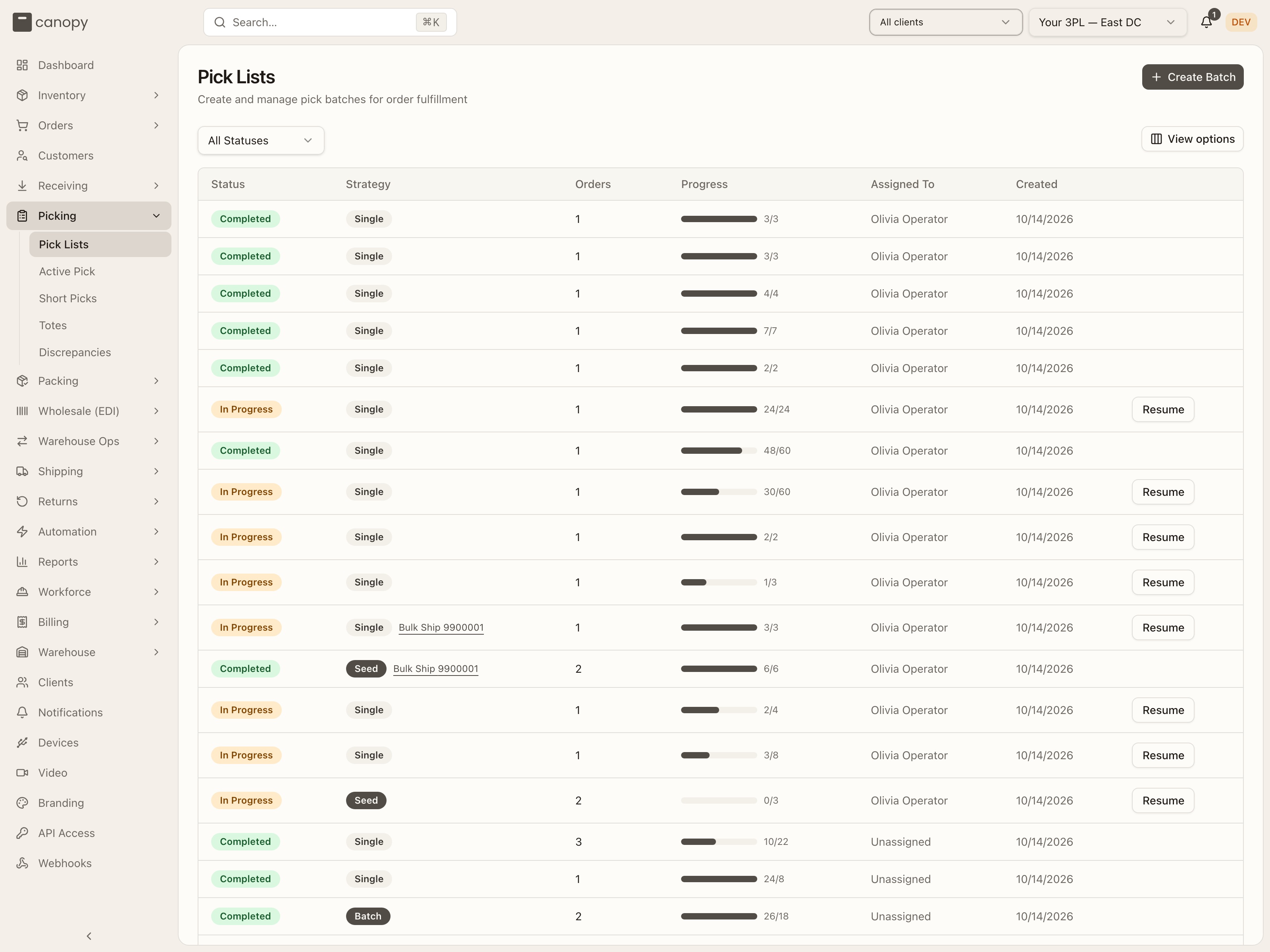
Filter by status (All Statuses / Pending / In Progress / Completed / Cancelled). View options hides or reorders columns, and the footer pages the list ("Showing 1–8 of 8 pick lists", rows per page defaults to 25). With nothing matching, the table reads "No pick lists found". On a phone the table collapses to one card per list with the same status, strategy, progress and action.
Create Batch opens the Create Pick Batch sheet. Pick the Client (Brand); the sheet then heads the count "N orders ready to pick" — with "(M partial)" after it, and on each client's row, when any of them are admitted partials — split by priority (badges like 3 EXPEDITED, 15 STANDARD, 2 RUSH), and notes under it that "Replenish orders need stock moved to picking locations first. Eligible orders can also be fulfilled through Bulk Ship." — a Replenish order has stock only in overstock, so normal picking can't take it. That count also includes backordered orders admitted for partial shipment — they pick what's allocated and backorder the rest — unless the brand's Minimum to split or Wait before splitting holds them whole for now: a held order wears PARTIAL HELD on the orders list and is left out of every count and strategy here. An order that belongs to a live Bulk Ship batch is left out as well: once a batch is sent to picking, its orders are picked only as carts of that batch from Active Pick, never from here.
Choose a Pick Strategy
— Seed Batch (Optimized) groups orders by walkway proximity, Batch Pick (Priority) batches by priority, Single Order builds a one-order list — and, for the two batch strategies, Max Orders in Batch (2 to 50, default 25).
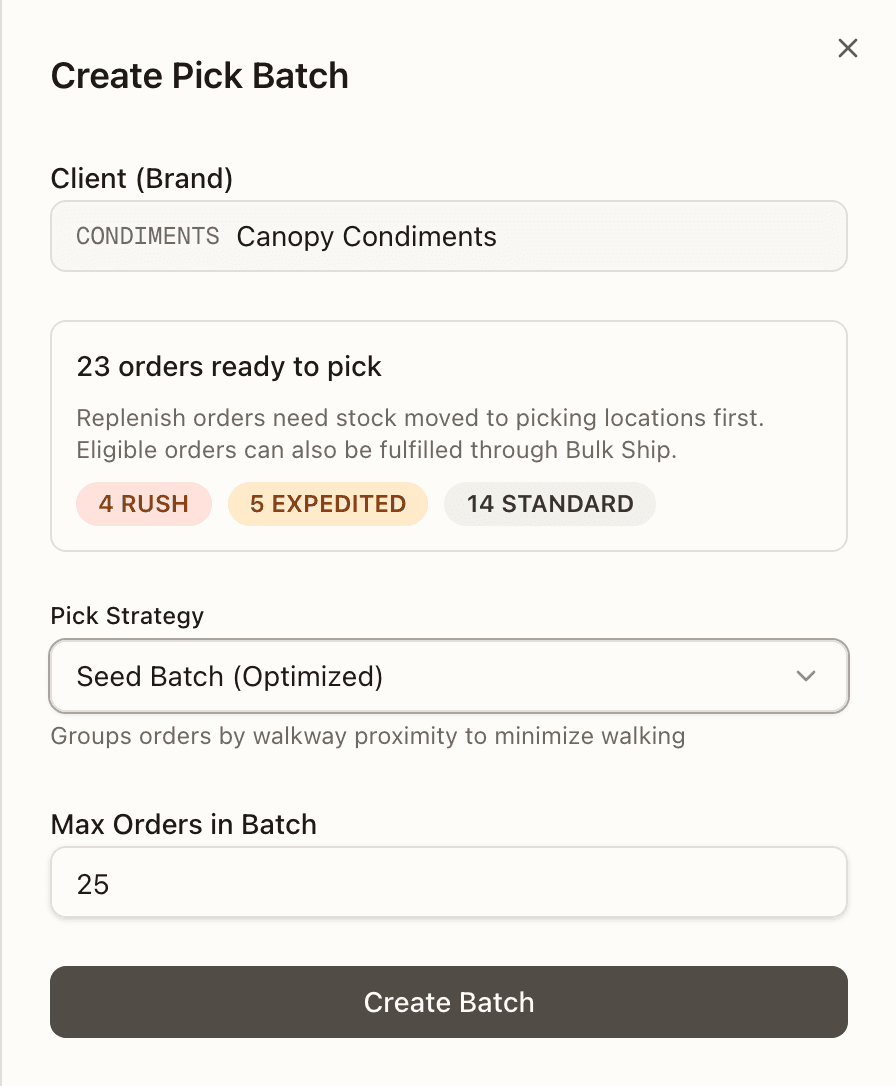
The batch is picked in one warehouse. Normally that's the one pinned in the topbar; if the topbar is on All warehouses and your tenant runs more than one, a Warehouse picker appears inside the sheet ("Which warehouse is this batch picked in?") and Create Batch stays disabled until you answer. The count above follows that warehouse — the one the sheet resolved, or the one you chose here — so on All warehouses it is never a tenant-wide total of orders this batch could not pick. It's also disabled with no client chosen or no allocated orders. On success the sheet reads "Pick list created successfully!" and offers Start Picking (straight into Active Pick) or Close. If a Bulk Ship session claimed the same shelf stock while the batch was being planned, the create fails instead with "Stock was committed to Bulk Ship while planning. Refresh and try again." — the same refusal Start Picking on the tote screen can hit. A backordered order can also be refused at the door: partial shipping turned off since it was chosen, a reship's re-send ships whole, or its reservation grew while the batch was planned ("Order … changed concurrently … — retry").
Click any row for its detail panel — Overview, Orders, Items, and Totes tabs, with progress and the assigned picker. On the Orders tab, an order admitted for partial shipment carries Partial — not on this list: SKU ×qty — the backordered lines that stay off this list and ship in a later cycle.
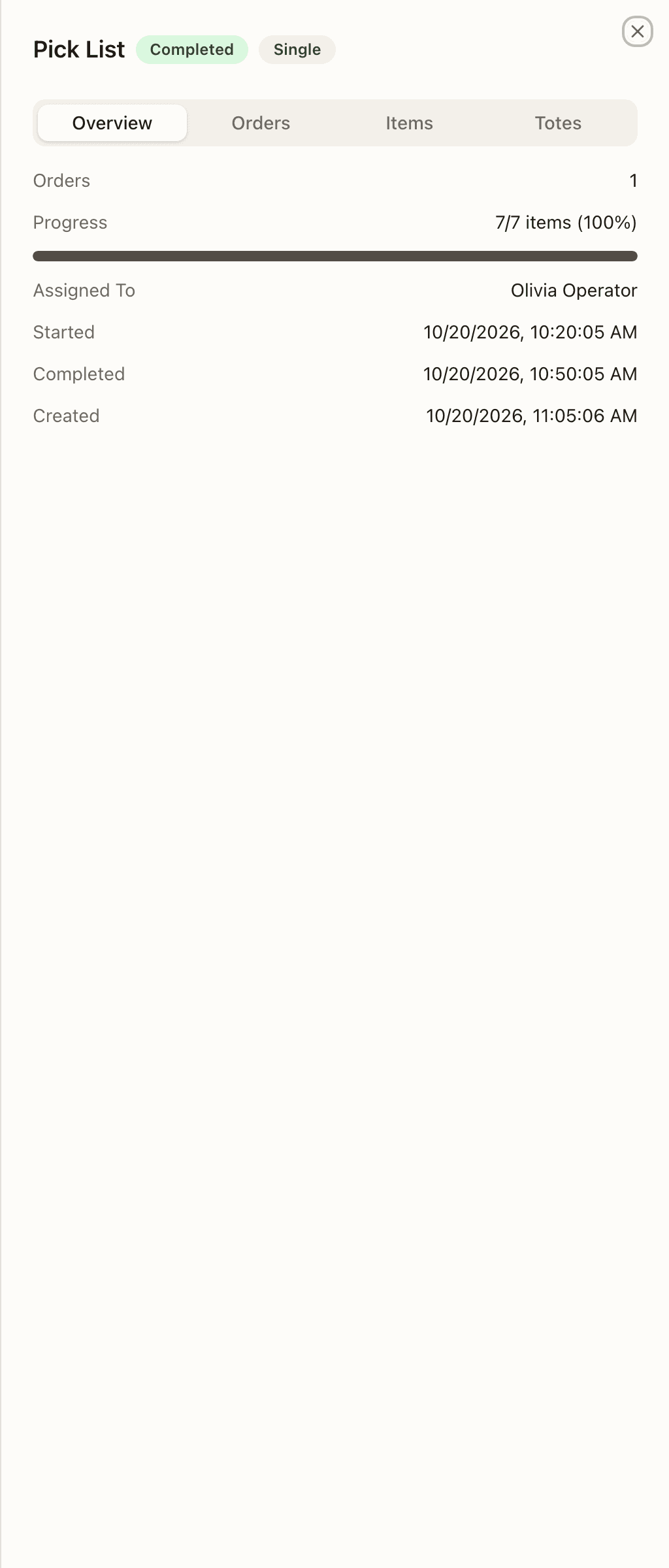
For a Pending or In Progress list, the Overview tab also carries the operator actions: Open Picking / Resume Picking (into Active Pick), Start Picking (Pending only — starts it in place), Complete (In Progress only; disabled while any item is still pending), and Cancel — which asks "Cancel this pick list?" and warns that picked units already in totes will be flagged for put-back. A Completed list (like the one shown) has no actions left.
A wholesale cart behaves a little differently here. It has no Complete button: it closes only from Active Pick, where the picker confirms the drop-off at the order's staging location. Its Totes tab opens with a Tote contents · N totes block listing what each tote holds, and reads "Placement history. These totes were emptied when picking was completed." once the cart is done, or "Placement history for this cancelled pick list." after a cancel.
Cancel also looks through a hold. An order put On Hold while it was on the list is unwound with the rest: its picked units are staged for put-back like the others, and the hold stays on the order, now releasing to the status the unwind left it in (Allocated, Pending, and so on) rather than back to Picking on a list that no longer exists. The order's timeline notes "Pick list cancelled — the order stays on its hold, which now releases to …".
The Items tab shows a per-line status, distinct from the pick-list's own status:
| Item status | Meaning |
|---|---|
| Pending | Not picked yet. |
| Picked | Fully picked. |
| Partial | Some units picked, more to go. |
| Short | Couldn't find enough — the rest was shorted. |
| Skipped | Skipped because the order was marked unfulfillable. |
| Relocated | The demand moved to another bin — or left the list altogether, after a quantity reduction or an external fulfilment. |
Active Pick
Active Pick → /fulfillment/active-pick. The hands-on, scan-guided flow a
picker runs on a scanner or tablet. A stepper across the top tracks four
phases: Setup → Scan Totes → Picking → Complete. The step-by-step, scan by
scan, is in Pick an order; this is
what each phase is for. Two kinds of work arrive here from other pages and
have their own rules: a cart of a Bulk Ship batch
and a wholesale cart.
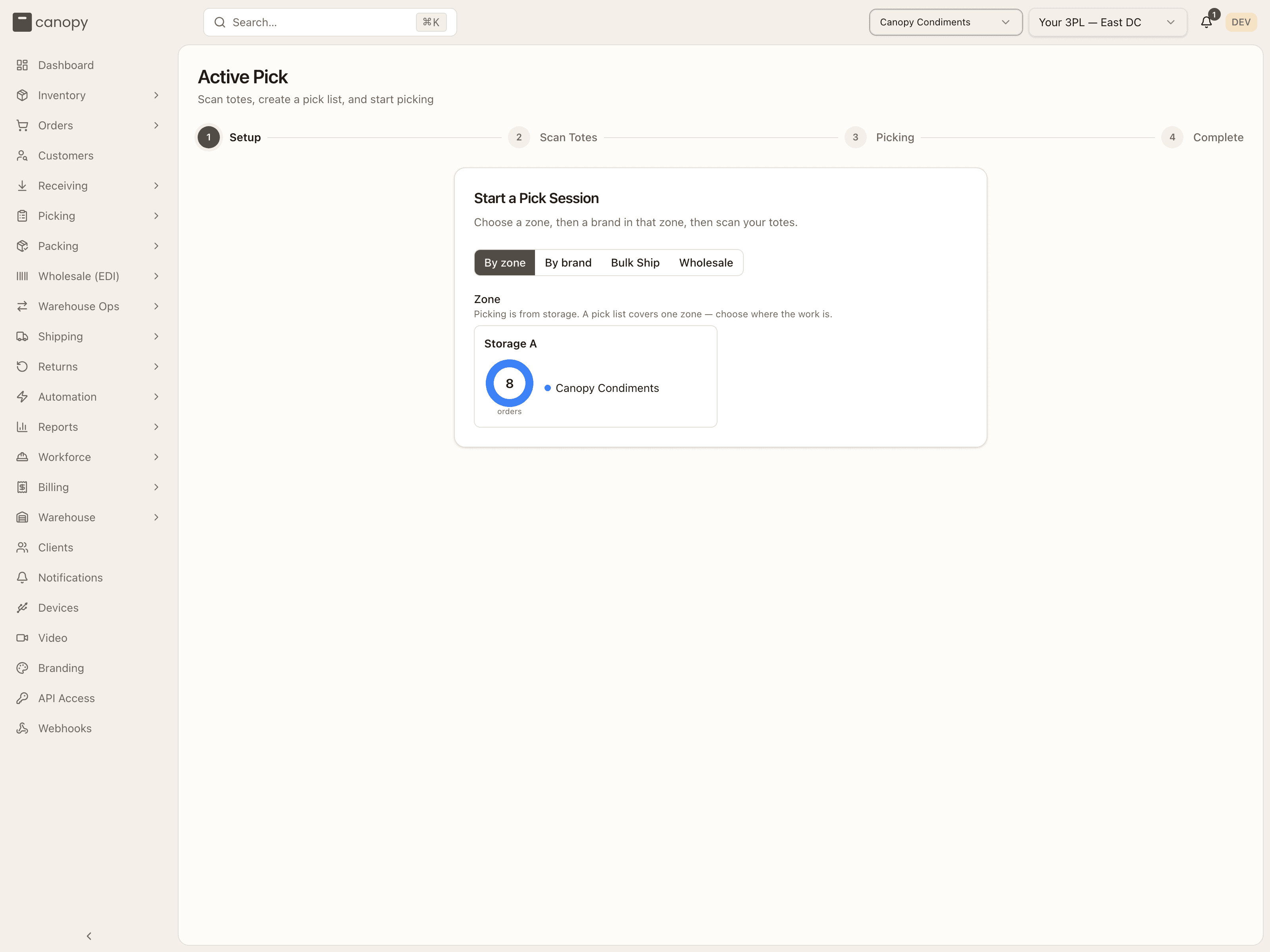
Setup. Picking is physical, so the topbar must be pinned to a specific warehouse first — on All warehouses the card only says "Pick a specific warehouse from the topbar to start a pick session." Then choose the scope:
- By zone (the default) shows one card per storage zone, with a ring of how many allocated orders are waiting there and which brands they belong to. Pick a zone, then a brand under Brand in that zone. A pick list never mixes zones, so the route stays inside the one you chose. A zone with nothing to do reads "No orders to pick"; a brand with nothing pickable in the zone reads "No allocated orders in Storage A for this brand." (or "No allocated orders available for this brand." in By brand) and adds "Replenish orders need stock moved to picking locations first. Eligible orders can also be fulfilled through Bulk Ship."
- By brand is the warehouse-wide flow: pick the Brand / Client and the list draws from every pickable bin, with the available orders split by priority badge (each badge carries its own (n partial) count when it has any). Use it when a brand's stock has ended up across zones.
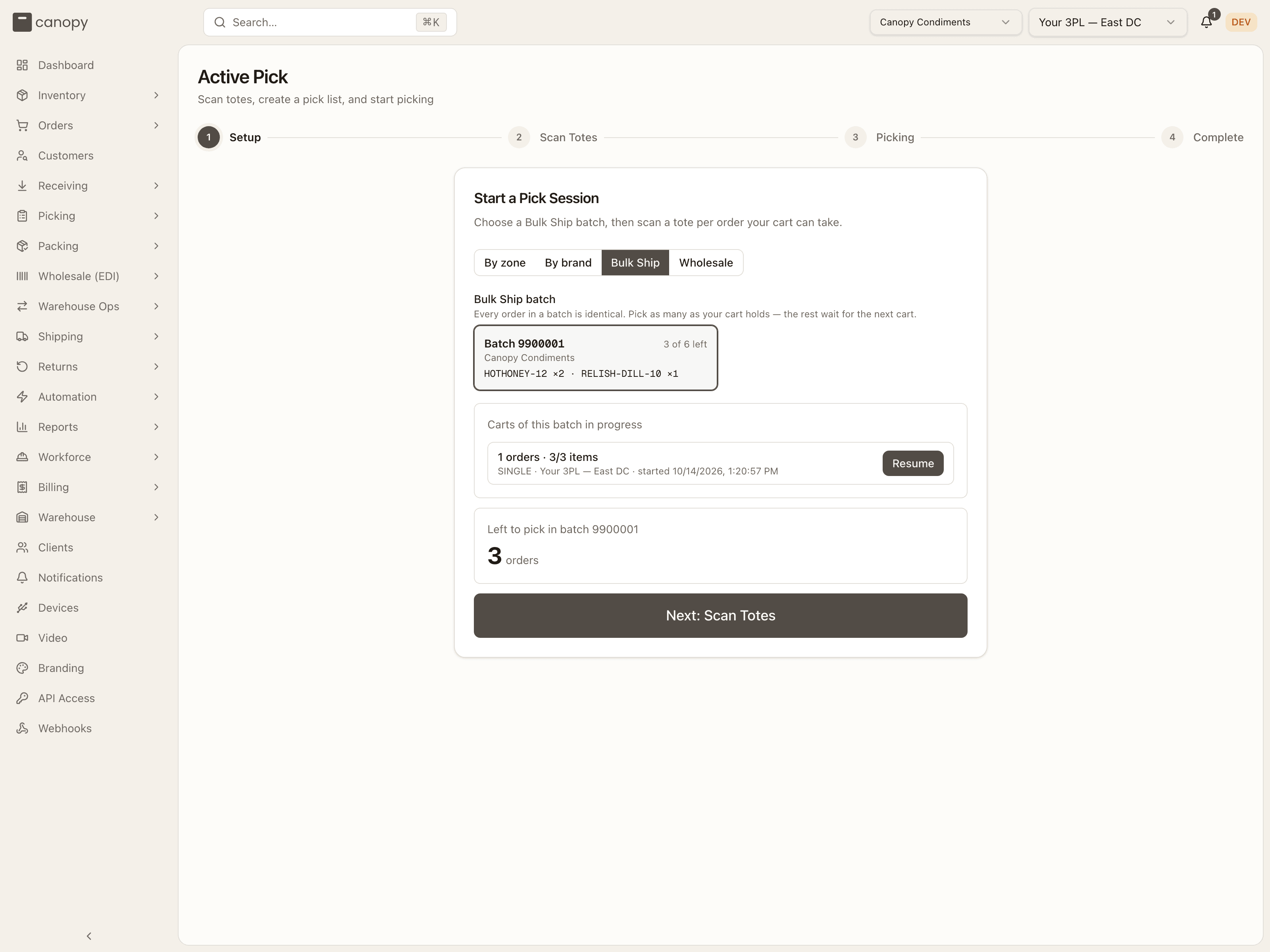
- Bulk Ship (operators only) picks one cart of a Bulk Ship batch that an operator sent to the floor. The card reads "Choose a Bulk Ship batch, then scan a tote per order your cart can take." Under Bulk Ship batch ("Every order in a batch is identical. Pick as many as your cart holds — the rest wait for the next cart.") each batch is a tile: Batch <number>, "N of M left", the brand, and the composition (SKU ×qty · …). Choosing a tile pins its brand. With nothing sent, the card reads "No Bulk Ship batches have been sent to picking in this warehouse." The rules are under Carts of a Bulk Ship batch.
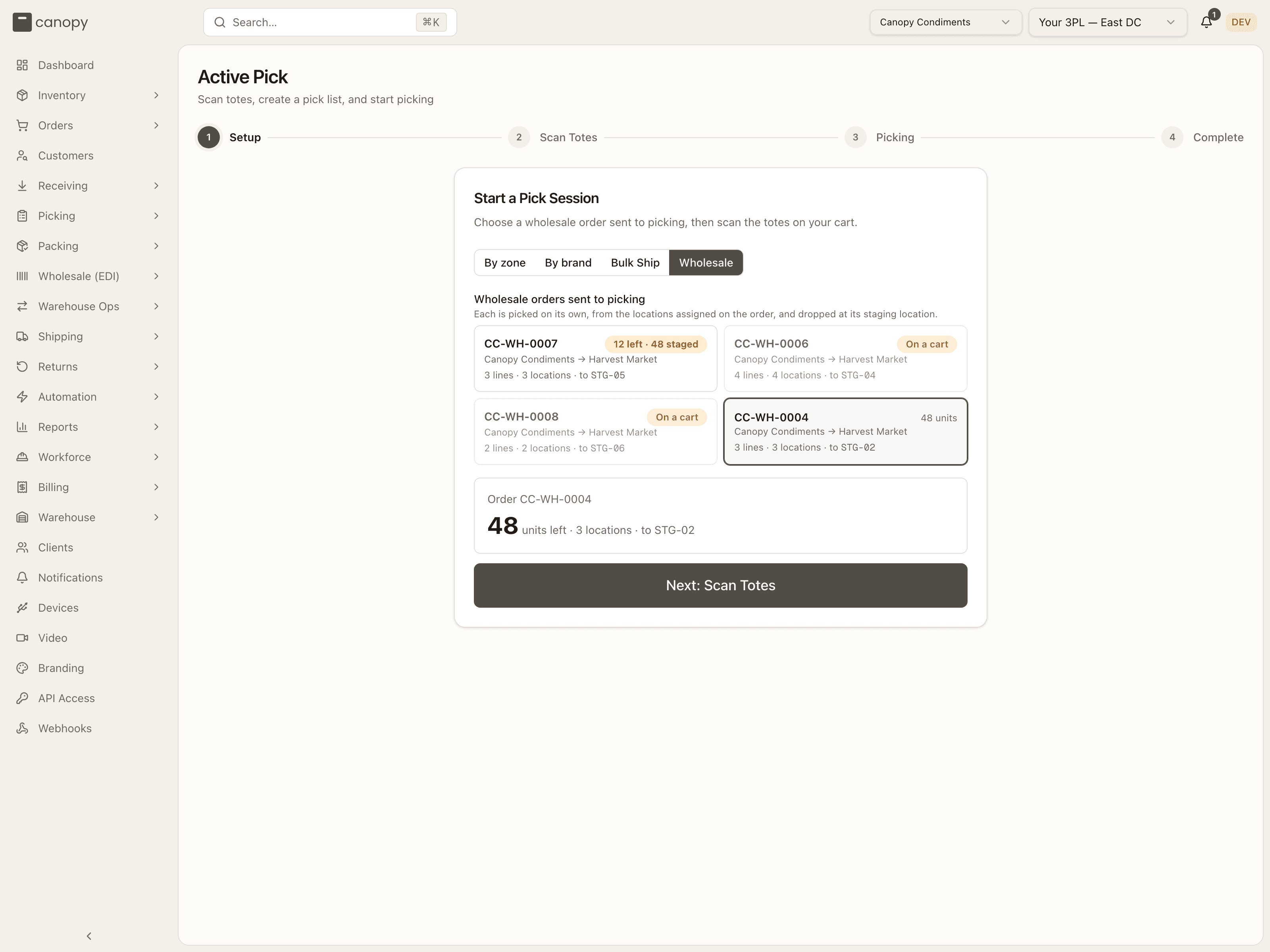
- Wholesale (operators only) picks a wholesale order an operator sent to picking from its order page. The card reads "Choose a wholesale order sent to picking, then scan the totes on your cart." Under Wholesale orders sent to picking ("Each is picked on its own, from the locations assigned on the order, and dropped at its staging location.") each order is a tile: its number; a badge reading On hold · finish this cart, On a cart, "N left · M staged" once a trip has been dropped off, or else the unit count; the brand (→ retailer when known); and "N lines · M locations · to <staging bin>". With nothing sent, "No wholesale orders have been sent to picking in this warehouse." The rules are under Wholesale carts.
Once a brand is chosen, the card shows the count ("Available in Storage A — 6 orders", with "(2 partial)" appended when some of them are backordered orders admitted for partial shipment) and Next: Scan Totes. In the Bulk Ship scope the count is headed "Left to pick in batch <number>" over "N orders"; in the Wholesale scope, "Order <number>" over "N units left · M locations · to <staging bin>". Any Active pick sessions for that brand are listed here too, each with Resume — the list only appears after you've scoped, not before. In the Bulk Ship scope that list is headed Carts of this batch in progress and holds only that batch's carts; in the Wholesale scope the order's own open cart is offered as a Resume this cart button above the tiles instead, and the count card reads "A picker already has this order on a cart — resume it above." A batch whose orders are all on carts reads "Every order in this batch is already on a cart." You don't pick a strategy or hand-pick orders here: the strategy follows from how many totes you scan next (one tote → a single-order pick, more → an optimized Seed batch). Choosing a strategy and a max batch size up front happens only in Pick Lists → Create Batch.
A batch page's Pick in Active Pick button and a sent wholesale order's
Active Pick → Wholesale link land here with the scope and the tile
already chosen (?bulkShipGroupId= / ?wholesaleOrderId=; once a cart is
out, the order's link opens that cart instead). When that batch or order is
not open for picking here, a warning says so: "The batch you came from isn't
open for picking in this warehouse. It may not be sent to picking yet, be
fully carted, or belong to another warehouse or brand." (or, for an order,
"The order you came from isn't open for picking in this warehouse. It may
not be sent to picking yet, be fully picked, or belong to another warehouse
or brand.").
Scan Totes. Register a tote for each order onto the picking cart — a diagram of five layers, five slots each. The count of totes you scan is capped at the orders available, and it sets both the batch size and the strategy. Start Picking is offered as soon as the first tote is on the cart, labelled with the order count. A tote scanned by mistake comes off with the × on its tile ("Tap the × on a tote to remove it.") — the tile itself no longer reacts to a tap.
Each tote is checked the moment you scan it (the button reads Checking…) and once more at Start Picking, so a tote already in use or flagged is refused on the spot ("Tote "…" is currently in use for another order", "… is flagged — use a different tote") rather than at the end. For a cart of a Bulk Ship batch the cap is the batch's orders still waiting for a cart. A wholesale cart has no order cap: scan as many totes as the order needs, up to the cart's 25 slots ("Cart full"); the counter reads "N totes · 1 wholesale order" and the button Start Picking (1 order · N totes). Changing the setup while a start is in flight ends it with "Pick setup changed. Start again."
Picking. The flow walks you bin by bin along the route. At each stop you scan the bin, scan the SKU once per unit, and confirm the tote it went into. If a bin comes up short you reroute the pick or short it, which feeds Short Picks and Discrepancies. A stop that was cancelled under you is refused at the scan: an order cancelled since the list was built shows the "This order was cancelled" notice, and a single line cancelled on an order answers "<SKU> was cancelled on order … — nothing to pick for it. Leave it on the shelf and tell a supervisor." A wholesale cart picks by the case and places into any tote on the cart; its stop reads differently.
The bin scan also records when you reached the bin, and whether you scanned it or entered it by hand (typed it, or pressed Confirm location). Nothing on the screen waits for it. A later scan of the same bin keeps the first time. These arrival times feed Time to bin on Cost to serve.
Complete. Once every line is picked, the closing screen totals the pick, lists any short picks, unfulfillable orders or orders on hold, and Complete Pick List closes the list so its totes can move on to packing — refused while an under-picked line belongs to a reship's re-send, which ships whole or not at all. When billing is switched on for your tenant an Add ad-hoc charge button sits above it, for recording special handling against the brand before you close out. A cart of a Bulk Ship batch closes on a Take this cart to the Bulk Ship bench card instead of going to packing; a wholesale cart closes on Ready for staging and a drop-off confirmation. Both are described below.
Desktop and floor app share one session
The same flow runs in the floor app at /m/pick, on the same
pick list and the same API — start a list on the desktop and resume it on a
phone, or the other way round. The floor app's setup and tote screens are
reshaped for a thumb; the picking and completion screens are the desktop ones,
which already lay out for a narrow screen. The floor app is being extended
to other tasks (see the launcher tiles below), but picking is live today.
A held order on the cart
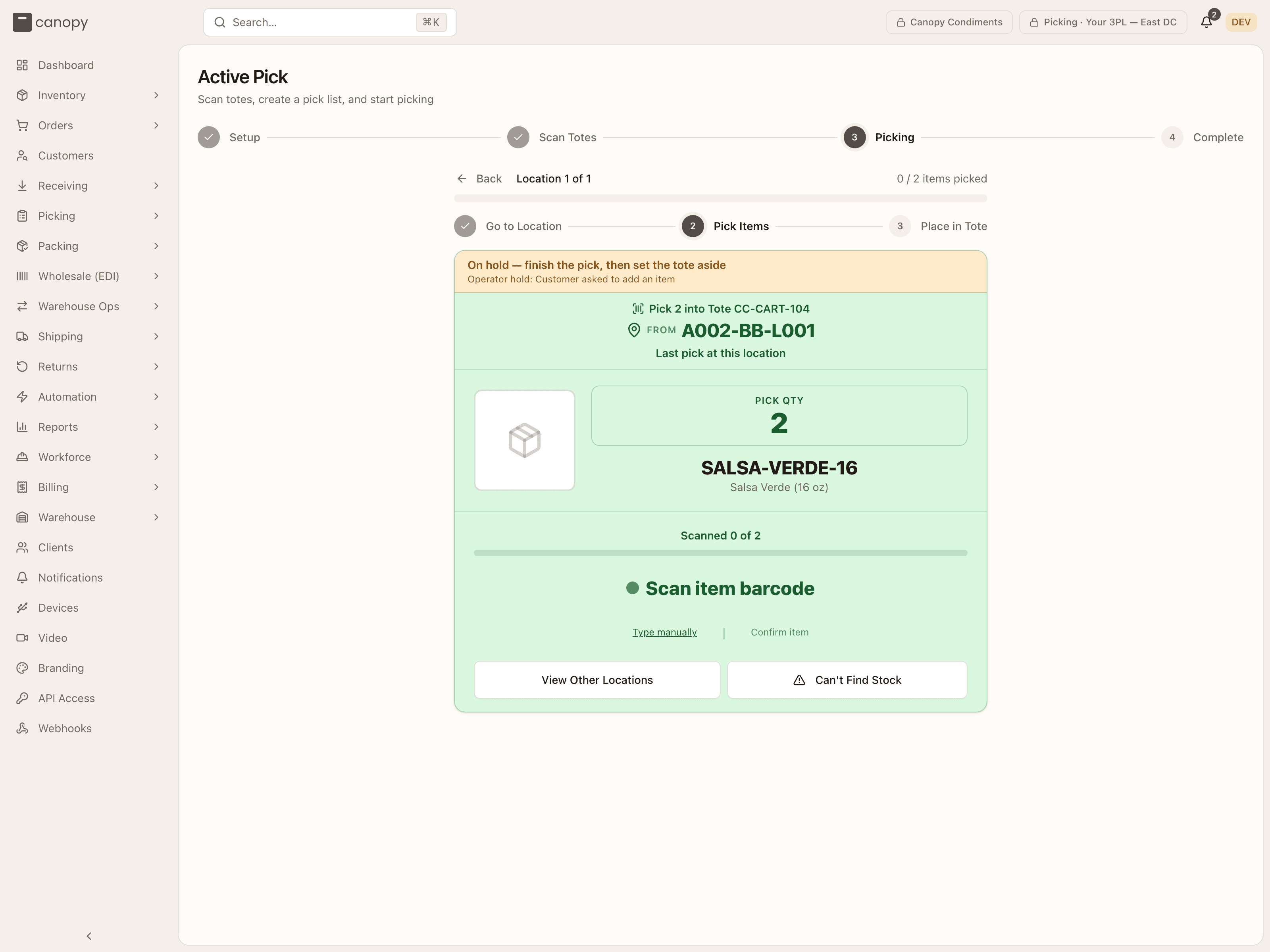
A hold never stops a pick. A hold is a stop put on an order, by a person or by the system. If an order on your cart is on hold, you still pick it. Its pick card carries a yellow strip, On hold — finish the pick, then set the tote aside, and under it each reason the order is held, such as Operator hold: Customer asked to add an item. The strip shows while you pick the order's units and while you confirm its tote. The screen re-reads the list every ten seconds, and each item scan brings back that order's holds, so a hold placed mid-pick shows up within ten seconds, or at your next item scan for that order if that comes first.
The Complete screen then adds a yellow notice under the totals, headed 1 order on hold — set the tote aside (or N orders), with "The pack station turns these totes away until the hold is resolved." Each held order is listed with the kind of hold and a Tote: badge. Complete Pick List works as usual. Put those totes to one side instead of taking them to packing; the pack station refuses them, as Packing describes. The floor app shows the same strip and notice, since it uses these picking and completion screens.
Carts of a Bulk Ship batch
A Bulk Ship batch is normally picked on its own page. An operator can instead press Send to Picking on the batch, which hands it to the floor: its orders go back to Allocated under the batch, and pickers take them from here a cart at a time, one tote per order, as many as the cart holds. Choose Bulk Ship on the setup card, tap the batch tile, scan up to "N of M left" totes, and Start Picking builds a regular pick list of that many of the batch's orders (one tote makes a Single list, more an optimized Seed batch, as usual). From there it is an ordinary list: the same bins, scans and short-pick handling, and on Pick Lists it wears the Bulk Ship <batch number> link.
The server refuses a cart when the batch is not open: "This bulk ship batch is not open for picking" (not sent to the floor), "This bulk ship batch is labeling and takes no more carts — remove the order from the batch to pick it" (its labels are already being bought), "This bulk ship batch belongs to another warehouse", or "Every order in this bulk ship batch is already on a cart". A batch that has moved on to packing still takes a cart for an order that came back to its pool, such as one released from a hold.
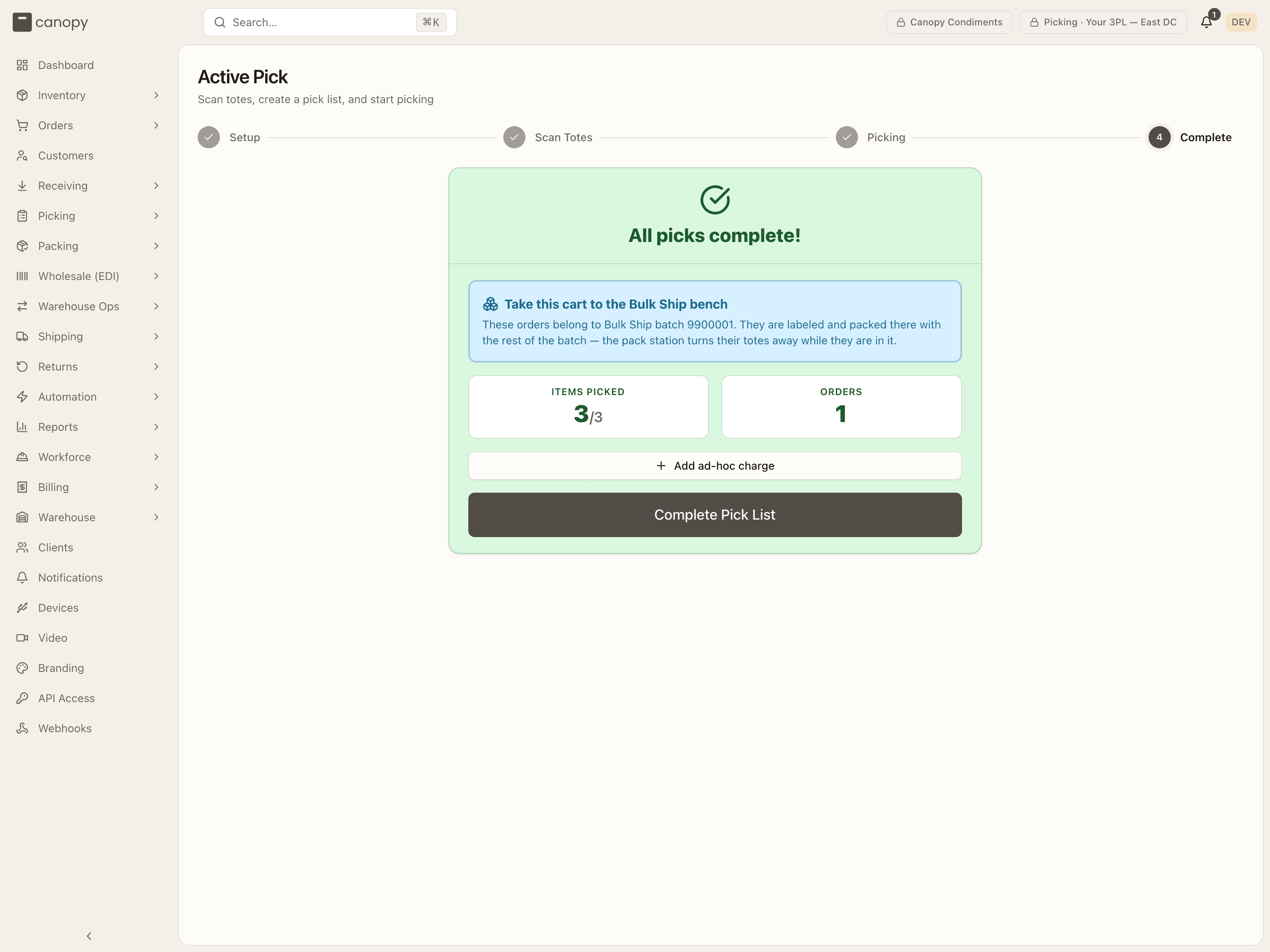
Complete ends on "All picks complete!" with a card: Take this cart to the Bulk Ship bench, "These orders belong to Bulk Ship batch <number>. They are labeled and packed there with the rest of the batch — the pack station turns their totes away while they are in it." The pack station's tote scan refuses such a tote: "This order is in Bulk Ship batch <number> — take the cart to the Bulk Ship bench, or remove the order from the batch to pack it here". If the batch was cancelled, or some of the cart's orders were removed from it, the card names the orders still in the batch and sends the rest to the pack station ("… the others go to the pack station."); an order no longer in any live batch packs like any other. Completing the cart that picked the batch's last order moves the batch on to packing by itself.
Wholesale carts
A wholesale order is picked differently from retail orders: there is one order, its locations were chosen on the order page, the units are counted in the SKU's pack form, and the cart is dropped at a staging location rather than taken to a pack station. The office sends the order to picking from its order page (the Wholesale manual covers that side); from then on it is listed under Wholesale on the setup card until every unit is staged.
The cart is a pick list of its own (Single strategy, one order), and the server refuses one when the order is not ready: "This wholesale order is not open for picking — send it to picking from the order page first", "This wholesale order has no staging location — set one on the order page first", "This wholesale order has no locations assigned — assign them on the order page first", "A picker already has this order on a cart — resume that pick list instead", "Stage the previously picked units before starting another cart", "This wholesale order belongs to another warehouse", or "This wholesale order was just recalled from picking — refresh the queue".
Totes. Scan as many totes as the order needs ("Scan the totes you need for this order. Pick the required quantity, then scan any tote on this cart."). No tote belongs to a particular line: every picked unit can go into any tote on the cart. On a resumed cart the tote screen reads "Add totes for this order. Each picked item can go into any tote on this cart." and "N totes for this order — Scan more totes or continue picking."; a tote cannot be swapped out once picking has started ("Cannot replace cart totes after picking has started").
Picking. Each stop reads "Pick N units, then scan a cart tote", with the count in the SKU's pack form under it, such as "3 cases of 12" or "2 cases of 12 + 4 ea". Scanning the SKU's case barcode records a whole case at once; scanning the unit barcode records one unit. With fewer units left than a case, a case scan is refused: "Fewer than a full case remain. Scan the remaining eaches." You can stop short of the stop's count: Place N picked units in tote moves you to the tote step with what you have. The tote step reads "Scan any tote on your cart" and "Place N units in a tote, then scan its barcode."; the tote must be one you registered ("Tote "…" is not on this cart. Scan one of your registered totes."), and there is no Confirm tote without a scan. Type manually opens a "Type cart tote barcode..." field. A placement is refused when the cart changed under you ("These units were already placed in another tote. Refresh the cart.", "This tote is no longer on the cart. Refresh and scan a registered tote."). The next stop is refused until the picked units are placed: "Scan a cart tote for the picked items before picking more". View Other Locations and Mark Entire Order Unfulfillable are not offered: the order's locations were set on the order page, so a stop that comes up short is marked short with Can't Find Stock and the office re-plans it ("This is a wholesale order — its locations are set on the order page. Mark the stop short and the office will re-plan it."). A wholesale short never appears in Short Picks; it goes back to the order's plan when the cart is dropped off.
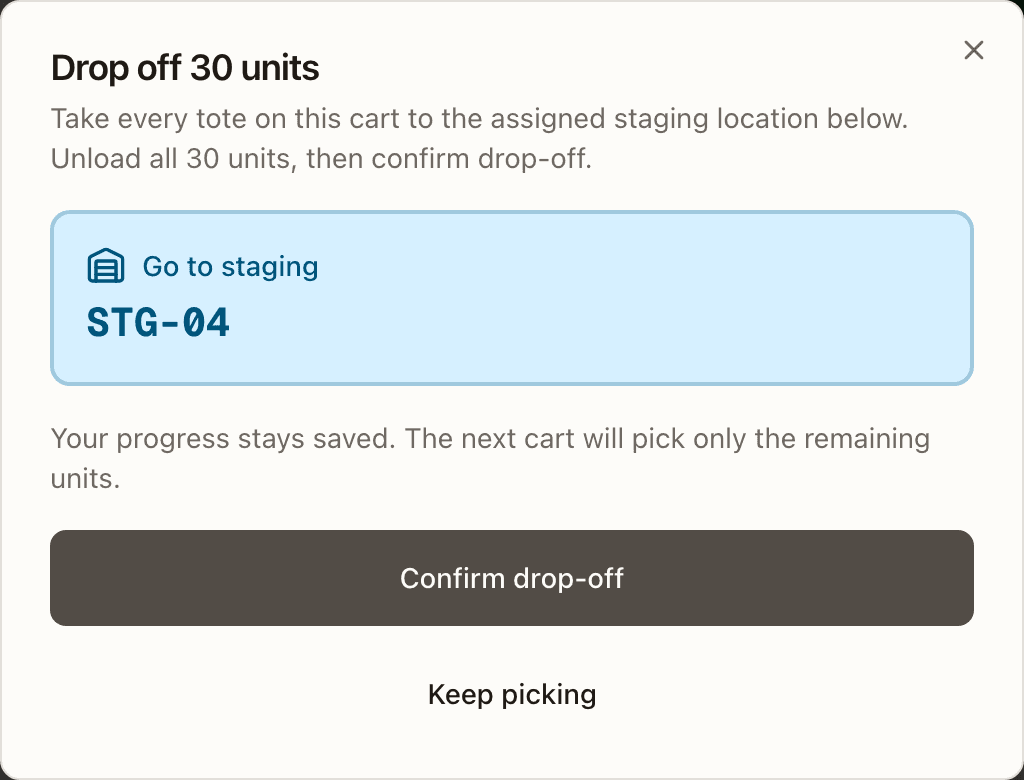
A Tote contents · N totes block under the stop lists what each tote holds so far ("All totes belong to this wholesale order. Packing boxes are assigned after staging.") and counts units "awaiting a tote scan". Above the progress bar sit two buttons. Save and exit leaves the cart as it is ("Progress saved. Resume this order to continue with the same cart."); it is offered again as Resume this cart on the setup card. Drop off cart ends the trip early. Its dialog, Drop off N units, says "Take every tote on this cart to the assigned staging location below. Unload all N units, then confirm drop-off.", names the bin under Go to staging, and adds "Your progress stays saved. The next cart will pick only the remaining units." Confirm drop-off stages the units (toast "N units staged in <bin>. M left to pick.", or "… need office resolution." when a stop was shorted), releases the totes, and returns you to the Wholesale queue; Keep picking closes the dialog. The button is disabled until something is picked ("Pick an item before dropping off") and while picked units are not yet in a tote ("Scan a tote for the picked items first"), and reads Saving drop-off… while the drop-off saves. A drop-off is refused once the order was cancelled or recalled under the cart: "This order is no longer open for floor picking". If another device changed the cart since the dialog opened, confirming answers "The cart quantity changed. Refresh and confirm its contents before dropping off".
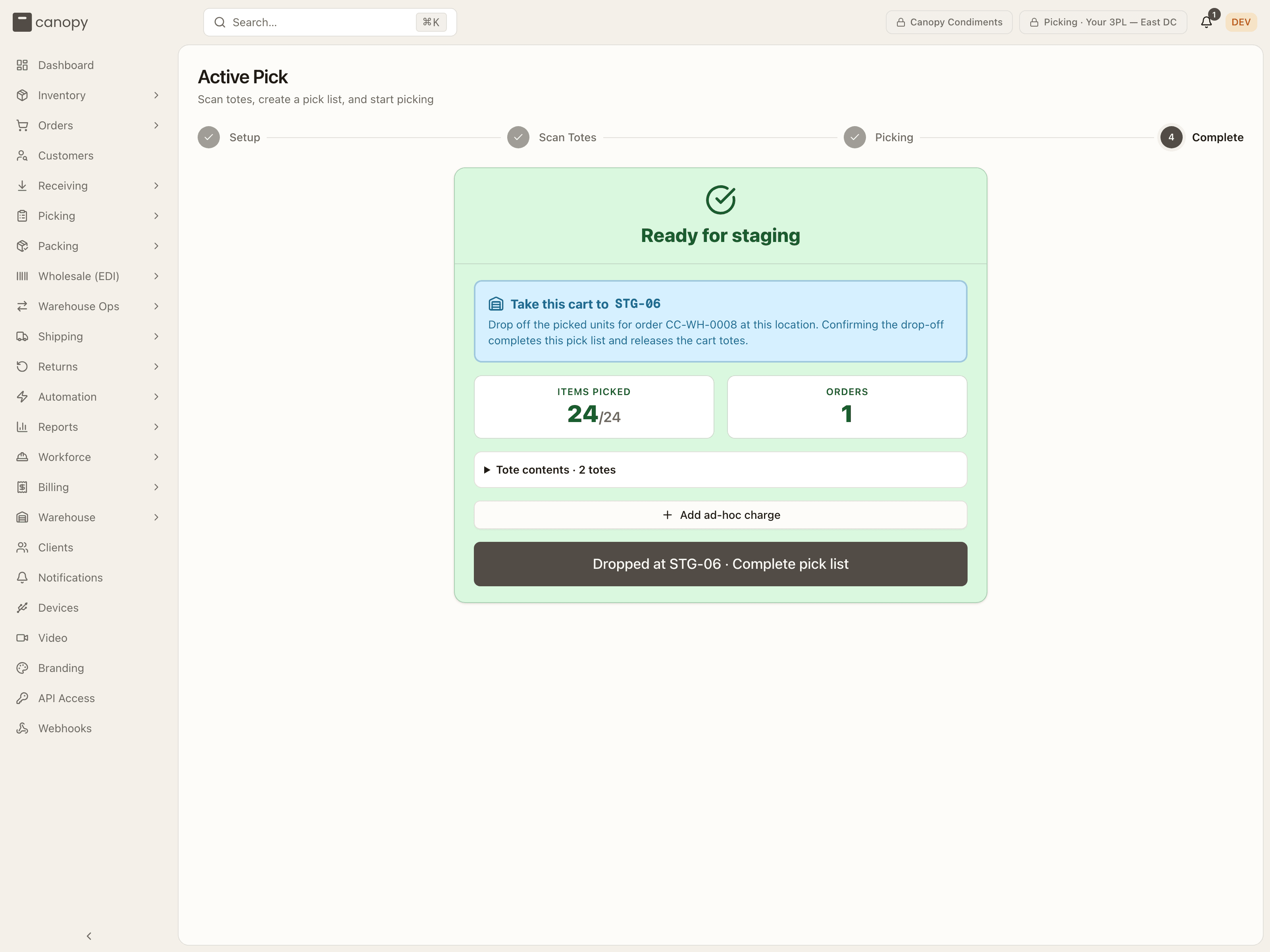
Complete. When the last stop is placed, the closing screen reads Ready for staging with a card "Take this cart to <bin>" and "Drop off the picked units for order … at this location. Confirming the drop-off completes this pick list and releases the cart totes." The button reads Dropped at <bin> · Complete pick list. It is the same staging confirmation as the dialog, and the server refuses a completion without it ("Confirm that this cart was unloaded at its assigned staging location before completing the pick list"). If the staging bin cannot be read the button is disabled and the screen says "Staging location unavailable. Refresh this pick list." Afterwards the screen reads Cart dropped off and "This trip delivered N units to <bin>." (adding "Return to Wholesale to see the remaining work." when units remain), and Back to picking returns to the queue. The order leaves the queue once every unit is staged, or when a shorted stop needs the office. In the floor app this last step is headed Drop at staging and has no way back until the drop-off is confirmed.
On hold, cancelled. A hold placed on the order while the cart is out does not stop the trip: the queue tile reads On hold · finish this cart, the cart finishes and drops off, and packing waits for the release. Cancel on the cart's pick list (from Pick Lists) stages its picked units for put-back from the totes they were placed in, flags those totes "Pick list cancelled — items require put-back", leaves earlier trips staged, and puts the order back in the queue.
Floor App
Floor app → /m. A separate, mobile-first tree for people working the
warehouse floor, meant to be installed to a tablet or phone home screen (it
installs as "Canopy Floor"). It isn't a re-skin of the desktop pages — it's its
own set of screens, sized for a thumb, that talks to the same APIs. Warehouse
staff only; a client user who opens it is told "The floor app is available to
warehouse staff only."
/m itself is the launcher — a grid of floor tasks:
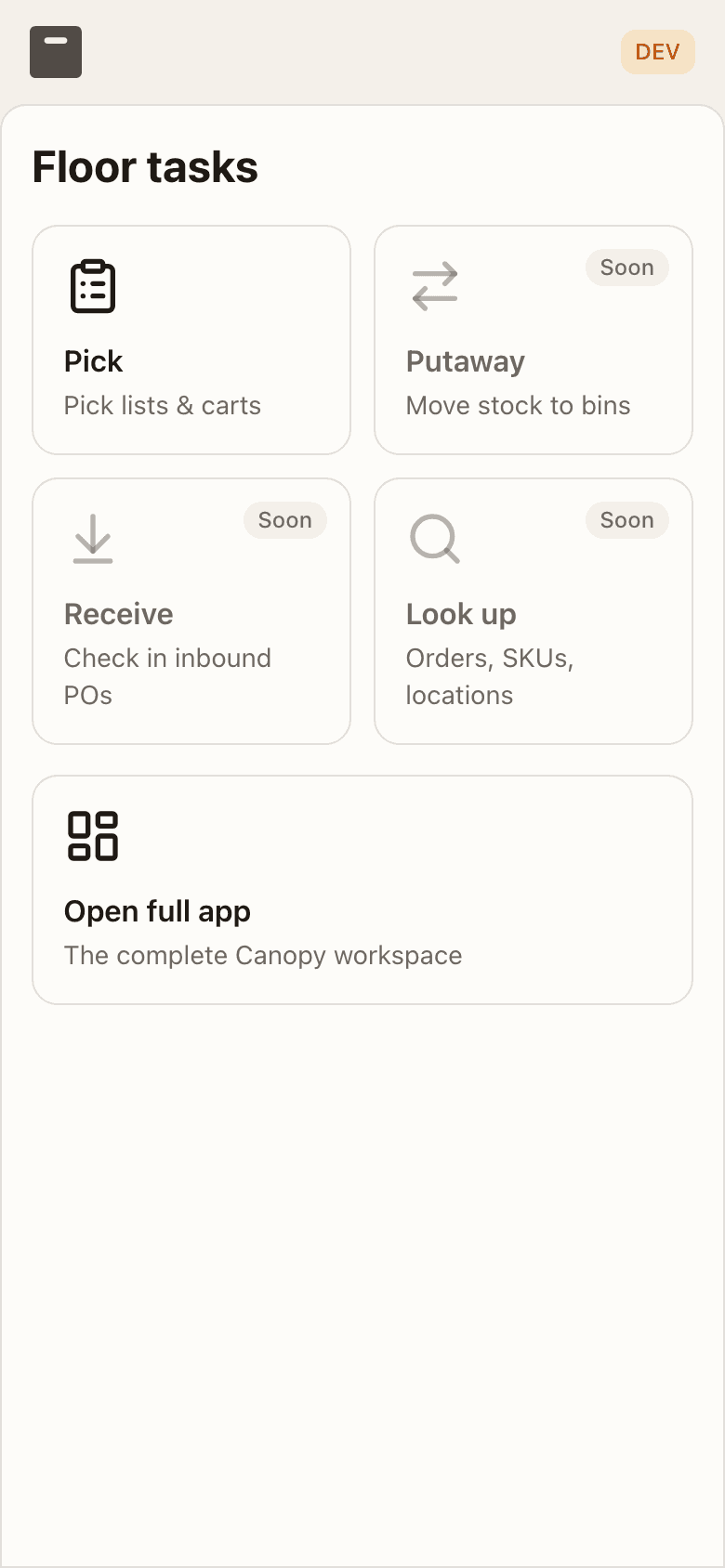
| Tile | Status |
|---|---|
| Pick — pick lists & carts | Live. |
| Putaway — move stock to bins | Not in the app yet. |
| Receive — check in inbound POs | Not in the app yet. |
| Look up — orders, SKUs, locations | Not in the app yet. |
Open full app below the grid is the escape hatch to the complete desktop
workspace; it stays inside the installed window, and relaunching the app comes
back here. In the other direction, the desktop sidebar grows a Floor app link
back to /m — but only inside the installed app, where there's no browser back
button to rely on.
Tiles narrow to your task role
A task role (Receiving, Putaway, Picking, Packing) is subtractive: it removes modules from an operator, never adds any. The launcher applies the same grant list as the desktop sidebar, so a restricted operator only sees tiles for flows their role can actually reach — and deep-linking into another role's flow bounces back to the launcher. Today only Picking has a flow in the app; the other three roles land on the launcher reading "Your floor task isn't in the app yet — use the full app for now." Unrestricted staff see all four tiles.
Guided pick
/m/pick is the floor app's version of Active Pick. It is
the same session, not a parallel one — the same pick list, the same phases, the
same API — so a list started on the desktop can be resumed here and vice versa. A
four-step header (Set up → Scan totes → Pick → Done) tracks progress and
always offers a way out: back to Set up from the tote screen in a fresh flow,
otherwise back to the launcher (Leave pick while picking — the list stays
In Progress and is offered again under resumable sessions).
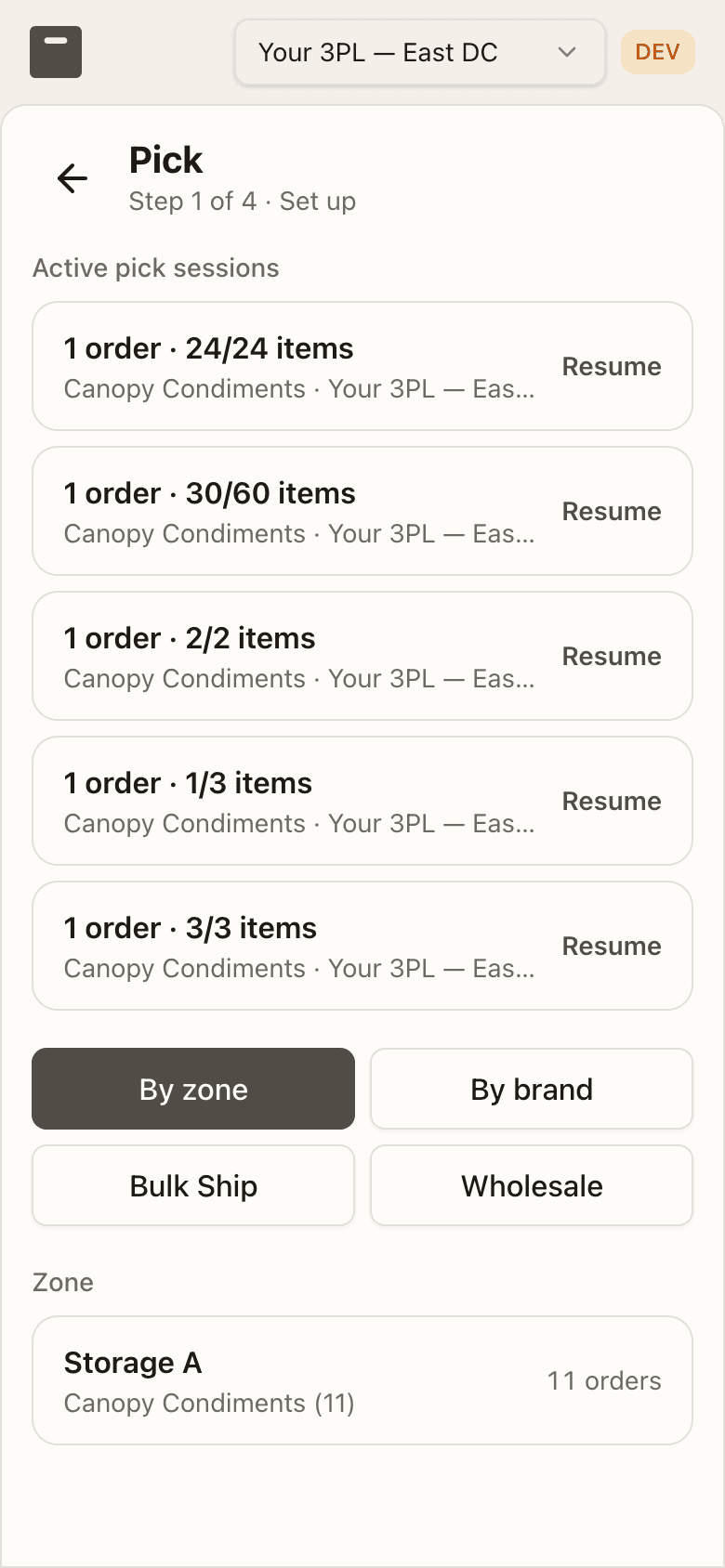
Setup asks the same questions as the desktop — resume an in-progress session (listed first, under Active pick sessions: a picker back from a break wants their cart before a new one), or start a fresh one By zone (zone row, then a brand row under Brand in that zone), By brand, Bulk Ship (a batch row under Bulk Ship batch, "N of M left" on the right) or Wholesale (an order row under Wholesale orders sent to picking, with the same badges as the desktop tiles). The counts, the (n partial) suffix and the Replenish note on an empty brand are the desktop screen's, as are the empty states ("No Bulk Ship batches have been sent to picking in this warehouse.", "No wholesale orders have been sent to picking in this warehouse."); the lists read "Loading batches…" / "Loading orders…" while they fetch. Three things differ from the desktop screen:
- The warehouse isn't chosen in the flow. Picking is physical, so the session reads whichever warehouse the app's switcher is pinned to. With "All warehouses" — or none — selected, the screen shows a Choose a warehouse prompt with the switcher inline instead of starting.
- A brand pinned in the full app follows you here. There's no topbar on this shell to show it, so the setup screen says so — "Showing Canopy Condiments only" — with a Show all brands button that unpins it and brings every brand's zones and carts back.
- Totes place themselves on the cart. The desktop screen has you pick a slot
on a cart diagram; here the tote is already in your hand, so it goes in the
first layer with room, at the first position it fits (a wide
2W…tote takes neighbouring slots). The layer and position still travel to the server the same way, so the cart diagram during picking highlights the right tote either way. The tote screen lists Totes on cart and offers Start picking · N orders from the first tote. Each scan is checked at once ("Checking tote availability…"). A wholesale cart's tote screen counts "N totes · 1 wholesale order", hints "Tote N" with no cap but the cart's slots ("Cart full"), and offers Start picking · 1 order · N totes; its last step is headed Drop at staging and keeps you there until the drop-off is confirmed.
Short Picks
Short Picks → /fulfillment/short-picks. When a line can't be fully picked,
its order is held in picking and lands here. The page groups rows by order:
each group's header carries the order number, its Tote barcode, how many
short lines it has, and the whole-order action Abandon & re-queue order.
Under it, one row per short line shows the item, the shorted bin and lot, the
Need / Got / Short counts, the reason, what's still Available
(pickable, reserve, and any units in sealed packs), and the Resolve
actions.
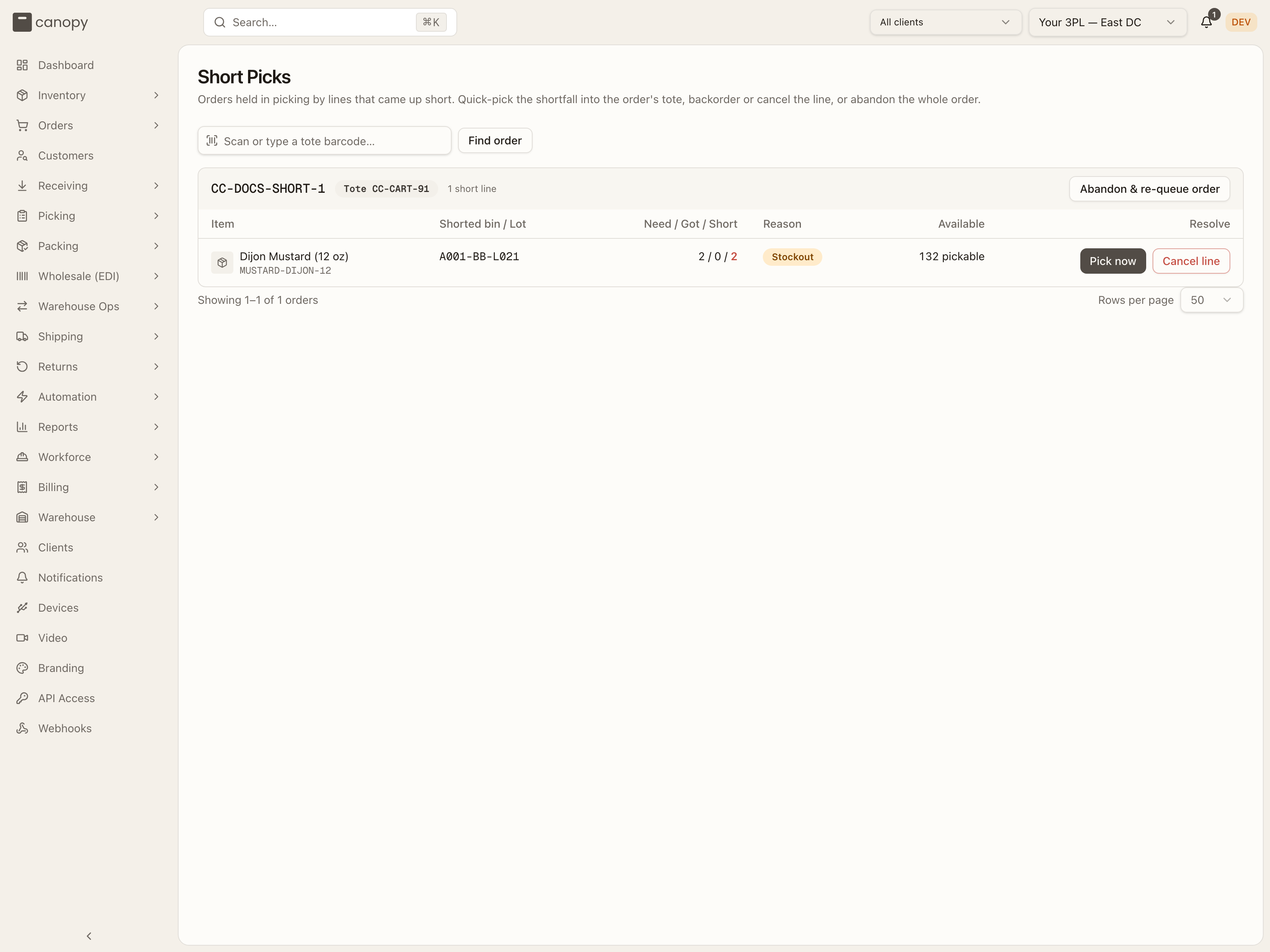
The tote on the put-aside shelf is the physical handle for the order: scan it into Scan or type a tote barcode… and press Find order to jump straight to that order's lines (Clear filter brings the queue back). A packer who declares a short at the Pack Station arrives here filtered to their order, with Show all short picks as the way back. When nothing's outstanding, the page reads "No open short picks. 🎉".
Most reasons come from the pick side — Stockout, Lot recalled, List cancelled, Lot moved. Two come from the bench: Lost at pack and Damaged at pack, written when a packer declares a short at the Pack Station. A stop shorted on a wholesale cart never lands here: it returns to the order's pick plan when the cart is dropped off, and the office resolves it on the order page (the API answers "Resolve this wholesale short on the order page after completing its pick list.").
Pick now is the primary resolution: it opens an inline bin picker under the row, and Confirm pick records the shortfall as picked from that bin straight into the order's existing tote — a toast tells you what to grab and which tote to drop it in. It's disabled while no bin has enough pickable stock. The alternatives are Backorder, Cancel line, and — on the group header — Abandon & re-queue order, which returns any picked units to stock as a put-back task and sends the whole order back to pending to be picked fresh once stock is right. The tote is flagged — "Order abandoned from its pick — items require put-back" — while anything picked is staged for put-back, and released only when nothing was. Abandon is refused while the order has an open pack session, on a cancelled list, when the order has since been put on a newer list, and on an order merged into another.
Backorder is offered plainly when nothing on the order is picked yet —
resting the line strands nothing — but never on a reship's re-send (it ships
whole; the refusal says how to stop it — cancel the reship while it is
open, cancel the order once the repick is committed, and on a master that
leads a merge the re-send can't be stopped), and on an order that may split
it pins partial shipping on the order. Cancel line isn't offered on a
line merged in from another order — the row wears from CC-… under the SKU
and says "Merged in from CC-… — it can't be cancelled on this order. Pick
the shortfall now, or abandon & re-queue the order." — and is refused on a
re-send; on an order that already shipped a parcel it lowers the line to what
shipped rather than cancelling it, and can close the order as Fulfilled. On a
kit component it is never a line on its own — the server refuses
CANCEL_LINE there — so the row offers Cancel kit, which takes the parent
and every component: "A kit can't ship without this component — cancels the
whole kit, and its components' picked units go back".
Every refusal that names a way out names only what the line can take: a
quick-pick that would strand a backordered line merged in from another order
says Abandon & re-queue the whole order — the backordered line was merged in
from another order and can't be cancelled on this one, and a backorder that
would strand picked units on such a line says Pick the shortfall now, or
abandon & re-queue the whole order — a line merged in from another order
can't be cancelled on this one.
Once the order does have picked units it becomes conditional, and reads "Backorder — ship the rest now" only when all three hold:
- the brand allows splitting, so what's picked can go out now and this line follow in a later parcel;
- this line has no picked units of its own — those belong to the pack station's split, not to a backorder;
- the line isn't a kit component — a kit can't half-ship.
If any of the three fails, backordering would strand picked units, so the button isn't offered at all.
A row with recalled units still in its tote hides Backorder too, whatever the order looks like: it shows "N recalled units still in tote" with an Extract button instead. Extract stages those units for quarantine put-back and is the mandatory first step — Pick now is disabled until it's done, since picking more of the same SKU into that tote would make the recalled units impossible to tell apart.
Rows locked to a live pack session
A row declared at the pack station is disabled while its session is still open: "This short was declared at the pack station and its pack session is still open — complete the pack (partial ship) or cancel the session first." Resolving it here would stage or cancel units that are already in a box, possibly a labeled one. Once the split settles, the row retires on its own; if you catch one afterwards it reads "This short was settled by a partial shipment — the remainder re-allocates on its own cycle."
Totes
Totes → /fulfillment/totes. Every tote in the warehouse and its current
state: Available, In Use (carrying a picked order), or Flagged.
Columns are Name, Barcode, Status, Warehouse, Order, Flag
Reason and Updated — all sortable — and an un-named tote shows its barcode
as its name.
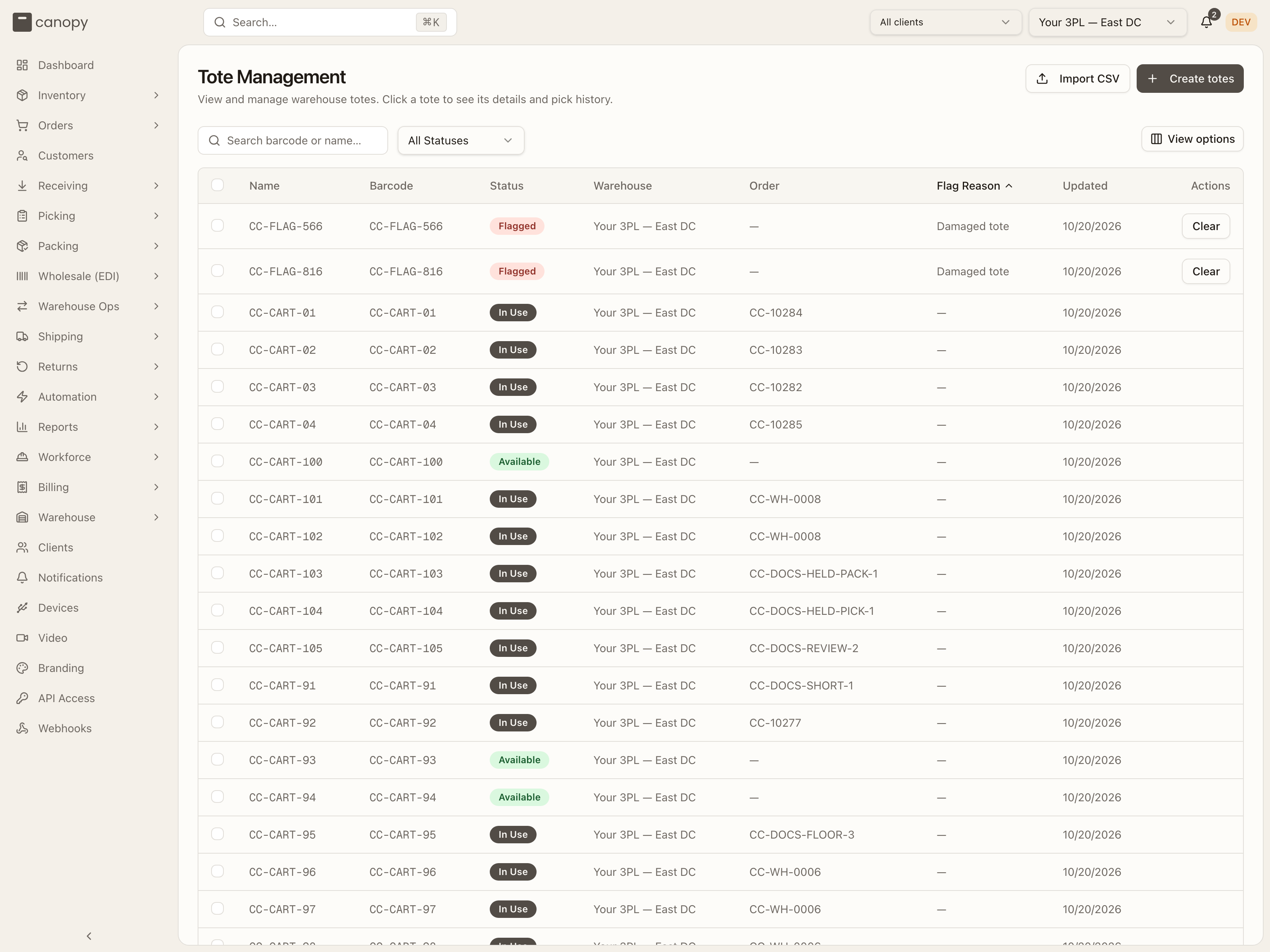
Search by barcode or name, filter by status, hide columns with View options, and page through the footer. Tick totes and a Print N labels button appears (a bar above the table offers to select every matching tote across pages). Two header actions create totes:
- Create totes mass-creates a numbered run: pick the Warehouse, a
Prefix (TOTE, BLACK, YELLOW, RED, GREEN or BLUE), a Start number and
How many. Barcodes are always three digits wide (
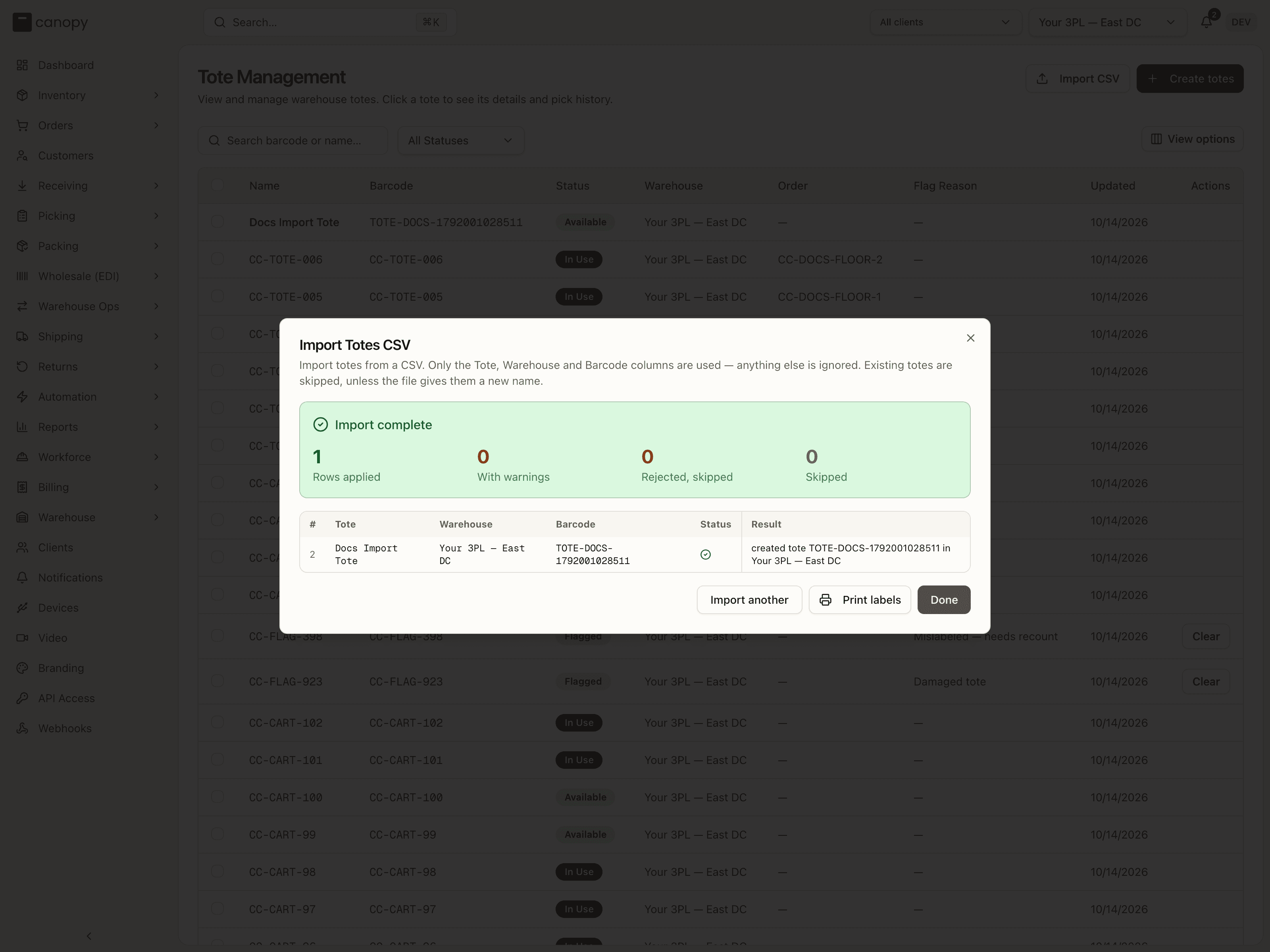
TOTE-001, neverTOTE-1), the dialog previews the run, and any barcode that already exists is skipped. - Import CSV opens Import Totes CSV, which loads totes from a file. It takes Tote (display name), Warehouse (name) and Barcode columns; anything else is ignored. It runs on the import dialog every CSV import in Canopy shares: drop a file, read each row's verdict, then import. A row creates a tote, renames a tote the file gives a new name, or skips a barcode that already exists or appears twice in the file.
Clear appears on a Flagged tote's row. The most common flag is a cancelled pick list whose picked items are still in the tote; an order abandoned from its pick ("Order abandoned from its pick — items require put-back"), an open put-back that names the tote, an unpicked or cancelled order, and an externally-fulfilled one are the others.
Clearing it moves the items to the put-back staging bin and frees the tote for reuse; the confirmation says exactly that.
Print labels after an import
When a tote import creates new totes, its last step adds Print labels beside Import another and Done. It prints labels for exactly the totes that file created, so you can stick them on before the totes go out.
Tote detail
Click any row to open the tote's own page.
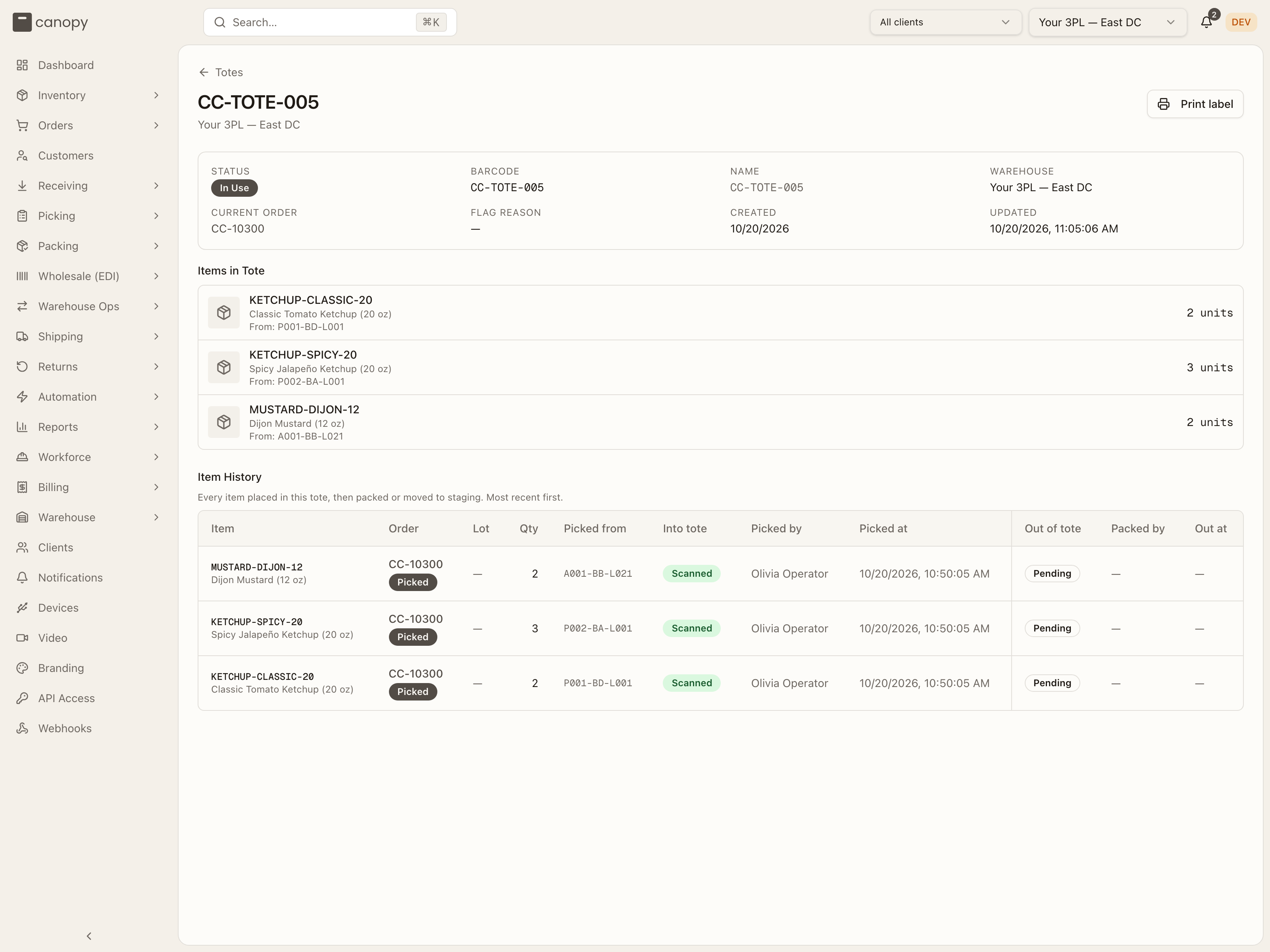
The header offers Print label and — on a flagged tote — Clear tote, with a warning banner ("Clearing this tote will move N item(s) to the put-back staging bin and release the tote for reuse.") carrying the same Clear Tote button. Below it a summary shows Status, Barcode, Name, Warehouse, the Current order (a link into Orders), Flag reason, Created and Updated. Items in Tote lists what's physically in it now — SKU, name, the bin it came from, and units. Item History is the tote's ledger ("Every item placed in this tote, then packed or moved to staging. Most recent first."), one row per item: the order and its status, lot, quantity, the bin it was Picked from (with a reloc mark if the pick was relocated), whether it went Into tote by scan or by hand (Scanned, Manual, or Pending while unconfirmed), who picked it and when, and the same for Out of tote at the pack bench, with Packed by and Out at — a pack session that was cancelled leaves no out row. Units placed from a wholesale cart get one row per placement, and their Out of tote cell reads On cart while the trip is out, Staged once the cart was dropped off (with the drop-off time under Out at), or Cancelled when the cart's pick list was cancelled.
Discrepancies
Discrepancies → /fulfillment/discrepancies. Stock gaps reported during
picking and cycle counts. Each row shows the Bin, its Warehouse (labels
are only unique per warehouse, and the list spans them all when your session
isn't pinned to one), the SKU, Expected vs Found quantity, the
signed Difference, the Source (Picking or Cycle Count), who
Reported it, the Date, and whether it's Open or Resolved. Every
column sorts.
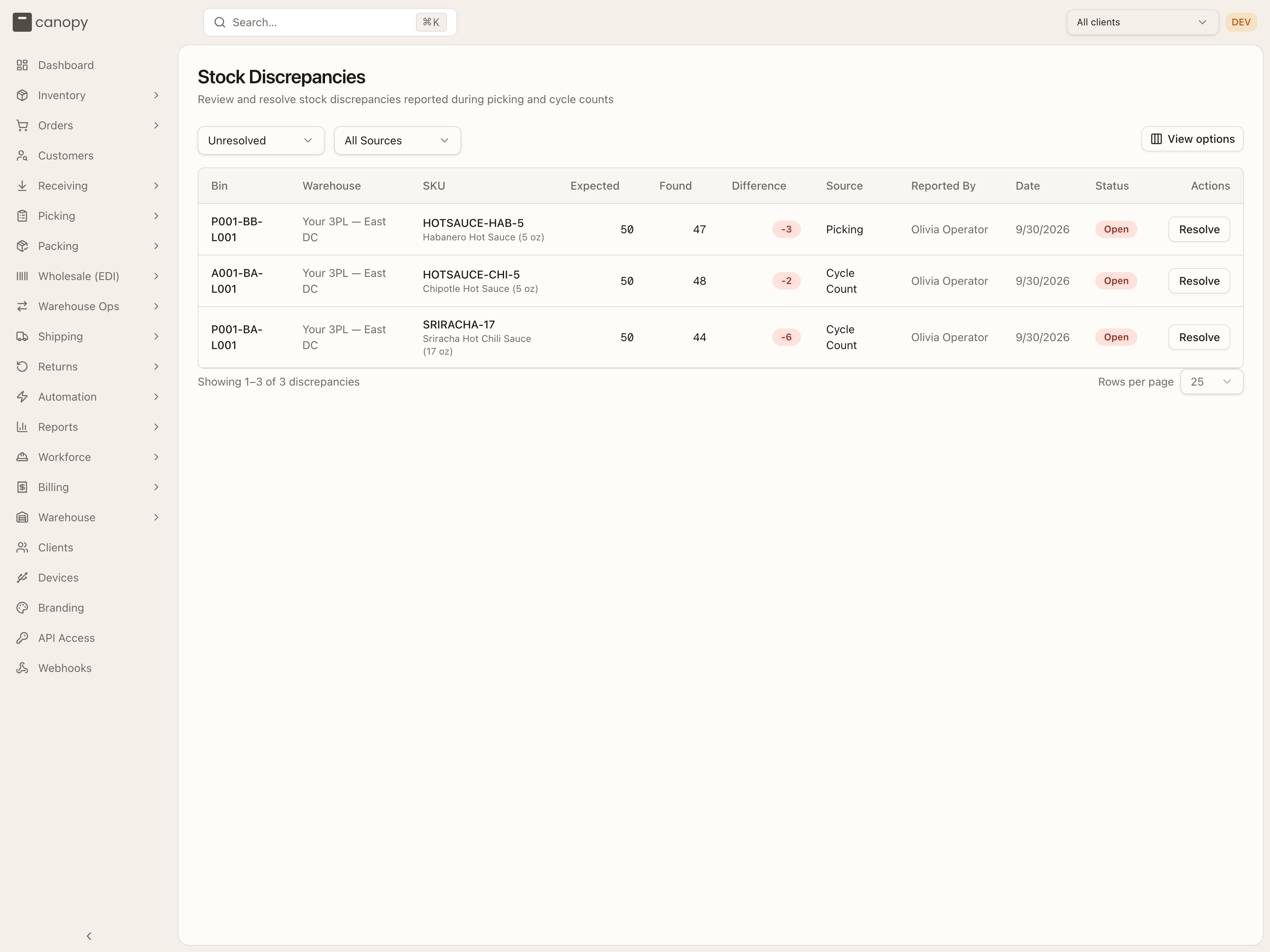
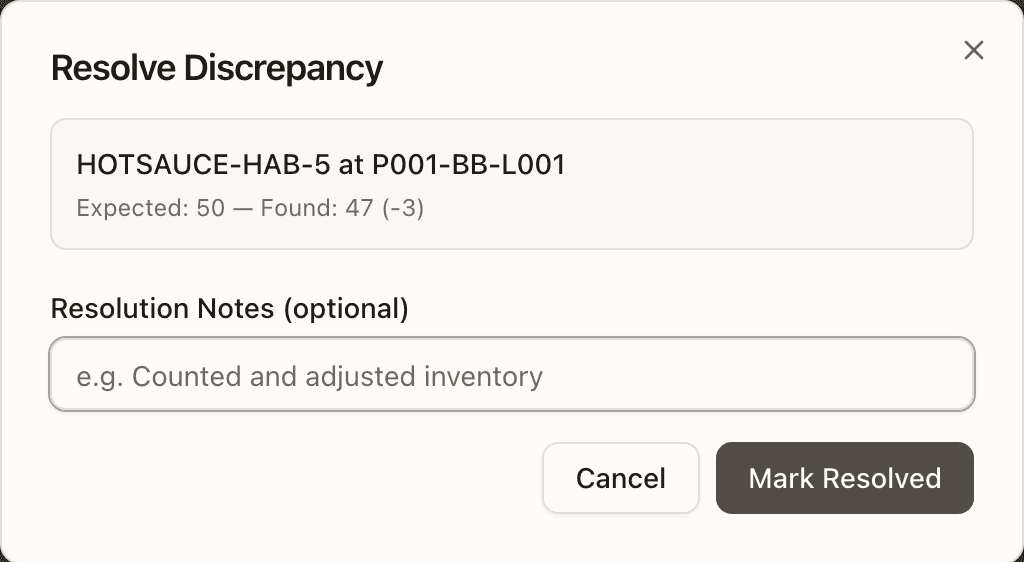
The status filter defaults to Unresolved (then Resolved / All); the source filter offers All Sources / Picking / Cycle Count. View options and paging work as on the other tables. Resolve opens a dialog to record optional resolution notes and Mark Resolved (typically after counting and adjusting the bin) — it's only offered on open rows.
How to resolve a short pick
Open Short Picks and find the order
Open Picking → Short Picks. Every order held by a short line is a group: its header carries the order number, a Tote badge, "N short lines" and Abandon & re-queue order, with one row per short line under it. The fastest way to one order is its tote: scan it into Scan or type a tote barcode… and press Find order. Clear filter brings the whole queue back. A packer sent here from the Pack Station sees only their order, with Show all short picks as the way out.
Read the row
Each row shows the item, the Shorted bin / Lot, Need / Got / Short (the red number is the shortfall), the Reason badge, and Available: how many units are pickable now, plus any in reserve or in sealed packs. A row that reads "This short was declared at the pack station and its pack session is still open…" is locked until that pack completes or is cancelled; leave it. A row with "N recalled units still in tote" must be cleared first: press Extract, then pull those units from the tote and set them aside as the toast says. Pick now stays greyed until you do.
Pick now from another bin
When Available shows enough pickable units, press Pick now. A Choose source bin picker opens under the row, listing bins with enough loose stock. Choose one and press Confirm pick. The shortfall is recorded as picked from that bin into the order's existing tote, and a toast tells you what to do: "Grab N × SKU and place in tote …". Go and do exactly that. Pick now is greyed while Available shows fewer pickable units than the shortfall. When it opens but no single bin holds enough loose units, the picker reads "No pickable bin has N loose unit(s) of SKU — receive stock, break a pack, or resolve manually."
Or backorder or cancel the line
With no stock to pick, press Backorder to rest the line until stock arrives, or Cancel line to drop it from the order. The button reads Backorder — ship the rest now when the order already has picked units and the brand allows a split; it is missing when backordering would strand picked units. Cancel kit replaces Cancel line on a kit component and takes the whole kit. A line merged in from another order shows from CC-… under the SKU and cannot be cancelled here. When Cancel line is missing, the note under the row says why and what the line can take instead. The full rules are under Short Picks.
Or abandon and re-queue the whole order
If the order should be picked again from scratch, press Abandon & re-queue order in the group header. The dialog Abandon order CC-…? explains that picked units go back to stock as a put-back task, the tote is released, and the order returns to PENDING. Press Abandon & re-queue. The tote then shows Flagged with "Order abandoned from its pick — items require put-back" until the put-back is done. The button is greyed while the order has an open pack session.
Confirm the order moved on
A resolved row leaves the list, and the order's group disappears once its last short line is settled. After Pick now the order carries on to packing in the same tote; after an abandon it waits to be allocated and picked again. With a tote filter on and nothing left, the page reads "No open short picks for tote …".
How to print tote labels
Open Totes and find the totes
Open Picking → Totes. The Tote Management list shows every tote with its Name, Barcode, Status and Warehouse. Narrow it with Search barcode or name… or the status filter until the totes you want are on screen.
Tick the totes
Tick the checkbox at the start of each row, or the header checkbox to take every tote on the page. A bar above the table counts "N selected"; press Select all N matching rows on it to take every tote the search and filter match, across pages. Clear selection starts over.
Press Print N labels
A Print N labels button appears beside the filters as soon as a tote is ticked. Press it. The page builds one sheet, two labels per row on letter paper, each with the tote's name, its warehouse and a Code 128 barcode, and sends it to the printer. On a bench set up for kiosk printing it prints straight away; elsewhere your browser's print dialog opens, so confirm it there. A barcode the label cannot encode is skipped and a toast names it: "N labels skipped". "Couldn't build the label sheet to print." means nothing went to the printer; try again.
Or print one tote from its page
For a single replacement label, click the tote's row to open its page and press Print label in the header. It is the same sheet with one label on it.
Or print straight after an import
When Import CSV creates new totes, the Import complete step adds Print labels beside Import another and Done. Press it before Done to print exactly the totes that file created, so they are labelled before they go out. See Print labels after an import.
How to resolve a discrepancy
Open Discrepancies
Open Picking → Discrepancies. The Stock Discrepancies list opens on the Unresolved filter, one row per gap: the Bin and its Warehouse, the SKU, Expected against Found, the signed Difference, the Source (Picking or Cycle Count), who reported it and when, and an Open badge. Use the source filter to work one kind at a time.
Count the bin and correct the stock
Resolving only records that someone looked; it does not change stock. So go to the bin, count the SKU, and put the system right first: run a cycle count on the bin, or post an adjustment with Adjust stock from the SKU's page. A cycle count of that bin closes its open picking discrepancies by itself, with the note "Resolved by cycle count". Until a picking discrepancy is resolved, the pick planner treats the bin as suspect and will not send a picker there for that SKU.
Press Resolve on the row
Press Resolve at the right end of the row; it is only there on an open row. The Resolve Discrepancy dialog repeats the SKU and bin and the "Expected: N — Found: M (…)" line, so you can check you have the right one.
Say what you did and press Mark Resolved
Type what you found and did in Resolution Notes (optional); the field suggests "e.g. Counted and adjusted inventory". Press Mark Resolved. The dialog closes, the row flips to Resolved and leaves the Unresolved view; switch the filter to Resolved or All to see it again. If the dialog stays open after you press, someone else closed that row first; press Cancel and refresh the list.