

Callie
Ask about the WMS, understand your current screen, and review supported order changes.
Callie is the assistant inside the WMS. Ask for a how-to guide, help with an order, or an explanation of the screen you have open.
Feature preview
Callie appears only in environments where it is enabled. This guide describes the embedded assistant, not the separate Slack assistant. If the Callie button is missing, ask your administrator whether it is available in your environment.
Open and arrange the chat
Click the circular Open Callie button at the bottom right of a WMS page. Use Chat display options in the chat header to choose a sidebar, floating window, or full-page chat. The sidebar moves the WMS content left. The floating window can be moved by dragging its header. Its Move floating chat handle also accepts arrow keys.
You can keep an order (or any side panel) open while you chat. The sidebar slides the open order to its left; the floating window sits over it, and the order returns to its usual place. Closing the order leaves Callie open, and pressing Escape in Callie closes only Callie.
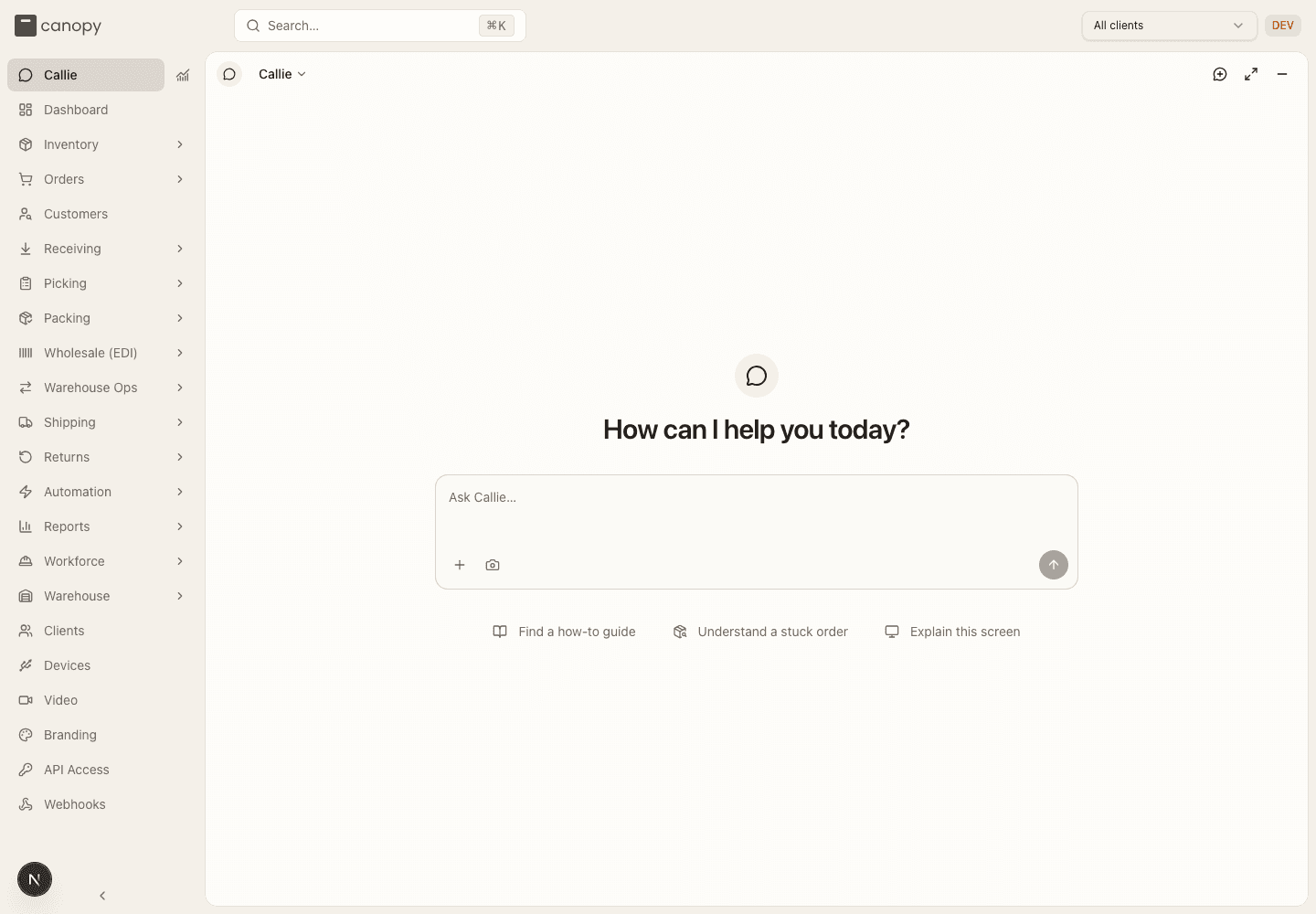
Callie in the WMS navigation opens the full-page chat. Switching views keeps the current conversation and draft. Minimize Callie closes the panel. Return to WMS leaves the full-page view.
Ask a question
Type in Ask Callie…, then press Enter or click Send message. Use Shift + Enter for a new line. The starting suggestions help you find a guide, understand a stuck order, or explain the current screen.
Include the order number or other record you mean. Callie can search product docs and use supported WMS lookups. Follow a source link to read a cited guide. Your WMS role, task assignment, tenant, and client access still apply. Asking in chat does not grant access to another client's records or restricted work.
Use Stop response to stop a reply. An interrupted or failed answer is shown as incomplete. If you retry, check the current page context and attach any screenshots you still want Callie to use. A chat accepts up to 100 exchanges; start a new chat when it reaches that limit.
Page context and screenshots
Callie receives context about the open page and can request text from the loaded screen, including text outside its scroll area. This does not load additional pages of results, virtual rows that have not been rendered, or collapsed sections. A page sample is not a complete inventory or order report. For a complete lookup, include the record or criteria so Callie can use a WMS data tool.
The camera control attaches a screenshot of the current viewport. The attachment control lets you add an image. You can attach up to three images to one message. Callie can also request one viewport capture when it needs visual context. Automatic captures omit protected regions, draft fields, and embeds. Check a manual attachment before sending it.
Screenshots are used for the current reply and are not saved in chat history. Attach them again if a later question needs the same image. A page link takes you to the relevant WMS screen. A highlighted control shows you where to look; it does not click the control or fill in the form.
Review an order change
Callie can propose supported order changes, such as holding an order, adding a note, changing priority or an address, and editing eligible line items. Other supported proposals include cancellation, returns, reships, and postage overrides. Availability depends on your WMS permissions and the order's state. An explanation of a feature does not mean Callie can change its configuration.
A proposal shows the order number and Review changes. Open it and read the exact change, current status, and any warning about postage or irreversible work. Click Confirm change to submit it, Back to leave the review, or Dismiss on the proposal to cancel it. Callie cannot confirm for you.
The WMS checks your current permissions and whether the order has changed since the proposal. A stale or expired proposal needs a fresh review. Merged-master cancellation, cancellation during active Bulk Ship work, line edits after pick or pack work starts, automation-rule reprocessing, and reships spanning multiple orders stay in their WMS workflows. Header changes, holds, releases, and cancellations of orders split across warehouses, and edits to a split order's shared items, also need the WMS order screen so you can review every affected order together. Callie tells you up front when a change can't be made at the order's current stage.
| Result shown in the chat | What to do |
|---|---|
| Completed | Open the order or expand View WMS result to check the result. |
| Waiting on the warehouse. Not changed yet. | Read the reason under it. The WMS held the change instead of making it — for example a cancellation or address change behind a printed label, a change after packing started, or a release while another hold remains. Open the order and review its hold. |
| The WMS refused this change | Read the reason under it and resolve the WMS restriction. For example, the box already left, so a cancellation or address change can only be handled after shipping. |
| Partly completed. Check the result below. | Check which steps completed before asking for another change. |
| Outcome unconfirmed. Check the order before trying anything else. | Inspect the order first. Do not repeat the change just because the answer is incomplete. |
| Submitted. Reopen this chat to check the outcome. | Reopen the conversation to refresh the saved result. |
| The order changed. Ask for a fresh review. or Review expired. Ask Callie to prepare it again. | Ask for a new proposal and review it again. |
| Cancelled | The dismissed proposal will not be submitted. |
Creating a return creates an RMA, not a refund. Cancelling an order does not refund the customer or cancel its sales-channel order. Read the warnings in the review before confirming either action.
History and feedback
Click the arrow beside Callie to open Recent chats. Search by chat title, select a conversation, or choose Load older chats. Start new chat begins a separate conversation. Archive this chat removes a saved conversation from your history after confirmation. Archiving does not permanently delete its stored records.
History is private to your account and access assignment. Changing your role or client assignment can hide conversations from the previous assignment.
Completed replies have Copy reply, Helpful, and Not helpful controls. Click the selected rating again to clear it. Ratings are private by default. Add feedback details lets you add a comment. Share feedback explicitly shares that question, answer, and comment with tenant admins. Use Withdraw shared feedback to remove that sharing.
Tenant-admin usage and feedback
Tenant admins can open the chart shortcut beside Callie in the WMS navigation. Other roles cannot open the admin report.
Usage & budget shows a selected Month (UTC). Refresh usage reloads the report. It lists estimated model cost, amounts reserved for replies, model calls, cached input tokens, and breakdowns by person, model, and day. Costs are USD estimates from recorded usage. They exclude taxes and discounts. Interrupted calls can retain a conservative estimate. Older unmetered replies are identified separately. This is not a provider invoice.
Set Monthly usage budget (USD) and click Save budget. Leave it blank for no limit, or enter zero to pause new model replies. The budget applies to the whole tenant for each UTC calendar month. Replies reserve estimated maximum cost before starting.
Shared feedback contains only questions and answers users explicitly shared. It does not expose their ordinary private chats. Filter by Needs review, Reviewed, or All shared feedback. Expand View shared question and answer, then use Mark reviewed or Mark unreviewed. Previous and Next move through the results. An empty view says No shared feedback in this view. Back to Callie returns to chat.
How to get help with an order
-
Open Callie from the WMS navigation. Use Start new chat if the previous conversation is about a different task.
-
Enter the order number and your question in Ask Callie…, then click Send message. For example, ask why that order has stock but cannot ship.
-
Follow the cited guide or open the order to check the explanation. If Callie proposes a change, open Review changes and check it before clicking Confirm change.
Getting Started
Your first ten minutes in CanopyWMS — signing in, the 3PL-and-clients model, the topbar switchers and search, roles, and how to find your way around.
Glossary
Every acronym, status, and piece of warehouse jargon in CanopyWMS, defined in plain English — the page to keep open on your first week.