

Connect a sales channel
Connect a brand's store so their orders flow into the warehouse.
A sales channel is a store that feeds orders into the warehouse. Until a brand has one, nothing imports, so this is usually the second step of onboarding, right after creating the client.
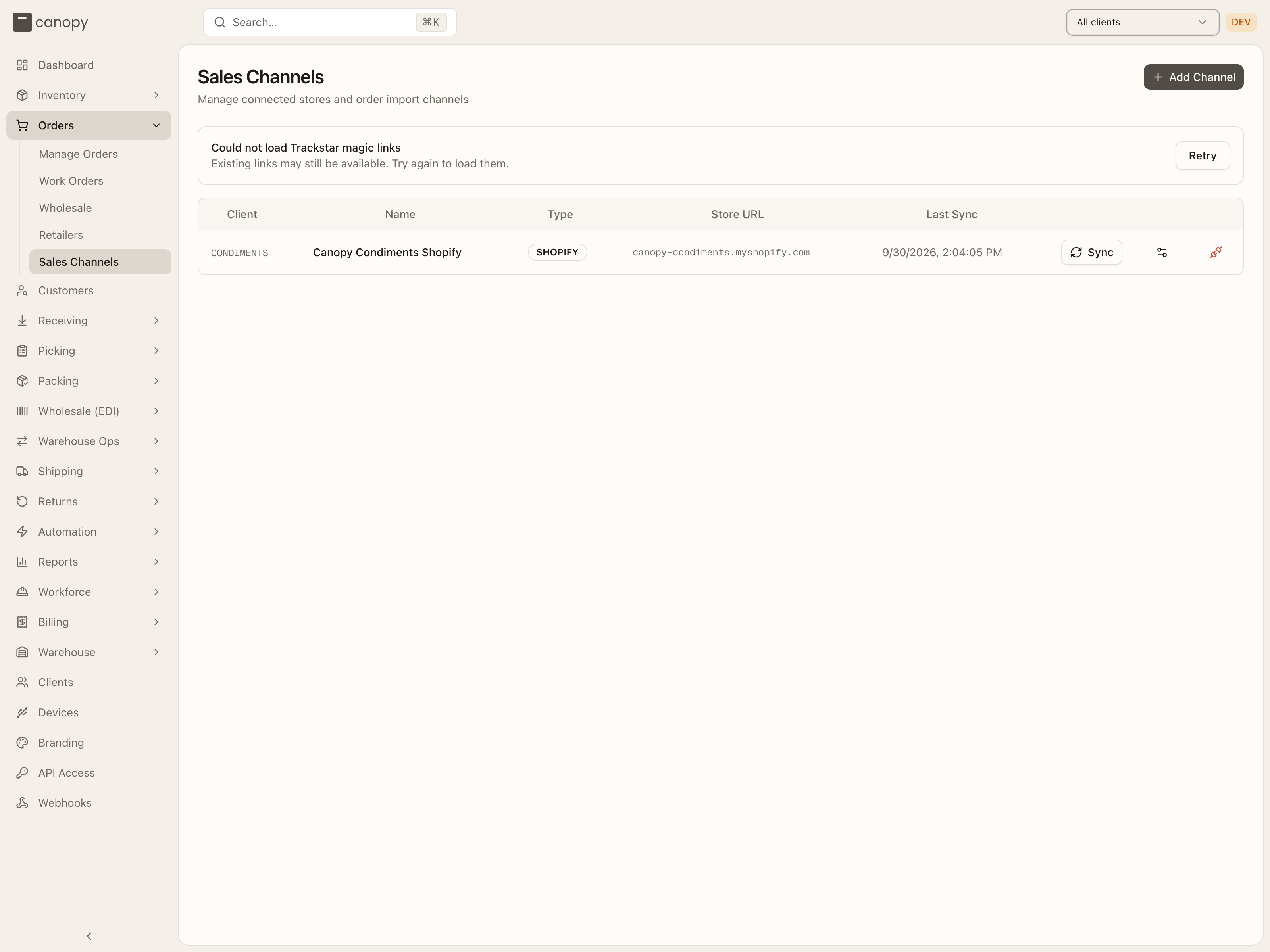
Channels are managed from Orders → Sales Channels. Connecting and configuring is operator work. A brand on a client account sees this page read-only, and the Add Channel button is hidden from them. The screen-by-screen detail lives in the Sales Channels reference.
Pick the integration
Press Add Channel. A picker shows ten integrations, all live:
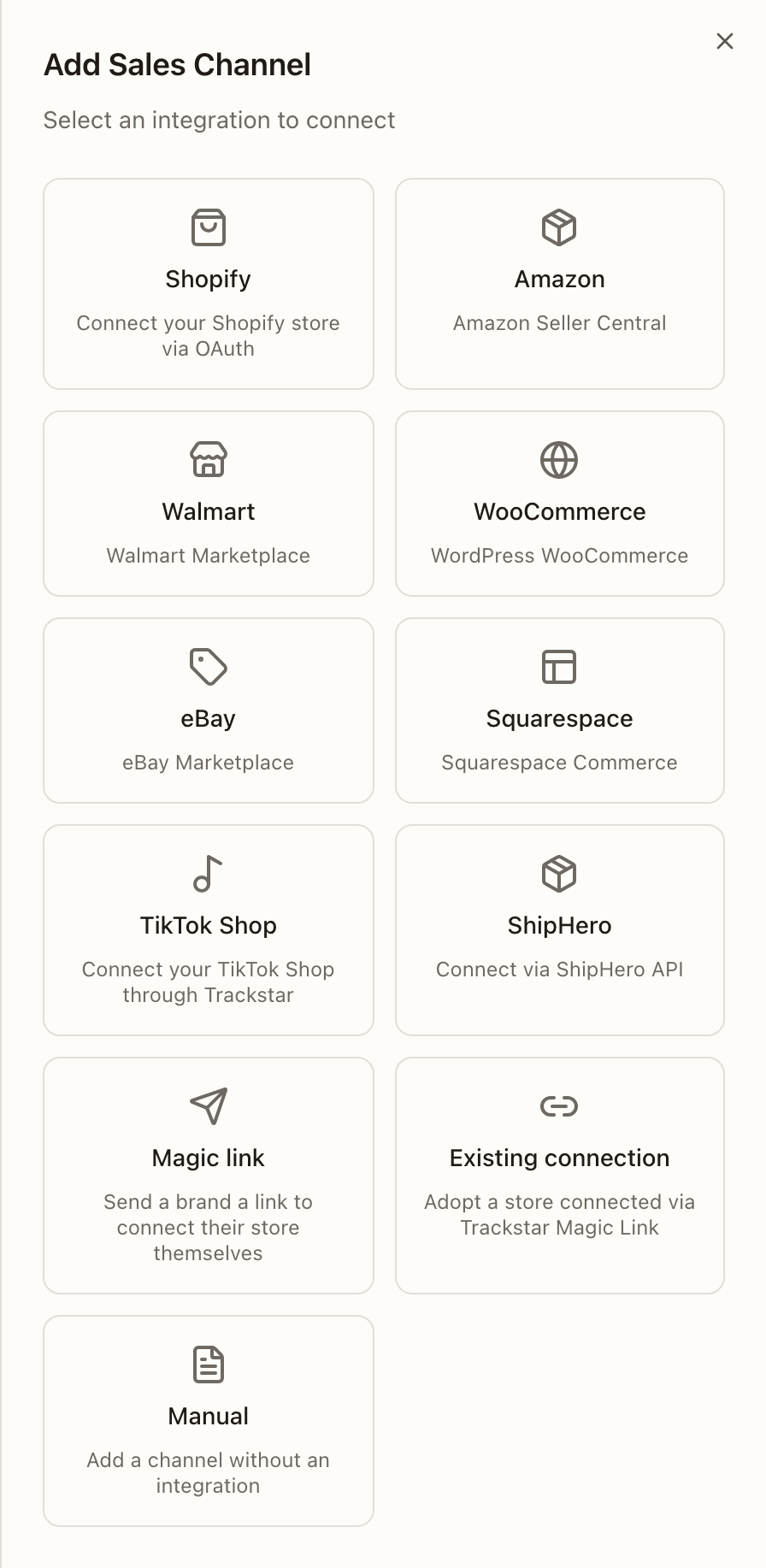
- Shopify — register the store and hand the merchant an install link. This is the path the rest of this guide walks through.
- Amazon, Walmart, WooCommerce, eBay, Squarespace — connect through Trackstar. Pick the client, press the Connect button, and authorize the store in the secure window that opens. Once it closes, the channel is listed with a Syncing badge while its recent history imports; orders start flowing when that finishes. You can only do this with the merchant's store credentials to hand — if the brand should connect their own store, use a magic link instead.
- Magic link and Existing connection — the two halves of letting a brand connect a marketplace store themselves. See the magic-link path below.
- ShipHero — pick the client, name the channel, and paste the ShipHero API token.
- Manual — a channel with no integration, for manual order entry or CSV import: client, name, optional store URL.
Every path starts by choosing the client the store belongs to. If the top bar is already pinned to a client, the picker is locked to that one.
Connect a Shopify store
Shopify is a two-party job, which is the one quirk worth knowing up front. You register the store in Canopy, but only the merchant can approve the app, from their own Shopify admin. The hand-off between the two is an install link: a URL you generate for a specific store and brand, and send to the store owner.
That link carries two things, the shop domain and the client id of the brand. The client id is what routes the new channel straight to the right brand when the merchant approves, with no manual linking step afterward. So always generate the link with the correct client selected.
Choose the client and enter the store URL
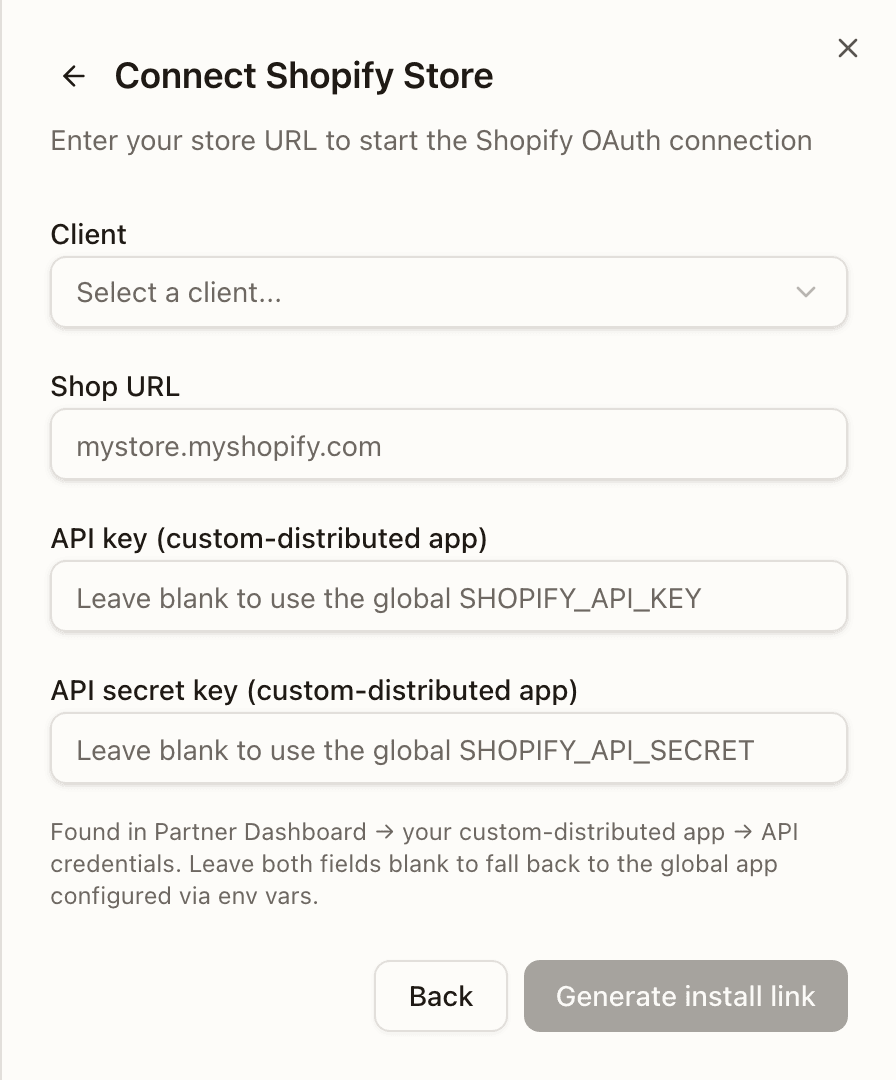
In the Shopify form, pick the client the store belongs to (if the top bar
is already pinned to a client, it's locked to that one), then enter the
shop URL, for example mystore.myshopify.com.
Optionally paste the custom app's API credentials
If this store has its own custom-distributed app in the Shopify Partner Dashboard, paste its API key and API secret key (found under your app's API credentials). Fill both or neither — the button stays disabled with one of the two. Leaving both blank uses the global Shopify app configured on the server.
Registering custom credentials is Tenant Admin only. A Tenant Operator can generate an install link against the global app, but this save fails for them.
Press Generate install link
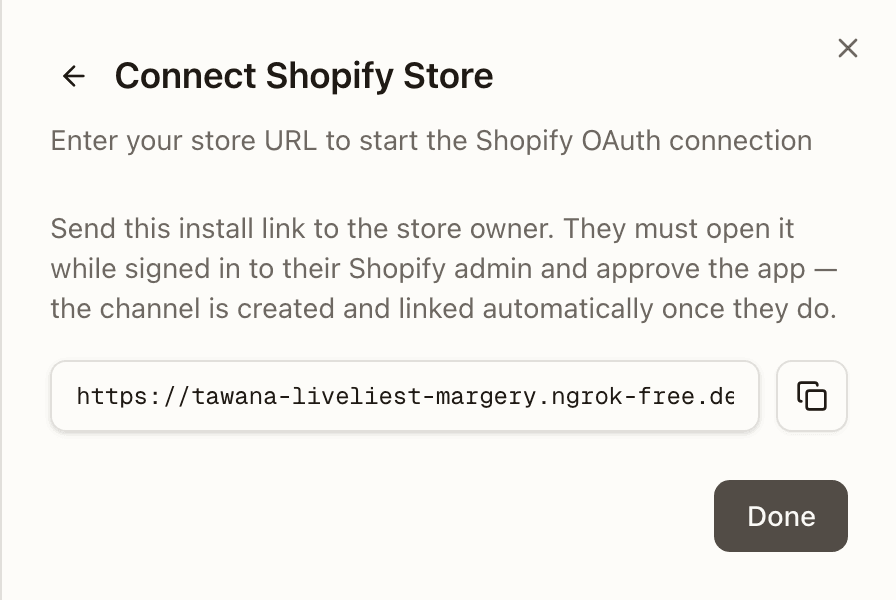
The sheet swaps to the generated link with a copy button. You are not redirected to Shopify, on purpose: you can't approve the install on the merchant's store, so there is nothing for you to do there.
Send it to the store owner
Copy the link and send it to the merchant. Tell them to open it while signed in to their Shopify admin and approve the app. The moment they do, the channel is created, linked to the brand, and starts syncing. Back on the Sales Channels page you'll see a green "Successfully connected" banner and the new channel in the list.
If the link goes missing, just make it again
Nothing to recover and nothing to clean up. Repeat from step 1 with the same client and the same shop URL, and you get the same install link back. It is safe to regenerate as many times as you need. A store registered with custom credentials also stays listed under Pending Shopify connections on the Sales Channels page (Tenant Admins), with its own Copy link.
One brand, many stores — but each store belongs to one brand
A client can have as many sales channels as they sell through, so a brand running a US store and an EU store gets two Shopify channels under the same client. What can't be shared is a store: each shop domain belongs to exactly one client. When you register a store with custom API credentials, a shop domain already registered to another client is reassigned to the new one — so double-check the client picker when a merchant runs multiple brands with you. A plain install link against the global app doesn't reassign anything.
When a merchant installs without your link
A merchant can also install the Canopy app straight from their Shopify admin,
with no install link — and so no client id to route the store to. The callback
then parks the store as a pending install, valid for 24 hours, and
sends whoever finishes the install in Canopy to Connect Shopify
(/onboarding/shopify).
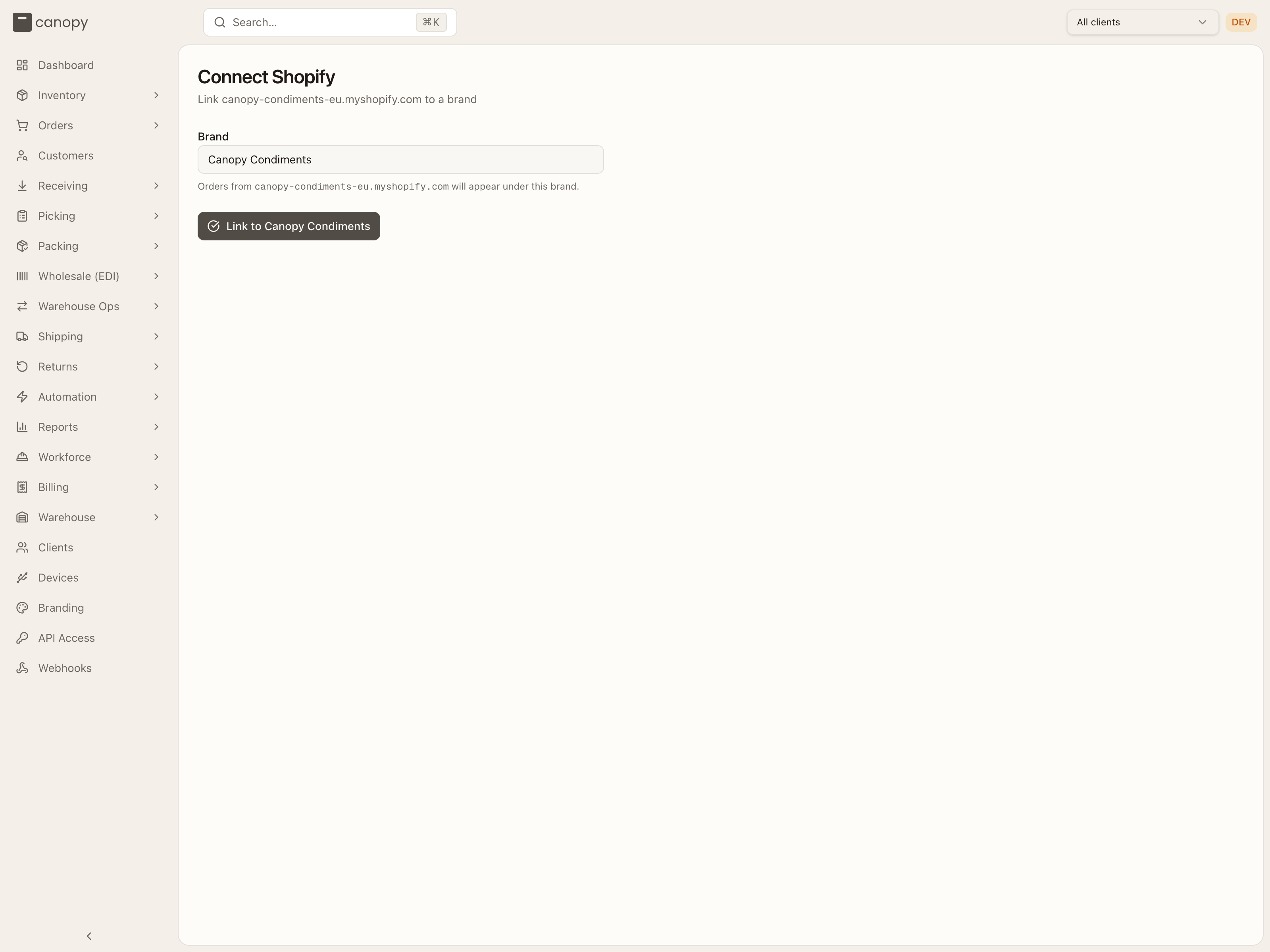
The page names the shop and asks for the Brand: with one active client
the field is already filled; with several, a Select a brand… picker.
"Orders from <shop> will appear under this brand." Link to
<brand> creates the sales channel, registers its webhooks, and drops
you on the Sales Channels page with the connected banner. This is staff work:
the claim is refused for a client user, so a brand can't attach a store to
itself. If the install has expired or was already linked, the page reads
"This install is no longer pending — it may have expired or already been
linked. Re-install the app from your Shopify admin to try again."; opened
without a shop parameter it asks for a re-install too; and "Your account
isn't linked to any brands yet" means there is no active client to link to.
Connect a marketplace store by magic link
For Amazon, Walmart, WooCommerce, eBay, and Squarespace, a magic link lets the brand connect their own store through Trackstar — no Canopy login, no operator on the call. The link is stamped with the client, so the connection comes back already matched. Two steps in Canopy, one for the brand in between.
Create the magic link
Add Channel → Magic link. Pick the client, a Platform (Any supported platform, or one of the five), and how long the link is valid for — 7, 14, or 30 days — then Create link and copy it.
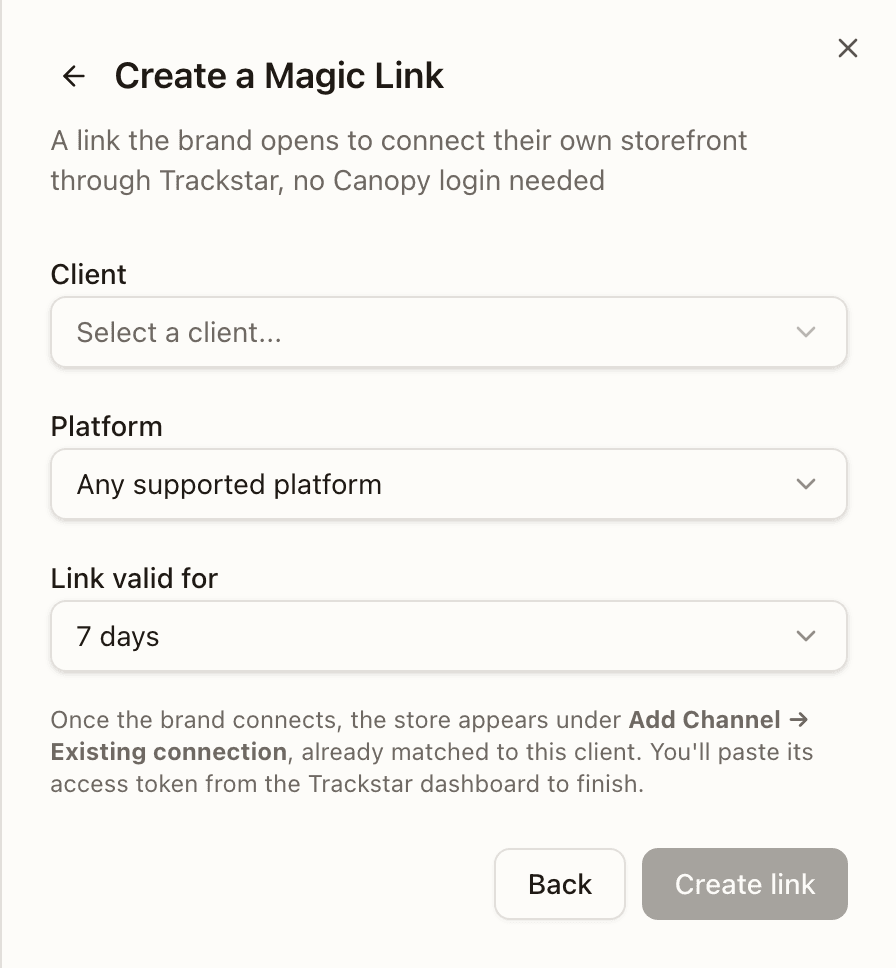
The link also stays listed in the Trackstar Magic Links panel on the Sales Channels page until it expires, with Copy link to re-send it and Archive to hide one you no longer need — so make one link per brand, not one per send.
Send it to the brand
They open the link and authorize their store. Once they have, the connection shows up in Canopy under Add Channel → Existing connection, already matched to the client.
Adopt the connection
Add Channel → Existing connection. Pick the brand's store from the list — rows can read Not supported, Paused, or Matched to a different client (unpin the top bar, or pin the matching client, before adopting one of those) — confirm the client, give the channel a name, and paste the connection's access token from the Trackstar dashboard (it can't be fetched automatically). Connect verifies the token and creates the channel; it syncs from then on exactly like a store you connected yourself.
After the channel is connected
Open the gear on the channel row. It takes you to the channel's own Sync Settings page (only ShipHero still opens a settings sheet in place). Work through the tabs: check the Orders tab's import settings, map store locations to your warehouses on Inventory, and set up product mapping on Products. The channel settings reference walks through every group. To pull the store now, press Sync on the channel's row; the bell's System tab tells you when the run finishes or fails (see Notifications).
If another location ships part of this brand's orders — the brand's own, or another 3PL — decide two more Orders tab settings now, both Shopify only. Receive returns for items other locations shipped, in the Returns box and on by default, decides whether a store return of that location's items comes to you or stays with them. Wait until every location has shipped, nested under Charge the customer when the order ships and off by default, holds the charge until the other location has shipped its part too (the order sheet reads Charge waiting on <location> meanwhile). It charges anyway 24 hours before the payment authorization expires (at once when Shopify doesn't say when it expires), and it needs the store's locations mapped on Inventory — unmapped, it charges without waiting. Until the charge itself is switched on, the row stays off and greyed out: Turn on "Charge the customer when the order ships" first.
If you run more than one warehouse and this is a marketplace store — Amazon, Walmart, WooCommerce, eBay, or Squarespace — set Advertise stock from too, on the Inventory tab in the Inventory push group. The push sends these stores one stock figure for the whole store, and by default (All warehouses) that figure counts every warehouse's stock. Choose Chosen warehouses, pick the warehouses this store's orders can ship from (the ones your routing rules send them to), and press Save. The store's own orders — wholesale included — count against that figure wherever they landed. For a kit SKU, Canopy also caps that figure at what each of the chosen warehouses can build on its own — a kit whose components sit split across two warehouses isn't pooled into a build neither one could actually do.
On eBay and Walmart, a store location mapped to a warehouse decides instead, and the row says so. Once the push is on, Save asks first — Re-send <channel>'s stock?, with how many SKUs will push 0 — and Save and re-send re-sends every listing now.
Don't enable inventory sync yet
The first inventory push overwrites live store stock with Canopy's numbers. If you haven't received the brand's stock into Canopy yet, that means zeroes. Enabling the push also asks you to attest that no other system — the brand's previous WMS — is still syncing the same store. Receive stock first, switch the old system off, then enable the push. See the warning in the reference.