

Create a client user account
Invite a brand's team to log in, pinned to their own client's data.
A Client User is a login that belongs to one of your brands. It sees only that client's data: their orders, inventory, reports, and channels, in the read-mostly brand portal view. Nothing from your other clients, and none of the warehouse-floor tooling.
User accounts are managed from Workforce → Users, and the page is admin-only. An operator who opens it sees "Admin access required to manage users" instead of the list. The roles and the rest of the page are covered in the Users reference.
Before you start
- You need a Tenant Admin login.
- The client must exist first, since the account gets pinned to it.
- You need the person's email address. The invitation goes there.
Invite the user
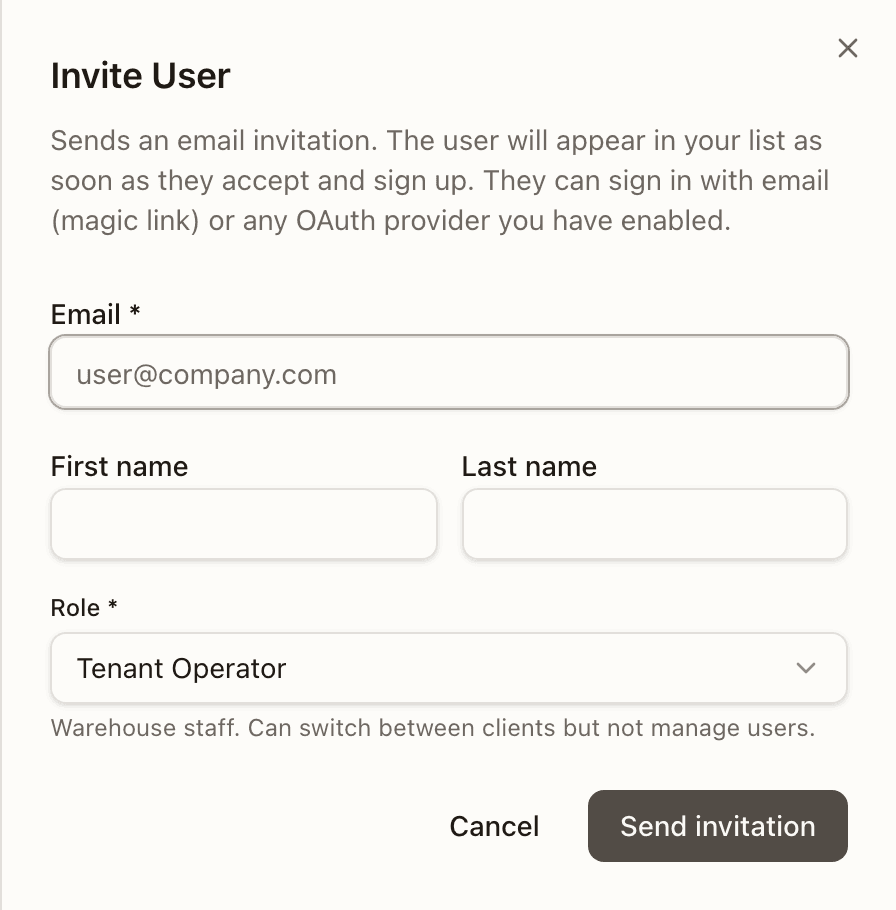
Open Workforce → Users and press Invite User
The page lists everyone in your organization, grouped by role. Press Invite User in the top right.
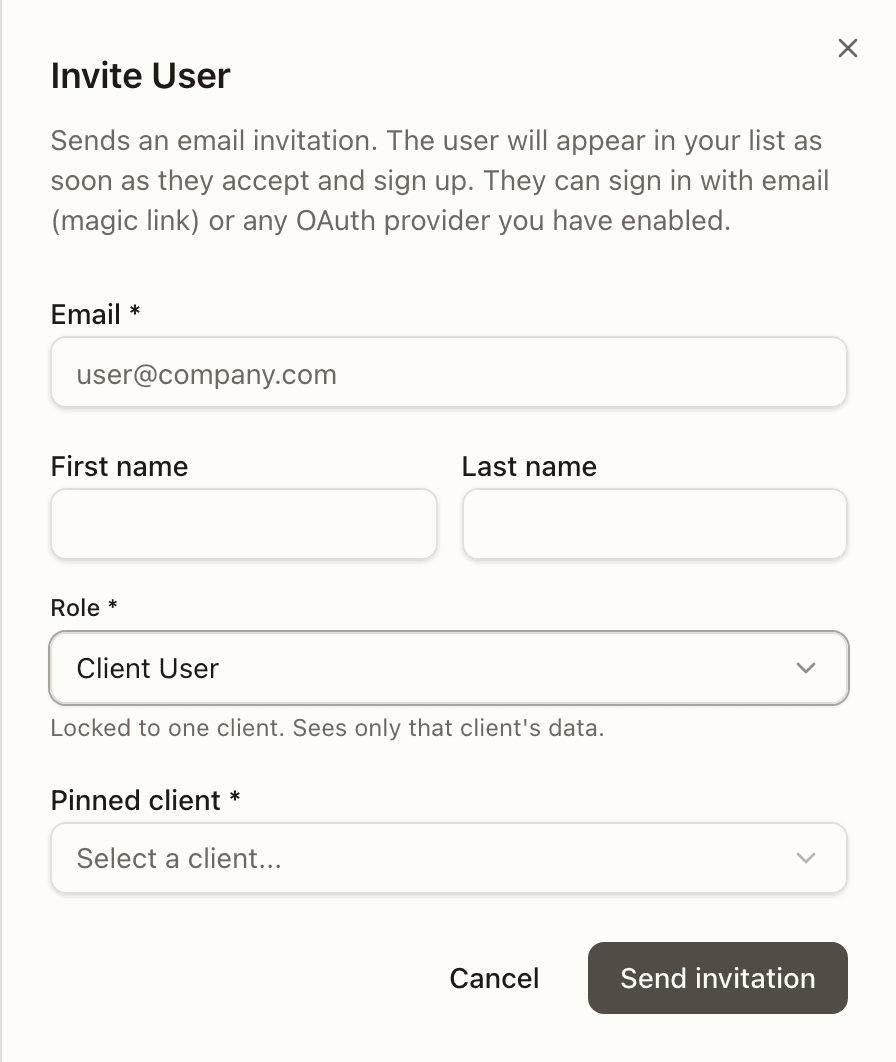
Set the role to Client User and pin the client
Change Role to Client User. A Pinned client picker appears, and it is required: this is the client whose data the account will see.
Send the invitation
Press Send invitation. The person gets an email with a sign-up link. They can sign in with email (magic link) or any OAuth provider you have enabled. Until they accept, the invite shows in the user list with a Pending badge. Once they sign up, it flips to Active.
What the brand sees
A client user lands in the brand portal view of the same app. If they ask how something works, point them at the Brand Portal guide, which is written for exactly that audience.
Staff accounts work the same way
The same Invite User flow creates your own team's accounts. Pick Tenant Admin or Tenant Operator instead of Client User, and no client pinning applies. The roles table explains what each role can do. From the same list you can later edit a user's role or client, deactivate, or reactivate them.