

Getting Started
Sign in, find your way around the portal, and learn what each section does.
This page gets you oriented: signing in, what the screen is made of, and where to find each part of your account.
How to sign in
Your 3PL invites you by email. There's no password to set: you sign in with your
email address (a magic link) or with any OAuth provider your 3PL has enabled,
at your portal URL (your 3PL will give you the exact address — typically
app.yourthreepl.com).
Open the invite email and click Accept invitation.
Sign in with your email — a magic link lands in your inbox — or with a social / single sign-on provider if your 3PL enabled one.
You'll land on your Dashboard — the live overview of your fulfillment.
You only ever see your brand's data. Your login is locked to your account, so there's nothing to switch between and no way to see another brand's orders.
The layout
Every screen shares the same frame:
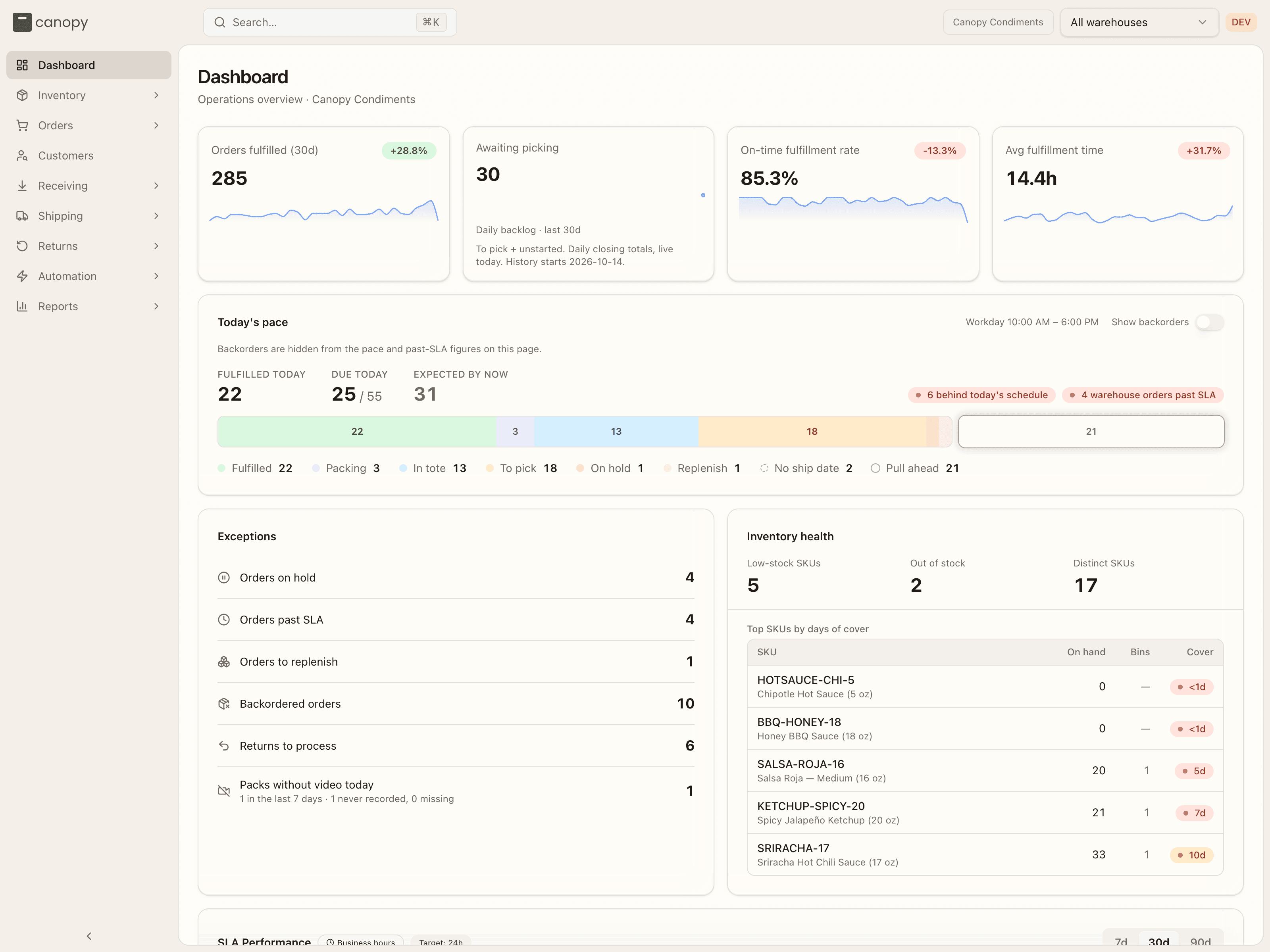
- Left sidebar — your sections (Dashboard, Inventory, Orders, and so on). Click a section with a chevron to expand its sub-pages. Collapse the whole sidebar with the arrow at the bottom for more room.
- Topbar — a Search… box, your brand's name on the right (your 3PL's staff have a switcher there; you have a fixed label), and your avatar menu, where you sign out. If your 3PL runs more than one warehouse, a warehouse switcher sits beside your brand's name too: it starts on All warehouses, and picking one narrows what you see to that building, in that browser tab. There is no notification bell on a client account; that is a tool for your 3PL's staff.
- Header — the page title and any page-level actions or filters.
- Content — the page itself.
The logo and colors at the top are your 3PL's branding — the portal is white-labeled, so it reflects the warehouse partner running your fulfillment. It's the same app your 3PL's staff use, with the warehouse-floor tools left out and everything filtered to your brand.
Search
Click Search… or press ⌘K (Mac) / Ctrl K (Windows) anywhere to open the search palette. Pages match as you type; from two characters on, your orders, shipments, SKUs, inbound POs, returns, lots, and more appear in their own groups. Arrow keys move, Enter opens, and an empty box shows your Recent picks.
What's in each section
Dashboard
Today's pace, exceptions, inventory health, SLA performance, inbound, and a shipped trend.
Inventory
SKUs and their stock levels, plus lot tracking with expiry and recalls.
Orders
Every order with its status, plus the sales channels feeding orders in.
Customers
Look up any shopper and see their full order and return history.
Receiving
Purchase orders for stock you're sending into the warehouse.
Shipping
Outbound shipments with their tracking.
Returns
RMAs and their progress, plus your return reason codes.
Reports
Exportable summaries of shipments, items, sales by SKU, kits, inventory value, and backorders.
The sidebar's Orders section also holds Work Orders (assembly and kitting jobs you request), Wholesale (your B2B orders), and Retailers (the wholesale accounts behind them); Reports includes Kits and Backorders. Work Orders, Wholesale, and Retailers aren't covered in this guide yet.
Read-only vs. action
On a client account you can view your catalogue, stock levels, orders, inbound shipments, returns, and fulfillment history, and create what's yours to create — orders, purchase orders, and SKUs. The physical warehouse actions (receiving stock onto shelves, picking, packing) — and processing returns — are done by your 3PL's team, so those buttons won't appear for you.
Two things sit on the 3PL's side of the line and aren't shown at all: the bin-level layout of the warehouse (which shelf your stock sits on) and the stock-movement ledger behind your balances. You see the totals those movements produce.
Next step
Start with the screen you'll open most: