

Pack Videos
Watch the video of any of your packs. Find it by order number, tracking number or SKU, and jump to the second each item was scanned.
Where your 3PL has a camera over a pack bench, every one of your orders packed there gets a video. It runs from two minutes before the packer scanned the tote to fifteen seconds after they finished, and every item scan is marked on it. When a customer says something was not in the box, you can watch the pack yourself.
Finding a video
Open Orders → Pack Videos. Type the order number, the tracking number, or a SKU code or barcode, and press Search. You can narrow the list by Packer, From, To and Status. The newest packs come first. Load more shows the next page.
A filter applies as soon as you change it. Search is for the text box, and Packer applies when you leave the field or press Enter. Status offers Ready, Partial, Cut short, Held for review, Recording or waiting, Uploading, Missing, Not recorded and Expired. Ready lists whole videos only.
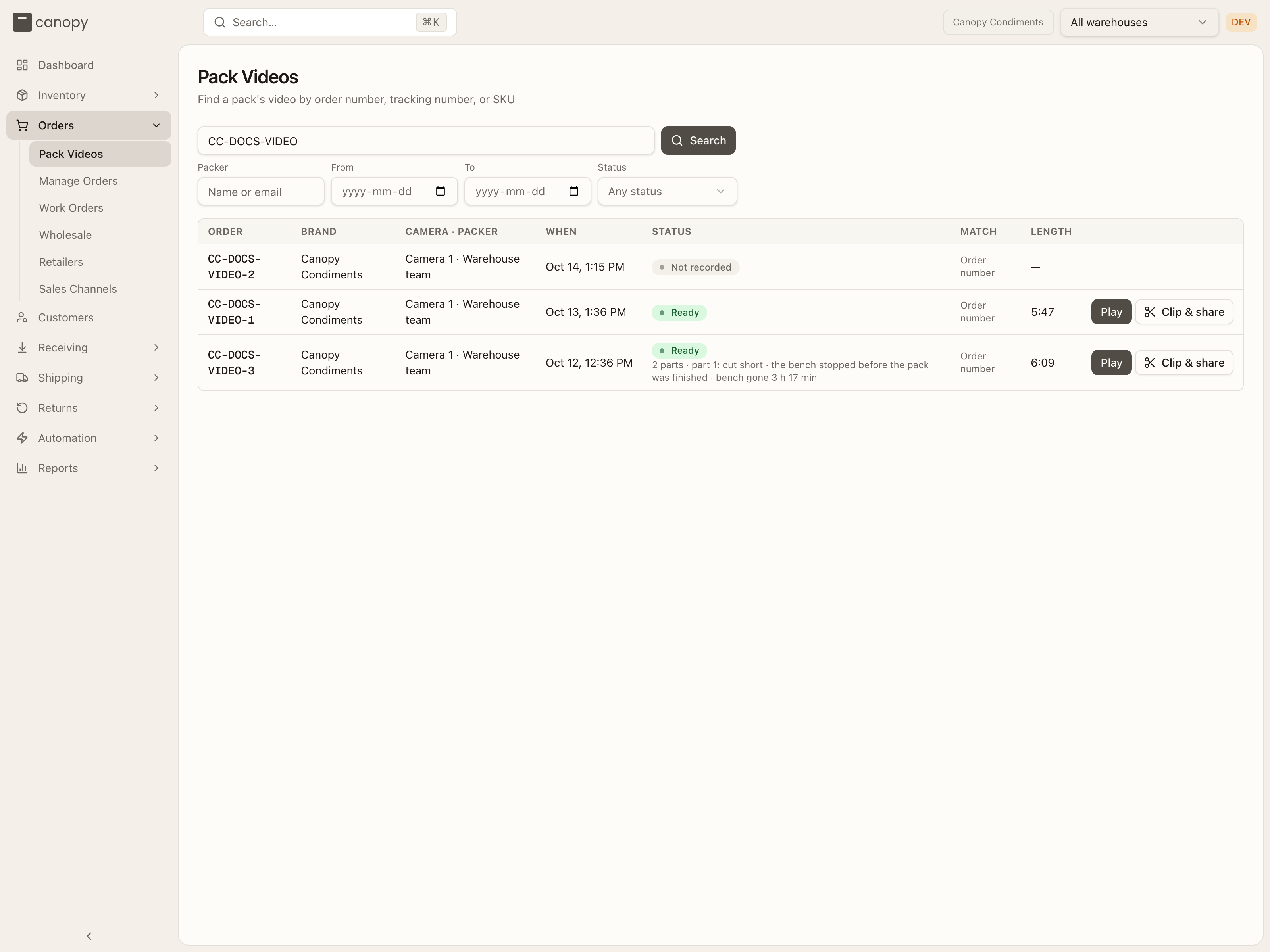
Each row shows the order number, the camera and who packed it, when the pack started, the status, what matched your search, and the clip's length. When a SKU matched, the row says the second it was scanned, and Play starts right there. Press Play again to close the video. Clip & share (hover: Pick a stretch to share, or share the whole video) makes a link you can send outside the app (see Sharing a video).
Watching a clip
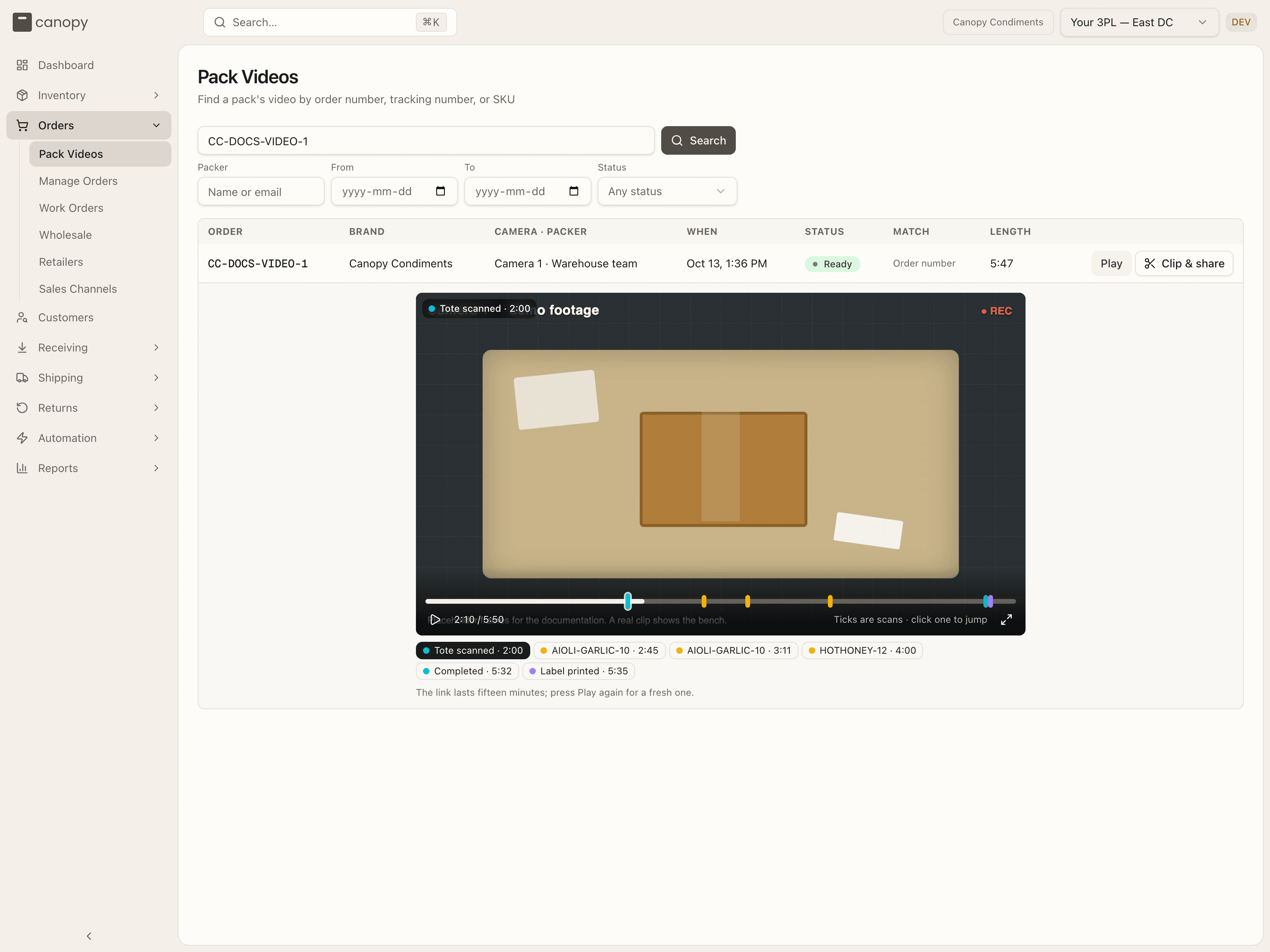
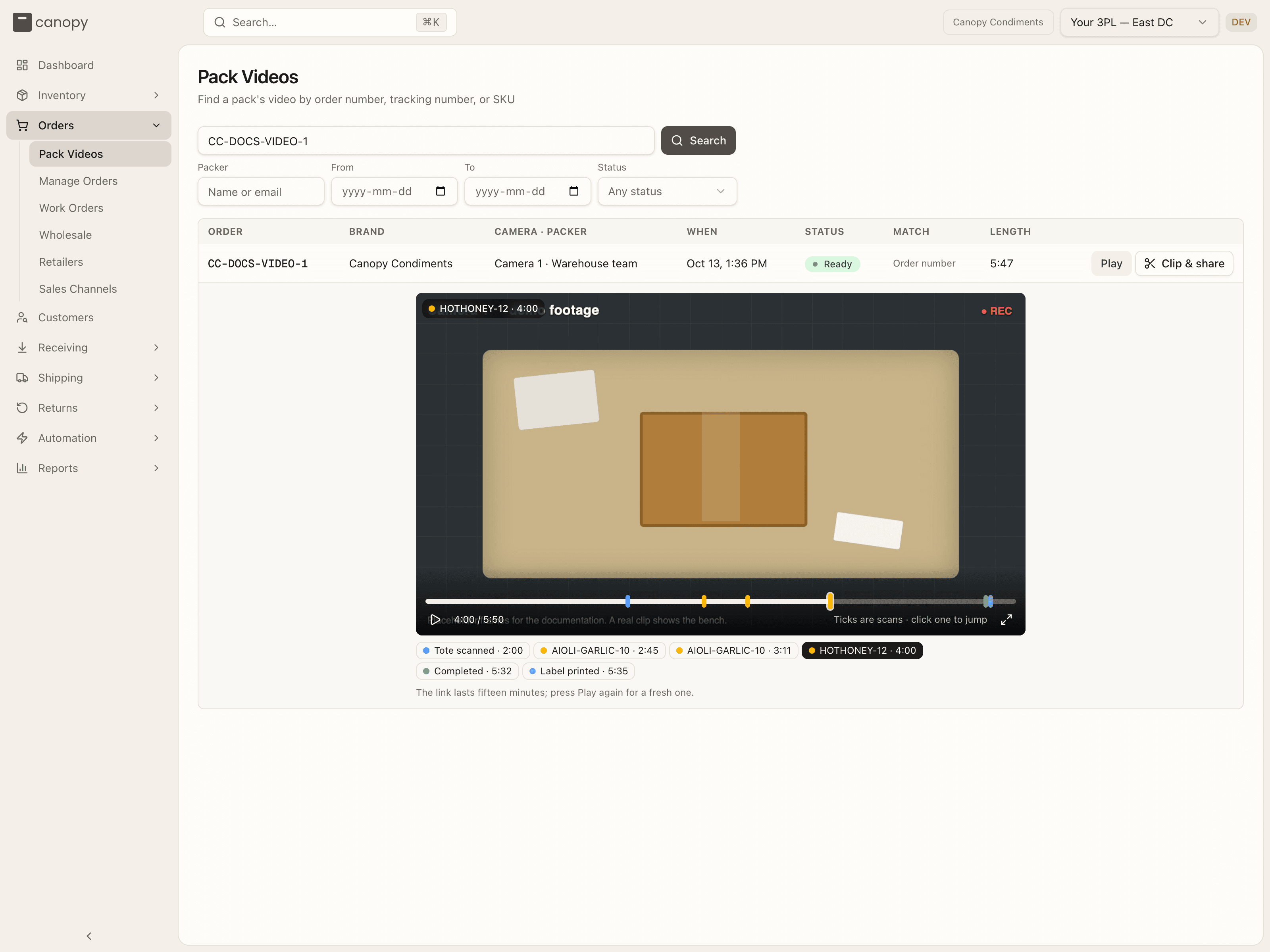
Press Play and the video opens under the row. The ticks on the bar are the scans: blue for the tote, amber for each item, green for the end of the pack, violet for the shipping label coming out of the printer (Label printed, or Label reprinted (2) for a later print). Hover a tick to read it and click it to jump there. The same scans are buttons under the video. If the camera cut out during the pack, a red band shows where, with Video cut and Video back marks. Press Play again to fold the player away. A play link works for fifteen minutes; press Play again for a new one.
If the bench stopped part-way through the pack, say the laptop went to sleep, the pack was filmed in two parts. They play as one video: a dark band on the bar reads Bench stopped · 2 h 13 min, click it to skip to Video resumes, and the second part follows on by itself. The counter reads part 1 of 2 and counts footage only, and the line under the player says 2 parts of one pack, played as one; the dark band is where the bench stopped.
The Video tab on an order
The same clips are on each order. Open the order from Manage Orders and click the Video tab. The clips sit under the parcel they went into, so a split order shows one group per parcel, each with an Open shipment link. Once the shipping label was printed, a line under the row says when, and how many times if more than once. A pack filmed in two parts is one row; the line under it names each part, as Part 1 · Cut short · 1:20. A Held pill on a row, or · held on a part, means your 3PL is keeping that video past its keep-for date.
What the status means
| Status | What it means |
|---|---|
| Ready | The video is there. Press Play. |
| Partial | The video is there, but part of it has no frames. The note under the row says why. |
| Cut short | The video stops before the pack was finished: the bench stopped, the packer signed out, or the pack moved to another bench. The note under the row says which. The rest of the pack, once the camera was back, is a second part. |
| Recording | The pack is still being packed. |
| Waiting for upload or Uploading | The pack is done and the file is on its way. Check back in a few minutes. |
| Waiting for the bench | The bench laptop stopped reporting with this video still on it. It is sent when the laptop is back on. |
| Not available | Your 3PL is checking this clip. |
| Not recorded | There is no video of this pack. The bench had no camera, or the camera was down. Ask your 3PL if you need to know more. |
| Expired | The clip is past its keep-for period and the file is gone. |
Sharing a video
When a customer asks what went in the box, you can send them the video itself. Clip & share on a row makes a share link: a public address anyone can open in a browser, with no sign-in, until it expires or you revoke it. Your 3PL turns this on per brand; until it is on for yours, the button is not there.
The window opens with the video and two handles on its bar. Leave them at the ends to share the whole video, or drag them in to share just a stretch, say the seconds around one item. A stretch must be at least a second and at most three minutes. Link lasts is 1 day, 7 days, 15 days or 30 days, and never longer than the clip is kept. Note to yourself (optional) is a label the person you send the link to never sees; your team and your 3PL's staff see it under Live links. Press Create link. Your link is ready shows the address, a copy button and when it expires; copy the address and send it. Make another clears the form.
The person who opens it sees your 3PL's name and logo, Pack video · the order number, when it was packed, when the link expires, and the video with its ticks. No packer's name. After the link expires, the page reads This link has expired. A wrong address reads This link does not exist; a cut whose copy is still being made reads The video is not ready yet.
Live links at the bottom of the window lists every link to this pack that is still open, with how many times each was opened. Revoke ends one of yours at once. Your 3PL's admins can revoke any link, and can see the links your team made.
Who can see your videos
Only your own brand's users and your 3PL's staff, plus anyone you give a share link to, for as long as that link lasts. Your 3PL can switch video off for your brand, can switch sharing off for your brand, and sets how long clips are kept: 120 days unless they agreed something else with you. Every play is written down, with who watched and when; an open through a share link is written down against the link.
How to find the video of an order
-
Open Orders → Pack Videos.
-
Type the order number and press Search.
-
Press Play on the row. The video opens under it, with a tick for each scan and the same scans as buttons underneath.
-
Click a tick, or one of the buttons under the video, to jump to the item you want to check. Here the video jumped to the second HOTHONEY-12 was scanned.
To send the video to a customer, go on from the same row:
- Press Clip & share. Leave the handles at the ends for the whole video, or drag them in around the stretch you want them to see.
- Pick how long the link lasts and press Create link. Copy the address from Your link is ready and send it. They open it in a browser, with no sign-in.
- To end the link early, open Clip & share on the row again and press Revoke beside it under Live links.
The frames in these two pictures are a placeholder. Your real clip shows the bench.