

RMAs
Every return authorization and where it is — received, inspected, refunded — with full per-RMA detail.
Returns → All RMAs lists every return authorization (RMA) on your account and where it is in the process.
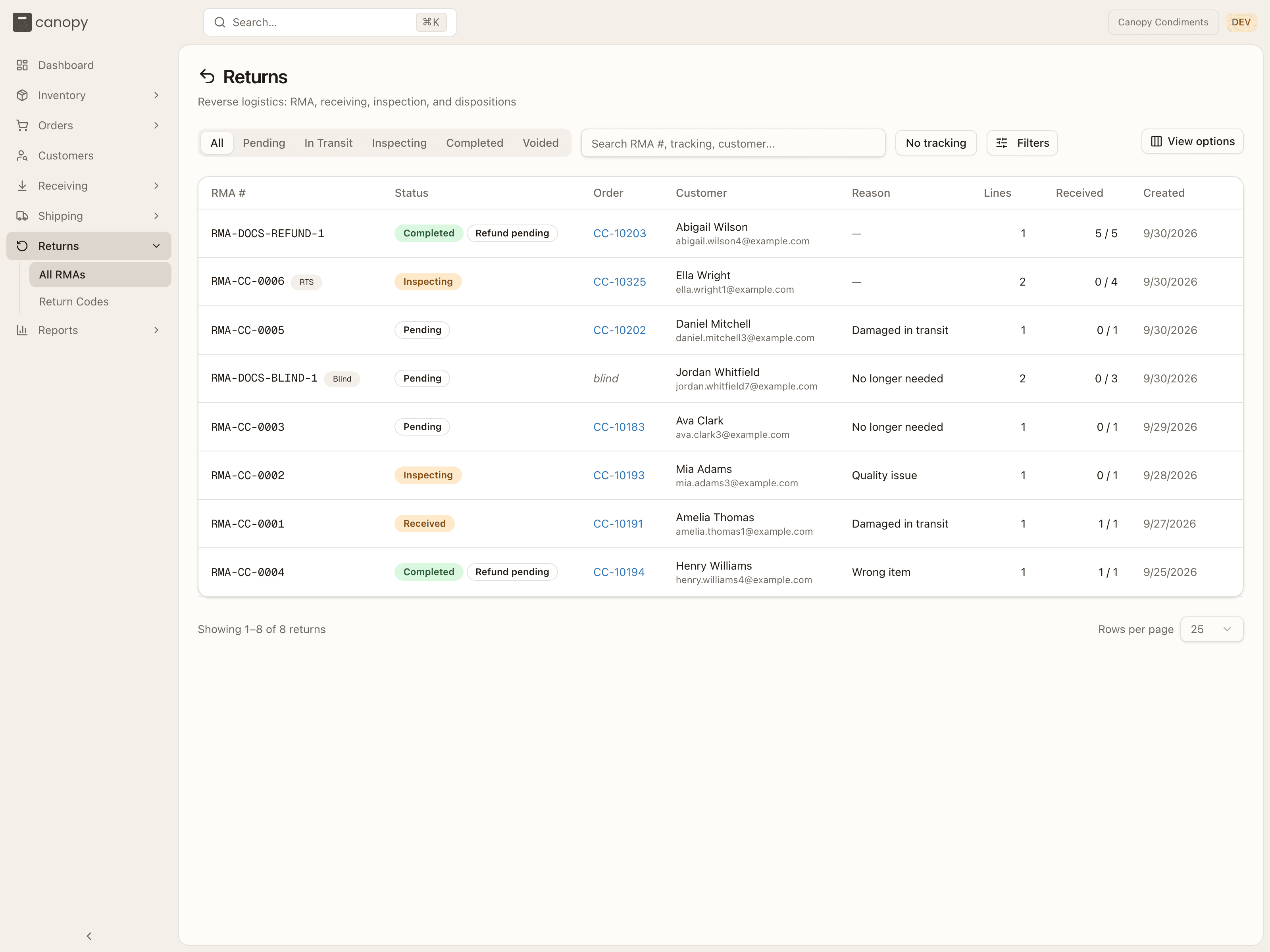
Each row shows the RMA #, its Status, the Order it was raised
against (a link into the order — or blind when the RMA has no linked order),
the Customer, the Reason code, how many Lines it has, Received
units against expected (e.g. 0 / 1), and when it was Created. Every
column sorts; click a row to open the RMA. Small badges next to the RMA number
tell you where it came from: Shopify for a return that originated in your
connected store, RTS for an undeliverable outbound parcel the carrier
brought back (a returned-to-sender return, not a customer return), Blind
for a return your 3PL recorded against an order that was never in Canopy
(shipped before your move, most often — it is a record of what came back and
where it went, and never refunds or syncs to your store), and Resent
as-is for an RTS return completed with nothing received — the parcel went
back out as it stood.
| Status | Meaning |
|---|---|
| Pending | Created; awaiting the customer's parcel. |
| In Transit | The carrier has scanned the return parcel. |
| Received | The carrier reports the parcel delivered to the warehouse. |
| Inspecting | Your 3PL has started receiving and inspecting the units. |
| Completed | Done — units dispositioned, refund ready to resolve. |
| Voided | Voided by your 3PL — raised in error, or against the wrong order. |
Once an RMA is Completed, a second chip shows the refund side: Refund pending (not yet issued), Refund unconfirmed (an issue attempt got no definite answer from the channel — your 3PL will verify and retry), Refunded, or Refund failed. A blind return shows none — nothing is refunded on it.
Narrow the list with the tabs — All, Pending, In Transit, Inspecting, Completed, Voided (a Received RMA appears under All) — the search box (RMA number, tracking number, customer name or email), the No tracking toggle (RMAs with no tracking number logged yet), Filters → Return type (Customer return, Returned to sender or Blind return), and View options to show or hide columns. The table pages at 25 rows; Rows per page offers 25, 50, 100 or 250.
A return made in your store is checked item by item against the location that shipped it. Items another location shipped — your own, or another 3PL's — come in like any other unless your 3PL has set your store to leave them with that location. Then the RMA holds only the items your 3PL shipped (with none of them, there is no RMA), and the order's Timeline says what was left out: Channel return not imported — Return of 2 × ABC-1 shipped from GoBolt LAX2 not imported — that location receives it. An RMA like that speaks only for its own items: completing or voiding it doesn't close or cancel the return in your store, where the other location's part is still open.
An order your 3PL split across two of its warehouses is one order to a return. A return from your store opens on the first of those orders, the one that keeps your order number, and it can take back units whichever warehouse shipped them. The refund counts what every part of the order has already refunded. An RMA your 3PL raises itself can start on any of them.
Following an RMA
Open an RMA for the full picture, across Details, Attachments, and Timeline:
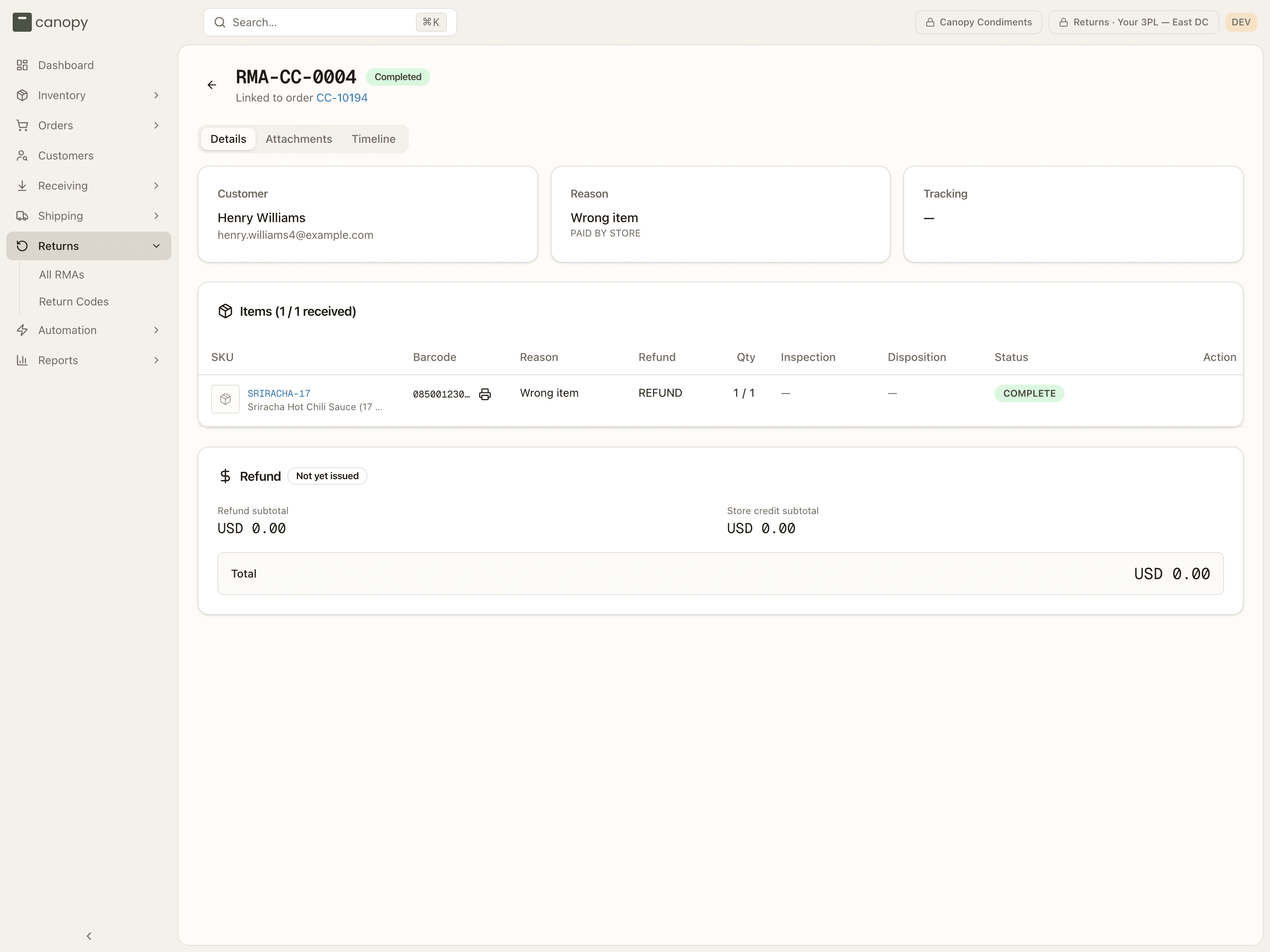
The header shows the RMA number and status, plus Returned to sender on an RTS return, Blind return on one with no order in Canopy, Synced with Shopify on a store-originated return, and a channel-sync badge — Sync pending or Sync failed — telling you whether the return status and refund have made it back to your store. Beneath it, Linked to order … links to the order, or Blind return — no source order.
Details opens with three cards and the items table:
- Customer — who's returning.
- Reason — the reason code, its label policy in raw form (
PAID BY STORE), and any reason detail. - Tracking — the return tracking number as a carrier link and the carrier service (on an RTS return, the original outbound label). When your 3PL generated a return label you also get View label (S3) → and Download label →.
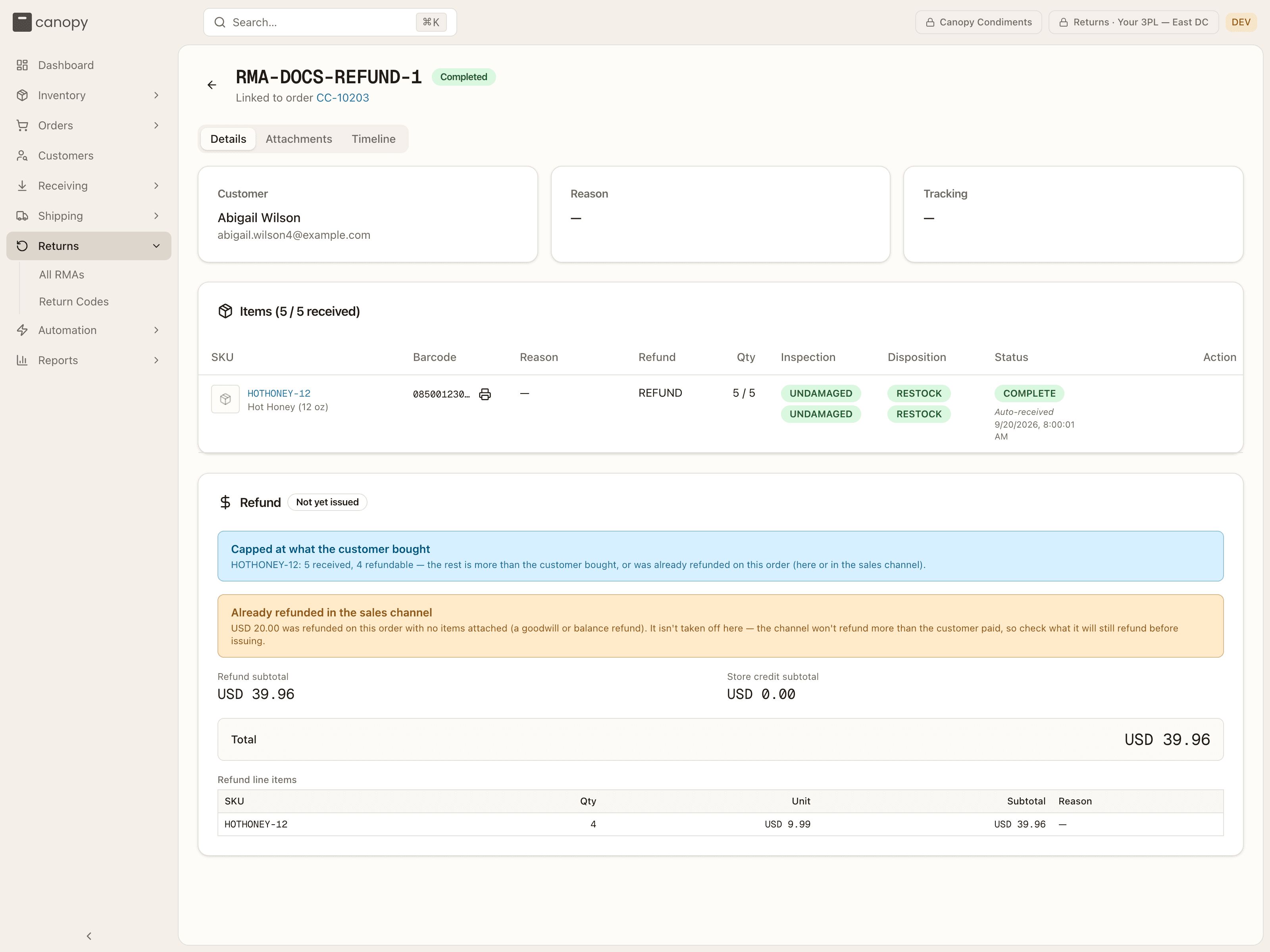
- Items — one row per returned line: SKU (photo, code, name, the lots it
shipped from, and a Not on order badge for an item the customer sent
back that was never on the order, or more of an item than the order line
could take back — no refund on those; a blind return's lines are all of
that kind and carry no badge), Barcode,
Reason, Refund (the line's return type in raw form —
REFUND,STORE CREDIT,EXCHANGE,REPLACEMENT,WARRANTY, or None), Qty (received / expected), and — once a unit has been booked in — its Inspection result (UNDAMAGED,OPENED,DEFECTIVE,WRONG ITEM) and Disposition (RESTOCK,QUARANTINE,DISPOSE,RETURN TO VENDOR), stacked when a line came in over several receipts. Bin locations are not shown on a client account. The Status column carries the line's raw status —PENDING,PARTIAL,COMPLETE,OVER(more came back than expected) orSHORT— and who received it, when. - Refund — on a Completed RMA: the state (Not yet issued, Ready, Issued, Failed — retry available, or Unconfirmed — verify on channel), the Refund subtotal, Store credit subtotal, any Adjustments such as a restocking or return-shipping fee, the Total, and the line items behind each — refund, store credit, exchange, replacement, and warranty (manual review). Once issued, a footer records when and by whom. The refund pays for at most what the customer bought: a unit received beyond that, or already refunded on the order — by an earlier RMA or in your store — is received but not paid, and a Capped at what the customer bought banner names the line; Already refunded in the sales channel notes money your store refunded with no items attached, which the card shows but doesn't subtract.
Attachments is a drop zone plus the file list — you can upload, download, and delete your own uploads. Timeline is the RMA's history — RMA created, Status changed, Item received, Refund issued, and so on, each with who did it (System for a carrier-driven status change) — with a notes composer on top: Post note adds a note your 3PL sees, and you can edit your own.
On a client account you track every RMA end to end. Returns are initiated by the customer in your store and processed — received, inspected, refunded — by your 3PL. You won't see Create RMA, the header actions (labels, scan, void), or the refund's Adjust / Issue Refund buttons. A Receive or Change item control can appear on an open line, but these are warehouse actions: the server refuses them for a client account.